
 English
 Deutsch
 日本語
日本語 简体中文
简体中文 Français
The product you have to light, the chair the art director chose, the corner of a location you scanned: with the 3D Import add-on they become objects that take light, cast shadows and stay in your library for every future job. The import itself is short. The work is getting the size, the orientation and the materials right, because everything you light afterwards depends on them.
Applies to BASIC, STUDIO, CINEMA · Needs the 3D Import add-on (included in the CINEMA trial) · You need: a model file on disk and a project open on the SETUP tab.
What you will have at the end
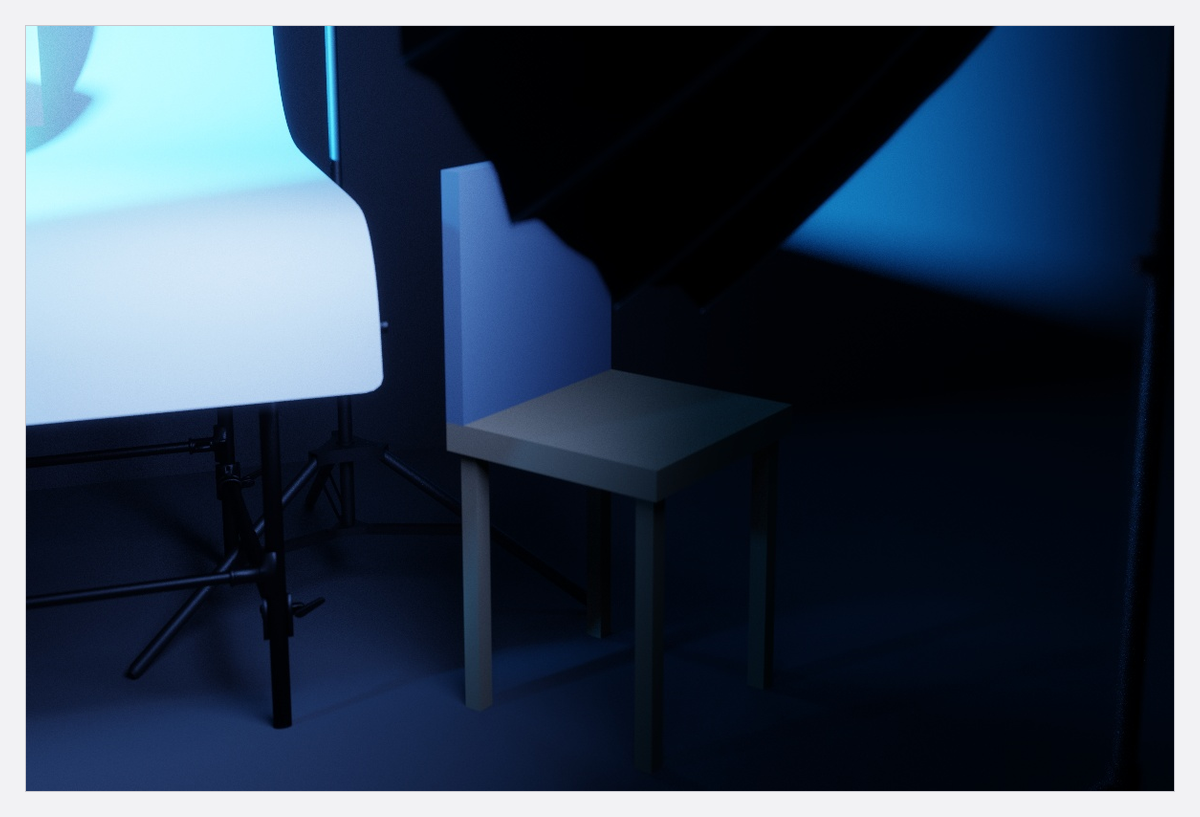
One object in your 3D Objects library at its real size, standing in a lit set, and an archive of your collection you can hand to somebody else.
The route
- Check the file before you import it. Scale, orientation, flipped normals and missing texture coordinates are far cheaper to repair in a modelling program than afterwards. If the model exists in several resolutions, take the lighter one — a heavy model slows the studio view and the render of the whole set, not only its own corner.
- Start the import. Library → ASSETS tab → the 3D Objects group → Import 3D Object, then pick the file. Nine model extensions are offered; what actually arrives — materials, textures, a skeleton, clips — depends on the file and the program that wrote it. See 3D import: what the add-on reads.
- Name it for the library. The Name is what you will search for in six months, not what the marketplace called the archive.
- Get the size right. Open Size and read Object Size: that is the size the object would have in your studio. Hold it against a dimension you know — a seat height, a bottle, a door. The row of unit buttons at the top of the group says which unit the file’s own numbers are read in, so press the one the model was built in —
mm,cm,m,in,ftoryd— until Object Size is close, then correct the rest with Scale Factor. See Import a 3D object. - Orient it and seat it. Click the coloured arrows in the viewport to turn the model in 90° steps, use Mirror X, Mirror Y or Mirror Z if it is mirrored rather than turned, then Center Object and Align to Floor. Neither button runs again by itself, so repeat both after every change to size or orientation.
- Work through the materials. Switch the viewport from Preview to Render and click through the list: pick the shader each surface really is, check the Normals slot — a height map can land in it — and check the Texture Type row in the Shine group, which decides whether a gloss map is read as Roughness or as Smoothness. See Shaders and textures of an imported object.
- Save it into a folder. Choose the folder under Save to Folder and press Apply. If a Warning asks whether the scale is correct, Cancel is usually the right answer: go back to Size and check Object Size again.
- Place it and attach it if it belongs to someone. Drag the entry out of the 3D Objects group into the studio. An imported object can ride on a model’s hand or head — it lands exactly on the mounting point, so nudge it out with small values afterwards. See Attach one object to another.
- Light it like anything else. It takes light, casts shadows and shows the environment in its glossy parts, so a product with a chrome edge is lit with what surrounds it as much as with what points at it. See Add and place lights.
- Back the collection up. File → Export My 3D Objects writes every object and every texture into one archive. Keep a fresh archive outside the program folder; for one object or one folder the smaller export routes carry their textures just as completely. See Share, update and back up your 3D objects.
The clip runs the whole route in 84 seconds, from the download to the object standing in the studio:
The decisions a pro makes
- Import or build. A location made of house fronts, a wall element and a ground plane is lighter, editable and already measured. Import what the shot is about — the product, the hero prop, the shape nothing in the library matches.
- How clean the model has to be. A prop three metres behind the subject forgives a lot; the object the client’s name sits on does not.
- Which shader for which surface. Fine cut-out shapes such as leaves or a grid belong on a masked strip rather than in geometry; a bottle is solid glass, a pane is transparent.
- Where the colour comes from. Many marketplace models arrive with normal and gloss maps and no colour map at all, so each part gets its colour by hand in the importer.
- One entry or several. The library entry is the original, and every set only points at it — so a variation you will re-use is worth its own entry rather than a copy you tweak in one set.
Pitfalls
- What the importer guesses — the unit, the scale, the centring — is a starting point. Check it against a dimension you know.
- Work in metric units. A model imported in feet comes out about eleven times too large.
- Each texture shelf only offers images of the slot’s own kind: an image imported as a gloss map is not offered in the colour slot.
- A map may be up to
8192 pxon an edge, but colour, normals and transparency are kept at4096 pxand gloss and metal at2048 px— an 8k map costs memory and buys nothing. - A material that glows in your modelling program arrives unlit; build the glow in the set instead.
- Editing a material changes the object everywhere, but a copy already standing in a set keeps the Color and Shine stored on that copy.
- Reading an archive in skips an object you already have, corrected versions included. Delete your copy first.
- A
.setfile never contains imported objects. Deliver the archive with the project: Hand over a shoot.
What you have now
- One object in your library at its real size, seated, with materials that behave under light.
- A copy of it standing in a lit set, and a place to put the next one.
- An archive of the whole collection as a backup and as the thing you hand over.
Troubleshooting
- Wrong size, missing texture, an empty library after a move, an import that says everything is already up to date: 3D import problems.