English
 Deutsch
 日本語
日本語 简体中文
简体中文 Français
An animated shot — a camera move, a light that changes over time — leaves the program as an MP4 movie. How you build the animation is in How animation works in a shot, and the export itself is described step by step in Render a video. This page is about the file those steps produce.
Applies to BASIC, STUDIO, CINEMA, each with the Animation Tool add-on (included in the CINEMA trial) · You need: a shot that contains an animation.
Where the export starts
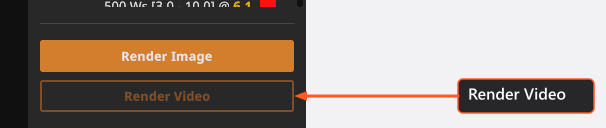
Two routes lead to the same render dialog: the render button in the bottom bar of the ANIMATION tab (tooltip Render) exports the shot you are working on, and Render Video at the bottom of the right panel in the RENDER tab exports every selected shot that contains an animation. Without the add-on, Render Video is not shown at all.
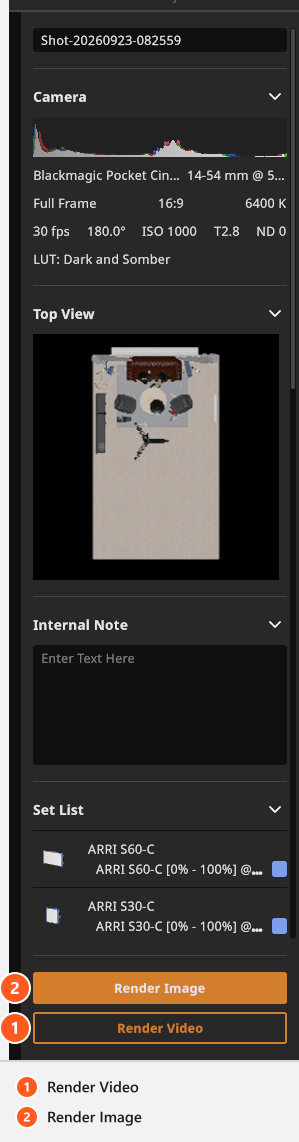
From 06:21 the intro tutorial takes the second route: over to the RENDER tab, two shots selected together, Render Video, and the dialog that decides what the file will be.
What you get
| Detail | Value |
|---|---|
| Container and codec | MP4 with H.264 video |
| Audio | none |
| Frame rate | the frame rate of the animation, 2 to 120 per second |
| Number of frames | duration × frame rate, rounded up |
| Resolution | the long edge from the render settings, the other edge from the sensor and format of the camera |
| File name | from the RENDER tab, the title of the shot plus .mp4, with characters a file name cannot carry replaced by _. Two shots whose titles differ only in such a character — A/B and A:B — are kept apart: the second is renamed to A:B.001 so the files cannot collide. From the ANIMATION tab, the name you type |
| Where | the folder or file you pick when the render starts — never the image folder of the project |
If a batch from the RENDER tab would replace files that are already in the folder, Overwrite Files lists them and asks first.
Final or Preview
Mode decides how much work each frame gets. Final renders every frame with the full sample count of the quality level; Preview uses the much lower preview count — the fast way to check a move before you spend a night on it. Denoiser only applies to Final and disappears from the dialog in Preview.
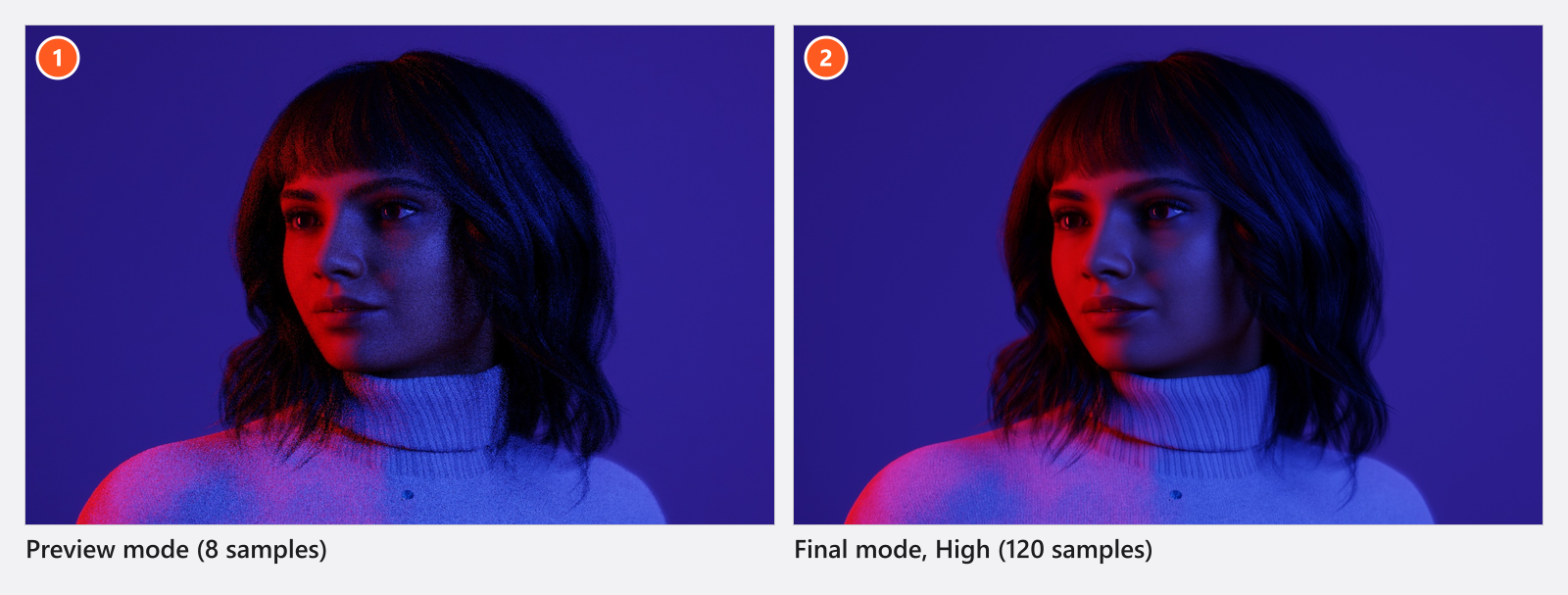
The sample counts behind each quality level, and what the denoiser does with them, are in Quality and denoiser settings — the same ladders as for a still image. The resolution ladder is the same one too:
Render resolutions
| Resolution | Long edge in pixels | Available in |
|---|---|---|
| 800 px | 800 | BASIC, STUDIO, CINEMA |
| 1200 px | 1200 | BASIC, STUDIO, CINEMA |
| 1600 px | 1600 | BASIC, STUDIO, CINEMA |
| 1920 px | 1920 | BASIC, STUDIO, CINEMA |
| 3840 px | 3840 | STUDIO, CINEMA |
Limits
- Every frame is a complete render, so one frame costs one still render. Render a single still of the shot at the settings you want, then multiply by the frame count: five seconds at 30 frames per second are 150 renders. Try
Previewfirst. - Cancel and you keep the frames that were rendered: the movie is closed with the frames it has, not discarded. A cancelled batch leaves the shots after it unrendered, and running it again from the RENDER tab asks before it overwrites the file.
- The shot needs an active camera; without one nothing is written, and in a batch that shot is named in the Render Failed dialog at the end.
- In the trial version every frame carries the same watermark as a still render.
- The movie carries no metadata of the camera — the exposure values are written into JPG renders only.
- Render Video stays greyed out until at least one selected shot contains an animation.