
 English
 Deutsch
 日本語
日本語 简体中文
简体中文 Français
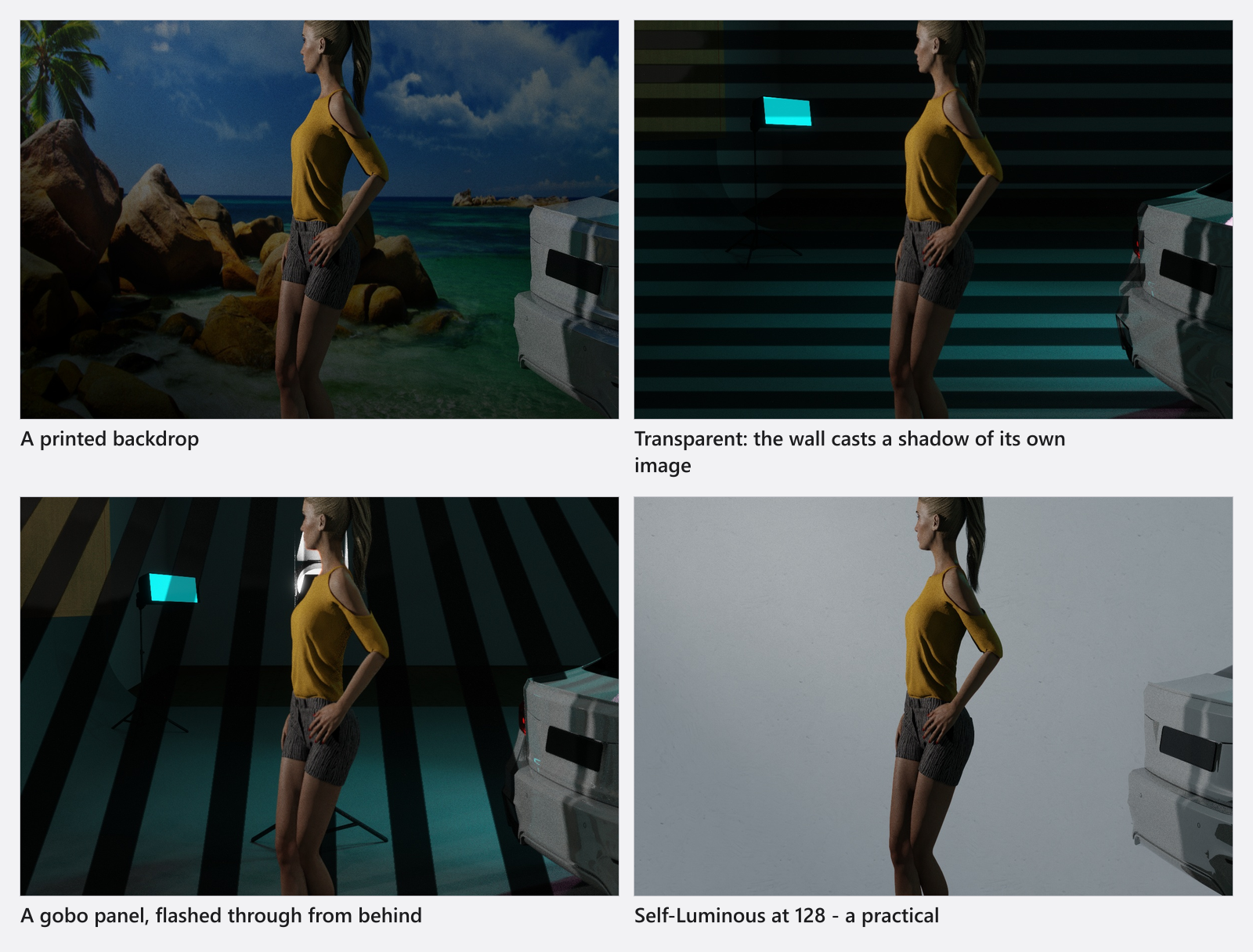
A picture wall is a flat panel with an image on it, and it is four instruments in one: a printed backdrop behind the model, a cut-out tree or figure that casts a real shadow, a panel to flash a pattern through, and the only surface in the program you can make emit light. By the end of this page you can set up each of the four.
Applies to BASIC, STUDIO, CINEMA · BASIC takes JPG files only and holds at most 7 images of your own · You need: a project open on the SETUP tab.
Where to find it
The tile is called Picturewall and it lives in the Props group of the ASSETS tab — but it carries no tag, so no filter will show it. Switch the tag list to All, or type picture into the search field. Drag the tile into the studio view like any other prop.
How to choose the surface
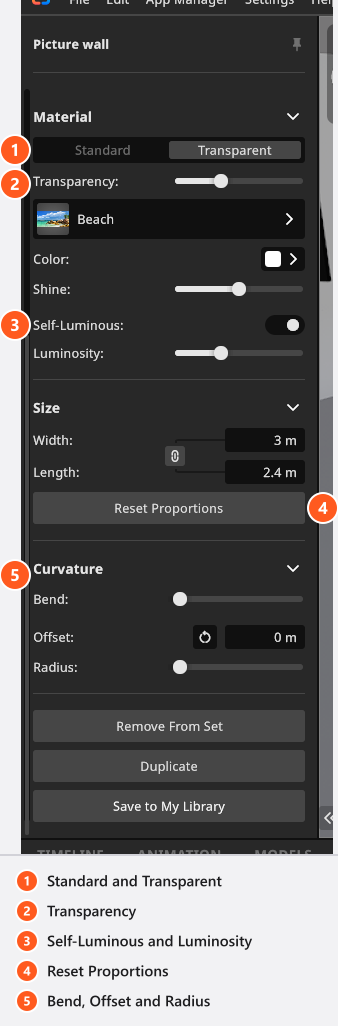
Material starts with two options, and they are not two degrees of the same thing:
- Standard cuts the panel to the image. Wherever a PNG is transparent, the panel is not there at all — that is what turns a cut-out file into a silhouette with a shape of its own.
- Transparent keeps the whole panel and makes it see-through. Transparency (0–1, default 0) sets how far: 0 is solid, 1 is invisible. Use it for glass, a scrim print, or a backdrop you want to see the set through.
Under the two options sit the image button, Color and Shine (0–1, default 0.5). Color tints the image rather than replacing it, so leave it white for an honest print.
How to bring in your own image
Five images ship with the program. To add your own:
- Click the image button in Material and, in the Image popup, choose the add button. → The Add Image dialog opens.
- Click Browse and pick the file. JPG, JPEG, PNG, TGA, TIF and TIFF are accepted, up to 8192 px per edge. → The image appears in the dialog’s preview.
- Confirm. The program stores the image at no more than 2048 px on its long edge, so a 6000 px print file is scaled down on the way in — that is the size the render uses.
Back in the inspector, Reset Proportions takes the aspect ratio of the current image and rewrites Width so the panel matches the picture instead of stretching it.
Own images are managed in the App Manager under Resources → Picturewall Images, where you can also edit or remove them.
Picture wall images
| Name |
|---|
| Beach |
| Brick Wall |
| Concrete |
| Roller Blind |
| Stripes |
How to set size and curvature
Size has two fields, Width and Length, linked by default; a new panel is 4 × 4 m. Unlink them to stretch one axis, or use Reset Proportions to match the image.
Curvature bends the panel, which is what makes a backdrop stop looking like a poster:
| Control | Range | Default | What it does |
|---|---|---|---|
| Bend | 0°–180° | 0° | Curves the panel around the vertical, from flat to a half cylinder. |
| Offset | 0–10 m | 0 m | Pulls the bottom edge forward into a sweep towards the floor. |
| Radius | 0–1 | 0 | How tight that sweep is. It is a factor, not a measurement in metres. |
Picture wall
| Setting | Range | Default | Unit | Animatable |
|---|---|---|---|---|
| Bend | 0 – 180 | 0 | yes | |
| Color | white | yes | ||
| Luminosity | from 1 | 128 | yes | |
| Offset | 0 – 10 | 0 | m | yes |
| Radius | 0 – 1 | 0 | yes | |
| Self-Luminous | off | no | ||
| Shine | 0 – 1 | 0.5 | yes | |
| Size | 4 | m | yes | |
| Transparency | 0 – 1 | 0 | yes |
How to make it glow
Self-Luminous turns the panel into an emitting surface and enables Luminosity. This is how you get a window, a screen, a lightbox or an illuminated sign that actually lights the set.
- Luminosity starts at 128 and the slider is logarithmic: it runs from 1 up to 1,048,576, and each doubling is one stop. The number is not lux, candela or watts — treat it as a relative brightness and set it by looking at the render.
- 128 on a 1 × 1 m panel reads roughly like a soft practical a couple of metres from the subject. Double it per stop you need.
- The image is what emits, so a picture of a window emits in the shape of its panes, and Color tints the light as well as the surface.
A glowing picture wall is a surface, not a lamp: it has no power setting in watts, no target lock and no light shaper. Aim it by rotating the panel.
A worked example: a cut-out tree with a real shadow
You want dappled shade on a portrait without building a garden. Bring in a PNG of a tree with a transparent background, set Material to Standard, and size the panel to about 3 × 4 m. Stand it between your key light and the model, roughly a metre behind the light, and turn the light’s diffusion down so the edges stay readable. The transparent parts of the file let the light through and the trunk and leaves block it — you get branch shadows on the background and a broken light on the shoulder, and you can move the whole pattern by dragging one panel.
Tips & limits
- Panels do not have to be visible in frame. A cut-out used purely as a shadow caster can stand outside the picture entirely.
- A picture wall is a prop, so it takes Position, Rotation and an attachment point like any other — you can hang a small one in a model’s hand. See Attach one object to another.
- (BASIC) Own picture-wall images must be JPG, and the library holds at most 7 of them. The cap stops you adding an eighth; with seven in the library you can still open one and replace its image, because the count does not grow.
- Gobos and projector slides are a different route to a pattern, and they belong to the light rather than to the set — see Project a pattern or an image.
Troubleshooting
- My PNG is a rectangle instead of a cut-out. Material is on Transparent. Switch it to Standard.
- The panel is stretched. Click Reset Proportions, or unlink the two Size fields and set them by hand.
- My print looks soft in the render. Stored images are capped at 2048 px on the long edge. Crop the file to the part you actually use before you bring it in.
- Luminosity does nothing. Self-Luminous is off; the slider is disabled until you switch it on.
More symptoms: Objects, rooms and measurement problems