
 English
 Deutsch
 日本語
日本語 简体中文
简体中文 Français
set.a.light 3D ships 5 camera bodies, 52 lenses and 6 mounts — useful for planning, but not your kit. Add the body you shoot with, the zoom you own and a mount named after your own stand, hide the rest so the lists stay short, and your gear behaves like the built-in gear everywhere.
Applies to BASIC, STUDIO, CINEMA · With a BASIC licence the film body models and the film rig templates are not offered in the dialogs · You need: a camera in the set, or the App Manager open.
Where to find it
There are two routes to the same dialogs:
- From the camera: Equipment → the picker under Camera, Lens or Rig. Each list has an add button beside its search field; it opens the matching dialog, and what you build is mounted on that camera straight away.
- From the App Manager: the Cameras band, with the pages Defaults, Cameras, Lenses and Rigs. Each page lists what exists, with New Camera / New Lens / New Rig and an Edit … button.
The App Manager itself is described in Manage your resources in the App Manager.
How to set what a new camera arrives with
- Open the App Manager and go to Cameras → Defaults.
- Set Default Lens and Default Rig. → Every camera you place from the library afterwards arrives with that lens and that mount. Cameras already in the set keep theirs.
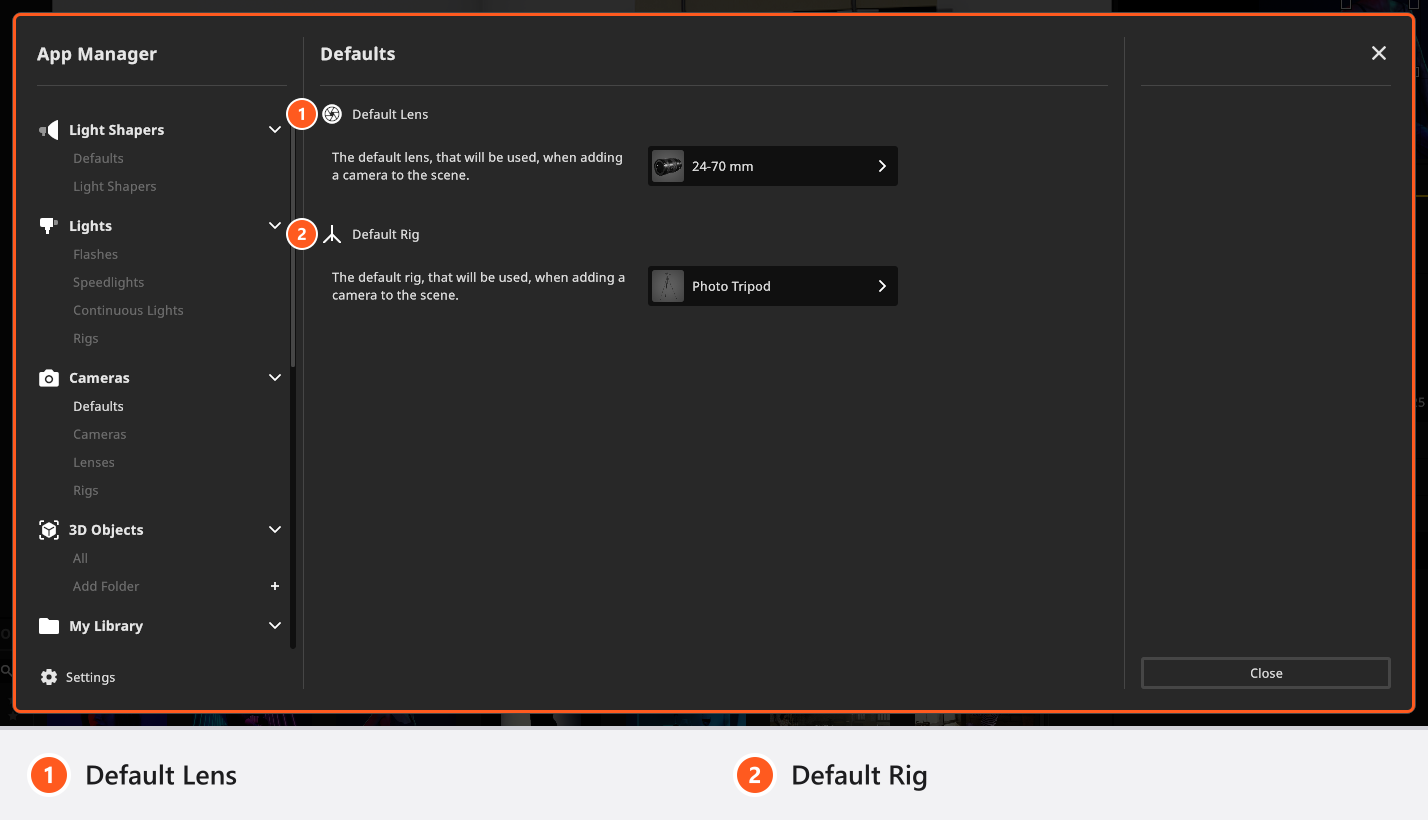
The clip sets both, from 04:48:
How to build your own body
- Click New Camera on the Cameras page, or the add button in the camera’s Camera picker.
- Type a Name — what the pickers show, at most 50 characters — and choose the camera model, the body you see standing in the studio.
- Choose the Sensor and the Format, then click Add. → The body appears in the list and, if you started from the picker, on your camera.
Sensor and Format each offer presets and a Custom entry. Only with Custom are the sensor’s name and its two size fields editable; they start at 36 × 24 mm and take 1 to 1000 mm. A custom Format is a ratio in two fields taking 1 to 100. BASIC has no film models.
Choosing a body applies its sensor, format and type together, so a body you built as a film camera switches that camera to Film.
A Custom body re-opens with the sensor name you gave it and Apply keeps it; a preset shows its own label there, greyed out.
How to build your own lens
Lenses can be built and edited with every licence, BASIC included.
- Click New Lens on the Lenses page, or the add button in the camera’s Lens picker.
- Type a Name, again at most 50 characters.
- Choose the barrel model — the lens you see on the camera in the studio.
- Set the focal length. A new lens starts as a
12–50 mmzoom; each field takes1to9999 mm, and the upper value may not be smaller than the lower — for a 70–200 mm, type70and200. - For a prime, switch Fixed Focal Length on instead. → The second field disappears, and on the camera the zoom slider is dead, as on a real prime.
- Pick a Lens Luminosity and click Add.
The badges below are these step numbers.
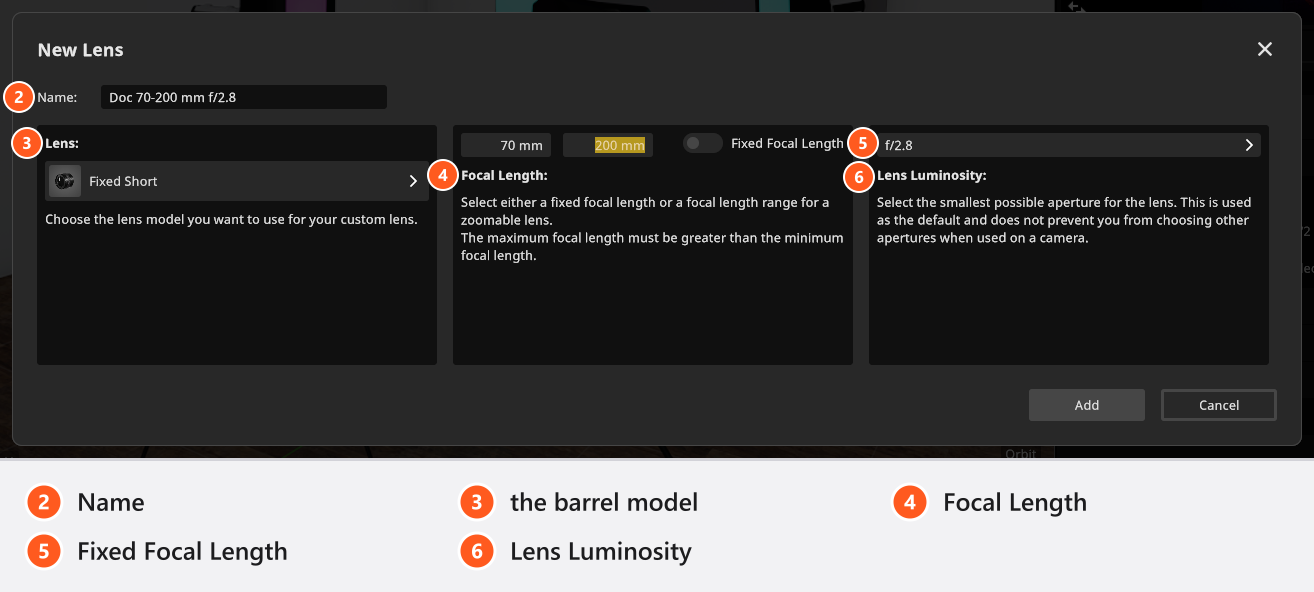
Lens Luminosity records the lens’s fastest stop for your own reference. Mounting the lens does not change the camera’s Aperture, and nothing stops you setting a wider stop than the lens has — the dialog’s help text promises more than the program does. Mounting a lens does one thing: it pulls the current focal length into the new lens’s range.
From 05:26 the clip shows a finished lens on the Lenses page, the unused ones switched off:
How to build your own mount
- Click New Rig on the Rigs page, or the add button in the camera’s Rig picker.
- Type a Name and choose a Template. → The new mount is a named copy of that template: it looks like it and offers exactly its axes and limits.
- Click Add.
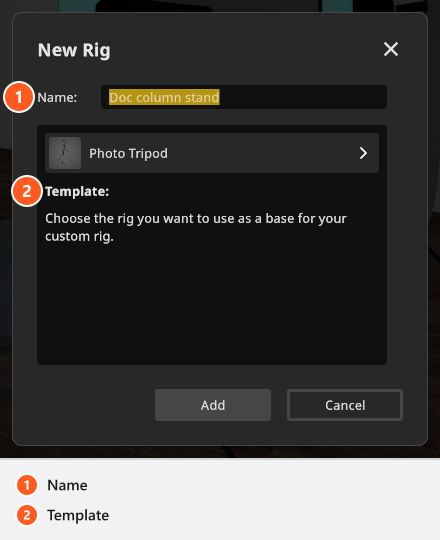
A custom mount is not imported geometry: “my own crane” means “the shipped crane under my name”. With a BASIC licence the film templates are not in the Template list. The axes each template brings are in Camera rigs: axes and limits.
For your own looks, import a .cube file — see Grade the image with LUTs and effects.
Why Add stays switched off
Add — or Apply when editing — is only clickable once the dialog has everything it needs:
| Dialog | What it needs |
|---|---|
| New Camera | a name that is not empty, and a camera model |
| New Lens | a name, a barrel model, a lower focal length above 0, and an upper one that is not smaller |
| New Rig | a name and a template |
A name of only spaces counts as empty. If saving fails — disk full, file in use — the entry stays as you typed it and a second dialog, Failed to Save Resource, says what went wrong.
How to cut the lists down to the gear you own
On any page, click the eye on an entry to hide it. Hidden gear disappears from the pickers and the library but stays in the App Manager, marked with a crossed-out eye; one more click brings it back. Select a range with Shift first and the eye acts on the whole selection — how you switch off 40 lenses in one go.
Hiding is not deleting. To remove an entry for good, click the bin on it and confirm in Delete Resource; with several entries selected the bin acts on the whole selection. Only gear you built yourself can be deleted or edited — the built-in bodies, lenses and mounts cannot.
Where your own gear lives
Your bodies, lenses, mounts and LUTs live on this computer, per installation; they are not part of a project and not synced anywhere. A project that uses one of them carries a copy inside its .set file, so a shoot you hand over opens with the right gear on the other machine — and an old set still opens after you deleted the gear from your library. Gear that arrived inside a set is marked as such in the App Manager.
That copy is the only way your kit travels: the library itself has no export and no import. To use the same gear on a second computer, open a project there that uses it, or build the entries again.
Troubleshooting
- Add is greyed out and I cannot see why. Check the name field first — empty or spaces only — then the table above.
- My custom sensor lost its name. Re-opening a custom body clears it; type it again before applying.
- A body I built is not in the picker. Either it is hidden (check the eye), or it is a film body on a BASIC licence.
- More symptoms: Camera problems.