
 English
 Deutsch
 日本語
日本語 简体中文
简体中文 Français
My Library holds the pieces you build once and use forever: a three-light rig, a dressed corner, a customised model, a whole set. An entry belongs to your installation, not to a project, so what you save today is in every project you open tomorrow.
Applies to BASIC, STUDIO, CINEMA · Inserting more than five lights is refused in BASIC · You need: a project open on the SETUP tab.
Where to find it
Open the ASSETS tab of the library panel and pick My Library in the column on the left. The same list is on the My Library page of the App Manager, where you can hide entries you rarely need and delete the ones you do not.
Three things are easy to mix up. A My Library entry is a part of a set that you drop into an existing project. A set template is the whole studio and starts a new project (STUDIO and CINEMA only, see Create, open and save a project). A .set file is the job, with all of its shots.
How to save a selection as an entry
- Select what you want to keep — for a lighting rig all the lights, with their stands and light shapers.
- Right-click the selection in the SETLIST and choose Save to My Library. The same button sits at the bottom of the inspector, and dragging the selection from the SETLIST onto My Library in the ASSETS tab opens the same dialog — but these routes do not all save the same thing, see the table below.
- The dialog is titled Save to Library. Its Name is pre-filled with the name of the first selected object — replace it with something you will recognise in six months.
- Pick a Folder and click Save. → The entry appears in that folder of My Library. Leave the field on My Library to keep the entry at the top level.
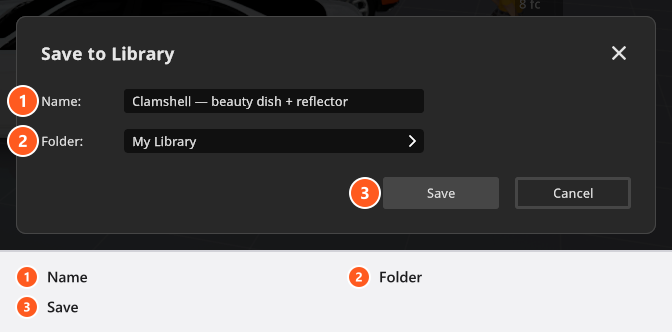
An entry can be a single object, a group, several groups, or a whole set including cameras. Which route you take decides what ends up in it:
| How you start it | What the entry holds |
|---|---|
| Drag the selection from the SETLIST onto My Library | The selected objects — and the environment as well, when the Environment row is part of the selection |
| Save to My Library in the right-click menu of an object row | The selected objects only, never the environment |
| Save to My Library in the right-click menu of the Environment row | The environment on its own, without any objects |
| Save to My Library at the bottom of the inspector | The one object the inspector is showing |
So an entry that carries a rig and its environment can only be made by dragging — and that is the one to be careful with, see the warning below.
The first minute of this quick tip is exactly that procedure, followed by a group of props saved as one entry.
How to insert an entry
- Drag it from the library into the studio view. → It arrives where you drop it.
- Or double-click it. → It arrives at the zero point of the set.
Either way the entry keeps the structure it had when you saved it: a group arrives as a group, so a cluster of props you arranged once drops in and rotates as one object. Relative positions, power, light shapers, gels and colour temperatures are all part of the entry.
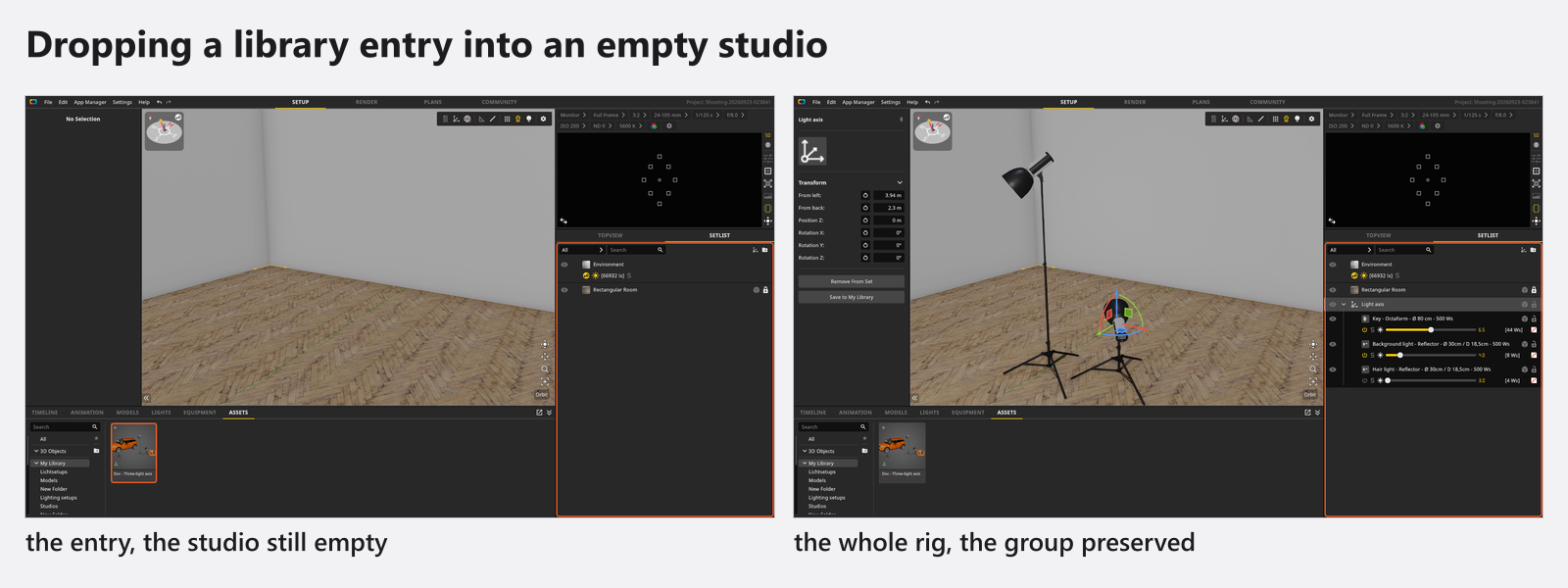
An entry that was saved together with the Environment row carries that environment with it. Dropping it into another project replaces the environment of that project — sun, background and atmosphere included. Save the rig and the environment as two entries if you want to choose later.
How to sort your library into folders
A grown library needs folders — one for lighting setups, one for studios, one for models.
| What you want | How |
|---|---|
| A new folder | The add-folder button above the list (tooltip Add New Folder); in the App Manager the same function is labelled Add Folder |
| Rename one | Double-click its name and type, up to 30 characters |
| Move entries | Drag them onto the folder |
| Remove one | The bin on the folder row |
From 01:24 the clip builds the two folders of the example above.
Folders under 3D Objects in the same tab work the same way but need the 3D Import add-on; My Library folders are available in every edition. See Share, update and back up your 3D objects. The library as the App Manager shows it — hiding entries, deleting them — is described in Manage your resources in the App Manager.
Tips & limits
- In BASIC, an entry with more than five lights is inserted without the surplus lights and reports “You can only create up to 5 lights in the BASIC edition. Please purchase an upgrade to STUDIO or CINEMA if you want to use more lights.” Everything else in the entry arrives.
- There is no limit on how many entries My Library holds, and an entry can be as big as a whole set.
- Entries live with your user data, not in the project file. File → Export User Data and Import User Data move your own resources to another computer; the import replaces the settings and presets that are there, so it is a first-run step, not a merge. My Library entries travel with that export; set templates do not.
- Anything from an inserted entry that you do not need is faster switched off with
Qor hidden with the eye than deleted. Every key named on this page is the default binding — see Change a keyboard shortcut.
Troubleshooting
- My whole room changed when I dropped an entry in. The entry was saved with the environment. Undo with
Ctrl+Z, then save the rig again without the Environment row. - An entry is missing on my second computer. Library entries are user data, not part of the project. Move them with Export User Data / Import User Data.
- One light of my rig is missing after inserting it. You are on BASIC and the set is at five lights — see BASIC, STUDIO and CINEMA compared.