
 English
 Deutsch
 日本語
日本語 简体中文
简体中文 Français
Nothing in a lighting setup is built only once: you want the second strip light on the other side, the same three-light rig in the next shot, and your studio standard in next week’s job. This article covers the four ways to reuse work — duplicate one object, paste between shots, paste between projects, and save a piece to My Library.
Applies to BASIC, STUDIO, CINEMA · BASIC stops at five lights per set · You need: a project open on the SETUP tab and something selected.
Where to find it
There is no “reuse” panel — the four routes sit where the thing you want to copy is:
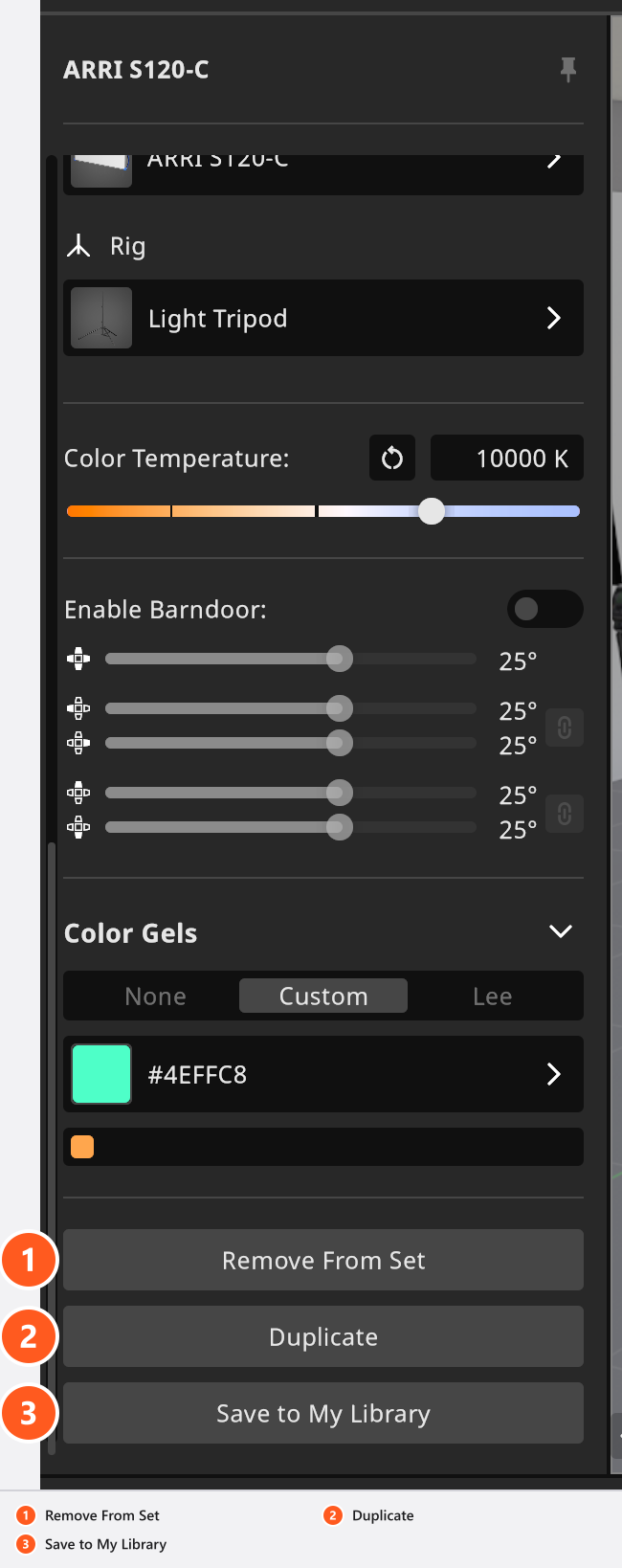
- Duplicate and Save to My Library are buttons at the bottom of the inspector of the selected object.
- Save to My Library is also in the right-click menu of the SETLIST.
Alt-drag, copy and paste work in the studio view and in the SETLIST.- Saved entries come back from My Library in the ASSETS tab of the library panel.
Every key named on this page is the default binding — see Change a keyboard shortcut.
How to duplicate one object
Two routes, and they behave differently:
- Select the object and click Duplicate at the bottom of the inspector, between Remove From Set and Save to My Library. → A full copy appears, with every setting kept: power, light shaper, gel, colour temperature.
- Or hold
Alt(macOS:Option) and drag the object in the studio view. → The copy follows your pointer until you drop it.
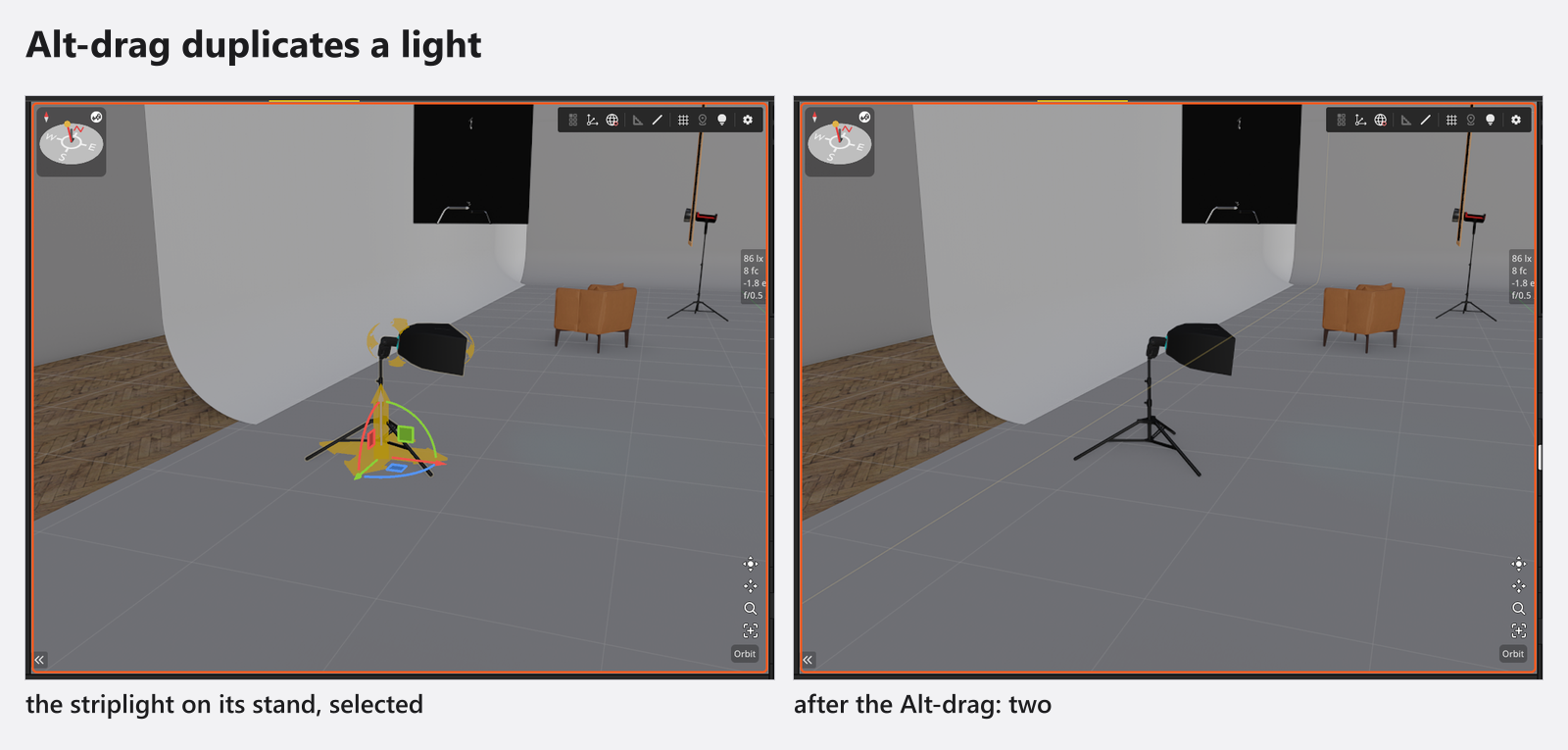
Both routes bring the object’s animation along (add-on: Animation Tool). The copy’s Position keys are shifted by the same offset as the copy itself — the sideways step Duplicate takes to reach a free spot, or the distance you dragged with Alt — so the copy runs its path beside the original’s instead of through it. Every other track is copied unchanged.
What the Alt-drag copies depends on the handle you grab:
- The move handles of the selection, or the handles of a group, an axis or a light: the whole selection is duplicated, so a light arrives with its stand and its light shaper.
- The handle of a single object — a wall opening, an object’s own outline handle, the floor handle of a tripod: only that object is duplicated. A locked object is not.
If no copy appears, you grabbed something that does not duplicate: use Duplicate in the inspector instead. Groups and axes have no Duplicate button at all — copy their contents, or Alt-drag the group’s handle.
How to paste into another shot or project
The normal shortcuts work inside the SETUP tab:
- Select one or more objects, in the studio view or in the set list.
- Press
Ctrl+C/Cmd+C. - Load the shot you want them in, or open the other project.
- Press
Ctrl+V/Cmd+V. → The objects arrive with the hierarchy they had, so a group stays a group.
Objects that were mounted on a wall are re-attached to the wall you have selected in the target scene. If the pasted objects land outside the current view, the studio camera frames them for you. The system clipboard carries the objects, so this route works from one project to the next — copy, open the other project, paste.
An animated object is pasted the same way as any other (add-on: Animation Tool): it goes to the next free spot when its own place is taken, with its Position keys shifted along, so it never lands inside the original. Pasted into another shot or another project it keeps the stored place and its keys unchanged, as long as that place is free.
How to keep a piece for every future project
For anything you need again and again, save it once instead of copying it: select the objects, right-click in the SETLIST, choose Save to My Library, give it a Name and a Folder and click Save. The whole procedure, including folders and the surprises of a saved environment, is in Save your own rigs to My Library.
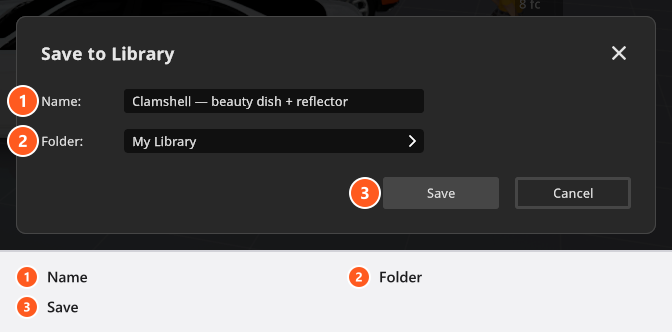
From 02:24 the same tutorial saves a finished set as one library entry and pulls it into a brand-new project.
How to make a variation of a shot
Load the shot you want to vary, change the one thing you want to compare, and press Shift+Enter (by default). → The new shot is inserted right behind the original, so the two versions sit next to each other in the TIMELINE. There is no “duplicate shot” command; this is the route. See Take and manage shots.
To move shots into a different project, export and append them — see Move shots between projects.
Tips & limits
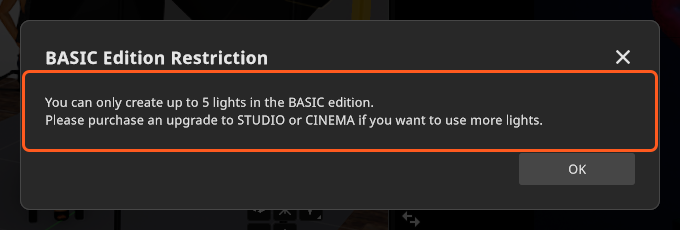
- BASIC is limited to five lights per set. A paste that would go beyond inserts everything else and skips the surplus lights, then reports “You can only create up to 5 lights in the BASIC edition. Please purchase an upgrade to STUDIO or CINEMA if you want to use more lights.” The same message can stop an Alt-drag earlier than you expect, and even when the object you drag is not a light — the inspector’s Duplicate still works for anything but a sixth light. See BASIC, STUDIO and CINEMA compared.
- Every duplicate and every paste is its own undo step (
Ctrl+Z/Cmd+Z), animation included: two pastes from the same clipboard are two steps, and undoing one takes the copy’s tracks with it. - Rename copies straight away. A duplicate carries the name of its original, and three identical rows on a set plan tell an assistant nothing —
Key,Fill,Hairdo.
Troubleshooting
- Alt-dragging does nothing. The handle you grabbed does not duplicate, or the set is at the BASIC light limit. Use Duplicate in the inspector.
- My pasted rig lost its wall. A wall-mounted object needs a wall selected in the target scene, otherwise it arrives at the top level of the set.