
 English
 Deutsch
 日本語
日本語 简体中文
简体中文 Français
Most support cases are one of a handful of dialogs. This page is the way in: first the symptom index for the whole chapter, then the messages you are most likely to meet — a project that will not open or save, an image the program refuses, a download that fails, and how to send a report a developer can work with.
Applies to BASIC, STUDIO, CINEMA · Windows and macOS.
Start here
| What you see | Go to |
|---|---|
| Everything is slow: dragging stutters, a render takes hours | Make it faster |
| The picture is wrong rather than slow, or the program will not start | Graphics problems |
| A render produced no file, the wrong file, or none at all | Render problems |
| The light does something you did not ask for | Lighting problems |
| The camera, the focus or the preview misbehaves | Camera problems |
| A model will not move, pose or change | Model problems |
| An object, a room, a window or a measurement misbehaves | Objects, rooms and measurement problems |
| Keyframes, playback or a video export misbehaves | Animation problems |
| An imported 3D object is wrong, missing or will not update | 3D import problems |
| The program stopped and you want your work back | Recover a project after a crash |
| Installing or the first start fails | Installation problems |
| An update will not run, or the offer looks strange | Update set.a.light 3D |
| An activation, a trial or a licence message | License and activation problems |
An autosave exists for this project
You open a project and get Autosave Exists:
An autosave file exists for the file you are trying to load. Do you want to load the autosave instead? If you load the original file, the autosave file is kept until your changes are autosaved.
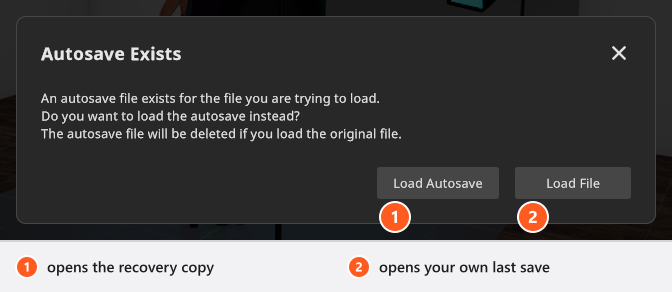
Cause. An autosave is on disk for exactly this project file. Autosaves are written while you work; they are kept in one central folder in your local application data, not next to your project, and the file name carries the project name plus a short code derived from the project’s full path, so two projects called Portrait.set in different folders never overwrite each other.
What to do. Load Autosave opens the automatically saved state; Load File opens your own last save and leaves the recovery copy on disk, so you can still go back to it — until your next autosave overwrites it with the work you have done since. Nothing is lost by picking either button. The prompt does not compare the two files either — it only checks that an autosave is there — so it also appears when your own save is the newer one.
A loaded autosave is deliberately not linked to a file. Save it with Save Project As before you carry on. The full procedure, including crash files, is in Recover a project after a crash.
A project will not open
The dialog is titled Project Failed to Load. Three messages are possible:
| Message | Cause | What to do |
|---|---|---|
| Could not open file! The file was saved with a newer version ({Version}) of set.a.light 3D. | The .set file comes from a newer build than yours |
Update, renew your updates, or ask the server — see below |
| Could not read the .set file. Make sure the storage device is accessible. | The file could not be read at all | Check network drives, external disks, sync folders and file permissions, then copy the file to a local folder and try again |
| Could not load the project. If this issue persists, please submit a bug report with the .set file you were trying to load. | The file was read but not understood | Report it and attach the file |
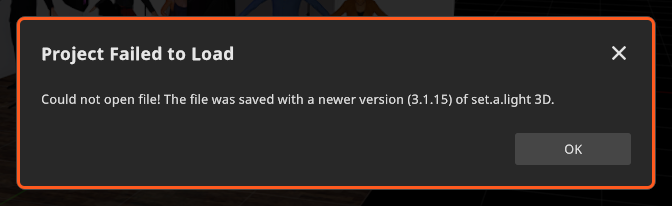
For the newer-version case the dialog adds one next step, and which one you get depends on your update status:
- An update that covers the file is waiting: a line saying the new version is ready to install, plus Update Now.
- Your free updates have ended before that version: the end date and Renew Updates.
- No answer from the server yet: Check for Updates, which asks again on the spot.
A setup downloaded from the community shows the same wording under Download Failed. Older projects are migrated forward when you open them, so a V2 or an earlier V3 file opens normally — but a damaged or unconvertible file still lands on the third row of the table above.
A project will not save
Failed to Save Project — Could not save the .set file. Make sure the storage device is accessible. The target folder is gone, read-only, full, or the file is held by another program. Your project stays open and unchanged.
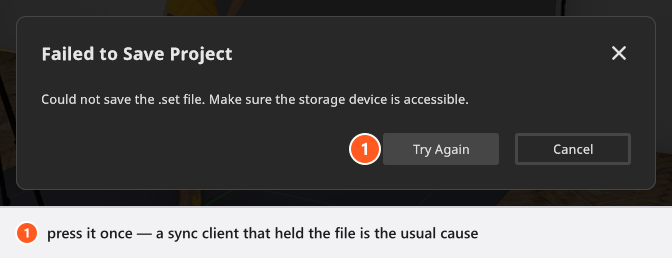
- Press Try Again once — a sync client that had the file open for a moment is the most common cause.
- If it fails again, use Save Project As into a local folder. Rescue the work first, investigate the original location afterwards.
A failed render or a failed export follows the same pattern under Render Failed or Export Failed: the full path, either Could not access file. or File is already in use by an other process., and again Try Again and Cancel. Saving an own resource — an imported object, an own light, a group for your library — fails as Failed to Save Resource with Disk is full. Ensure that enough space is available. or File is in use by another process.
An image will not import
- Image is too large under the preview: no imported image may be larger than
8192pixels on an edge. - Image is not supported or corrupt: the file could not be decoded. Re-export it as a plain JPG or PNG. The formats the program reads are listed in Supported file formats.
- Your gobo, projector or picture-wall image arrives softer than the file you picked: those slots cap an image at
2048pixels on an edge, so a bigger file is reduced and a smaller one is left as it is. A gobo mask is additionally resized to512 × 512and averaged to greyscale, whatever size it had. A 4000-pixel mask therefore cannot be sharper than that. - LUT is too large! Maximum supported size: 90 when importing a
.cubeLUT: the cube edge may not exceed90steps. - (BASIC) You can keep at most
7of your own images per category, and the picture-wall picker offers only JPG files. At the limit the dialog says The BASIC edition supports only 7 custom images and the add button stays inactive.
A 3D model that does not even appear in the file dialog is a different case: the picker lists only the formats the importer reads. See 3D import problems.
A community download fails
- Download Failed — Loading the set file failed…: try another setup to see whether it is that one entry, then report it with the link if it repeats.
- Download Failed — Could not load the set file. The file was saved with a newer version…: the setup was uploaded from a newer build. Update and try again.
- The community failed to initialize. Please report this as a bug.: the built-in browser did not start. Restart the program; the COMMUNITY tab is a web view and depends on your network.
- Community is disabled through license settings is not a fault. Some volume and education licences switch the tab off — see License and activation problems.
Not a bug
These four look like faults and are not:
- The autosave prompt appears although your own save is newer. It tests only whether an autosave exists.
- A cancelled render leaves no file. The image is written after the last sample, never during.
- The window goes quiet when you click into another program or leave it alone for a few seconds — a power-saving measure, explained in Make it faster.
- The same key does two different things in two panels. Shortcuts follow the panel under the pointer — see Keyboard shortcuts.
How to report a bug
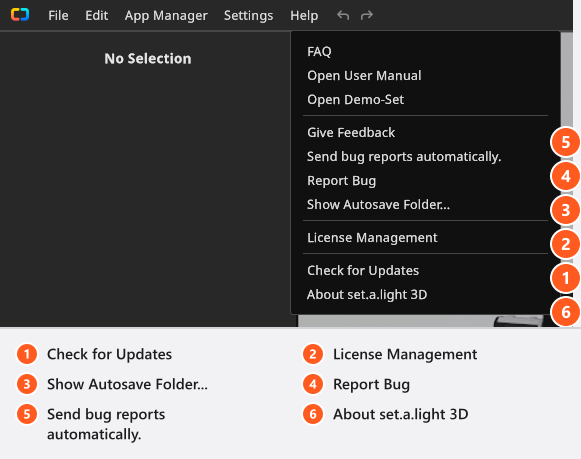
Help → Report Bug opens a dialog titled Error with a Comment field for your description and your email address, and a Send button.
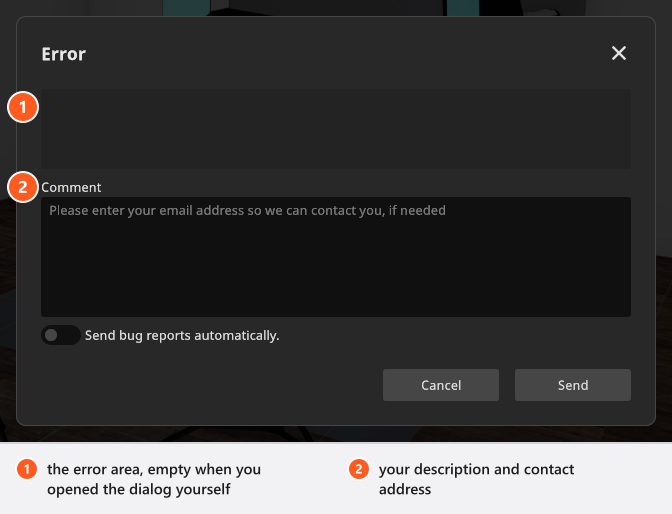
The upper field carries an error only when the program opened the dialog itself after a fault. On the Help route it is empty, which is normal — write what you did instead. The report carries the log of this session up to a size limit, the version, your platform, your computer name and a machine identifier; an activated licence adds its serial number.
Send bug reports automatically. — in the same dialog and in the Help menu — sends those reports without asking. It is off on a fresh installation.
Two limits are worth knowing. The safety net is armed for the first two faults of a session only: after that the program neither offers the report nor writes a rescue file, so restart after a fault instead of working on. And the log tells a developer what broke, not what you were trying to do — that part only you can write down.