
 English
 Deutsch
 日本語
日本語 简体中文
简体中文 Français
Most reports that start with “the picture looks wrong” are one of three things: the graphics card cannot run the program at all, the three pictures of a scene do not agree with each other, or the interface is scaled wrong for the screen. This page separates them. If the picture is merely slow, go to Make it faster instead.
The program starts and quits again
Cause. set.a.light 3D calculates its light on the graphics card, so it needs a card that can run compute shaders. When it does not find one, it shows a dialog titled Unsupported Hardware that names your card — Your GPU (…) does not support compute shaders, which are required to run set.a.light 3D. — and quits as soon as you close it. There is no way past it. That dialog is English in every interface language.
What to do. Work through these three in order.
- Install the current graphics driver from the card manufacturer rather than the one the operating system offers, and restart afterwards.
- Check which card the program actually got. On a notebook with two graphics chips it may have started on the built-in one; assign set.a.light 3D to the dedicated card in the graphics control panel or in the Windows graphics settings.
- Rule out a remote session or a virtual machine. Remote-desktop connections, virtual machines and screen-sharing drivers often present a software renderer that has no compute shaders at all.
The Windows build renders through Direct3D 11, the macOS build through Metal, and the macOS build is made for macOS 12 Monterey and newer — the installer refuses anything older. What else the machine needs is in System requirements.
The three pictures of one scene never look the same
Cause. They are three separate calculations with three separate settings, and that is by design:
- The studio view is the working view. Its job is to stay responsive while you drag lights around.
- The camera preview shows what the camera sees and refines while you leave it alone.
- The final render is the only picture that is calculated to the end.
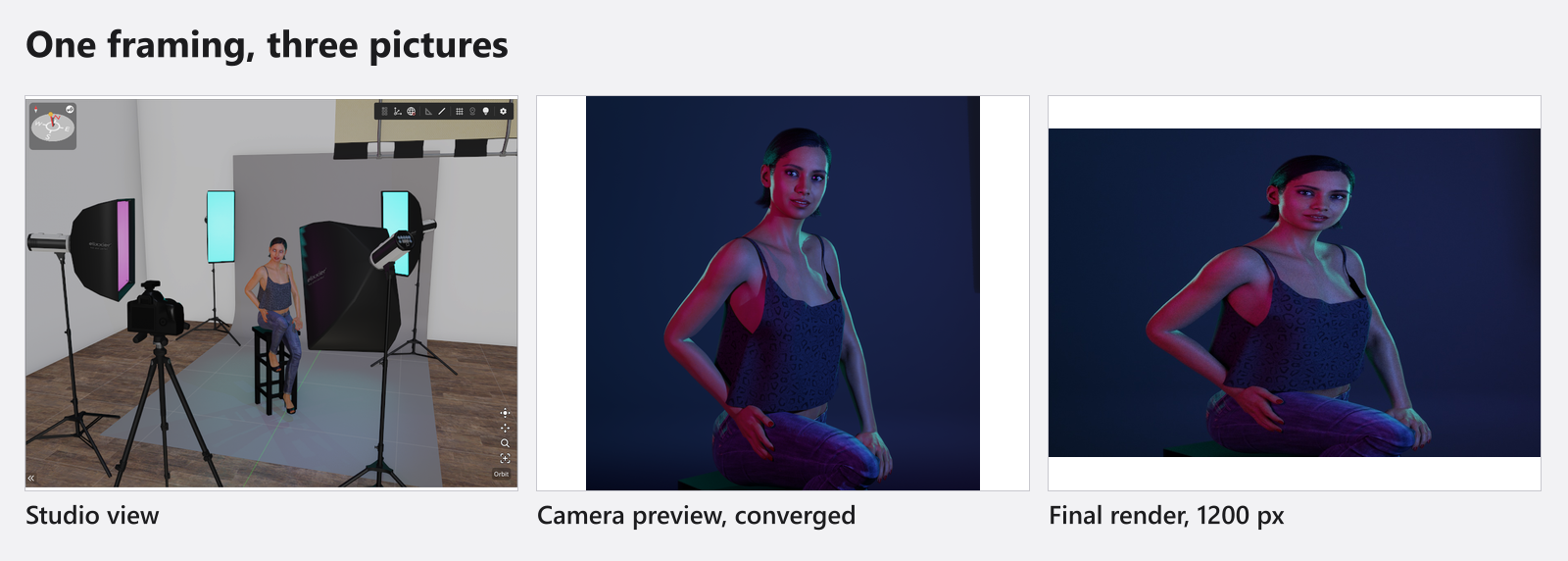
What to do. Judge framing, focus, grade and noise in the camera preview, and never in the studio view. Each of the three has its own Quality control and all three start at Medium, so turning one down does not touch the others — the numbers behind the steps are in Quality and denoiser settings.
Two differences surprise people often enough to name them:
- The studio view shows less fog than the render does. Above a certain density it compresses what it draws so that the set stays workable; the camera preview and the final render do not. A foggy set therefore always looks thinner in the studio view than in the picture you get.
- The studio view can look flat and unlit. That is Show Lighting in Studio switched off, which puts the view into its simplified shading mode. Switch it back on.
Textures look soft everywhere
Cause. Texture detail is one global setting while you work, and it follows the Quality of the camera preview: Low loads textures two steps below their full detail, Medium one step, High and Ultra at full detail. Changing it interrupts you for a moment with a message about applying quality settings, because every texture has to be reloaded.
What to do. Raise the camera-preview quality and the detail comes back. A final render sets its own level for its duration and hands the working limit back afterwards, which is why detail can visibly change around a render without anyone touching a slider.
The preview is noisy or grainy
Cause. Noise is the raytracer not having finished, not a graphics fault.
What to do. Give the preview a moment to refine without touching the scene, and check that Denoiser is not set to Off in the preview settings or in the render settings. High is the default for both.
The denoiser is slower than it was
Cause. The denoiser picks its device by itself: the graphics card on Windows and on Apple-silicon Macs, the processor everywhere else — an Intel Mac always uses the processor. And when denoising on the graphics card fails once, the program writes that down and uses the processor for the rest of the session.
What to do. Nothing, and there is no setting for it. A slower denoiser is not a defect. If it happens every session, restart once and report it with the steps in Something looks wrong: start here.
The interface is far too small or too large
Cause. Interface scaling follows what the operating system reports about your screen, which goes wrong on some high-density displays and on mixed multi-monitor setups.
What to do. Open Settings → Settings…; the window opens on Program Settings with the group UI Scale at the top. Switch Automatically scale the user interface based on the screen off, or simply drag the slider from Small towards Large: it has five steps — 100 %, 125 %, 150 %, 175 % and 200 % — it takes effect when you let go of it, and it switches the automatic mode off by itself. See Settings.
Not a bug
- The window goes quiet when it loses focus or when you leave it alone for a few seconds. That is a power-saving measure, explained in Make it faster.
- A picture that is slow rather than wrong belongs to the same page. The levers are listed there in the order that pays off.
What to send with a report
At every start the program writes down which operating system you are on, how much memory the machine has, which graphics interface it is driven through, who made your graphics card, what the card is called, how much memory it has and what it is capable of. If a graphics problem survives the steps above, use Help → Report Bug so that block travels with your description — see Something looks wrong: start here for what a report contains.
Limits
- The program checks your card for compute shaders and for nothing else, so there is no driver or memory figure it can warn you about in advance.
- Overclocking tools, the overlays of game launchers and colour-management utilities are a frequent source of flickering and black viewports. That is general advice, not a behaviour of this program: switch them off before you report.