
 English
 Deutsch
 日本語
日本語 简体中文
简体中文 Français
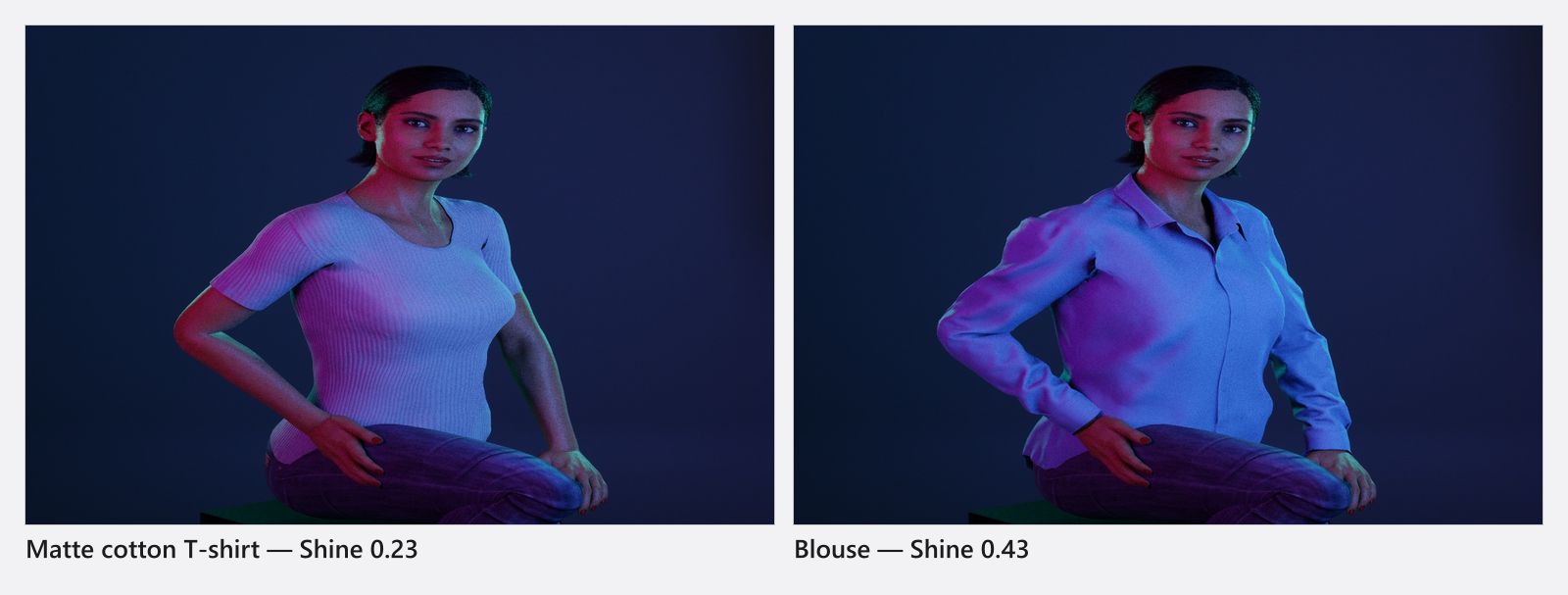
Clothing is not decoration in a lighting simulator: a satin blouse throws specular highlights a matte cotton shirt never will, a dark suit swallows the fill, and a white top bounces light back into the chin. So test the actual wardrobe of your shoot. Pick a garment and the group shows the colour, material and surface controls that garment supports — which of them appear depends on the piece, not on your licence.
Applies to BASIC, STUDIO, CINEMA · You need: a project open on the SETUP tab and a model selected.
From 01:54 the clip enters the Clothing mode at the glasses and works down through the outfit presets to the jacket.
Where to find it
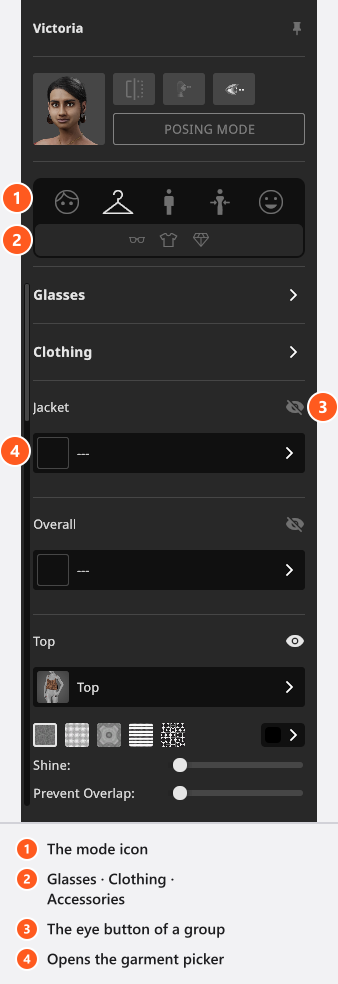
Select the model and switch the inspector to Clothing, the second icon in the mode row. The sub-mode row below jumps to Glasses, Clothing (the garments) or Accessories. The word Clothing does triple duty in this panel — the mode, that sub-mode button, and the group of outfit presets — and all three are the real label, so read it from its place.
Glasses first
Glasses is the first group in the panel: a thumbnail list of prescription and sun glasses, plus a Color field for the frame once a pair is on. Glasses are worth a thought before you light a face — a large lens picks up the key as a hard reflection, and moving the light a few degrees is usually the cure.
Choose an outfit, then tune it
Below the glasses sits a group called Clothing: complete outfits for the current model. Victoria has 50, Mike 28, Sarah 11, Lucas 9 and the Toddler 2. One click dresses the model from head to toe.
Choose the outfit first and tune afterwards. Applying one gives every garment it sets fresh settings — colour, material, shine and transparency go back to that garment’s defaults — and it hides the groups the outfit does not contain. That looks like lost work, and it is expected.
Work one garment group
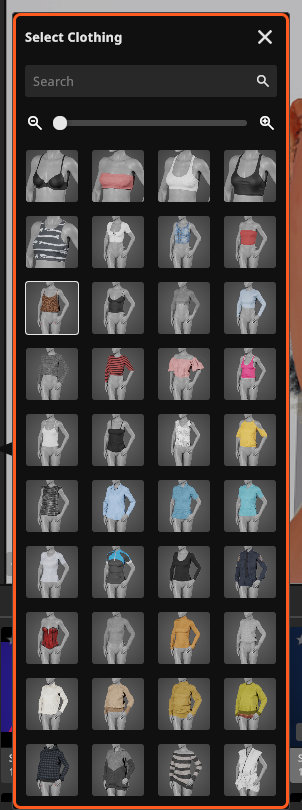
Below the presets each garment type gets its own group, in the order of the panel: Jacket, Overall, Top, Gloves, Pants, Socks, Shoes, Accessories, Earrings, Neck, Bracelets and then Rings twice. Those are 13 groups built from 12 collections of garments: the two Rings groups share one collection. Which pieces a group offers depends on the base model, so Victoria sees a much longer list than the Toddler.
- Click the eye button next to the group name to show or hide that layer. → It is the fastest way to see a look without the jacket, and it keeps your choice: the piece comes back with the same colour and material.
- Click the wide button below to open the garment picker, a grid of thumbnails. Its title is the English Select Clothing in every language version. Picking a piece also switches the group visible again.
- Set the colour and the material in the controls that appear underneath.
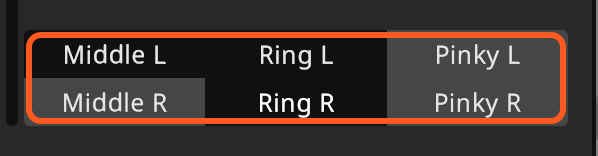
The two Rings groups are a second ring layer, not a left-and-right split: each of them offers all six positions — Middle L, Ring L, Pinky L, Middle R, Ring R, Pinky R — so either group can put rings on either hand. Three fingers per hand, not all five. Bracelets works the same way with Left and Right. Those eight buttons are English in every language version.
Colour, material, shine
| Control | Range | Default | What it does, photographically |
|---|---|---|---|
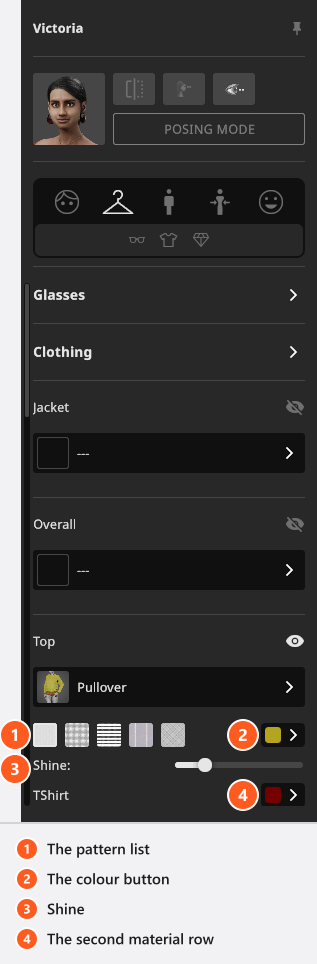
| Pattern list | the patterns the garment carries | the garment’s own | Prints and fabrics. Default Material stands there instead when the piece has no texture set. |
| Colour button | — | the garment’s own | The colour of the main material. |
| Shine | depends on the garment and the material slot | the garment’s own | 0 is matte cotton, around 0.5 worn leather, 1 satin or a rubbery rain jacket. |
| Second and third material row | depends on the garment | the garment’s own | A coat with a lining, a shoe with a sole. Each row is named after that part of the garment, because the name belongs to the piece. |
| Transparency | depends on the garment | the garment’s own | Sheer fabrics. Only 6 of the 276 pieces carry it: the two nylon tights, the three socks and one choker. |
| Prevent Overlap | 0 … 0.1 |
0 |
Pushes a covered garment’s surface in under the layer above it, only where the two really overlap. |
Shine and Transparency take their bounds and their starting value from the active garment and its material slot, so a slider that will not reach 0 or 1 is not broken — one headwear piece stops at 0.82, one choker starts at 0.1.
When a layer pokes through
Put a V-neck undershirt under a trench coat and the shirt pokes through it. Raise Prevent Overlap on the covered layer — Overall, Top or Pants — far enough for the clipping to disappear. Those three are the layers something else can cover, in the fixed order Jacket, Overall, Top, Pants.
The Jacket is the outermost layer, so it has no Prevent Overlap slider at all. If it is the jacket that pokes through a coat, hide one of the two layers with its eye button or pick a piece with a different cut.
From 02:59 the clip shows exactly that — an undershirt through a coat — and raises Prevent Overlap until it is gone.
Tips & limits
- Clothing is available in every edition, and nothing on this page is an add-on.
- Children stay covered: hiding or removing the top brings a fallback top back, and the same for the pants, as long as no Overall is visible. Which garment that is belongs to the model, not to your choice. Some school and volume licences apply the same rule to every model — that comes with the licence, not from a switch in the application.
- A wardrobe cannot be animated. It belongs to that model in that shot, it travels with Save to My Library, and it is published when you share the shot — a shared setup carries your wardrobe with it (see Share a shot with the community).
- Animals have no wardrobe beyond one collar: Cat has one Accessories piece, Dog two, and the Horse none.
Troubleshooting
- A slider will not reach 0 or 1. The garment sets its own bounds and its own starting value → see the table above.
- The group I want is not there. That base model has no pieces for it → Model problems.
- My colours are gone after I clicked an outfit. Applying an outfit resets the garments it sets → see above.