
 English
 Deutsch
 日本語
日本語 简体中文
简体中文 Français
The 3D Import add-on opens the program up to models we did not make: a piece of furniture from a 3D marketplace, the product you have to light, a set piece you built yourself. An imported model behaves like any other object in the studio — it takes light, casts shadows, can be moved, scaled and mirrored — and it stays in your library for every future project.
Applies to BASIC, STUDIO, CINEMA · Needs the 3D Import add-on (included in the CINEMA trial) · You need: a project open on the SETUP tab.
This 84-second clip shows the whole route once, from a downloaded basket to an object standing in the studio.
The clip names OBJ and FBX; the picker takes nine model formats — the list is below.
Read this chapter in order
- 3D import: what the add-on reads — this article
- Import a 3D object
- Shaders and textures of an imported object
- Imported materials: every control
- Pose and animate an imported object
- Share, update and back up your 3D objects
For a worked example from download to a placed location, see Import your own 3D location or prop; when an import goes wrong, see 3D import problems.
Where the import lives
Everything starts in the library: ASSETS tab → the 3D Objects group. That group is the shelf for everything you imported, and its first tile, Import 3D Object, starts a new import.
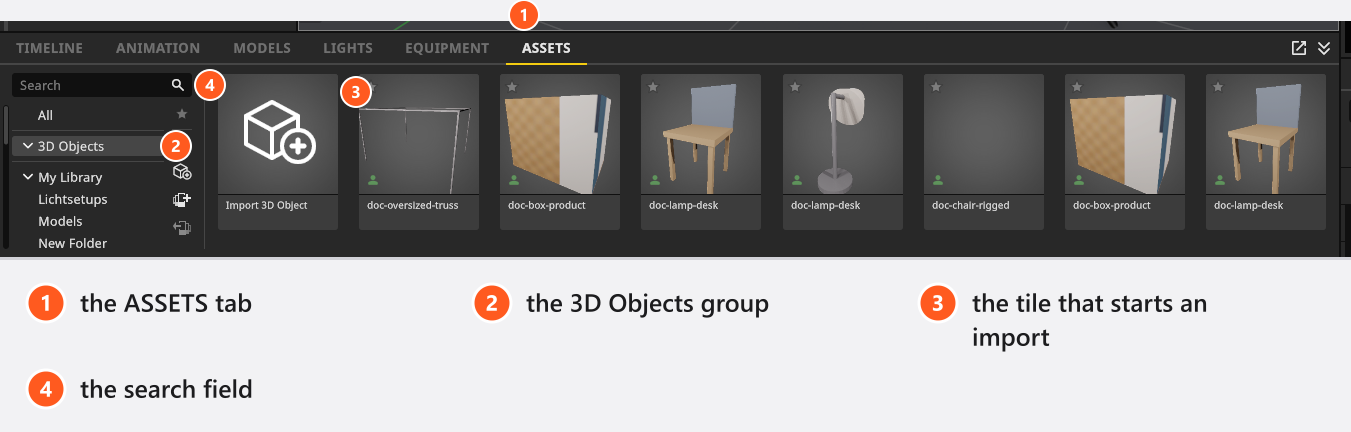
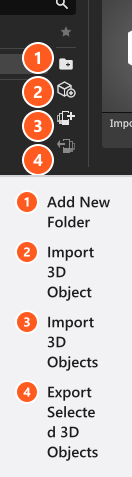
While the group is selected, four buttons sit in the narrow column on the left:
| Button | What it does |
|---|---|
| Add New Folder | Adds a folder to the group. It belongs to the library, not to the importer — see Share, update and back up your 3D objects. |
| Import 3D Object | Asks for a model file and opens the 3D Importer. |
| Import 3D Objects | Takes a .myassets archive or a single model file. |
| Export Selected 3D Objects | Writes the objects you selected in the group into one archive. Enabled only while something is selected. |
Two more places do the same work: File → Import My 3D Objects and Export My 3D Objects for the whole collection, and App Manager → 3D Objects to sort the collection into folders.
What the file picker accepts
| What you pick | File types |
|---|---|
| A model | .fbx, .obj, .dae, .3ds, .lwo, .ply, .stl, .gltf, .glb |
| An archive of objects you already imported | .myassets |
| A texture, inside the importer | .jpg, .jpeg, .png, .tga, .tif, .tiff |
That is the list of extensions the picker offers. It says nothing about what a particular file carries: geometry, materials, textures, a skeleton and animation clips all depend on the file and on the program that wrote it. Two .fbx files from two marketplaces can arrive very differently. Check the Materials list and the Animation group in the importer to see what really came in. The full list of file types the program reads and writes is in Supported file formats.
Textures are accepted up to 8192 px on an edge and are then stored at a size that depends on the slot — Shaders and textures of an imported object has the numbers and explains why an 8k map costs you memory without buying you anything.
How to turn a file into a library object
- Click the Import 3D Object tile or button and pick your file. → The model is converted and the 3D Importer opens. A large file takes a moment.
- Work down the left column: Name, Size, Orientation, Position, then the Materials. → Import a 3D object walks through it step by step.
- Choose a folder under Save to Folder and press Apply. → The object appears in the 3D Objects group.
- Drag it out of the group into the studio. → It stands on the floor and can be moved, scaled and lit like any other object.
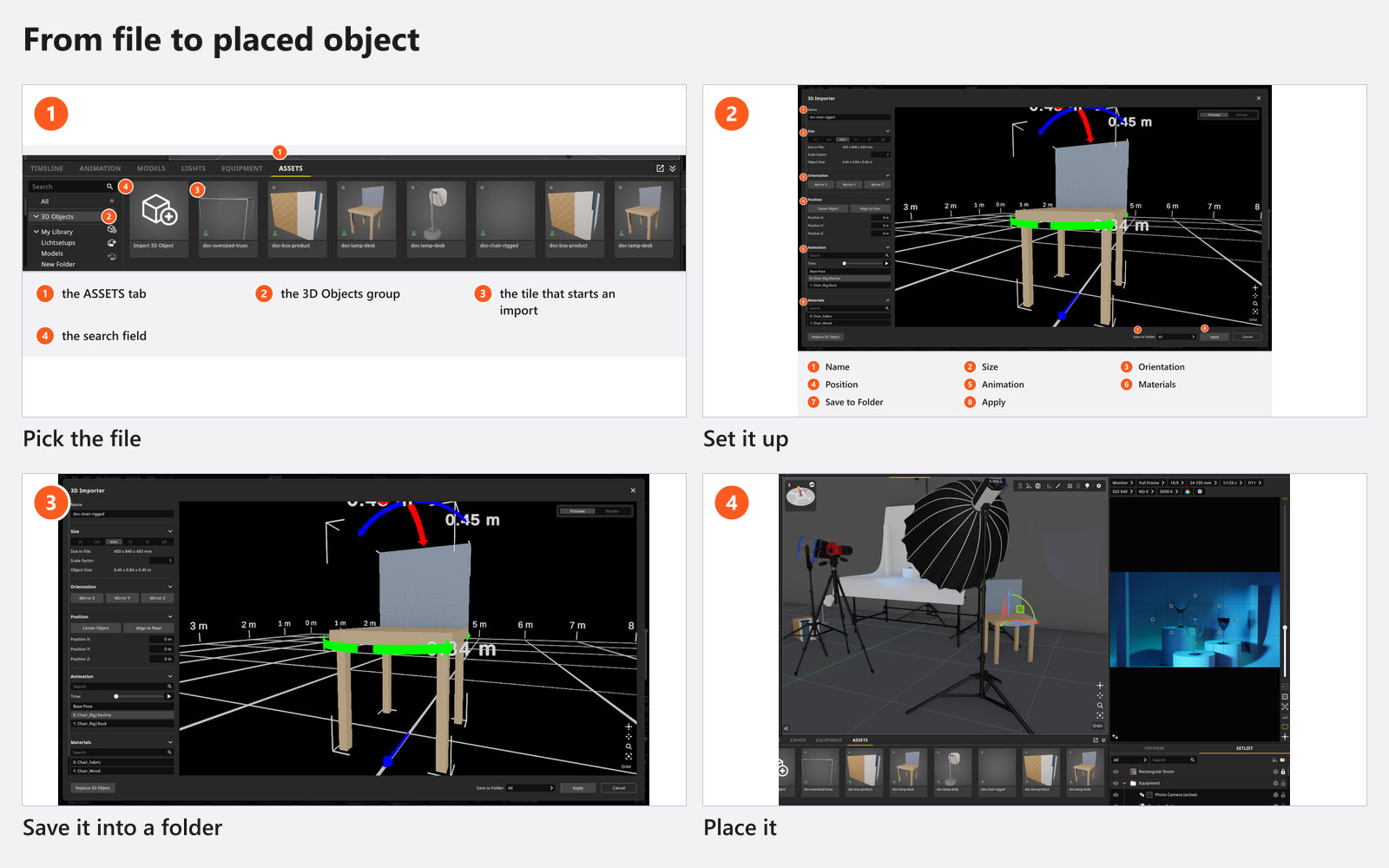
Some of that is automatic. The importer guesses a metric unit from the model’s overall size, pulls an absurd scale back into a plausible range, centres the model over the cross of its grid and stands it on the floor, and it looks for the textures a material asks for: beside the model file, in any folder next to it, one level up, and — for a folder called textures, texture or tex — in its subfolders too. What it guesses is a starting point, not a result: check Object Size against a dimension you know, and look at every material.
How to switch the add-on on
Help → License Management shows what your licence carries. In the Add-Ons box, the 3D Importer entry with a check mark means you are ready; without it the entry offers Get This Add-On and takes you to the shop. If you bought the add-on while the program was running, press Update License — the licence is read from our server again, so the computer has to be online.
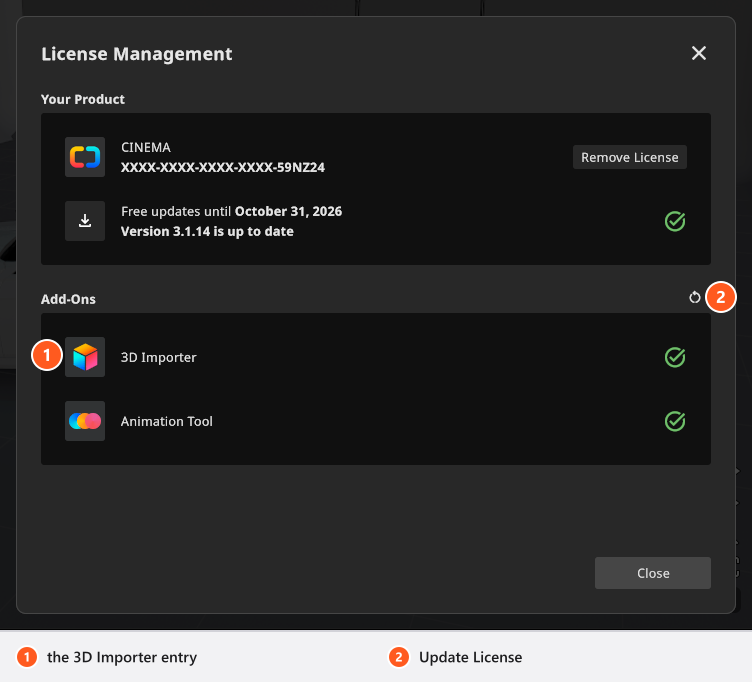
Without the add-on none of this is visible: no 3D Objects group in the library, no import entries in the File menu, no 3D Objects page in the App Manager.
Tips & limits
- A project file does not contain your models. It points at them, and it stores what you changed on that one copy: size, mirroring, pose and the colour and shine of each material. Opened on a computer that does not have the object, the project shows a warning marker in its place — so hand the objects over with the project.
- Not every marketplace model is built cleanly. Scale, orientation, flipped normals and missing texture coordinates are far cheaper to repair in a modelling program before the import than afterwards.
- A heavy model slows down the studio view and the render of the whole set, not only its own corner of it. If a model exists in several resolutions, take the lighter one.
- The picker lists the extensions above and nothing else. If your model does not appear in it, its extension is not on the list.
- The old caveats from version 2.5 are gone. Glass is a shader of its own now, with Refraction and Absorption, and every other shader carries a metal map and a Metallic amount.
- The importer is a one-way street. There is no export to
.obj,.fbxor.gltf;.myassetsis the program’s own library archive.
Troubleshooting
- The object arrives far too big, has no texture, or my library looks empty. → 3D import problems
Related
- Import a 3D object
- Shaders and textures of an imported object
- Share, update and back up your 3D objects
- Props, basic shapes and mirrors
- Supported file formats
- BASIC, STUDIO and CINEMA compared
- Import your own 3D location or prop
Next step
Import your first object step by step in Import a 3D object.