
 English
 Deutsch
 日本語
日本語 简体中文
简体中文 Français
One shoot usually has to serve several shapes: a 3:2 print, a 16:9 title frame, a square crop for a feed. Every camera carries three independent frame-line slots and a composition grid, so you can see all of those crops while you light and pose — and then burn the rectangles into the rendered file for the people who do the cropping.
Applies to BASIC, STUDIO, CINEMA · You need: a project open on the SETUP tab and a camera in the set. The guides always show the active camera.
Where to find it
The guides button in the control strip beside the camera preview opens the Guides popup. With the pointer over the preview, G (by default) shows and hides the whole overlay without opening anything.
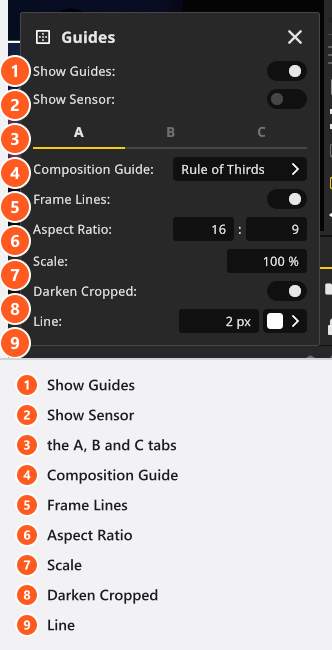
The two switches at the top of the popup belong to your installation, not to the shot. Show Guides (on out of the box) is what draws the overlay at all, and Show Sensor (off) fits the preview inside a rectangle of the whole sensor, so you can see how much of it your Format actually uses. Neither is saved with a project.
What sits on the tabs below them is the opposite: the three slots belong to the camera and travel with the set, so a shot you take keeps its crops, and a second camera has its own three.
Set up three deliveries
The three tabs A, B and C are all you get — a fixed number of slots, with no names. A worked example, for a portrait shot on a 3:2 body that also has to deliver 16:9 and 1:1: open the Guides popup and make sure Show Guides is on, then set one tab per delivery.
- On tab
A, set Composition Guide toRule of Thirdsand leave Frame Lines off. → The grid sits on the full3:2frame; that is your main delivery. - On tab
B, switch Frame Lines on — the four settings below it become editable — type16and9into Aspect Ratio, switch Darken Cropped on and give the slot its own Line colour, for example yellow. → A rectangle appears and everything outside the16:9crop is dimmed. - Do the same on tab
Cwith1and1and a third colour, and leave Darken Cropped off there so the two crops stay readable together. → All three deliveries are now drawn over one live image.
Now frame and light once. Each slot is its ratio fitted into the frame and centred, so neither of the two crops contains the other: the 16:9 is as wide as the frame but short, the 1:1 as tall as the frame but narrow. Anything you want in all three deliveries has to sit where they overlap — the 16:9 decides how much height you have, the 1:1 how much width.
| Setting | Range | Default | What it does |
|---|---|---|---|
| Composition Guide | None, Center, Rule of Thirds, Phi Grid |
None |
The grid drawn over the frame |
| Frame Lines | on / off | off | Draws this slot’s rectangle and arms the four settings below |
| Aspect Ratio | 0.1–100 per side |
4 × 3 |
The shape of the rectangle |
| Scale | 1–100 % |
100 % |
Shrinks the rectangle inside the frame — a safe area |
| Darken Cropped | on / off | off | Dims everything outside the rectangle |
| Line | 1–5 px plus a colour |
2 px, white |
Width and colour of the rectangle |
These are hard limits: a value you type outside one of the ranges is pulled back to its nearest end.
A newly placed camera is not empty: slot A starts with Rule of Thirds and Darken Cropped already armed, while B and C are unused. The darkening only shows once Frame Lines is on.
Compose inside a crop
A composition guide is drawn whether or not the slot has frame lines, and it follows that slot: with Frame Lines on, the grid is drawn inside the rectangle, so Rule of Thirds on the 16:9 slot puts its lines where the 16:9 delivery needs them, not where the full frame would. That is the reason to use a slot per delivery instead of one rectangle and one grid. Line is the width and colour of the rectangle alone — the grid itself is always drawn in the program’s own line colour.
The four guide names stay English in every interface language. Center marks the middle of the frame, Rule of Thirds the classic nine-field grid, and Phi Grid the same idea at the golden ratio.
Burn the crops into a render
The overlay you see in the preview is a working aid. To hand the crops on, switch Frame Lines on in the render settings of the RENDER tab before you render — see Render an image.
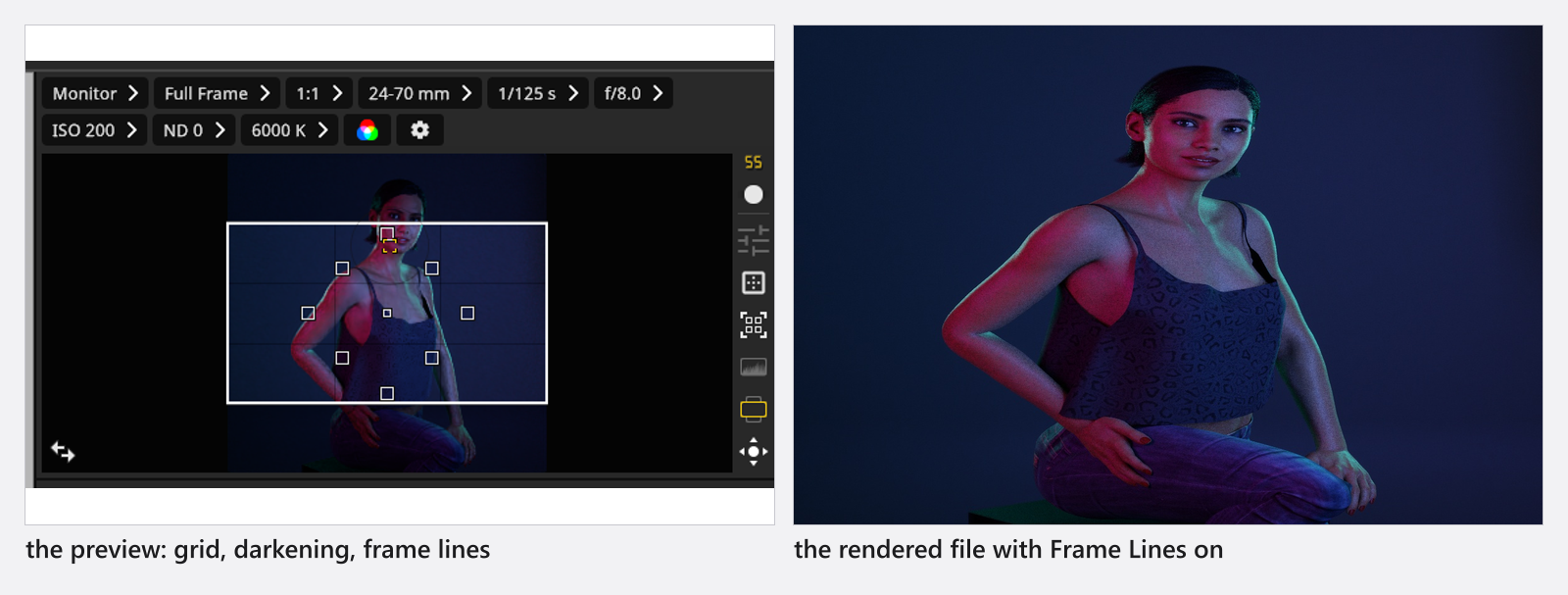
The burn-in draws the enabled rectangles of all three slots, in their own widths and colours, and nothing else: no composition grid, no slot letters, no sensor outline and no crop darkening. A video export uses the same switch and draws the same rectangles into every frame — see Render a video, which needs the Animation Tool add-on.
Tips & limits
- The two Frame Lines switches are independent: the one in the popup decides what a slot draws, the one in the render settings decides whether rendered files carry the rectangles at all. Hiding the overlay with
Gdoes not remove them from a render. - The render switch is a setting of your installation and stays on for every following render, in every project, until you switch it off.
- Frame lines are not a crop: the rendered file keeps the camera’s own Format, with the rectangles drawn on top. To actually deliver a different shape, change Format — see The photo camera.
- Slots cannot be animated.
Troubleshooting
- The rendered file has frame lines I did not want. The render setting is switched on. It is independent of the overlay and of the slot switches.
- I switched frame lines on and nothing happened. You are looking at another camera: the guides follow the active camera. Or Show Guides is off.
- The crop darkening is missing. Darken Cropped only takes effect while that slot’s Frame Lines is on, and it is never burned into a render.
- More symptoms: Camera problems.