
 English
 Deutsch
 日本語
日本語 简体中文
简体中文 Français
set.a.light 3D is a photo studio you build on your computer: you place models, lights, light shapers and props in a virtual room, look through a virtual camera, and get a calculated image of the result. This walkthrough takes you through one complete pass — start a scene, build something, judge it, render it, save it — so that you know where everything lives before you go into the detail chapters.
Applies to BASIC, STUDIO, CINEMA · You need: about 15 minutes, a finished installation, and either a running trial or an activated licence.
Installing and activating are covered separately: Install set.a.light 3D and start it the first time and Activate your license.
Step 1 — Choose a starting point
The dialog that greets you is New Project. Its Workspace tab offers two ready-made scenes, and Recent Files on the right lists what you worked on last. A second tab, My Templates, holds start scenes you saved yourself (STUDIO+).
The clip below opens with exactly this dialog and then walks the working tab, about four minutes in all.
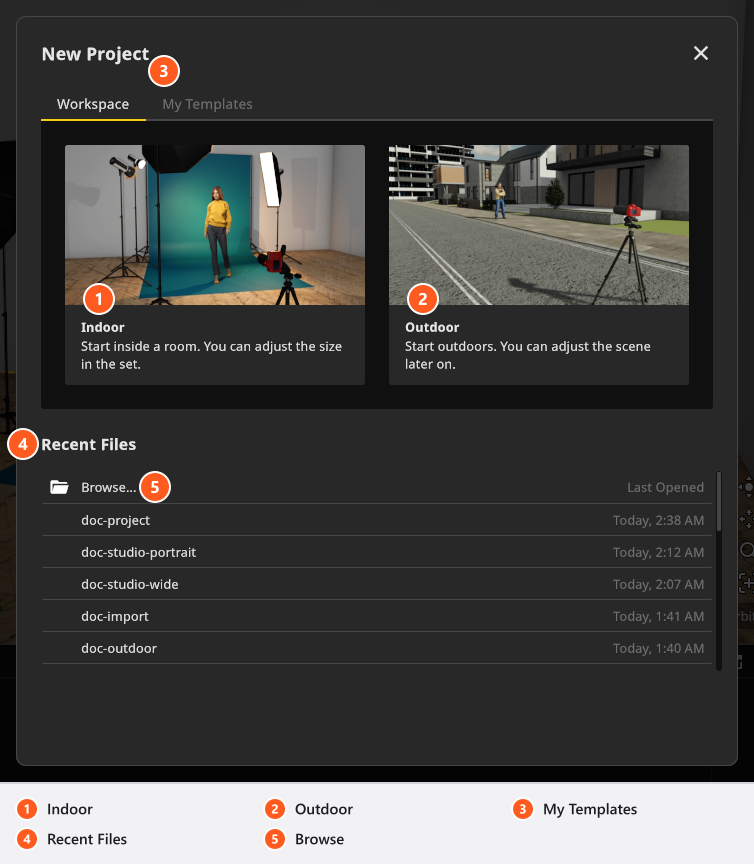
- Click Indoor — Start inside a room. You can adjust the size in the set. → A ready-made indoor scene loads and the SETUP tab opens.
Outdoor does the same outside. If a third tab named Update is there, a newer version exists; it may even open by itself. Nothing is installed behind your back, and your installed version keeps working — see Update set.a.light 3D.
Step 2 — Find your way around
The top bar carries the four tabs of the program: you build in SETUP, produce images in RENDER, assemble the printable plan in PLANS, and exchange setups in COMMUNITY. Click a name to switch. At the right end the bar shows the project name plus the graphics interface and the current frame rate — information only, and the name of the graphics interface is what Graphics problems asks you for.

Inside SETUP the studio view sits in the middle, the camera preview and the lower right panel on the right, the inspector for the selected object on the left, and the library with the shots along the bottom. The user interface walks through every one of them, and Move around the studio covers the mouse.
Step 3 — Put something in the studio
Everything you can place lives in the library at the bottom. Its catalogue tabs are MODELS, LIGHTS, EQUIPMENT and ASSETS; each has a filter column on the left and a search field, so you narrow a catalogue of several hundred entries instead of scrolling it. Under MODELS the filters read All, Women, Men, Children and Animals; under LIGHTS they read All, Flash, then — from STUDIO on — Continuous and Practical Light, and last Light Shapers. The TIMELINE and ANIMATION (add-on: Animation Tool) tabs are not catalogues and have no filters.
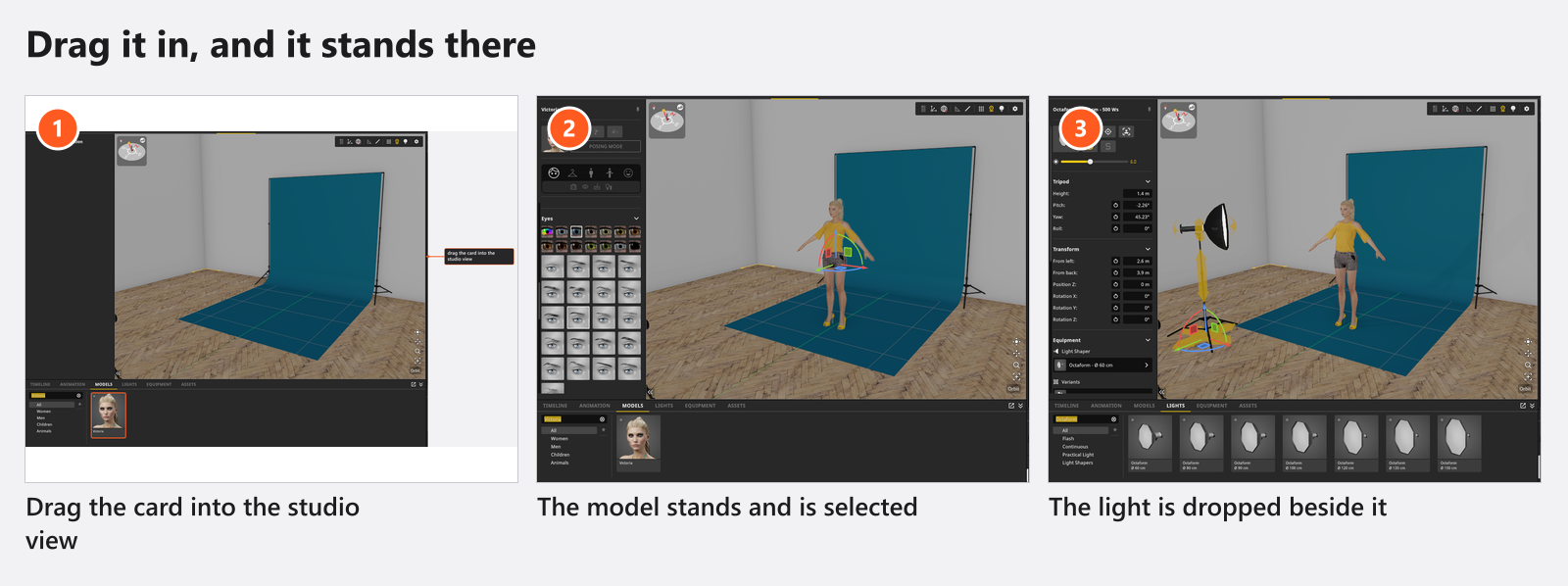
- Open the MODELS tab and drag a card into the studio view. → The model stands where you dropped it and is selected, and the inspector on the left fills with its settings.
- Open the LIGHTS tab and drag a light onto the floor beside the model. → The light stands there, the camera preview starts calculating again, and the inspector now shows the light.
- With the light selected, change its light shaper, its power and its colour in the inspector. → Every change re-calculates the camera preview.
Press N to fold the library away and B for the inspector when you need room; both are defaults you can change. Your first lighting setup does this step with the lighting explained.
Step 4 — Judge the shot in the camera preview
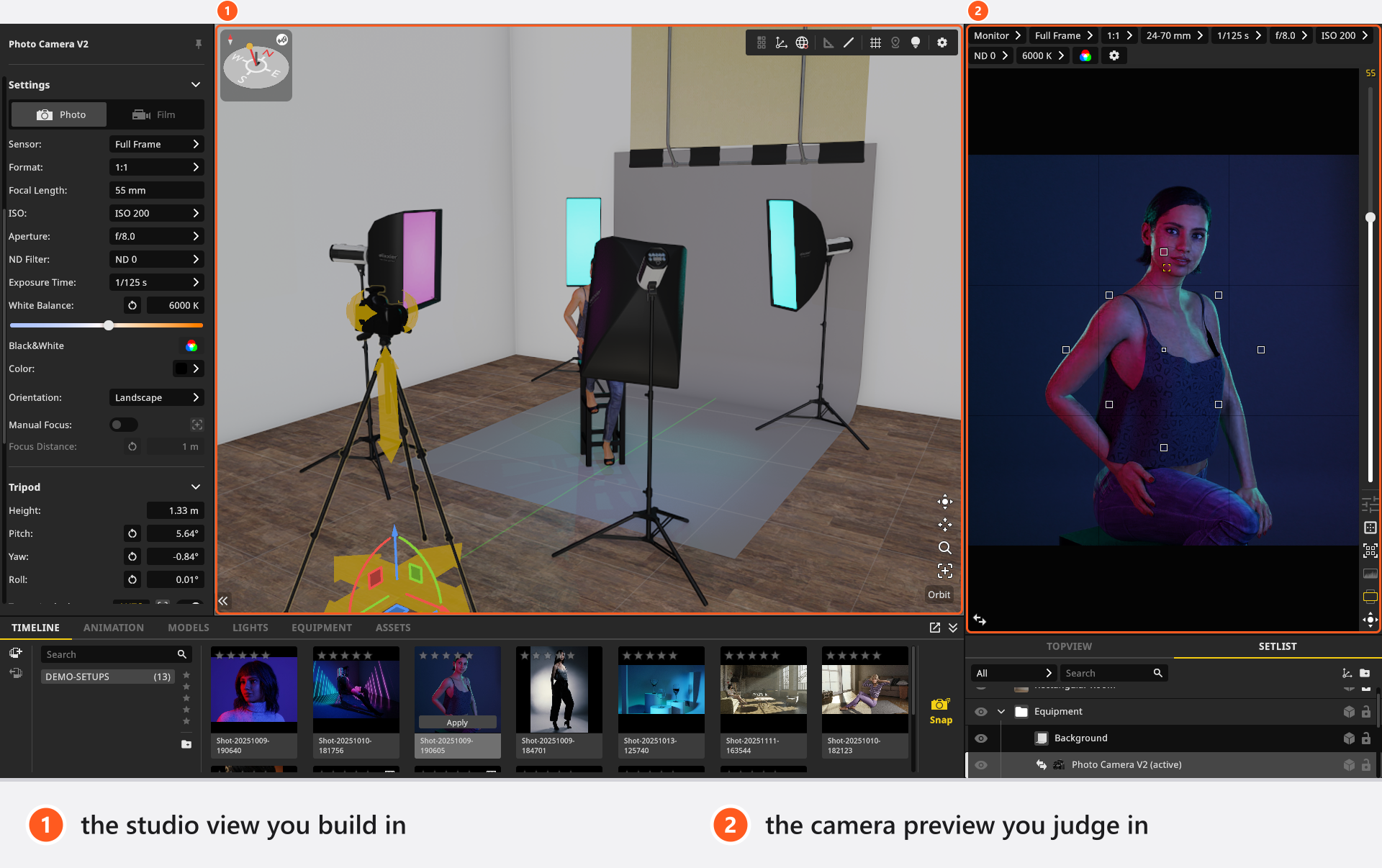
The studio view is your workbench; the camera preview in the upper right is the calculated image of the photo camera. Judge light there, never in the studio view.
- Put the pointer over the camera preview, outside any text field, and press
H. → The histogram appears over the image. - Press
Tto swap the camera preview with the studio view and judge it full size. PressTagain to swap back.
Shortcuts follow the pointer, so the same key can mean two things: over the camera preview G shows the composition guides and F the focus guide, while over the studio view G switches the floor grid and F frames the selection. Keyboard shortcuts explains that precedence once, and the keys are defaults — Settings → Shortcuts… changes them.
Step 5 — Store the state as a shot
A shot is one frozen state of the studio: lights, light shapers, model, props, room, camera, exposure.
- Click Snap at the right end of the TIMELINE tab, press
Enterby default, or use the camera button in the corner of the camera preview. → A tile appears in the TIMELINE, namedShot-plus the date and time you took it.
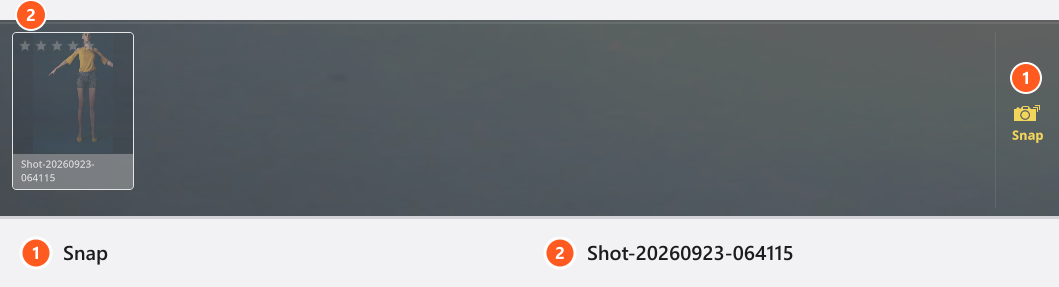
- Change one thing — move the light, put a gel on it, turn the model — and take another snapshot. → A second tile appears, and you switch between the two by double-clicking a tile.
Renaming, sorting and comparing shots is in Take and manage shots.
Step 6 — Render the image
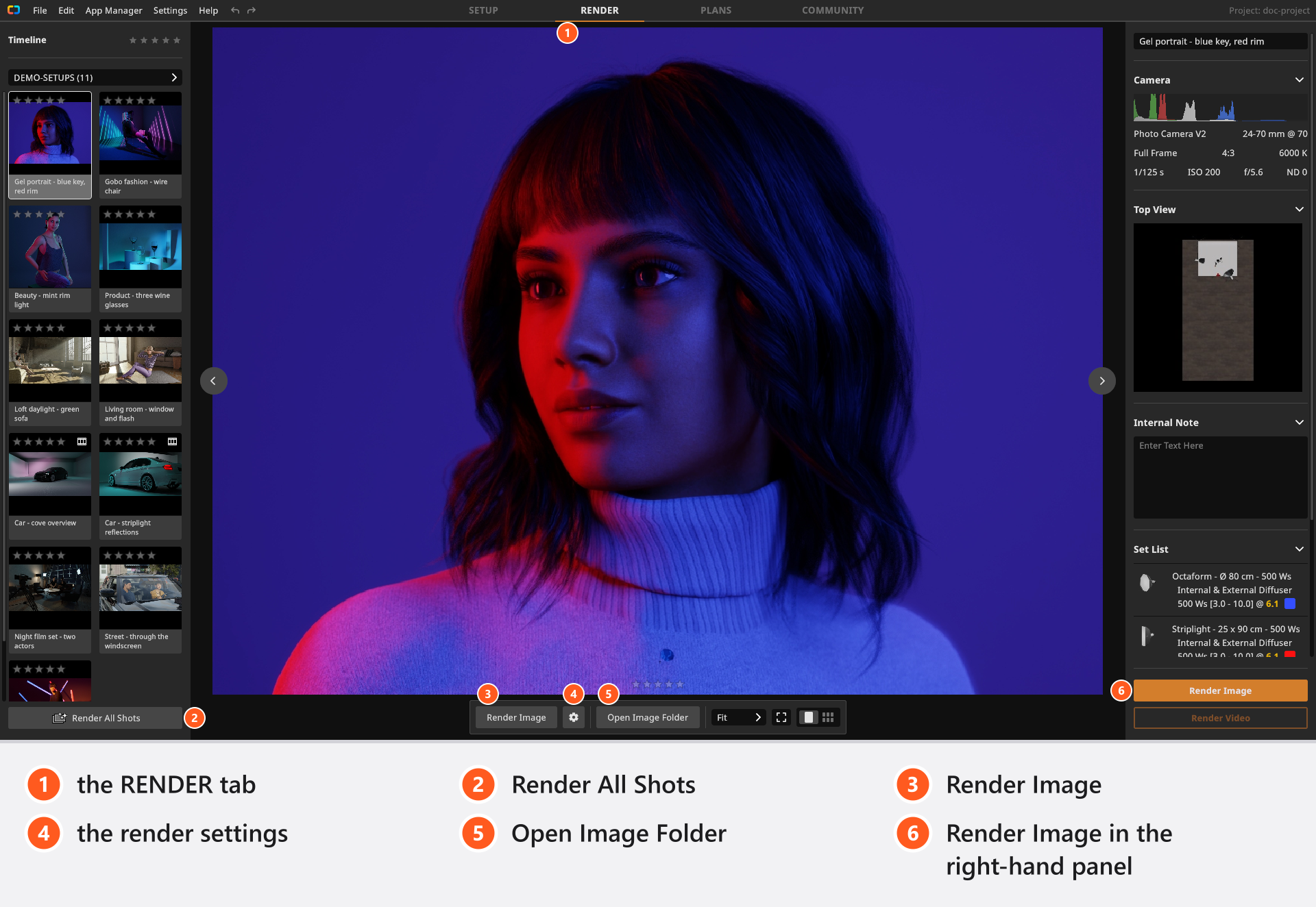
- Switch to the RENDER tab and select the tile of your shot.
- Open the gear beside the render button in the bottom toolbar and look at Resolution, Quality and Denoiser. → A new installation renders at
1200 px, quality Medium and denoiser High. With a BASIC licence the resolution list offers up to1920 px. - Click Render Image in the bottom toolbar. → A progress bar counts the samples and, after a few seconds, estimates the time it still needs.
The finished image is written as a JPG into a folder beside your project file; Open Image Folder in the same toolbar opens it. Your first render explains what the three settings cost you and what else the tab can do.
Step 7 — Save your work
- Press
Ctrl+S(Cmd+Son macOS) by default, or use File → Save Project As… the first time and pick a folder and a name. → The whole shoot lands in one.setfile, and the rendered images go into a folder of the same name beside it.
Recovery copies are written while you work, a few minutes after a change, into a folder of their own; Help → Show Autosave Folder opens it. They are a safety net, not a substitute for saving — see Saving your work and Recover a project after a crash.
Tips & limits
- In a trial every rendered image carries a watermark. Activating your licence removes it from the next render.
- A BASIC set holds at most five lights; the library refuses the sixth with a notice titled BASIC Edition Restriction.
- The camera preview and the final render use the same calculation with different budgets. The studio view is the cheap working view — a different thing again, with its own quality setting.
Troubleshooting
- A key does nothing. The pointer decides which panel gets the key, and a text field being edited swallows it. Move the pointer over the panel you mean and try again. → Keyboard shortcuts
- The layout looks different from the pictures here. You probably swapped the two views with
T; press it again. → The user interface - Something else looks wrong. → Something looks wrong: start here
Related
- The user interface — every panel of the SETUP tab.
- Move around the studio — orbit, fly, top view.
- Your first lighting setup — the same moves, with the lighting explained.
- Your first render — the render settings and what they cost.
- Saving your work — projects, recovery copies and the ways out of the program.