
 English
 Deutsch
 日本語
日本語 简体中文
简体中文 Français
The camera decides what your picture shows: where you stand, which body and lens you shoot with, how the frame is cropped, and how the light you built is exposed. This page is the reference for the camera object itself — the bar above the camera preview, the groups in its inspector, and the two read-outs you judge a frame with. The jobs have their own pages: Set the exposure, Choose a focal length, Focus and depth of field, Plan one shot for several deliveries and Grade the image with LUTs and effects.
Applies to BASIC, STUDIO, CINEMA · Film bodies and film rigs need STUDIO or CINEMA · You need: a project open on the SETUP tab with a camera in the set.
Where to find it
The live image sits in the camera preview, by default in the small view at the top right. T (by default) and the Switch Camera Preview With Studio View button swap it with the studio view; how that image is calculated and where its quality is set is described in Camera preview. Every setting of the camera is in the inspector: select the camera in the studio view, or its row in the set list.
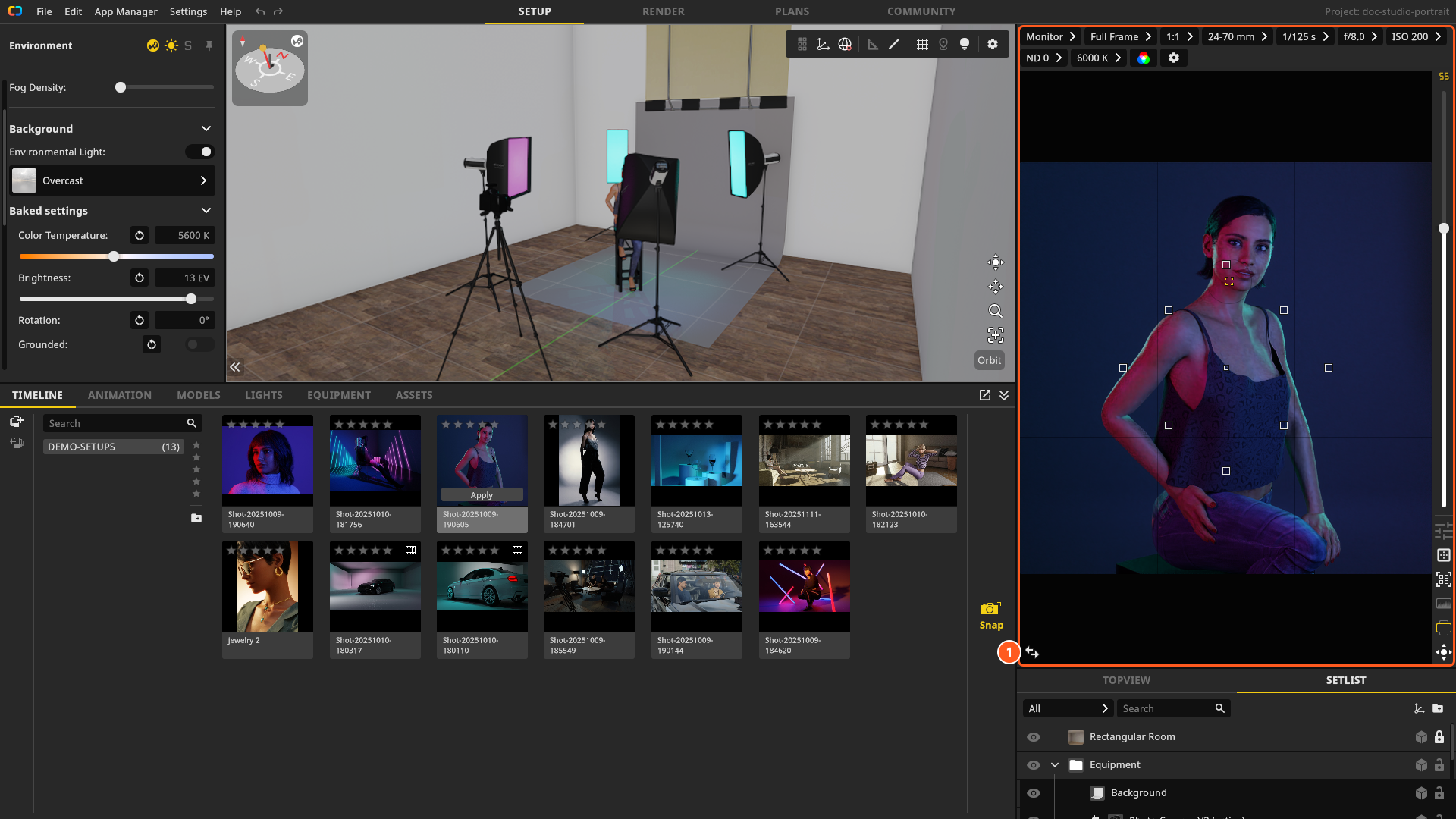
A further camera comes from the library: EQUIPMENT tab, tag Cameras. A body dropped into the studio arrives with the Default Lens and the Default Rig of your installation — see Set up your own camera kit.
The camera bar
The strip above the preview carries what you change while shooting. From left to right: the view mode (Monitor, IRE False Color, EL Zone), Sensor, Format, Lens, then — only while the camera is in Film mode — Anamorphic, Framerate and Shutter Angle, and then Exposure Time, Aperture, ISO, ND Filter, White Balance, Black&White and the gear. On a film camera Shutter Angle takes the place of Exposure Time, unless that camera is set to work with an exposure time — see Film camera.
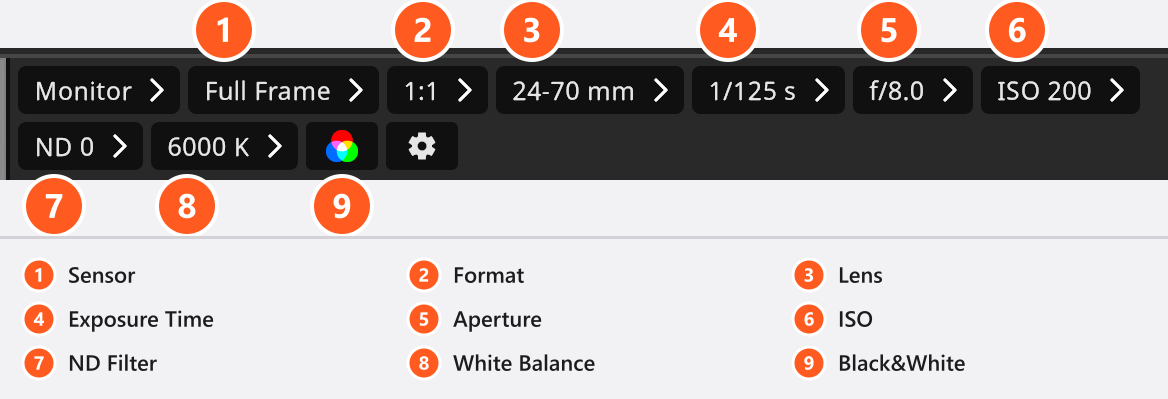
The settings in the bar always belong to the active camera, never to the one you happen to have selected, and the row is greyed out while no camera is active. Two controls in it are not camera settings at all: the view mode at its left end, which every camera in the set shares (see False colour below), and the gear at its right, which opens Quality and Denoiser for the preview — both remembered per installation, see Camera preview.
The control strip beside the preview
The narrow strip to the right of the image repeats what you need while framing. From the top: the focal-length read-out and the zoom slider (Choose a focal length), then the buttons for the Effects popup (Grade the image with LUTs and effects), the Guides popup (Plan one shot for several deliveries), the focus points (Focus and depth of field), the histogram, the Landscape/Portrait switch and the camera-controls button.
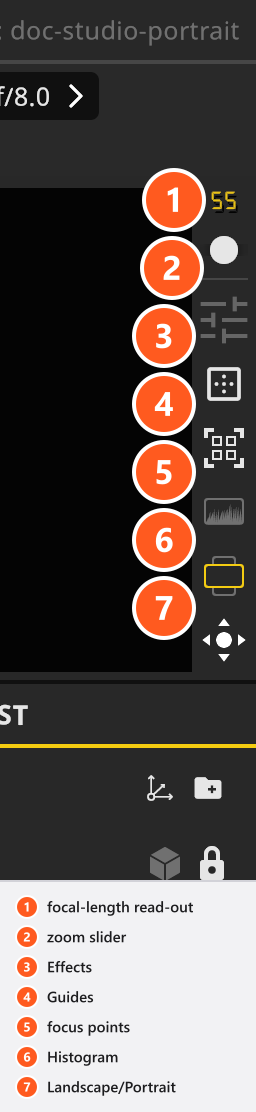
Three keys work on this strip while the pointer is over the preview (by default): G shows and hides the guide overlay, F the focus points, H the histogram. The same keys mean something else anywhere else in the window — G switches the studio grid, H the reference image, and F frames the selection in the studio view. See Keyboard shortcuts.
The guide overlay, the sensor outline, the focus points and the histogram are settings of your installation, not of the shot: they are remembered between sessions and they do not travel with a project. Guides and focus points start switched on, the sensor outline and the histogram switched off. The frame-line slots, in contrast, belong to the camera and are saved with the set.
Equipment: body, lens and rig
The Equipment group holds three pickers.
- Camera — the body. Five ship: Photo Camera is the photo body, the other four are film bodies and need STUDIO or CINEMA. Choosing a body also writes its Sensor, its Format and its photo-or-film mode onto the camera, in one undo step.
- Lens — 52 lenses, 26 zooms from
11-16 mmto70-300 mmand 26 primes fromFix 16 mmtoFix 200 mm. A focal length outside the new lens is pulled into its range. - Rig — the stand. Six ship: Photo Tripod and Column Stand are available in every edition, the four film rigs need STUDIO or CINEMA. Which axes a rig gives you is in Camera rigs: axes and limits.
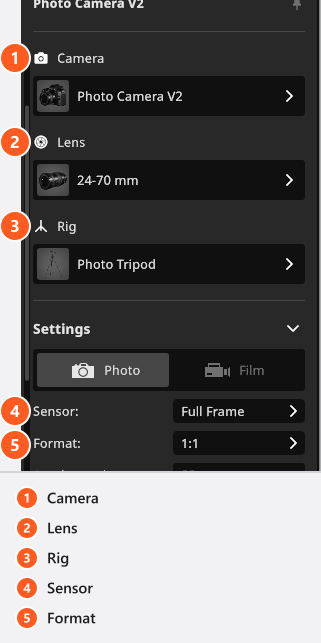
With a BASIC licence the film bodies and film rigs are not offered at all — they are missing from the library and from the pickers rather than disabled. Bodies, lenses and rigs of your own are built in the App Manager: Set up your own camera kit.
Sensor and format
Sensor is the recording area in millimetres, Format the aspect ratio you crop it to. The frame is the largest rectangle of that ratio that fits on the sensor, and its height together with Focal Length gives the angle of view — which is why the same lens looks longer on a smaller sensor.
| Sensor | Size |
|---|---|
| Full Frame | 36 × 24 mm |
| APS-H (Crop 1.4) | 27.9 × 18.6 mm |
| APS-C (Crop 1.5) | 23.6 × 15.6 mm |
| APS-C Canon (Crop 1.6) | 22.3 × 14.9 mm |
| Four Thirds/MFT (Crop 2) | 17.3 × 13 mm |
| Rollfim 6×6 | 56 × 56 mm |
| 4×5″ | 121 × 97 mm |
| 8×10″ | 254 × 203 mm |
| Medium Format (Crop 0.64) | 53.9 × 40.4 mm |
| Medium Format (Crop 0.79) | 43.8 × 32.9 mm |
| 2/3″ | 8.8 × 6.6 mm |
The rows are in the order of the dropdown. Rollfim 6×6 is the 6 × 6 rollfilm entry; the label is quoted as it ships.
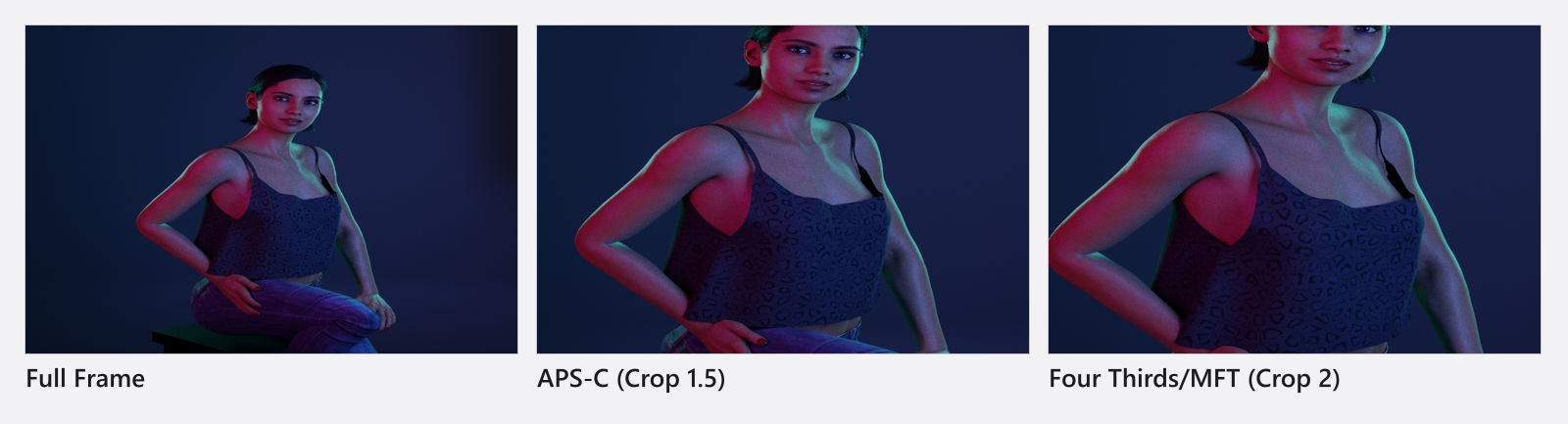
Format offers 3:2, 5:4, 4:3, 6:4.5, 16:9, 1:1, 1.85:1, 1.9:1, 2:1, 21:9 and 2.4:1. A Custom entry appears in either list only while the mounted body carries a sensor size or a ratio of its own.
The colour of the camera body
Color tints the camera body, so you can tell two cameras apart while you work. Every camera carries two of them: the colour it wears while it is the active camera, and the colour it wears while it is not. The row shows whichever of the two applies to the camera you have selected right now — which is why the swatch changes as you switch cameras. Out of the box the active colour is red and the inactive one black, and neither can be animated.
The active camera is never in its own picture. Another camera left standing in the frame is, though, so its colour can end up in a render — move it out of shot if you do not want it there.
Portrait and landscape
Orientation has four values: Landscape, Portrait Left, Landscape Inverted and Portrait Right. Both routes turn the camera model as well as the image, in one undo step, and a fine roll offset on the rig head survives the change.
- The Landscape/Portrait button — under the camera’s name in the inspector and in the control strip beside the preview — switches between landscape and portrait only. From either landscape state it goes to Portrait Left, from either portrait state back to Landscape.
- The two inverted states are only reachable from the Orientation dropdown.
Orientation cannot be animated.
Several cameras in one set
Only one camera is active: it is the one the preview shows, the one that renders, and the one the camera bar and the two popups beside the preview work on. Selecting a camera is a different thing — it decides whose inspector you see.
Four icons sit under the camera’s name, with Make This Camera Active below them. They are icons without captions; the names used here and in the picture are their tooltips. Tripod on/off shows and hides the stand, Lock Camera on Target keeps the camera aimed at its target point while you move the stand, and Rotate Camera Towards Model aims it at a model in one click — all three are explained in Camera rigs and height.
- The set list marks the active camera with (active), and every camera row carries a switch button. On another camera it makes that camera active; on the active row it goes back to the camera that was active before — so you can flip between two viewpoints, and nothing happens there until you have switched at least once. Either way the row you click is also selected.
- In the inspector, Make This Camera Active activates the camera whose settings you are looking at. It is shown only on a camera that is not already active.
- A camera added to a set that has no active camera becomes the active one.
- Duplicate copies the selected camera with its animation tracks (add-on: Animation Tool) but does not activate the copy; the copy’s Position keys are shifted by the step it takes to the free spot beside the original, so it moves on its own path.
- Double-click the name at the top of the inspector to rename a camera.
- Which camera is active belongs to the set and can be keyframed (add-on: Animation Tool) — see Animate the camera.
Remove From Set deletes the selected camera, including the last one in the set. Deleting the active camera hands the job to the next camera in the set, so the preview keeps working; one undo step brings the deleted camera back and makes it active again. Only when you delete the last camera does the set end up without one — the preview goes black and the camera bar greys out until you place a new camera or undo.
The histogram
The histogram is a strip along the bottom of the preview. It is drawn from the image you are looking at and is refreshed while the preview refines: four traces across the strip, dark values on the left and bright on the right, one each for red, green and blue plus overall luminance. In Black&White only the luminance trace is drawn.
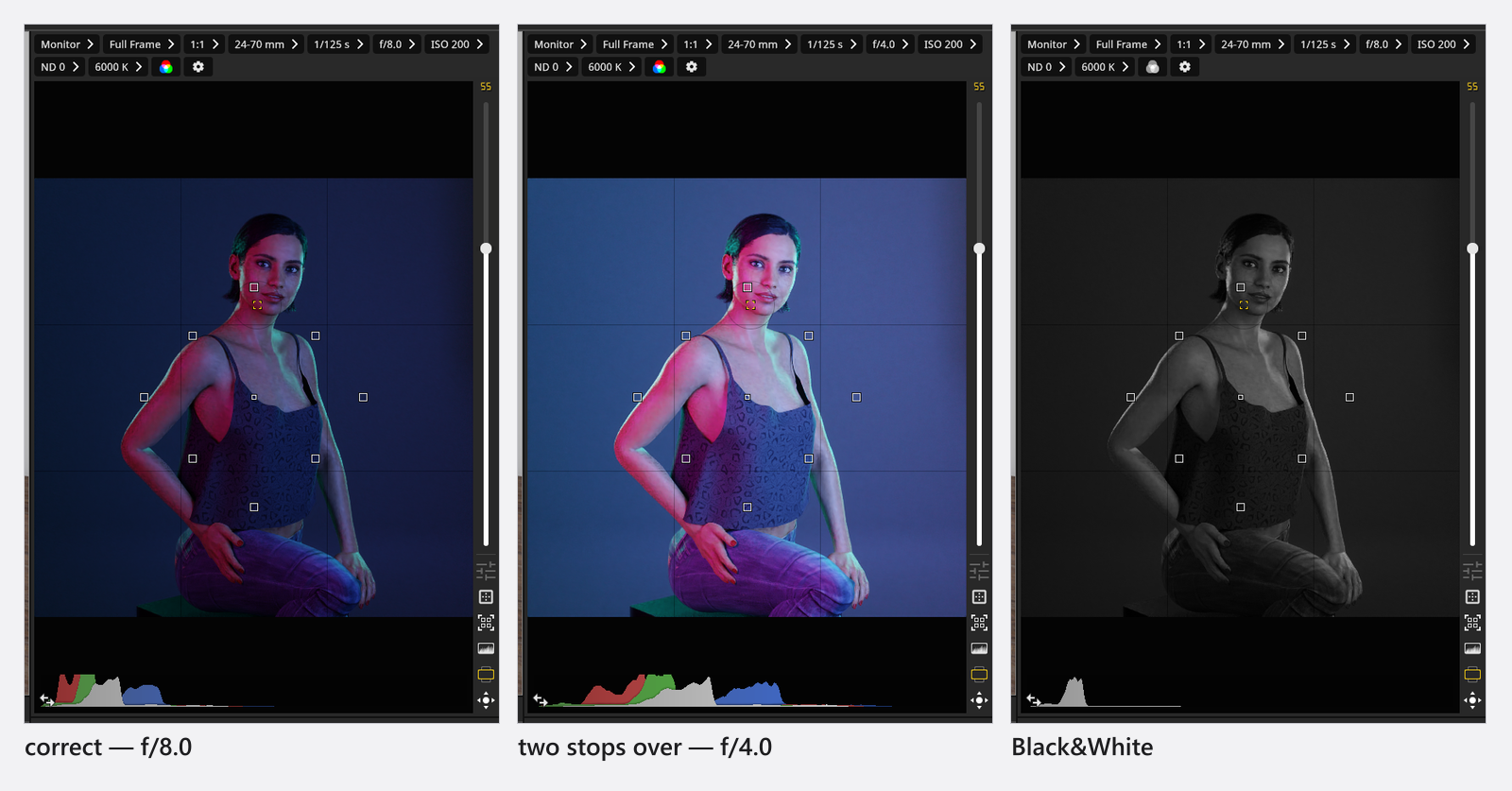
A concentration of values at either end means very dark or very bright pixels in the image on screen. That is the limitation to keep in mind: the histogram follows the display, so switching the view mode to IRE False Color or EL Zone measures that false-colour image instead. Judge clipping in Monitor.
False colour: IRE and EL Zone
The view-mode list at the left end of the camera bar has three entries. Monitor is the normal image. IRE False Color and EL Zone replace it with an exposure map that colours the frame by brightness instead of by hue, the way a camera monitor does on a film set — useful for finding the first blown highlight in a bright dress or a lit background.
Both maps are preview-only: a render is always taken in Monitor, so a false-colour view can never end up in a file. The three entries stay English in every interface language.
The view mode is the one control above the preview that is not part of a camera. It is set once for the whole program: every camera in the set shows the mode you picked, no project stores it, and each session starts again at Monitor.
Settings
Camera
| Setting | Range | Default | Unit | Animatable | Notes |
|---|---|---|---|---|---|
| Anamorphic | None | yes | |||
| Aperture | yes | ||||
| Color | no | ||||
| Color Space | sRGB | no | |||
| Effects Active | off | no | |||
| Exposure Time | yes | ||||
| Focal Length | depends on the camera | 50 | mm | yes | |
| Focus Area | 0.5 | yes | |||
| Focus Distance | 0.001 – 10000 | 1 | m | yes | The field refuses anything below 0.01 m; the top figure is a declared limit, not one the camera enforces |
| Format | depends on the camera | no | |||
| Framerate | yes | ||||
| ISO | yes | ||||
| Manual Focus | off | yes | |||
| ND Filter | None | yes | |||
| Rail Position | from 0 | 0.5 | m | yes | |
| Sensor | depends on the camera | no | |||
| Shutter Angle | yes | Film camera only: the angle itself, shown once the exposure is set to Shutter Angle | |||
| Shutter Angle | on | yes | Film camera only: the pair of buttons that switches the exposure between Exposure Time and Shutter Angle | ||
| White Balance | 1700 – 20000 | 5600 | yes |
One row of this table needs a word of explanation. Focus Distance is listed from 0.001 m, but the field itself refuses anything below 0.01 m, and the figure at the top is a declared limit that nothing enforces — see Focus and depth of field.
Troubleshooting
- The preview is empty and the camera bar is grey. The set has no camera at all — the last one was deleted, or a file’s camera reference could not be resolved. Undo, or place a camera from the library. Deleting the active camera out of several does not cause this: the next camera takes over.
G,ForHdid something else. These three only mean guides, focus points and histogram while the pointer is over the preview.- More symptoms: Camera problems.