
 English
 Deutsch
 日本語
日本語 简体中文
简体中文 Français
The camera preview is the live image of the photo camera: the same ray tracer that makes your finished render, working at the size of its viewport. It refines continuously, so a coarse picture appears at once and cleans up while you leave the set alone. It is the picture to judge lighting and exposure on.
Where to find it
The preview lives in the SETUP tab. In the default layout the studio view occupies the centre of the window and the camera preview sits in the small viewport at the top right; T or the switch button in the small viewport swaps the two, by default, and the choice is remembered between sessions.
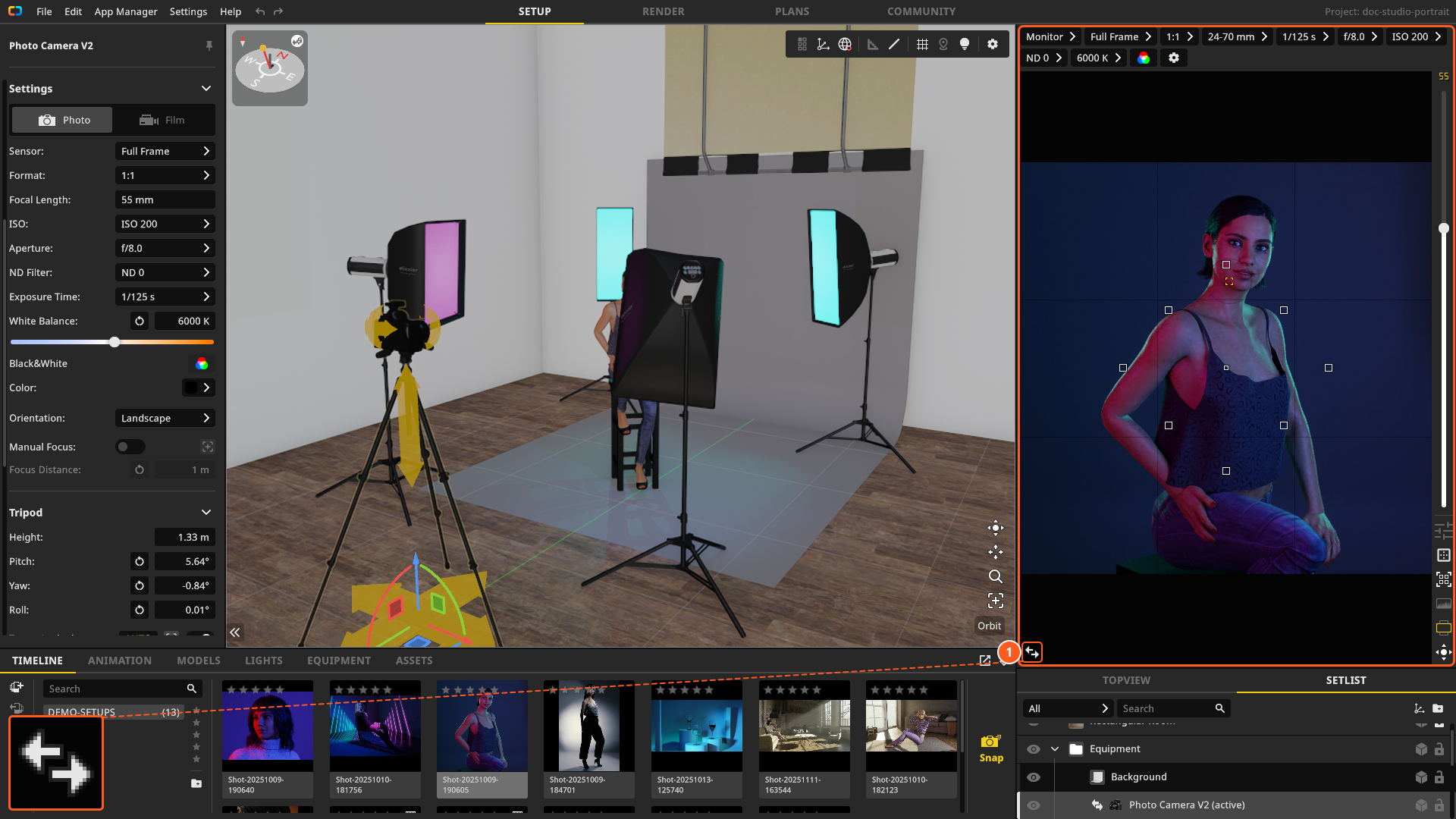
The bar above the preview holds the camera settings, and the narrow strip beside the image the guides, the focus aid and the histogram — both are described in The photo camera.
How the preview refines
Three states follow each other, and you can watch each of them:
While you move something, the preview keeps drawing, every frame, with a cheaper pass: high-resolution shadows are suppressed, and the global bounce light and the fog are recalculated only every few frames. The picture is coarser, but it never freezes and it never goes blank.
When you let go, the ray tracer starts over on the same framing and accumulates samples. The refinement runs to the target of the preview quality: 40 samples at Low, 60 at Medium, 80 at High and 200 at Ultra. Ultra therefore does not make the preview better in kind — it makes it refine far longer. High is the practical working level.
Once the target is reached, the picture stops changing until you touch the set again.
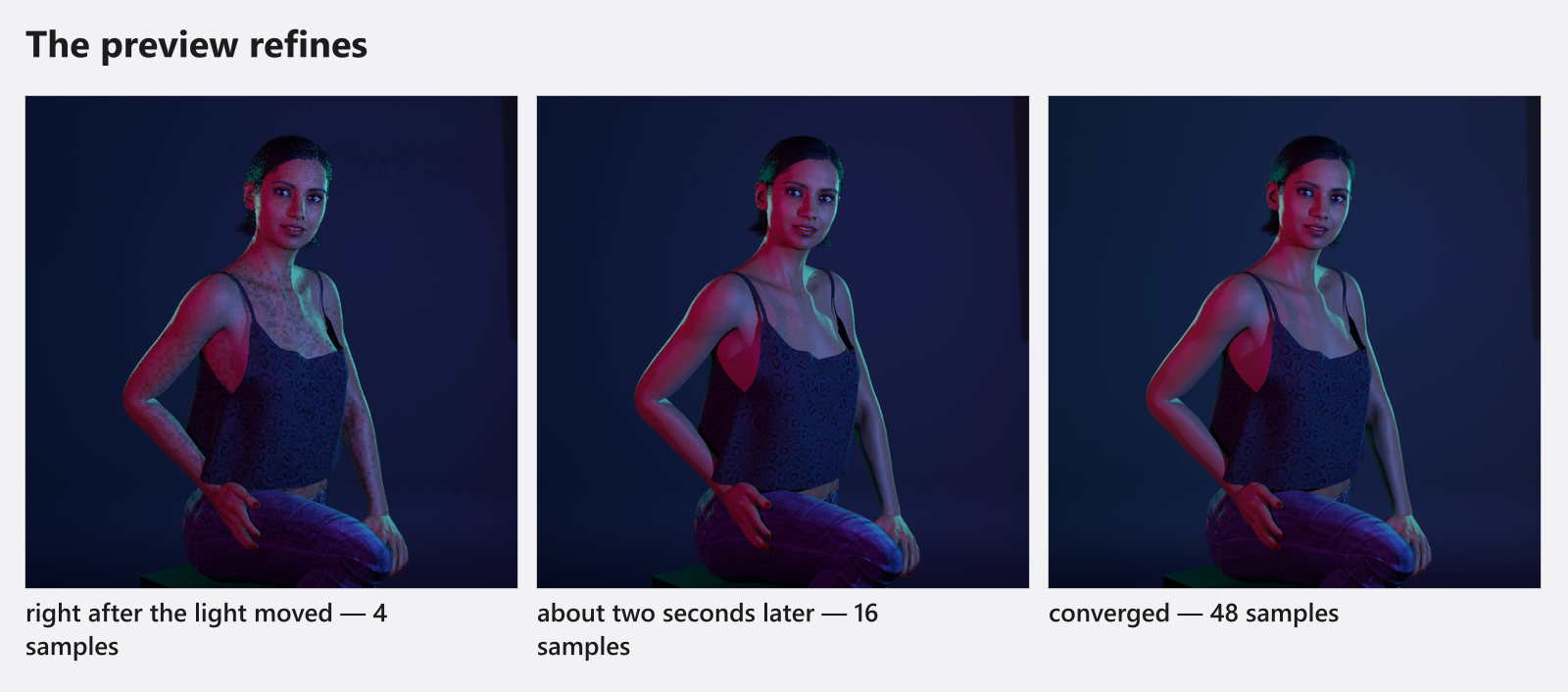
Why it can stay coarse longer than you expect
- The denoiser starts late. Live denoising begins at sample 30 and then runs every ten samples, in the background. Even at Denoiser
Highthe first seconds of a refinement are visibly noisy; that is the ray tracer working, not a fault. - People have to be loaded first. While models are still loading, the refinement waits and only the cheap picture is drawn. A crowd scene can stay coarse for several seconds after a change.
- Geometry has to settle. If the set is still changing — a detail level switching, geometry being rebuilt — the refinement waits for it, for up to five seconds. After that it starts regardless.
Quality and denoiser of the preview
SETUP tab → the gear at the right end of the camera bar. The popup is titled Settings and carries exactly two rows: Quality, a four-step slider from Low to Ultra labelled Fast (Preview) on the left and Best Quality on the right, and Denoiser with Off, Medium and High. Both default to Medium and High. The four step names stay English in every interface language.
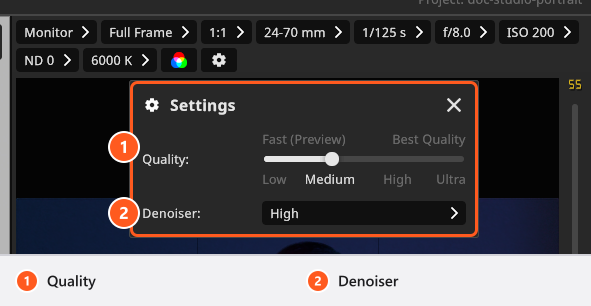
Neither setting changes your render — the RENDER tab has its own pair, and the studio view a third, independent quality setting. What the levels do, and which one to touch when, is in Quality and denoiser settings. One side effect is worth knowing: the preview quality also sets the texture detail of the whole application, so changing it can trigger the message Applying quality settings. This might take a while… while textures are reloaded. That is not a render.
What the camera preview is not
- It is never saved. Nothing in the preview goes to disk. To keep a state, take a snapshot —
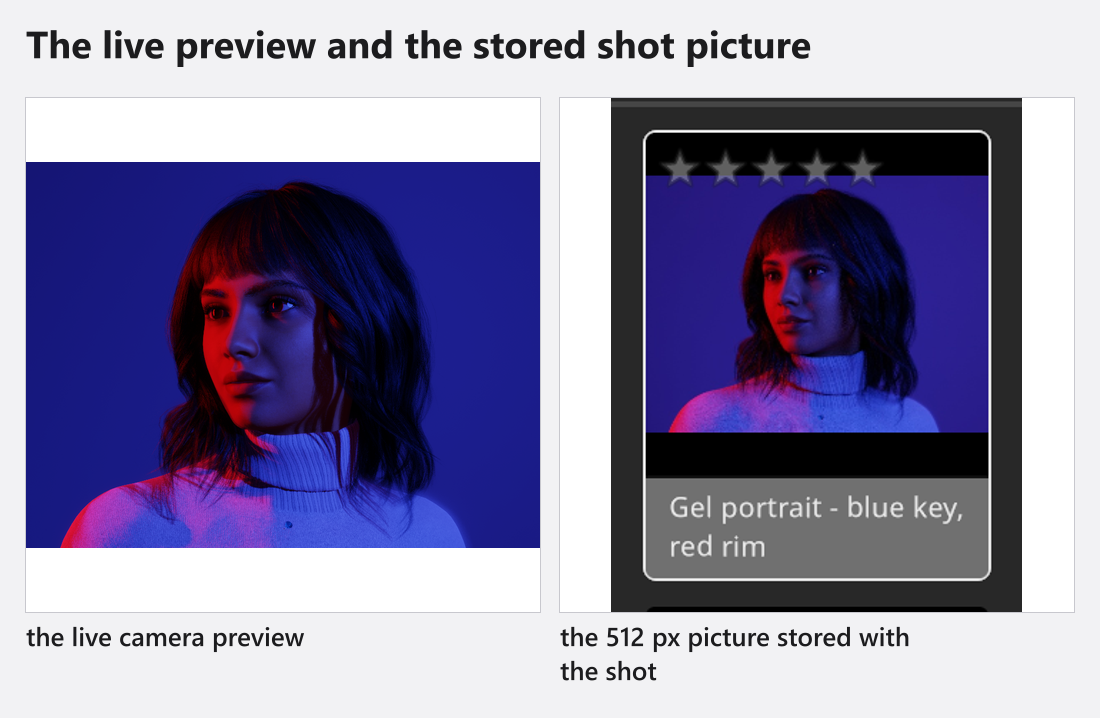
Returnby default, or the Snap button at the end of the TIMELINE panel — and the state becomes a shot. See Take and manage shots. - It is not the stored image of a shot. A shot keeps a 512-pixel picture for the timeline and the gallery. That is why a shot tile looks soft next to the live preview, and why the gallery marks it
Low-Res Previewuntil a render is loaded. That badge stays English in every interface language. - Its size is not your render resolution. The preview takes its pixel size from its viewport, the camera’s framing and the display scaling of your screen, up to a factor of 1.5 — which is why the same window costs more on a high-resolution display. The Resolution of the render has no effect on it. A larger window therefore means a slower preview.
- It carries no watermark, even on a trial — only finished renders do.
- It is not the studio view. The working view deliberately shows less fog and can be switched to simplified shading, so a fogged set looks wrong there. Judge fog here or in a render.
Troubleshooting
- The preview stays noisy or coarse for a long time. → Make it faster
- The preview, the studio view and the render disagree. → Graphics problems