
 English
 Deutsch
 日本語
日本語 简体中文
简体中文 Français
In this tutorial you bring one downloaded object into your library from start to finish: a wooden chair. A chair is a good first import because you know its dimensions — the seat sits about 0.45 m above the floor — so you can tell at a glance whether the size the importer guessed is right. At the end the chair stands in your studio and is waiting in your library for every future project.
Applies to BASIC, STUDIO, CINEMA · Needs the 3D Import add-on (included in the CINEMA trial) · You need: a project open on the SETUP tab and a model file on disk.
Where to find it
Library → ASSETS tab → 3D Objects group → Import 3D Object. Everything after that happens in one window, the 3D Importer. Nothing you do there changes the file on disk; the importer writes a copy into your own collection.
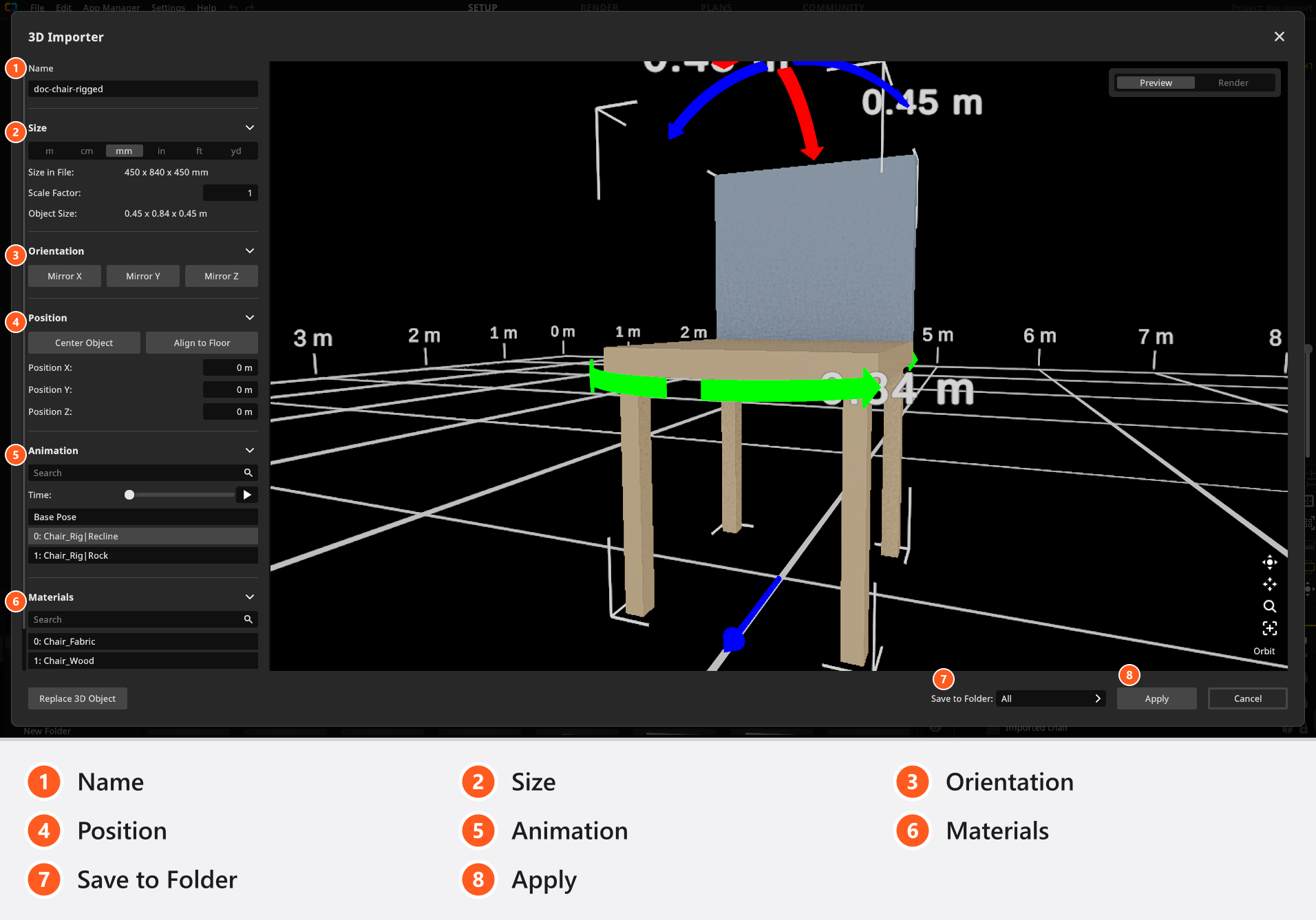
The left column carries the settings in the order you work through them. The viewport on the right shows the model on a measured grid, with its dimensions written beside it and a human silhouette for scale. Navigation works as it does in the studio: hold the right mouse button to orbit, the wheel to zoom. By default F frames the model and V switches the camera control mode — these are the studio keys Frame Selection and Toggle Camera Control Mode, so if you rebind them under Settings → Shortcuts the importer follows. There is no separate 3D Importer page in the shortcut editor.
Import the chair
- Click Import 3D Object and pick the chair file. → The model is converted and the 3D Importer opens with the chair on the grid.
- Type a Name, for example
Bentwood chair. → That is what the object will be called in your library. -
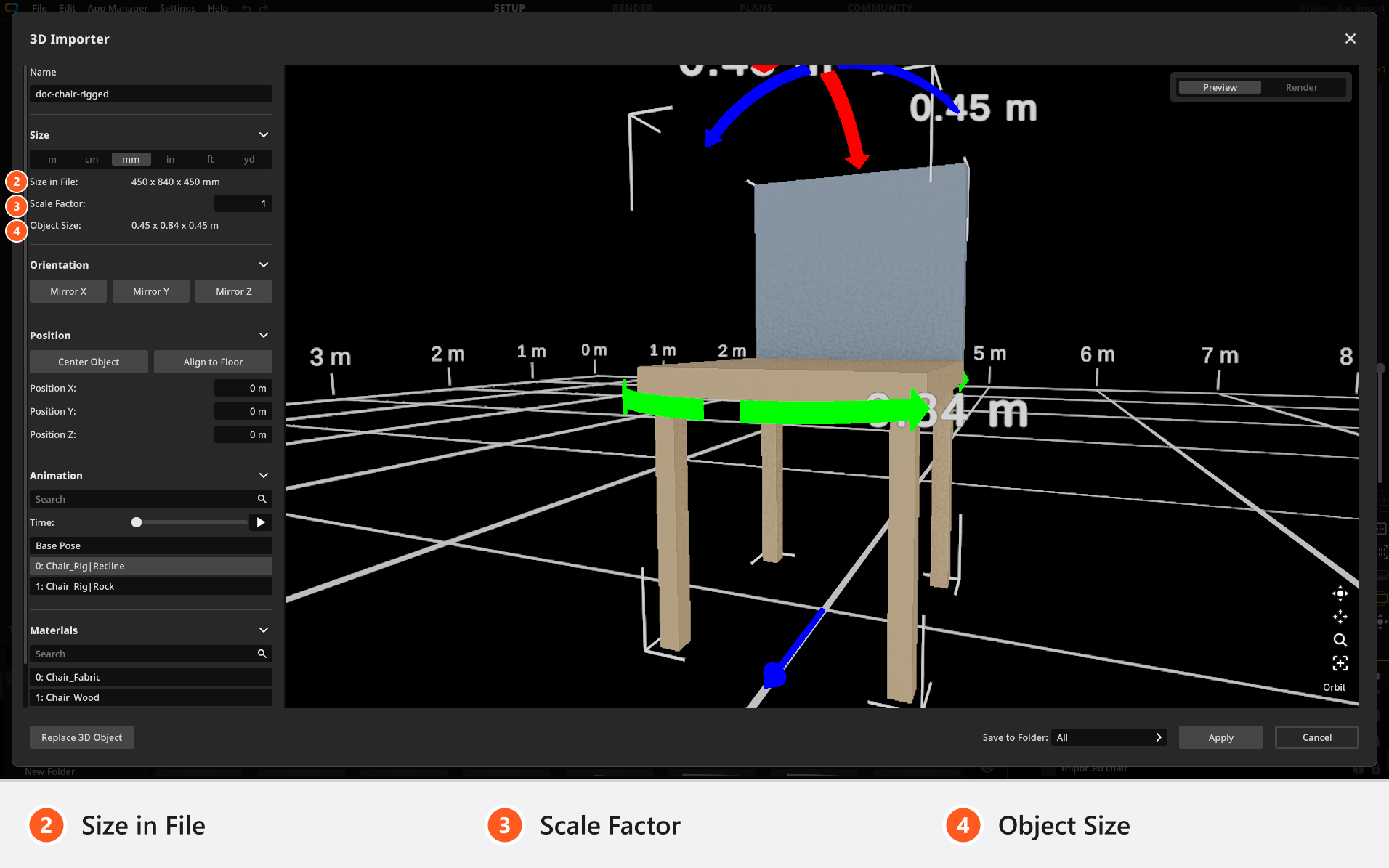
Open Size and read Object Size. → It shows the real size the chair would have in your studio, printed as width, height and depth:
0.45 x 0.88 x 0.52 m. The middle number is the height, so that is the one to hold against the seat you know.
The Size group: the unit row, the size written in the file, a correction factor, and the real size that comes out - If that is wrong, press the unit the file was modelled in. The row offers
mm,cm,m,in,ftandyd. → Object Size follows immediately; a chair modelled in centimetres jumps from88 mto0.88 m, and one modelled in inches from34.6 mto0.88 m. -
Correct what is left with Scale Factor. → Type
1.05and the chair grows by five per cent; keep going until the seat height matches the chair you know.The clip reaches this point at 41 seconds: the Size group of the 3D Importer, on a downloaded basket.
- Click a coloured arrow around the model in the viewport. → Each click turns the chair by 90° along that axis. The arrows are drawn only in the Preview view, and the arrow on the ground marks the model’s front.
-
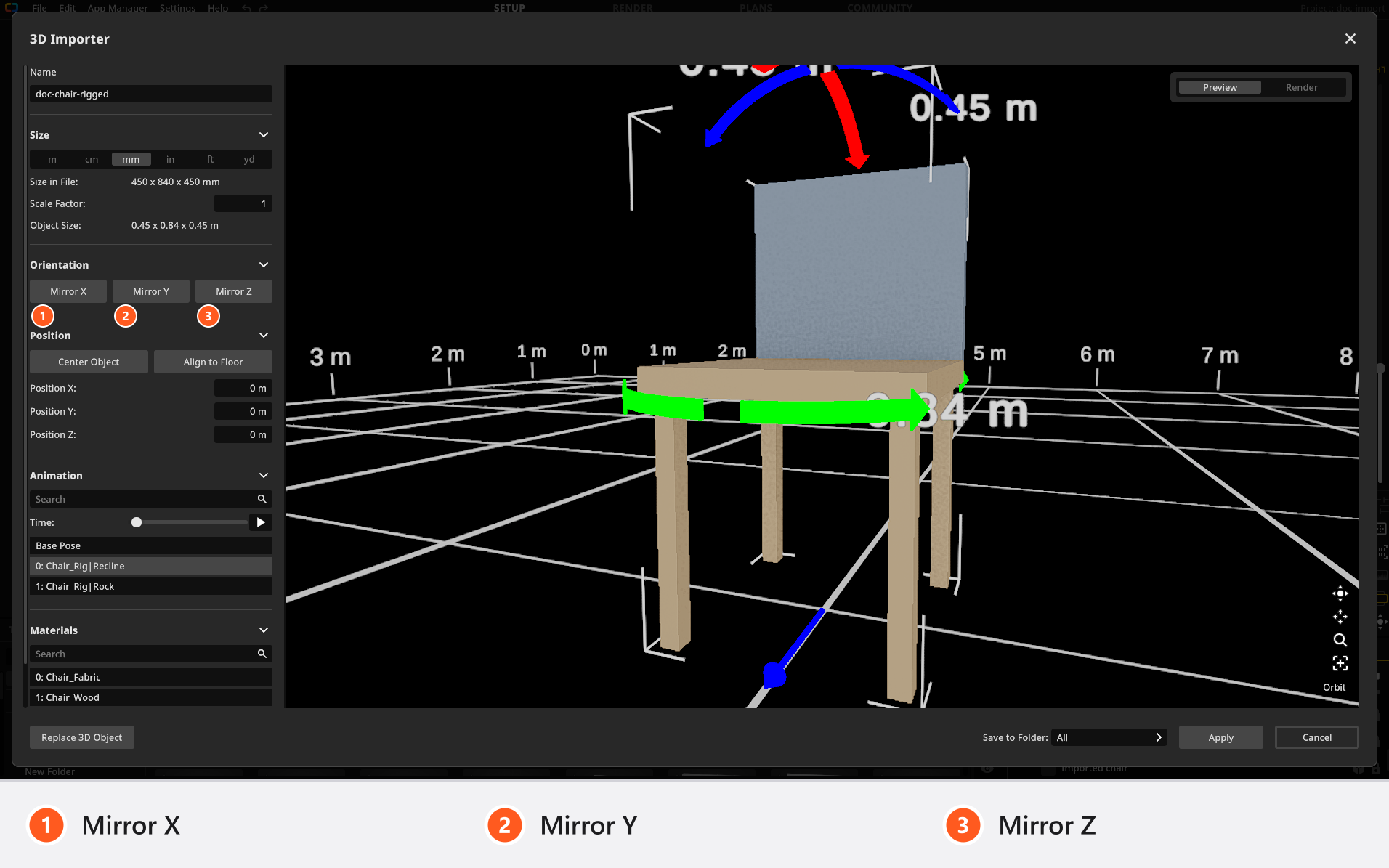
Open Orientation if the chair is mirrored rather than turned. → The group holds Mirror X, Mirror Y and Mirror Z, one flip per axis; the turning arrows stay in the viewport.
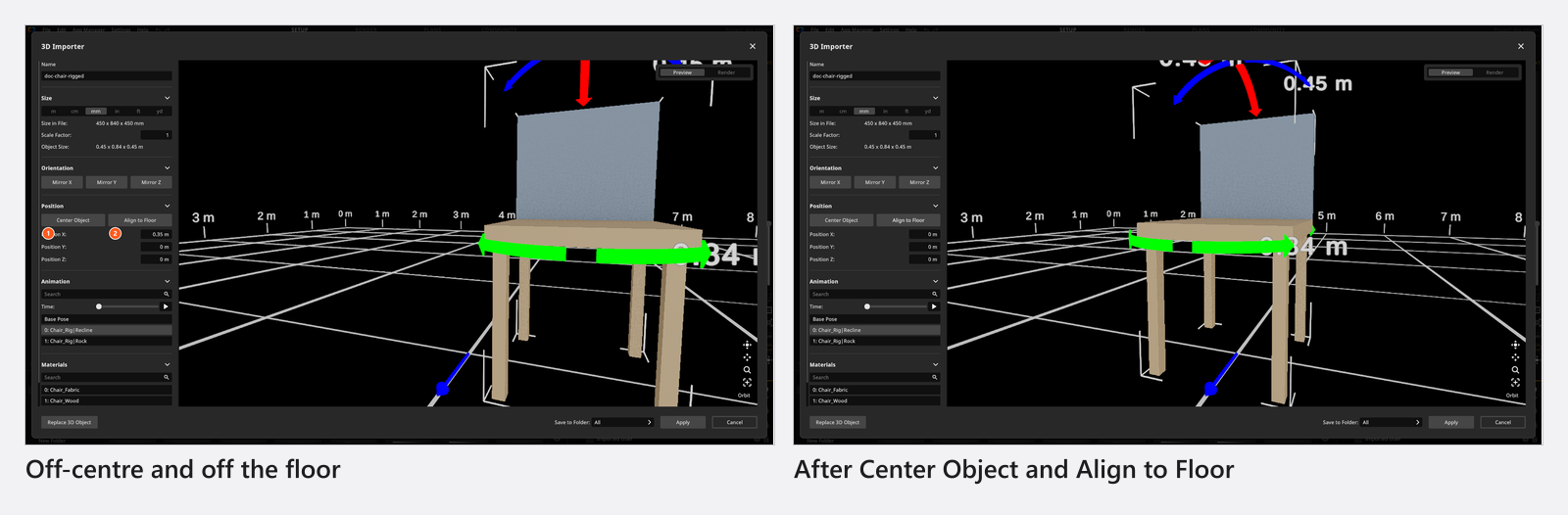
Each coloured arrow turns the model by 90°; the arrow on the ground marks its front - Open Position and click Center Object. → The chair moves over the cross of the grid. It keeps the height it had.
-
Click Align to Floor. → Its feet come down onto the grid. Neither button runs again by itself, so repeat both after every change to size or orientation.
Before and after Center Object and Align to Floor: the chair stands on the grid at the cross -
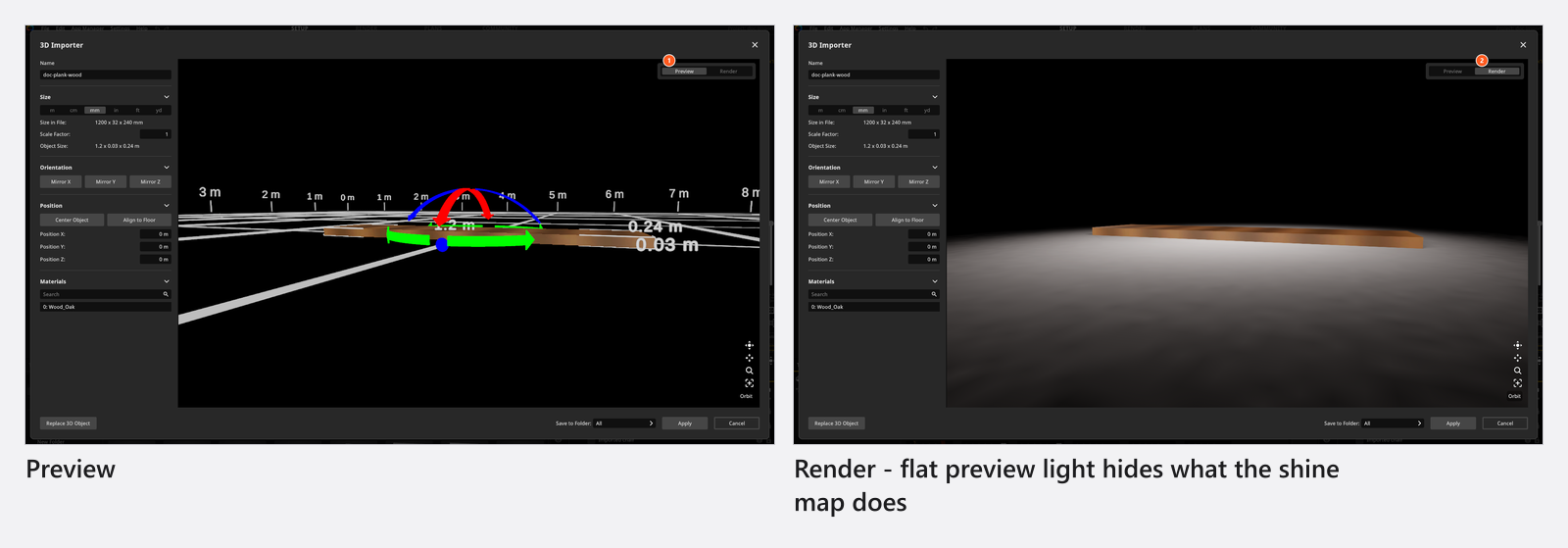
Switch the viewport from Preview to Render and click through the Materials list. → The grid and the arrows disappear, the chair stands on a floor under the importer’s own light, and you can see what the wood really does. Turn the model while you judge it.
The same material in Preview and in Render — flat preview light hides what the shine map does The material work has an article of its own: Shaders and textures of an imported object.
- Choose a folder under Save to Folder and press Apply. → The chair is written into your library and the importer closes.
- Open the 3D Objects group and drag the chair into the studio. → It stands on the floor and behaves like any other object: move it, scale it, light it.
If a warning appears before saving
If the chair’s overall size comes out implausibly small or implausibly large, a Warning appears when you press Apply and asks whether the scale is correct. The test is on the model’s diagonal, not on any single dimension, so it is not a number you can read off Object Size: a compact model is flagged soonest, and a flat or thin one can be far larger than twenty metres before it trips the warning at all.
The usual right answer is Cancel: go back to Size, check Object Size against a dimension you know, and try again. Continue saves the object at the size it has.
What you have now
A chair in your 3D Objects group, at the right size, standing the right way up, in the folder you chose — and one copy of it in your studio. The library entry is the original: everything else in this chapter builds on it. If the file brought animation clips, they came along too, and Pose and animate an imported object takes it from here. To hand the chair to someone else or move your whole collection, see Share, update and back up your 3D objects.
Troubleshooting
- The chair arrived far too large or far too small, or has no texture. → 3D import problems
Related
- 3D import: what the add-on reads
- Shaders and textures of an imported object
- Imported materials: every control
- Pose and animate an imported object
- Share, update and back up your 3D objects
- Select, move and measure objects
- Import your own 3D location or prop
Next step
Once the object stands in the studio, give its surfaces the right shader and maps in Shaders and textures of an imported object.