
 English
 Deutsch
 日本語
日本語 简体中文
简体中文 Français
Every image you render is written to disk as a JPG straight away — there is no separate “export image” step to look for. This page says where those files are, what is inside them, what the RENDER tab lets you do with them, and which formats the program does not write.
Where the files are
A rendered image lands in a folder beside your project file, named after the project without the .set extension. The file name is the title of the shot.
D:\Shoots\Beauty-Campaign.set      ← your project
D:\Shoots\Beauty-Campaign\         ← the images of that project
D:\Shoots\Beauty-Campaign\Key only.jpg| Situation | Where the JPG goes |
|---|---|
| Project saved | the folder beside the .set file, named after it |
| Project never saved | a temporary cache folder that is not meant to be kept — save the project first |
| Save Project As | new renders go beside the new file; the JPGs you rendered before stay in the old folder |
Open Image Folder in the toolbar of the RENDER tab opens that folder in Explorer or Finder. The button is enabled as soon as the folder exists — usually after your first render, but a folder of that name that is already there enables it too.
The images belong to the project: the gallery reads the JPGs from that folder every time you open the file. When you hand a job on, copy the .set file and the folder beside it — see Hand over a shoot.
Titles, file names and deletions
| What you do | What happens to the file |
|---|---|
| Type a shot title | The title is shortened to 50 characters, and the program may add a suffix to keep it unique inside the project. It then tries to rename the JPG. If the file is locked or the new name is taken, the title changes anyway and the old JPG stays behind under its old name. |
| Use a character that is not allowed in a file name | It becomes _ in the file name. Two titles that differ only in such a character end up as one file. |
| Delete a shot | The JPG stays on disk. Delete it in the image folder if you want it gone. |
| Press Apply on a changed shot | The rendered JPG of that shot is deleted, because the render no longer matches the set — see Take and manage shots. |
What is inside the file
| Detail | Value |
|---|---|
| Format | JPG at quality 99, 8 bits per channel |
| Colour space | sRGB |
| Long edge | see the table below (3840 px needs STUDIO or CINEMA) |
| Aspect ratio | from the sensor and format of the camera, portrait or landscape |
| Metadata | exposure time, focal length, f-number, ISO, exposure compensation, the colour space, the program version and elixxier Software as the maker |
Render resolutions
| Resolution | Long edge in pixels | Available in |
|---|---|---|
| 800 px | 800 | BASIC, STUDIO, CINEMA |
| 1200 px | 1200 | BASIC, STUDIO, CINEMA |
| 1600 px | 1600 | BASIC, STUDIO, CINEMA |
| 1920 px | 1920 | BASIC, STUDIO, CINEMA |
| 3840 px | 3840 | STUDIO, CINEMA |
The camera values are written into the file, so an image browser can show the aperture, shutter speed and ISO you worked with. How a particular browser displays them is up to that program.
What the RENDER tab gives you
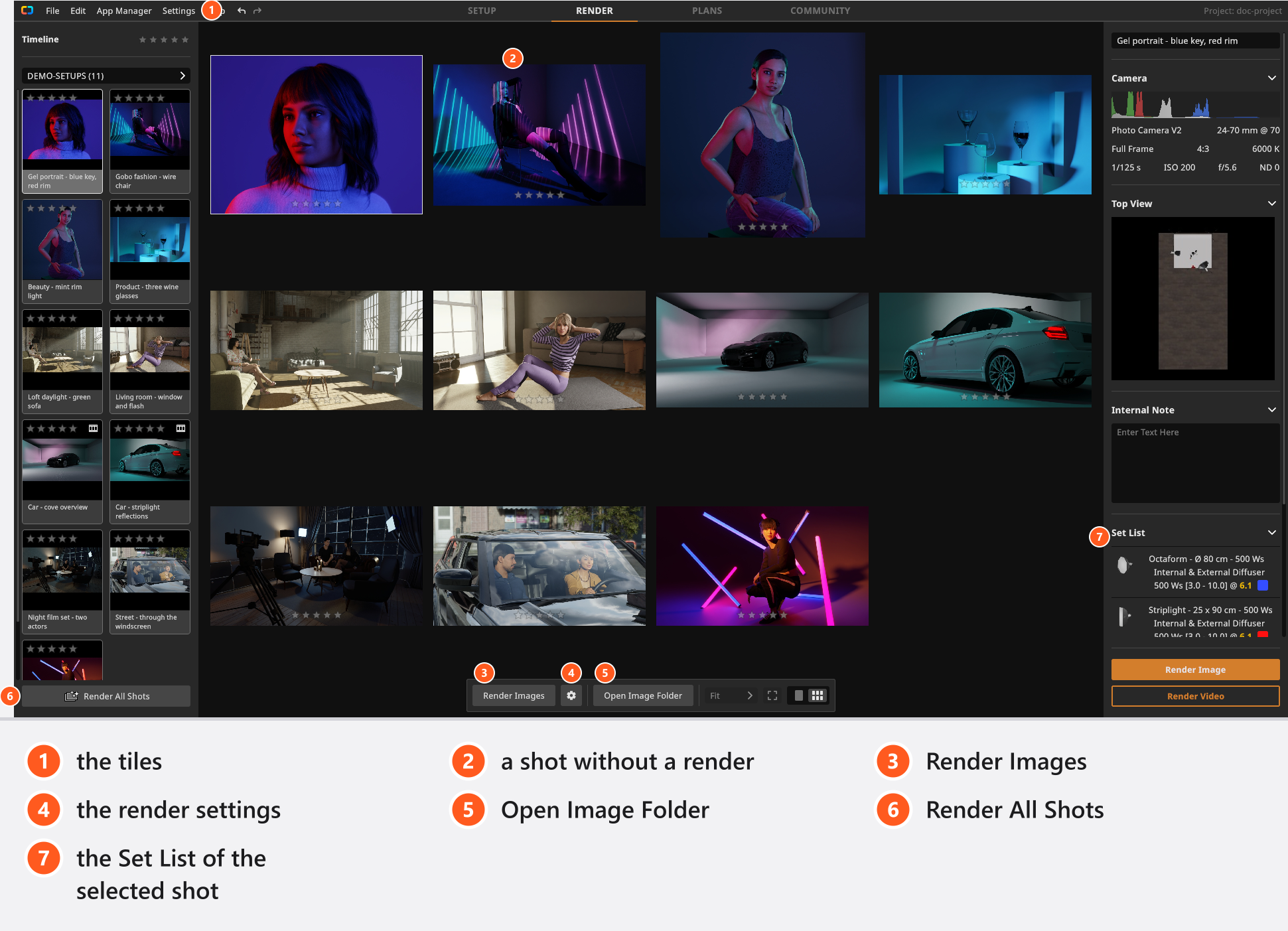
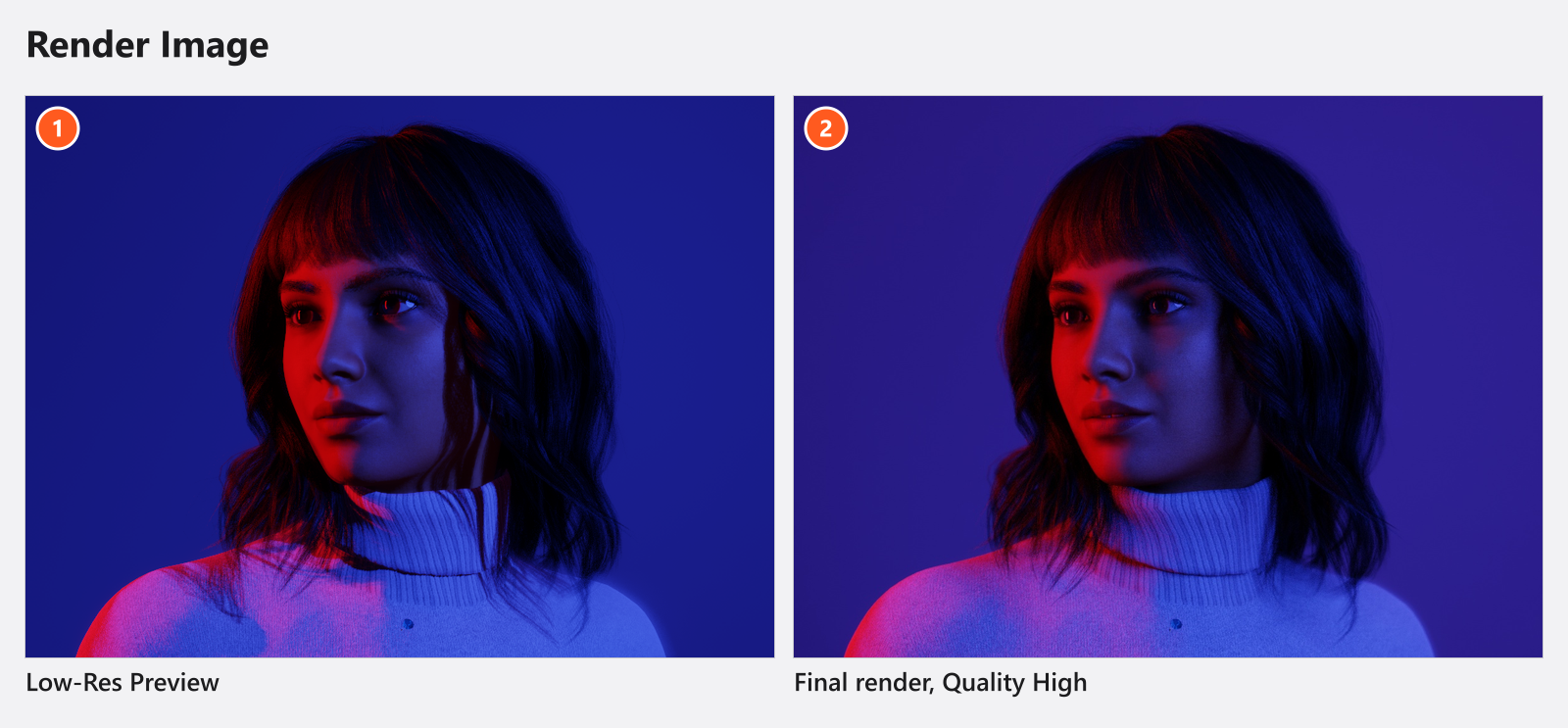
One tile per shot. A tile whose shot has not been rendered shows the preview image and the badge Low-Res Preview — a label that stays English in every interface language.
| Control | What it does |
|---|---|
| Render Image / Render Images | Renders the selected tiles; with several tiles selected the button changes its name |
| Gear icon beside it | The render settings for this render |
| Open Image Folder | Opens the image folder of the project |
| Render All Shots (left panel) | Renders every shot of the project that has no render yet |
| Zoom list and the fit button | 10 % to 1000 %, or Fit; both only in single-image view |
| The two view buttons | One image, or the grid of all selected tiles |
| On a tile, on hover | Render Shot (Re-Render Shot once it has one), a bin icon with a Delete Shot confirmation, a link icon that takes the tile out of a multi-image comparison without deleting anything, and a button that loads the shot back into the studio |
| The stars on a tile | The rating of the shot, the same rating the TIMELINE filters by |
In the single-image view the mouse wheel zooms, Ctrl and the wheel step through whole zoom factors (Ctrl on macOS too, not Cmd), and dragging pans the image.
Above the render buttons, the panel on the right carries the title of the selected shot, Camera with its histogram and camera values, Top View with the diagram of the set, Internal Note, and a Set List read-out of everything that stood in the studio. The lights come first there, each with its shaper variant, light source, power and gel colour, then the other objects by name — useful when you compare two versions of one setup.
The trial watermark
In the trial version every final render carries a watermark. It is drawn while the image is rendered, so activating a licence does not remove it from files that already exist: render those shots again afterwards.
Limits
- JPG is the only image format the program writes. There is no PNG, TIFF or EXR export and no transparent background.
- There is no Save as for a render, no drag out of the gallery and no copy to the clipboard. Use Open Image Folder and copy the file from there.
- The gallery expects the file to keep its name. Delete or rename a JPG outside the program and the tile falls back to the preview image with the Low-Res Preview badge, as if the shot had never been rendered.
Troubleshooting
- There is text across my picture. It is the trial watermark. Activate your licence and render the shot again.
- My renders are gone after I saved the project under a new name. They are in the folder beside the old file.
- Render Failed says the file is already in use. The JPG is open in another program. Close it and use Try Again.
- A JPG is left over that no shot uses. Deleting a shot leaves its file on disk — see Something looks wrong: start here.