
 English
 Deutsch
 日本語
日本語 简体中文
简体中文 Français
A cup, a camera, a handbag, a hat: the moment a model holds something, the picture stops looking like a rendering. Attaching is two clicks, and the work is in the ten seconds afterwards — moving the object a centimetre inside the hand and closing the fingers around it. Do it once and it survives every move of the model, because the object now hangs on the hand.
Applies to BASIC, STUDIO, CINEMA · Needs the 3D Import add-on only if the object is one of your own imports · You need: a project open on the SETUP tab, a prop and a human model standing in the set.
Where to find it
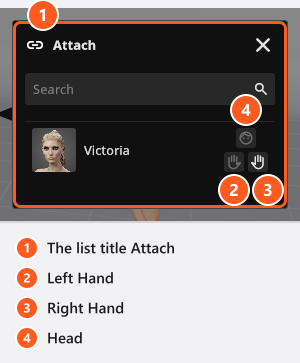
Attaching is set on the object, not on the model. Select the prop and look at the object controls — the small button block next to the selection, switched with the Toggle Object Controls button. Its attach button opens the Attach list, and a second button below detaches the object again. Those two commands live in the object controls only; the inspector has no attach button.
What the inspector gains is an Attachment Point drop-down, and only once the object is attached. With it you move the prop between Left Hand, Right Hand and Head without attaching again. Like a few other strings in this panel, that label is English in every language version.
Props and basic shapes from the ASSETS tab, an architectural light, a picture wall and your own imported objects are among the things a model can carry. Animals cannot hold anything: a model only offers hands and a head when it is human. The general rules live in Attach one object to another; this page is about the grip.
Put the object in the hand
- Select the prop and click the attach button. The Attach list opens with one row per object the prop may hang on. Click the model’s row to use the attachment point the prop last had — the right hand until you pick another one — or click one of the three small buttons on that row, whose tooltips read Left Hand, Right Hand and Head. With two models in the set, the row you click decides which of them holds it. → The object jumps into the attachment point, because attaching resets its own position and rotation to zero. Whatever placement it had in the room is gone, so attach first and fit afterwards.
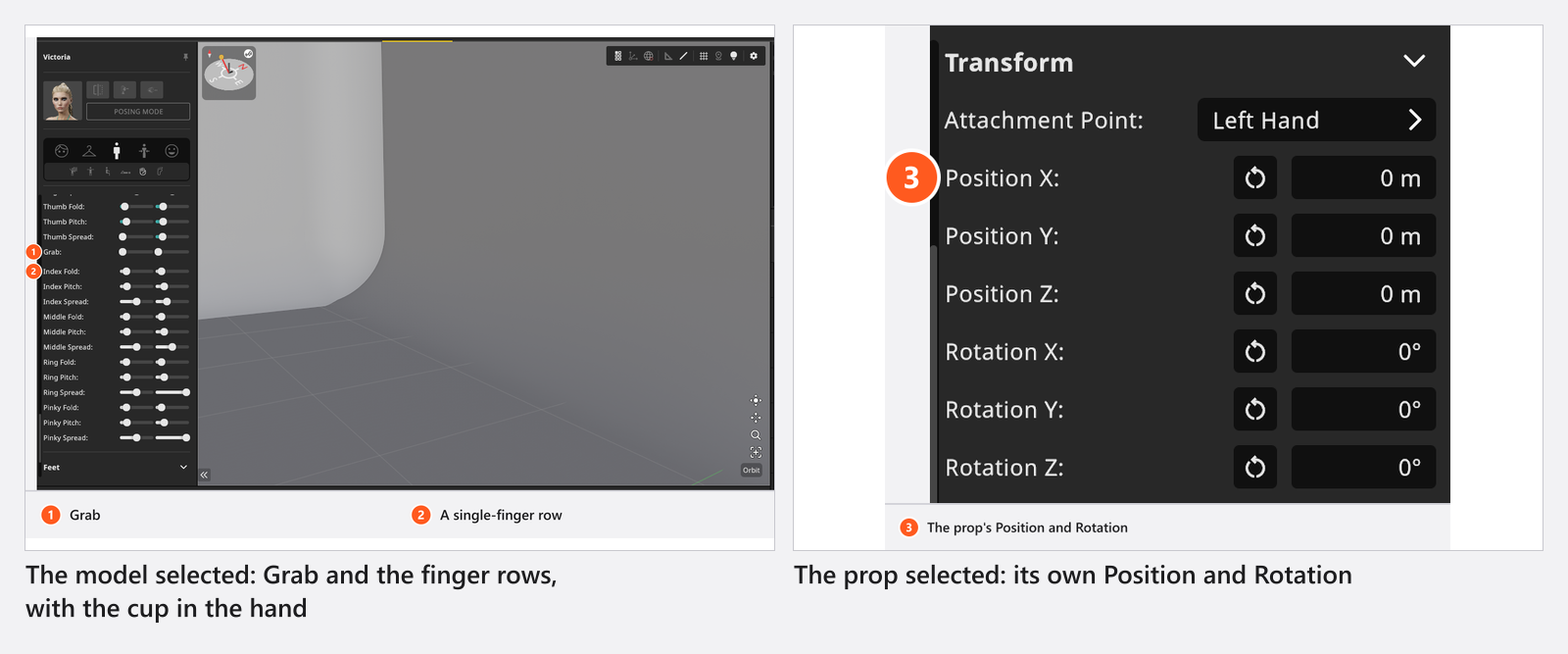
- Fit it with the prop’s own Position and Rotation fields in its Transform group. Those values are now measured from the hand, so small numbers do a lot: a centimetre moves a cup out of the palm. Turn the studio camera close in and work in the camera preview — this is a detail the top view cannot show you.
- Close the hand around it. Select the model, open the Hands group of its Pose mode and pull Grab up from
0towards100. Then refine the single fingers — Index Fold, Middle Fold and the thumb rows — until the fingers sit on the object rather than in it.
Set Grab first and the fingers second. Grab rewrites every finger and the thumb in one move, so doing it the other way round throws your finger work away. A later single-finger edit does not move the Grab value back, which means the two never fight each other once you have the order right.
Keep the grip while you work
The object follows the hand, so moving, turning or re-posing the model keeps the cup in the palm. What does change the grip is the hand itself: applying a preset pose or pressing a reset button rewrites the fingers, and the upper-body reset clears every finger control. After any of those, check the grip and set Grab again — it is one slider.
Detaching leaves the object where it is in the room instead of snapping it back: the detach button in the object controls keeps the position the hand had put it in. That is the trick for placing something exactly, for example a bag on a table that the model first picked up.
Tips & limits
- Attaching is available in every edition. The 3D Import add-on is only needed for your own imported objects — bundled props need nothing.
- The attach button disappears when the set holds no valid target for that object. A hidden model does not count as a target, and neither does an animal.
- Duplicate copies one object only, so duplicating the model leaves the prop on the original. To keep model and prop together, save both with Save to My Library — it collects the whole group (see Reuse poses, expressions and models).
- Nothing about the attachment is animated. Animate the model and the object comes along, because it hangs on the hand (add-on: Animation Tool).
- An object on the head hangs on the head bone, so it follows every head rotation — including the one the head toggle makes (see Where the model looks).
Troubleshooting
- The attach button is missing. There is no valid visible target in the set: the model is hidden, or it is an animal.
- The prop jumped away when I attached it. That is the reset of its own position and rotation. Fit it with the Position fields afterwards.
- The fingers go through the object. Raise Grab first, then bend the single fingers → Pose a model.
- The grip broke after I clicked a pose. A preset pose rewrites the fingers. Set Grab again.