
 English
 Deutsch
 日本語
日本語 简体中文
简体中文 Français
Most lighting reports are a behaviour working as designed in a place nobody told you about. This page collects the ones that come up again and again, each as symptom, cause and what to do. If a light renders wrong rather than behaving wrong, start at Graphics problems.
My new flash is far too dim
Cause. A new flash head is created four steps down its own power scale — four stops below its maximum — so that you build a set up rather than down. A head whose scale is shorter than that starts at its own minimum instead: a head that dims from 3.0 to 10.0 arrives four steps down, one that only covers 1.0 to 3.0 arrives at 1.0. Continuous fixtures arrive at full output.
What to do. Raise the power. The number under the slider is what the real head would show, and the range it runs in belongs to the head you picked — see Light settings.
I dropped a light shaper on a light and got a second light
Cause. The drop is only accepted when the new part fits what the light already carries; the same rule the selection popups enforce. When it does not fit, the drag falls back to placing a new light instead of leaving you with a combination the interface would never allow.
What to do. Delete the extra light, then change the shaper from the light’s own inspector, where only the compatible entries are offered.
The light keeps re-aiming itself
Cause. Lock Light Source on Target is on — every new light arrives with it on. The moment you start to move the light, the program looks down the beam, takes whatever the beam hits and holds the head on that spot for the whole move. So the aim you typed by hand survives until the next move, and that move takes a fresh point from wherever the beam is pointing then. Editing an angle does not switch the lock off, and a light’s target point cannot be typed in — the numeric target fields belong to cameras.
What to do. Switch Lock Light Source on Target off before you set the angle; the direction then survives every move. If you want the light on your subject rather than on a point you picked, use Rotate Light Towards Model instead — it swings the light onto the nearest model and switches the lock on in the same move. Both are in Aim a light (target lock).
My light lost its subject
Cause. The target point is a point the program finds by looking along the beam. When that look hits nothing — the model was moved away, the beam now goes past everything — the point lands far out in empty space, and the head follows it there.
What to do. Aim the light at something again: move it so the beam crosses your subject, then let it re-acquire, or set the target point yourself.
The stand has disappeared although its toggle is on
Cause. A stand model covers a certain range of heights. Outside that range the model hides itself rather than showing a stand that does not exist in that shape. The light stays exactly where you put it.
What to do. Bring the height back into the range, or pick a stand that reaches that high. W (by default) shows and hides stands in general — check that first.
I dimmed several lights together and my ratios changed
Cause. Every head is rounded to the steps of its own scale. A studio flash steps through its own power scale and a lamp runs in percent, so one change applied to a mixed selection does not move every head by the same amount.
What to do. Set the key light first and adjust the others against it, or dim lights of the same type together. Measure the result instead of trusting the sliders — see Measure light and lighting ratios.
Solo came back when I loaded the shot
Cause. Set as Solo Light is stored with the set, so it travels with the shot.
What to do. Switch solo off before you take the snapshot. It is a working aid, and a shot that stores it renders with one light.
Q or S does nothing although a lamp is selected
Cause. Both keys work on a practical light — a table lamp, a ceiling fitting — exactly as they do on a studio head, so a key that does nothing is a context or a selection problem, not the kind of object. Shortcut contexts follow the pointer, and none of them fire while the pointer sits in a text field or over a modal dialog.
What to do. Move the pointer over the studio view and press again. With a mixed selection of heads and lamps both keys read the active object and set the whole selection to match it, so check which row is the active one. The lamp’s own on/off and solo buttons in the object controls do the same job. The keys are defaults and can be changed in Settings → Shortcuts…; which contexts a key works in is in Keyboard shortcuts.
My old set with scrims and diffuser panels got darker
Cause. How much light a diffuser lets through was corrected in this version, and the correction is not migrated into existing projects. A set built before the change therefore renders darker at the same Light Reduction setting, and how much darker depends on the set.
What to do. Treat it as a new baseline and re-balance the set: raise the lights behind the panels until the reading is back where you want it, and re-render the shots you care about. There is no published compensation figure. What the setting does now is in Soften, bounce and subtract light.
My light-meter readings moved after the update
Cause. The measurement itself was corrected in this version. The meter is more accurate than it was; your set did not change.
What to do. Re-take the readings your notes are based on. Ratios between two points in the same set are affected much less than absolute values.
The modeling light is invisible
Cause. A modeling light is weak against a flash. At an exposure that suits the flash, its contribution is not visible.
What to do. Judge it at a long shutter speed or a high ISO, or switch the flash off while you place it. Modeling Light Active is on by default on a new light except in BASIC, where it is off. Proportional below it makes the pilot light follow the head’s power; Full keeps it at its own.
My light shaper list is shorter than my colleague’s
Cause. Three filters can shorten it at once: the mount of the light you have selected, entries you have hidden in the App Manager, and the edition — some categories are not part of BASIC at all.
What to do. Select a light with the mount you need, check the hidden entries in the App Manager, and compare your edition against BASIC, STUDIO and CINEMA compared. The full list is in Light shaper catalogue.
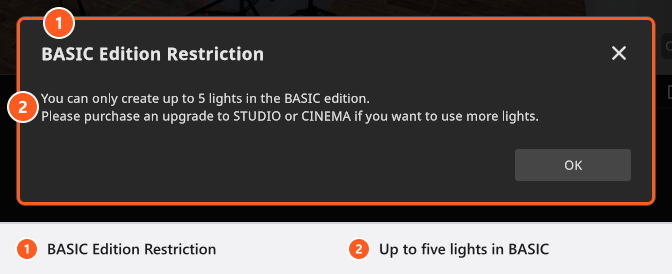
BASIC says I cannot add another light
Cause. A BASIC set holds at most 5 lights, and the limit applies to every route: adding, duplicating and pasting.
What to do. Delete a light or switch one off and re-use it. The notice is titled BASIC Edition Restriction and reads You can only create up to 5 lights in the BASIC edition.
My gobo looks stretched or has lost its colour
Cause. Every gobo mask is resized to 512 × 512 pixels and averaged to greyscale when you import it. A mask that was not square arrives distorted, and a coloured one arrives grey.
What to do. Prepare the file square before importing, and use a gel on the light for colour instead of a coloured mask. See Project a pattern or an image.
Editing an old project changed the light output
Cause. Projects from earlier versions keep their original light profiles as long as you do not touch the light. Changing its brightness or its equipment switches that light to the current profiles, which can shift its output slightly.
What to do. Expect it and re-balance, or leave the lights of an archived project alone and build a new shot instead.