What can be animated

Nearly everything you can set in the inspector can be keyed, but not everything, and a few settings only accept keys on objects that have the part in question. This page answers two questions: can this setting be animated, and what has to be true before a keyed value changes the picture.

Applies to BASIC, STUDIO, CINEMA · Needs the Animation Tool add-on (included in the CINEMA trial). A few of the settings below are limited to one edition; the tables say which.

The five kinds of track

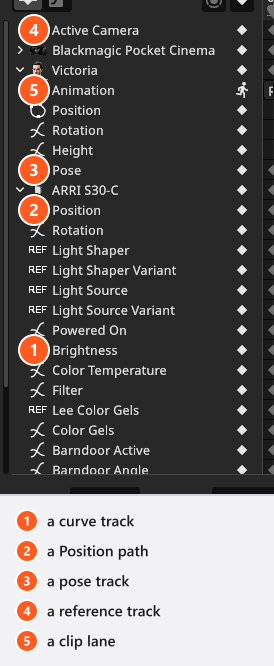
All five kinds of track in one object list
Track Created for What it can do
Curve Numbers, colours, switches and drop-down values One curve per channel: a plain number has one, a Rotation has one per axis, a colour has three. Numbers travel smoothly and can be eased; switches and drop-downs are held and then jump at the next key.
Path The Position of an object A Bezier route drawn in the studio view, shaped by gizmos there. In the Curve Editor it shows one channel, Distance, for retiming and easing the travel.
Pose A model’s pose and facial expression The whole pose is stored per key and blended evenly between keys. It has no interpolation mode of its own, so place more keys where the movement should accelerate.
Reference Settings that point at a library item or at another object — Light Shaper, the HDRI, Active Camera Holds the value of the last key and switches at the next one. There is nothing in between to calculate, and no curve to edit.
Clip lane Ready-made clips on a model or an imported object The one track you create yourself, with the plus on the object’s Animation row. Clips are placed, stretched and faded on the lane.

What has to be true before a keyed value does anything

Condition Effect
Manual Focus is off Focus Distance keys are ignored — the camera focuses automatically. Key the switch on first.
A dolly rail is attached to the camera The rail decides where the camera stands, so Rail Position moves it and free Position keys do nothing. Its range is 0 to the length of the rail.
Target Locked is on for a camera or light stand The aim is recalculated after the animation has been applied, so keyed head rotation is overwritten. Animate Target Point instead, or switch the lock off.
The Environment’s Baked Settings section has been shut Its Brightness, Color Temperature, Rotation and the sun settings live in it. The section is open by default, and shutting it takes the sun with it: the tracks work either way, the sliders are out of sight. See Animate sun, sky and atmosphere.
A setting marked sometimes The object has to have the part: barndoor settings need a light shaper with barndoors, the projector settings need a projector, Zoom needs a light that zooms, a stand’s axes depend on the type of stand fitted.

How to read the tables below

Every table names the settings of one kind of object, with the values you can set, the default, the unit, and whether the setting accepts keyframes. Three notes:

  • sometimes means the setting exists only on some objects of that kind, as described above.
  • One label can appear more than once in a table, because different fields share it. Compare the Range column with the field in your inspector: Brightness on a light is 0 to 100 and animatable, while the two fields for typing a measured brightness carry the same label and are not.
  • The camera table lists Shutter Angle twice: the row whose default is on is the switch between shutter angle and exposure time, the other row is the angle itself.

Three settings called Framerate

Where What it is
Bottom row of the ANIMATION tab The animation’s framerate: 2 to 120 whole frames per second, default 30, saved with the shot. With Duration it decides how many frames the video holds.
Camera inspector, Film camera The camera’s exposure framerate, a list of fixed values from 16 to 2000 fps, default 30. It belongs to the shutter calculation and has nothing to do with the timeline.
Light-meter inspector (STUDIO+) The meter’s exposure framerate, the same fixed list as the camera’s, default 30. It is shown while the meter measures in shutter angle, it belongs to the measurement, and it is animatable like the camera’s.

What is saved where

Where it lives
Keyframes, tracks, clips in the shot
The preview frame, Duration, Framerate in the shot
Playback range, playhead, zoom, pan, folded rows in the session only
Automatic Keyframe Recording in the session only, and switched off on every load
The framerate a new animation starts with in the program settings

Every object

Every object

Setting Range Default Unit Animatable Notes
Attachment Point Right Hand, Left Hand, Head, Flash, Lens Right Hand no The drop-down offers the three points of a model or the two points of a camera, never both sets; it appears only once the object is attached
Enable Light on no
Position -10000 – 10000 0 m yes
Rotation 0 ° yes

Camera and stand

Camera

Setting Range Default Unit Animatable Notes
Anamorphic None yes
Aperture yes
Color no
Color Space sRGB no
Effects Active off no
Exposure Time yes
Focal Length depends on the camera 50 mm yes
Focus Area 0.5 yes
Focus Distance 0.001 – 10000 1 m yes The field refuses anything below 0.01 m; the top figure is a declared limit, not one the camera enforces
Format depends on the camera no
Framerate yes
ISO yes
Manual Focus off yes
ND Filter None yes
Rail Position from 0 0.5 m yes
Sensor depends on the camera no
Shutter Angle yes Film camera only: the angle itself, shown once the exposure is set to Shutter Angle
Shutter Angle on yes Film camera only: the pair of buttons that switches the exposure between Exposure Time and Shutter Angle
White Balance 1700 – 20000 5600 yes

Stand / tripod

Setting Range Default Unit Animatable
Base Rotation depends on the object 0 ° sometimes
Head Rotation depends on the object 0 ° sometimes
Height depends on the object 0 m sometimes
Length depends on the object 0 m sometimes
Offset depends on the object 0 m sometimes
Target Locked on yes
Target Point 0 m yes

The set itself carries one animatable setting that belongs to no object: Active Camera, which is how one shot cuts from one camera to another. It is a reference track, so it switches at the key.

Lights, reflectors and diffusers

Light

Setting Range Default Unit Animatable Notes
Barndoor Active off sometimes
Barndoor Angle -90 – 90 25 sometimes
Brightness 1 – 10000000 4000 no Area Light only: how much light the head gives, in lux
Brightness 0.1 – 100 3 no Area Light only: the distance that lux figure is measured at
Brightness 0 – 100 100 yes The power slider of the light itself
Color Gels white yes
Color Temperature 1700 – 20000 depends on the light yes
Filter None, Custom, Lee None yes
Flash Active on sometimes
Gobo Blur 0 – 0.04 0 sometimes
Gobo Field of View 10 – 170 90 sometimes
Lens Luminosity no
Manual Focus off no
Modeling Light Active depends on your edition sometimes
Modeling Light Color Temperature 1700 – 20000 3200 sometimes
Modeling Light Power 1 – 2000 300 W sometimes
Powered On on yes
Projector Focal Length 12 – 130 50 sometimes
Projector Focus Distance 0 – 20 3 sometimes
Speedlight Pitch 0 – 90 0 sometimes
Width / Height depends on the light 1 m no Area Light only: the size of the light surface
Zoom depends on the light 35 sometimes

Architectural light

Setting Range Default Unit Animatable
Brightness 1 – 100 100 yes
Color Temperature 1700 – 20000 depends on the light yes
Frame Color depends on the light yes
Lightshade Color depends on the light yes
Powered On on yes
Show Cables on no

Reflector

Setting Range Default Unit Animatable
Diameter 0.05 – 1.05 depends on the light m sometimes
Fold V-Flat -180 – 180 90 sometimes
Scattering 0 – 0.4 0.1 sometimes
Size 0.1 – 10 depends on the light m sometimes

Diffuser

Setting Range Default Unit Animatable
Color white no
Width / Length 0.1 – 10 depends on the light m no

Flash Active, Modeling Light Active, Modeling Light Power and its colour temperature exist on flash heads and ring flashes only — not on speedlights, which carry their own Speedlight Pitch instead, and not on continuous lights. Architectural and practical lights (STUDIO+) run their Brightness from 1 to 100 rather than from 0, so they cannot be switched off with power alone; key Powered On for that. A diffuser brings no animatable setting of its own — only its position and rotation move — while a reflector adds Size, Diameter, Scattering and Fold V-Flat on the models that have them.

Light meter

The light meter (STUDIO+) measures instead of lighting, but two of its settings still take keys.

Light meter

Setting Range Default Unit Animatable
Color no
Exposure Time no
Framerate yes
Halfdome Incidence on no
ISO no
Shutter Angle yes

Both animatable rows belong to the exposure the meter calculates, and the inspector shows them only while the meter measures in shutter angle rather than in exposure time.

Models

Model

Setting Range Default Unit Animatable
Abdomen up to 1.5 1 no
Animation yes
Arms up to 1.5 1 no
Breasts up to 1.5 1 no
Chest up to 1.5 1 no
Height depends on the model m yes
Legs up to 1.5 1 no
Locomotion 0 – 1 0 no
Muscular 0 – 1 0 no
Pelvis up to 1.5 1 no
Pose yes
Pregnant 0 – 1 0 no
Weight -1 – 1 0 no

Two rows of that table are not ordinary settings: Pose is the pose track, keyed with For Model Pose and holding every bone plus the facial expression, and Animation is the clip lane you create yourself. Height is separate from the pose, so a model can change height during a shot.

Props, basic shapes and mirrors

Prop

Setting Range Default Unit Animatable Notes
Light Active off yes
Scale depends on the prop depends on the prop m yes Three fields in metres — Width, Length and Height — which start at the size of the library model

Basic shape

Setting Range Default Unit Animatable
Arch Height depends on the prop m sometimes
Arch Width depends on the prop m sometimes
Color white yes
Cutoff Angle 0 – 360 depends on the prop ° sometimes
Metallic 0 – 1 0 yes
Resolution X depends on the prop depends on the prop no
Resolution Y depends on the prop depends on the prop no
Shine 0 – 1 0.5 yes
Size depends on the prop m sometimes
Thickness depends on the prop depends on the prop m sometimes

Mirror

Setting Range Default Unit Animatable
Diffusion 0 – 1 0.1 no
Frame Color depends on the prop yes
Light Loss 0 – 1 0 no
Reflect Lights on no
Size depends on the prop m yes

Windows and doors

Window / door

Setting Range Default Unit Animatable
Bottom m no
Depth -1 – 1 0 no
Door Color white sometimes
Frame Color white sometimes
Left m no
Open 0 – 1 0 sometimes
Right m no
Tilt off sometimes
Top m no
Width / Height depends on the window or door m no

Room, background, picture wall and floor

Room

Setting Range Default Unit Animatable
Ceiling Color depends on the room yes
Floor Color depends on the room yes
Shine 0 – 1 0.24 yes
Size 0.01 – 1000 depends on the room m yes
Wall Color depends on the room yes

Background

Setting Range Default Unit Animatable
Color depends on the room yes
Color Mode Custom, Manufacturer Custom yes
Radius 0.1 – 2 0.5 m yes
Shine 0 – 1 0.41 yes
Size depends on the room m yes

Picture wall

Setting Range Default Unit Animatable
Bend 0 – 180 0 yes
Color white yes
Luminosity from 1 128 yes
Offset 0 – 10 0 m yes
Radius 0 – 1 0 yes
Self-Luminous off no
Shine 0 – 1 0.5 yes
Size 4 m yes
Transparency 0 – 1 0 yes

Floor

Setting Range Default Unit Animatable
Color white yes
Scale 0.4 – 2.5 1 no
Shine 0 – 1 0.24 yes
Thickness 0 – 0.2 0 m no
Width / Height 0.1 – 1000 depends on the room m no

The set environment

Environment

Setting Range Default Unit Animatable
Brightness -5 – 15 13 EV yes
Environmental Light on yes
Fog Density 0 – 0.5 0 yes
North Offset 0 ° yes
Rotation 0 – 360 0 ° yes
Sample Multiplier 1 – 8 4 no
Sample Portals 0 – 1 0.5 no
Sun Active on yes
Sun Altitude -90 – 90 70 ° yes
Sun Brightness -10 – 0.1 0 yes
Sun Diffusion 0 – 0.2 0 yes
Sun Direction 0 – 360 180 ° yes

Brightness, Rotation, North Offset and the sun rows are the ones you key; Animate sun, sky and atmosphere walks through them.

A fog machine

Fog machine

Setting Range Default Unit Animatable
Cloudiness 0 – 1 0.3 yes
Color white yes
Fog Density 0 – 5 3 yes
Gravity 0 – 1 0.5 yes
Horizontal Spread 0 – 1 0.9 yes
Room Fill 0 – 1 0 yes
Time 0 – 100 0 yes
Vertical Spread 0 – 1 0.9 yes

Its Fog Density runs 0 to 5. The Environment’s Fog Density is a different control on a different scale, 0 to 0.5 — do not carry a value from one to the other.

Older projects

A project written by an earlier version can carry a framerate between 1 and 500, although the field only accepts 2 to 120. Such a value is loaded and played as it is; typing into the field brings it back into range.

Related