
 English
 Deutsch
 日本語
日本語 简体中文
简体中文 Français
Nothing gives a rendered portrait away faster than a model looking past the lens. Two toggles fix it in one click, and a third mode lets the model look at something else in the room instead — another model, a light, a camera you are not shooting with. It is worth a check on every shot, because the eyes also decide where the catchlight sits.
Applies to BASIC, STUDIO, CINEMA · You need: a project open on the SETUP tab and a model selected.
From 06:17 the first-setup clip switches the head and the eyes towards the camera on a selected model.
Where to find it
The two toggles sit in both places you would look for them: in the object controls — the small button block next to the selection, switched with the Toggle Object Controls button — and in the inspector header, where they carry their names as tooltips.
- Rotate Head Towards Camera turns the head.
- Rotate Eyes Towards Camera, directly below it, turns the eyes.
Both are off on a fresh model, and both follow the active camera. If your project has several cameras, the model turns to whichever one is active and swings across when you switch — so set the active camera before you judge the eye line.
Look at the camera
- Select the model and switch Rotate Eyes Towards Camera on. → The eyes find the active camera.
- Add Rotate Head Towards Camera when the angle is wide. The eyes stay within 40° of the direction the head faces, so at an extreme angle they run out of travel and the head has to come along.
That 40° limit is also the reason a profile shot with eye contact never looks right from the eyes alone: turn the head, or turn the model — see Position a model.
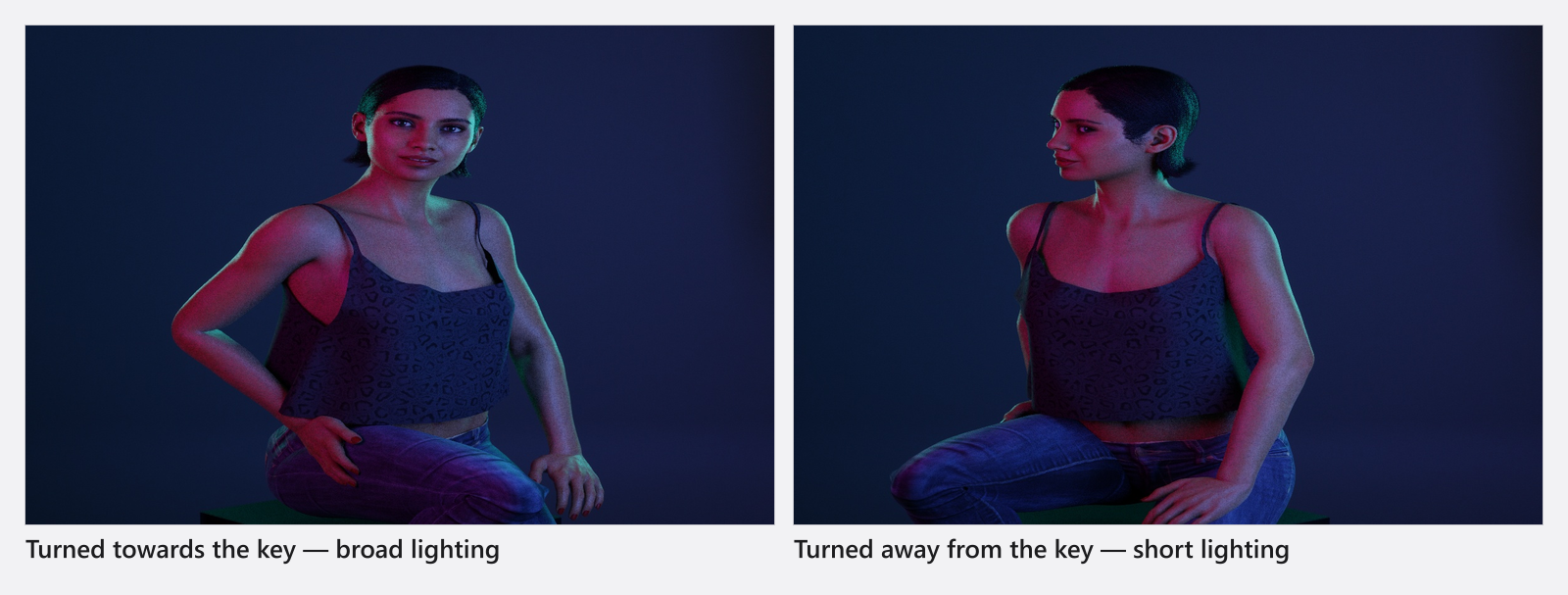
Look at something else
With Rotate Eyes Towards Camera on, one more button appears in the object controls. It switches the studio view to LOOK AT MODE.
In that mode a small eye button appears on every object this model may look at: lights, architectural lights, other models and cameras — and only while they are visible. Props are never offered. Click an eye button and the gaze locks onto that object and follows it when it moves.
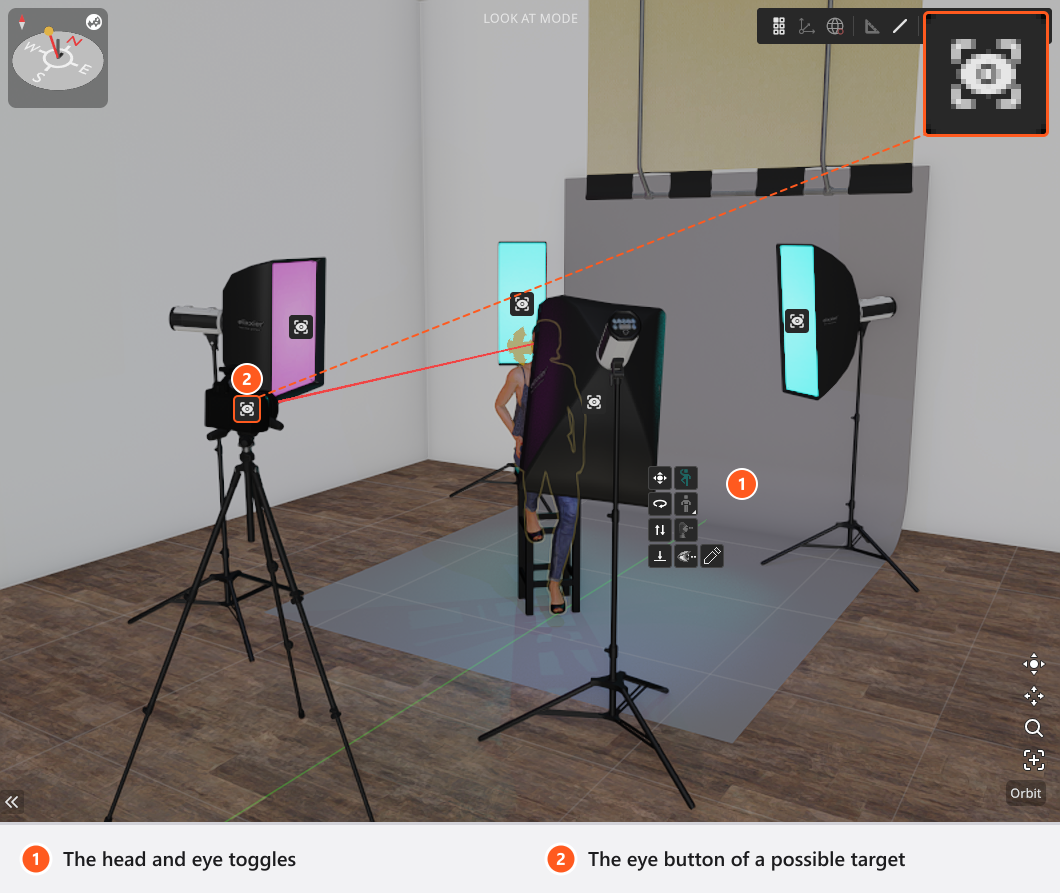
A stored target outranks the camera. Switching Rotate Eyes Towards Camera off does not clear it either: switch the toggle back on and the model looks at the old target again. The camera is only the fallback, used when no target is stored or when the stored one no longer exists.
Instead of an object you can drag the gaze handle on the model and set a free looking direction — a point on the floor, a spot past the lens, the classic look into nothing. That direction belongs to the model, not to the room: turn or move the model and the gaze turns with it.
Two people, one eye line
Two models looking at each other is the same move done twice. Select the first model, switch Rotate Eyes Towards Camera on, enter LOOK AT MODE and click the eye button on the second model. Then select the second model and click the eye button on the first. Both gazes now follow their partner, so you can reposition either of them and the eye line holds. Add Rotate Head Towards Camera only where you actually want the head turned — for a couple shot the heads usually stay where the pose put them.
Tips & limits
- Aiming works in every edition; nothing on this page is an add-on.
- The eyes are neutralised while a pose thumbnail is being taken, so a saved pose tile never shows the gaze you set.
- The two toggles and the gaze direction belong to the model, so they are stored with a shot and with Save to My Library. A pose group stores bones only, so a pose you save does not carry the gaze — see Reuse poses, expressions and models.
- Aiming a model is not the same as aiming a light: a light keeps its own target lock, described in Aim a light (target lock).
Troubleshooting
- The head will not move when I drag it in posing mode. Rotate Head Towards Camera is on, and it owns the head while it is on. Switch it off, pose the head by hand, switch it back on if you still want it.
- The eyes look somewhere I did not choose. A target from earlier is still stored. Enter LOOK AT MODE and pick a new one, or drag the gaze handle to set a free direction.
- The model looks at the wrong camera. It follows the active camera → The photo camera.