
 English
 Deutsch
 日本語
日本語 简体中文
简体中文 Français
The camera preview and the final render use the same calculation with different budgets: the preview refines while you work, the render takes its time at full resolution and writes a file. This page takes one stored shot through that second path, from the shot to the JPG on your disk.
Applies to BASIC, STUDIO, CINEMA · You need: a saved project with at least one shot in the TIMELINE. A trial writes a watermark into every rendered image.
Step 1 — Make sure you have a shot
Only shots can be rendered, not the live studio.
- In the SETUP tab, click Snap in the TIMELINE tab or press
Enterby default. → A tile appears in the TIMELINE. - Save the project if you have not: until it has a file of its own, rendered images go to a temporary folder you will not find again. → Saving your work
Step 2 — Go to the RENDER tab
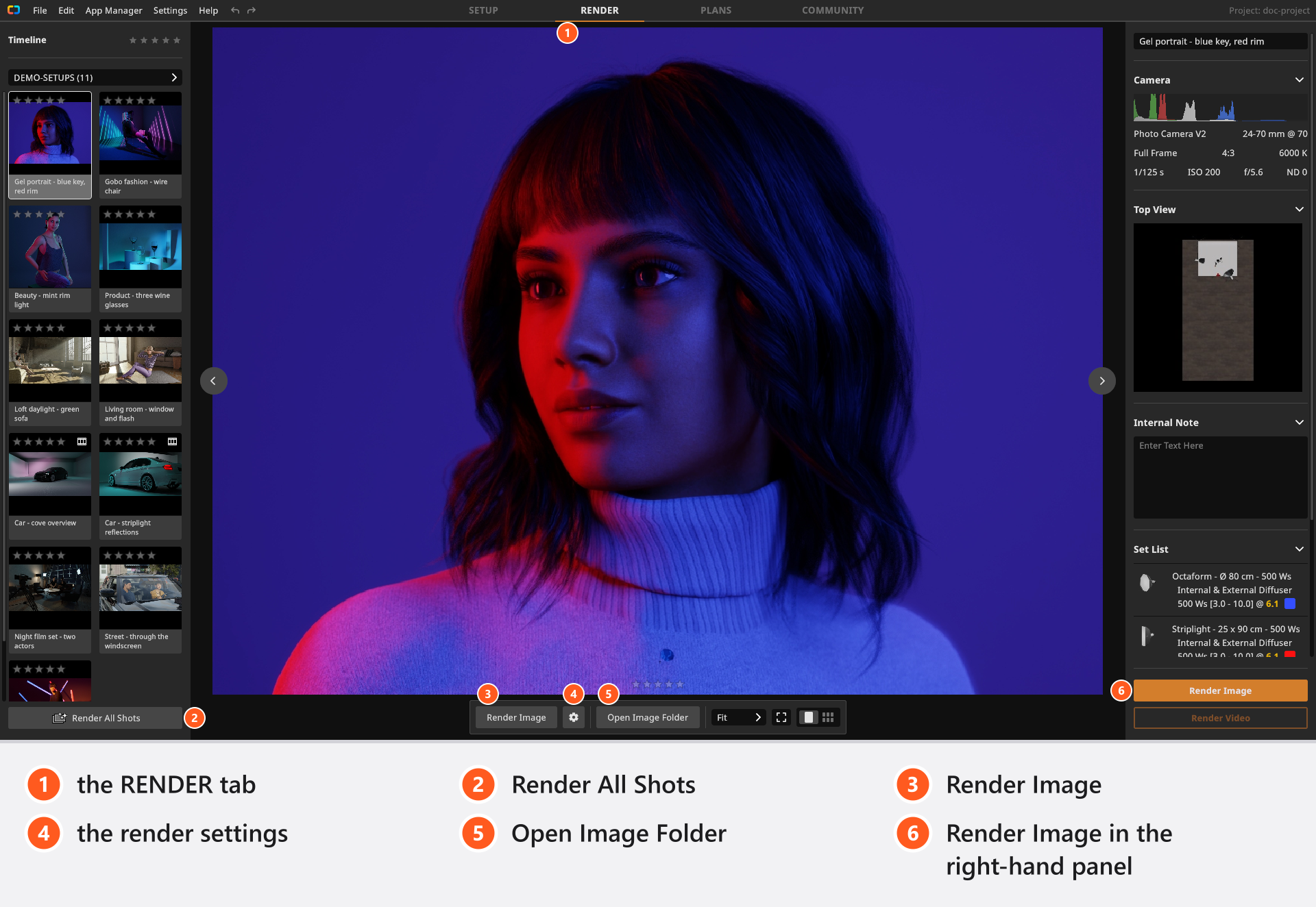
- Click RENDER in the top bar. → The shots of the project appear in the left column, their images in the middle.
- Select the tile of the shot you want. → The render button in the bottom toolbar becomes available.
You can also jump here from the SETUP tab: select a shot and click Open Viewer in its inspector. Double-clicking a tile does something else — it loads that shot back into the studio.
Step 3 — Leave the settings as they are
- Open the gear beside the render button in the bottom toolbar and read the four rows. → On a new installation Resolution stands at
1200 px, Quality at Medium and Denoiser at High, and Frame Lines is off. Leave all four for this first pass.
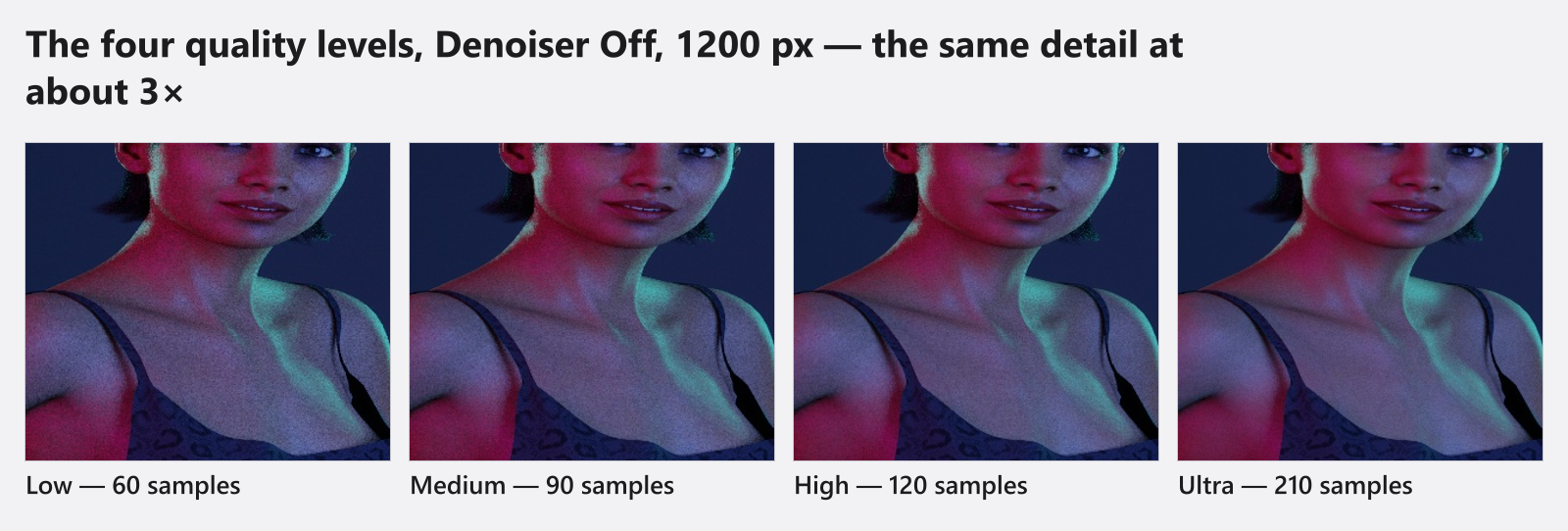
Low, Medium, High and Ultra, Denoiser Off, 1200 pxQuality is the sample budget of the image, Denoiser smooths the noise the samples leave behind, and Resolution is the long edge in pixels — the expensive one, because doubling the edge quadruples the pixels. Frame Lines burns the frame lines you switched on for this camera into the JPG; with none enabled it changes nothing. What each level costs and which resolutions your edition offers is in Quality and denoiser settings and Resolution.
Step 4 — Render
- Click Render Image in the bottom toolbar. → The image is calculated right away, and the render controls appear over the picture.
A second Render Image button in the right-hand panel behaves differently, and a selection of several shots follows its own rule. Render an image sets the four routes side by side.
Step 5 — Watch the progress
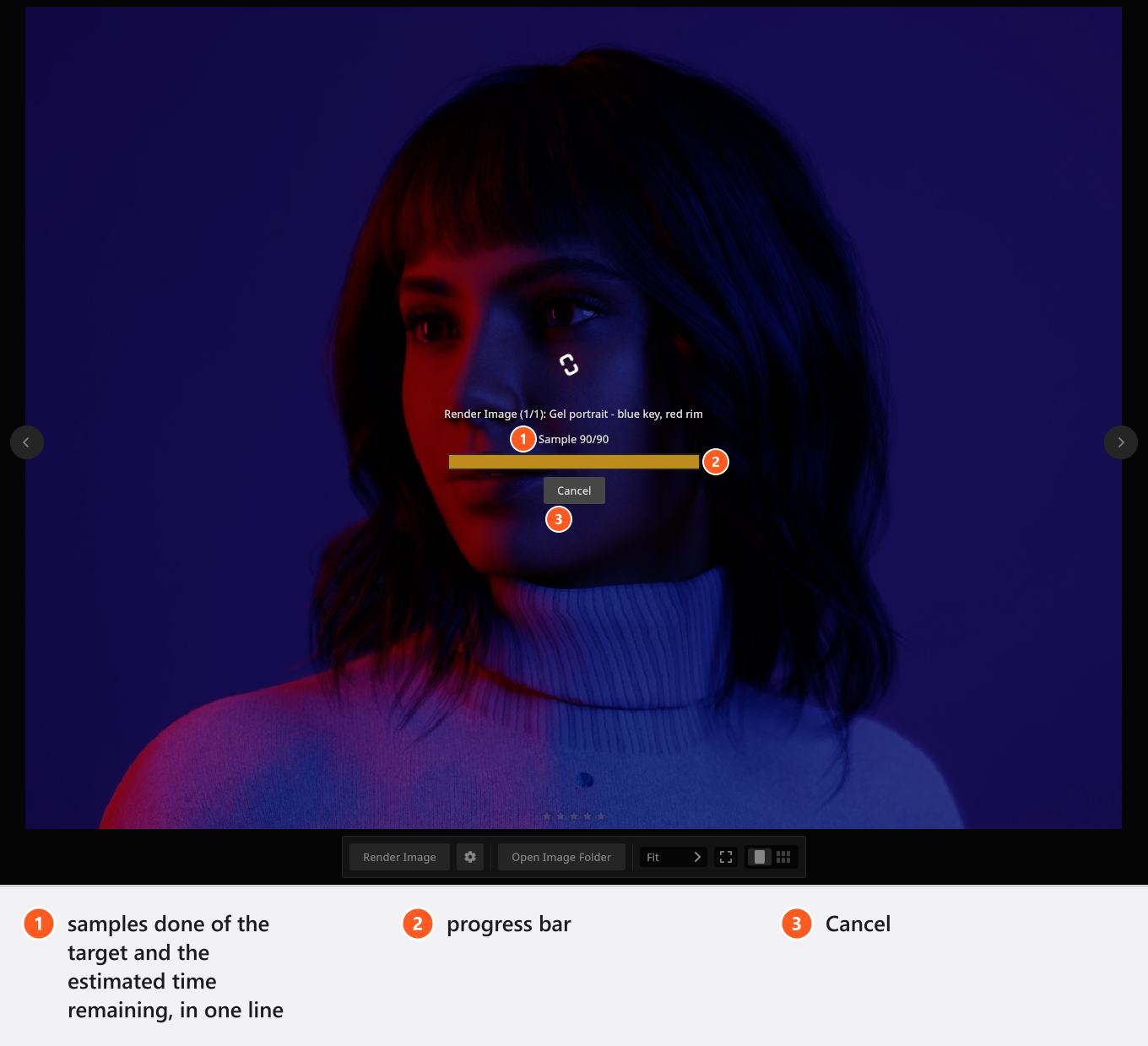
- Follow the progress bar. → It counts the samples of the current image, and after a few seconds it adds an estimate of the time it still needs.
- Let it finish. → When the controls disappear, the JPG is on disk.
Cancel stops the image being calculated; it is not written, and the images that were already finished stay where they are. While a render runs the program is busy with your graphics card — see Make it faster.
Step 6 — Find the file
- Click Open Image Folder in the bottom toolbar. → Your file manager opens the folder the images went into: a folder beside your project file, carrying the same name.
- Look at the file name. → It is the name of the shot, so a shot called Key only becomes
Key only.jpg.
Every image is a JPG written at quality 99 of 100, with the exposure data of the camera stored in the file. There is no PNG, TIFF or EXR option and no quality slider for stills. Rendering the same shot again overwrites its JPG, so copy a version you want to keep somewhere else first — renaming the shot does not help, because the existing file is renamed with it.
Tips & limits
- A trial writes a watermark into every rendered image and every video. It disappears from the next render after you activate a licence.
- The camera preview and the studio view have quality settings of their own, so turning the preview down does not change what you render.
- Judge exposure on a render, not on the studio view.
Troubleshooting
- The render seems stuck. Watch the sample counter rather than the bar: a high resolution at Ultra can sit on one image for a long time. → Render problems
- A tile stays empty after a batch. A mixed selection renders only the shots without an image. Select that one shot and render it on its own. → Render an image
- I cannot find the images. The project had no file of its own when you rendered. Save it, then render again. → Where your images are saved
Related
- Render an image — the RENDER tab in full.
- Quality and denoiser settings — the three quality ladders.
- Resolution — what each step costs.
- Where your images are saved — the output folder and the file names.
- Saving your work — projects, images and recovery copies.