
 English
 Deutsch
 日本語
日本語 简体中文
简体中文 Français
Moving around the studio is a mouse job with one or two keys. The studio view offers two modes: orbit turns the view around the area you are looking at, fly walks you through the room like a first-person camera. The top view and the camera preview have their own, simpler controls. All keys below are defaults — Settings → Shortcuts… changes them.
Applies to BASIC, STUDIO, CINEMA · A mouse with a right button, a middle button and a wheel is assumed · You need: a project open on the SETUP tab.
Where to find it
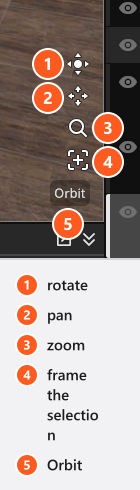
The camera controls sit as a small widget in the bottom right corner of the studio view: four buttons for rotate, pan, zoom and framing, plus a label that reads Orbit or Fly. Everything the widget does can be done with the mouse directly in the view.
Orbit around the set
Orbit is the mode a new project starts in. From 00:53 the clip does the three moves below on the studio view, in 25 seconds.
| Input | Result |
|---|---|
| Right mouse button + drag | Turn the view around the area you are looking at |
| Middle mouse button + drag | Shift the view sideways and up or down |
Space held + drag with any button |
The same shift, without a middle button |
| Mouse wheel | Change the viewing distance |
| Button ① … ③ of the widget + drag | Turn, shift and zoom without the extra mouse buttons |
F or button ④ |
Frame the selected objects; with nothing selected, the whole set |
The view tilts between 80° above and 80° below the horizon, and the viewing distance runs from 0.01 m to 1000 m. Both ends are quietly enforced: the view stops instead of flipping over.
Fly through the room
Fly mode is the fastest way to a camera position at eye level, or to check what a wall looks like from a metre away.
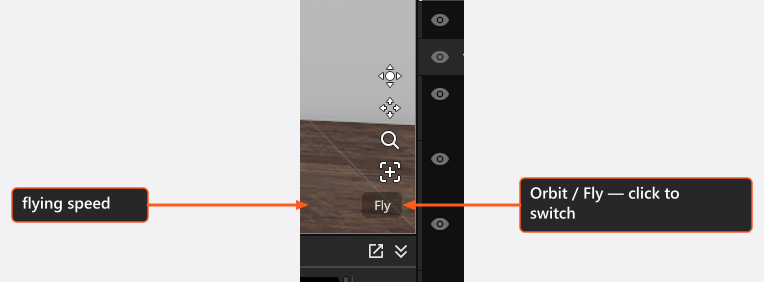
- Click the Orbit / Fly label or press
V. → The label switches, and the mode is kept in your settings, so it survives a restart. - Hold the right mouse button — or keep the widget’s rotate button ① pressed — and steer.
| Input | Result |
|---|---|
| Mouse movement | Look around |
W / S |
Fly forwards / backwards |
A / D |
Fly left / right |
Q / E |
Fly down / up |
Shift held |
Fly twice as fast |
| Mouse wheel | Change the flying speed; the factor appears beside the widget as 1.00 x |
The steering keys only work while you hold the rotate control. Let go and they go back to their other duties in the SETUP tab: Q switches the selected light on and off, W shows and hides its stand, S sets it as the solo light, E lifts the library into a floating window. The speed factor runs from 0.01 x to 100 x.
Pan the top view
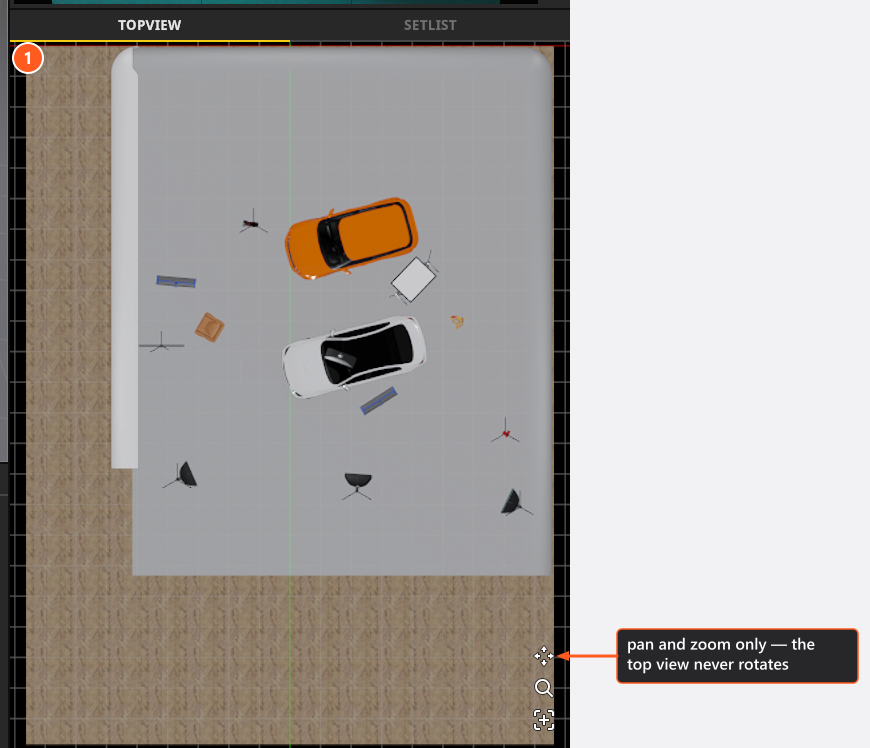
The top view in the lower right panel looks straight down on the set without perspective, so there is nothing to rotate.
| Input | Result |
|---|---|
| Right mouse button + drag | Shift the view |
| Middle mouse button + drag | Shift the view |
Space held + drag |
Shift the view |
| Mouse wheel | Zoom |
Aim the camera preview
The camera preview is not a view you fly through: everything you do in it moves the photo camera itself, and therefore changes your shot.
| Input | Result |
|---|---|
| Right mouse button + drag | Pan and tilt the photo camera |
| Rotate button of the widget + drag | The same rotation |
| Mouse wheel | Change the focal length, within the zoom range of the lens |
Position, height and tilt are typed in the inspector; see The photo camera and Choose a focal length.
Select while you navigate
- Left click picks the object under the pointer.
Shift+ left drag draws a selection box — also when you start on an object, becauseShiftsuppresses the move. HoldCtrl(Cmdon macOS) as well to add to what is already selected. Locked objects stay out of the result.- Right click, or
Ctrl+ click on macOS, opens the context menu for whatever is under the pointer.
Because the right button is also the rotate button, a right click that moves rotates the view and a right click that stays put opens the menu.
Two keys that change what you see
Tswaps the camera preview with the studio view, so you can build full size. Press it again to swap back. Older screenshots on the internet often show the swapped layout.Ostarts the picking mode for the zero point: the next click sets the point every typed position is measured from.Esccancels it. See Set the zero point for measured positions.
Troubleshooting
- The right mouse button rotates instead of opening the menu. Both are on that button. Click without moving the mouse for the menu.
- I pressed
Wand the stand of my light disappeared.Wshows and hides the stand of the selected object. Press it again. - My clicks set a zero point instead of selecting. The picking mode is on — press
Esc. → Set the zero point for measured positions - A navigation key does nothing. Shortcuts follow the pointer: move it over the view you mean, and out of any text field you were editing. → Keyboard shortcuts
Related
- The user interface — which panel is which.
- Select, move and measure objects — moving what you selected.
- Keyboard shortcuts — the full table, and how to change a key.
- Quick start: from empty studio to finished image — the whole first pass.