
 English
 Deutsch
 日本語
日本語 简体中文
简体中文 Français
A fog machine gives you atmosphere in one place instead of everywhere. It blows an aimed plume from its nozzle, so you can put a beam behind a performer, lay a low bank of smoke across a floor or send a jet through a doorway while the rest of the set stays clear. If you want the whole set in air, use the Environment’s fog instead.
Applies to BASIC, STUDIO, CINEMA · Animating Time needs the Animation Tool add-on · You need: a project open on the SETUP tab with the library panel visible (N shows and hides it, by default).
Where to find it
The machine is in the library panel: EQUIPMENT tab → Fog Machine. It carries no group of its own, so it is listed under the All heading rather than with Cameras, Reflectors or Backgrounds — typing fog into the search field is the quickest route. The tile, its picture and the field Time in the inspector are translated like everything else.
How to place and aim the machine
The plume leaves the nozzle at the front of the body, a few centimetres above the floor, and it is steered with a handle in the studio view. There are no numeric fields for the aim.
- Drag Fog Machine into the set and stand it where a real machine would stand — on the floor, out of frame, pointing across the area you want filled.
- Select it. → A target handle appears at the end of the plume, at the default throw of
6 m. - Drag the handle away from the machine or towards it to set the throw. The range is
0.5 mto15 m— the same range the setting itself allows, so the handle reaches every value. - Drag the handle sideways or up and down to bend the plume off the machine’s own axis. → The jet curves towards the handle. For a bigger change of direction, turn the machine itself.
How to light a plume
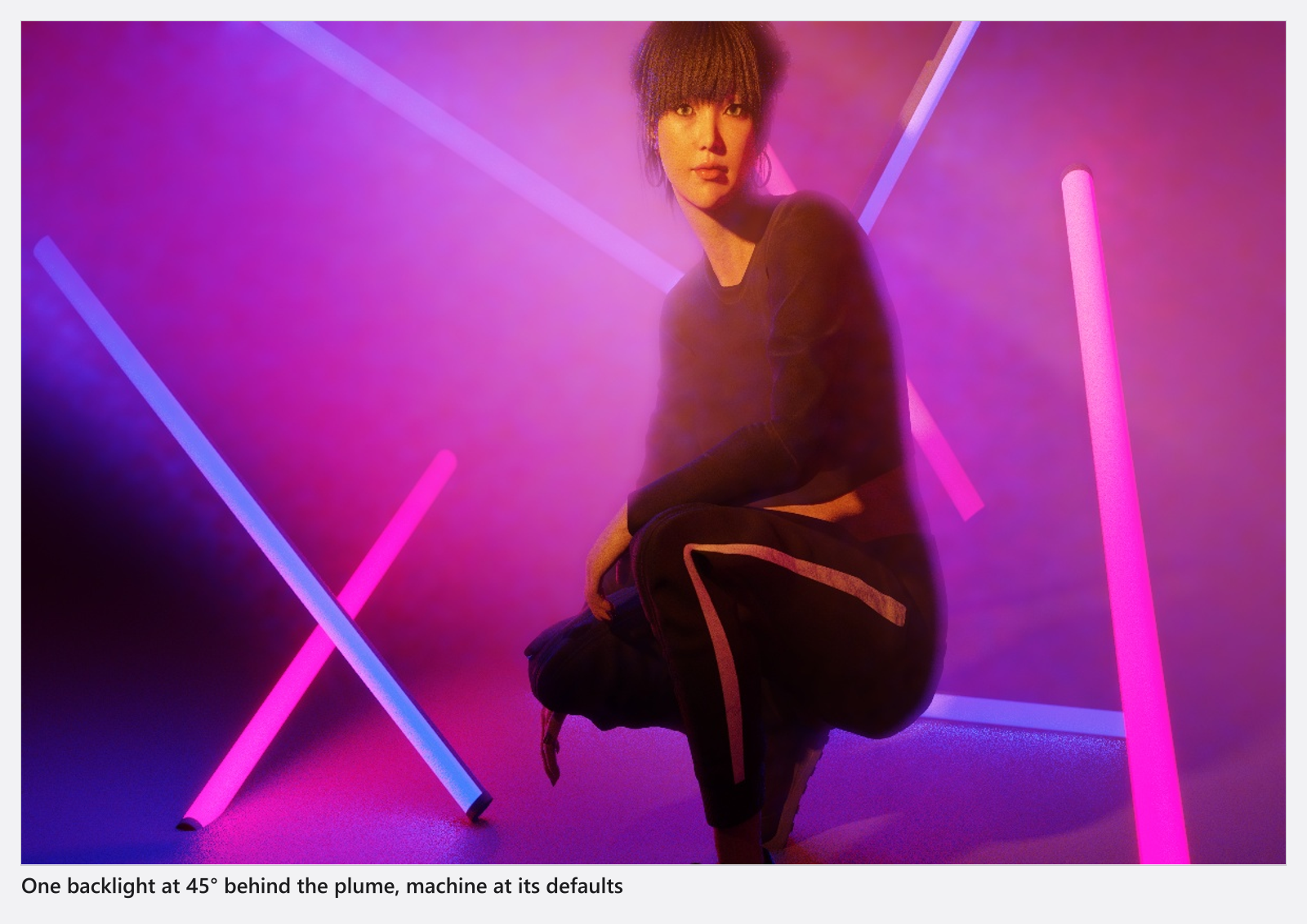
A plume is only visible in the light that passes through it, so light it from behind: a head or a spot on the far side of the plume, pointing back towards the camera, is what makes the shaft appear. A key light from the camera position lights the smoke evenly and reads as a grey veil instead.
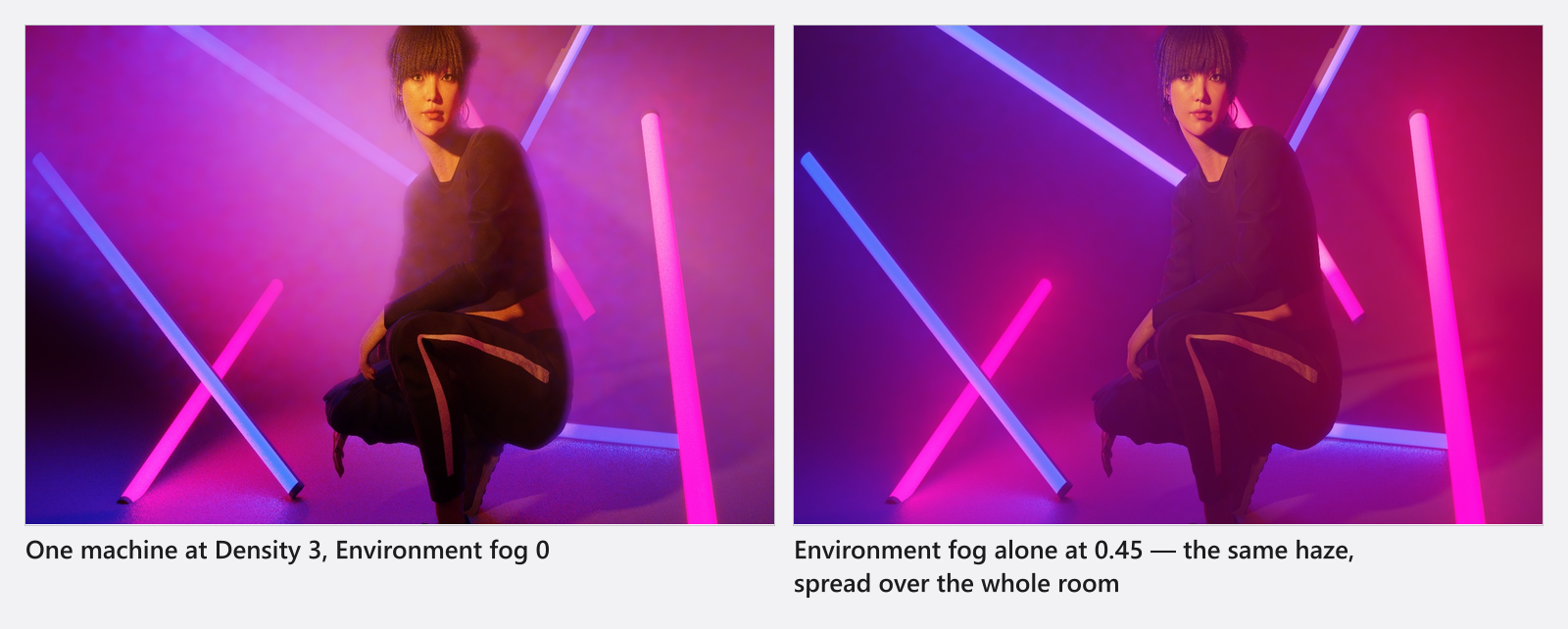
Machine fog scatters light evenly in every direction, while the Environment’s fog throws more of it forward. At a comparable visual density a plume therefore reads a little softer and more even than set-wide fog.
How to shape the plume
All seven controls below sit in the Settings group of the inspector. The defaults are already a usable machine; change one slider at a time and watch the camera preview.
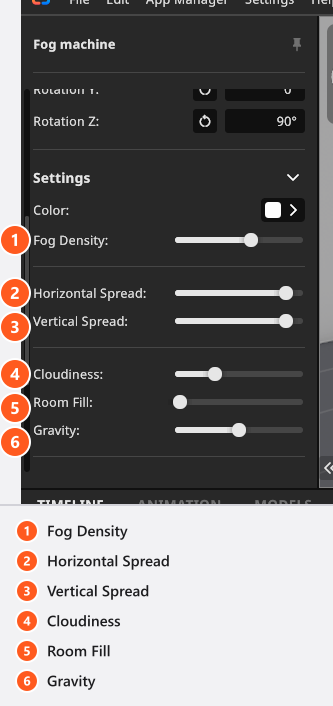
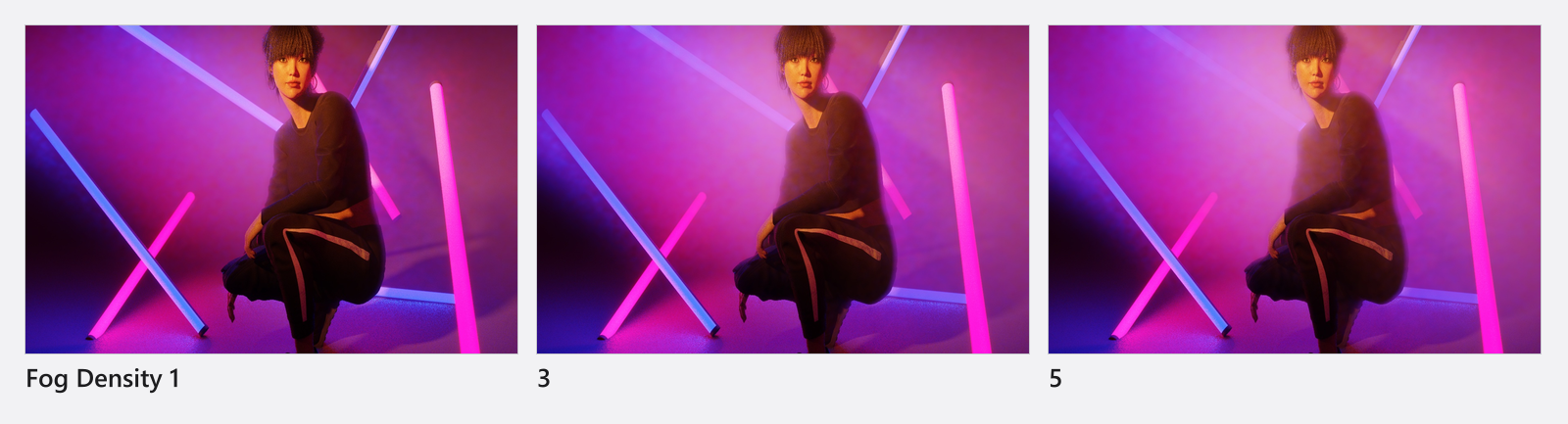
- Fog Density — how much fog comes out.
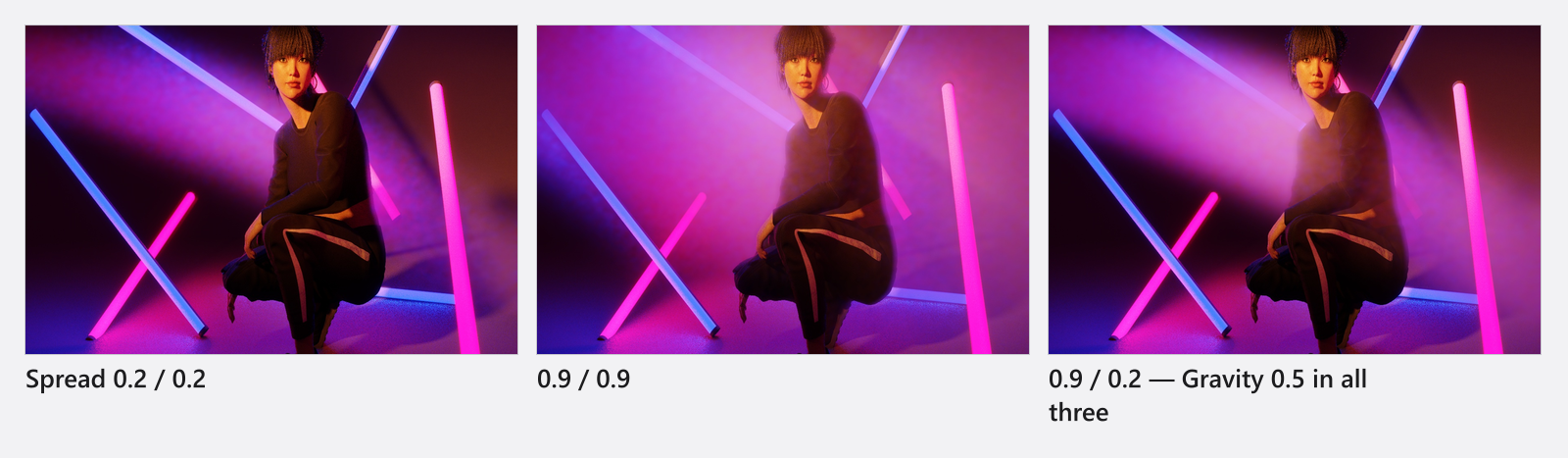
3is the default,5the maximum. - Horizontal Spread and Vertical Spread — how wide and how tall the cone opens as it leaves the nozzle. Low values give a tight jet, high values a broad wall of smoke; the two are independent, so a wide, flat bank is
0.9horizontal and0.2vertical. - Gravity — how much the fog sinks as it travels. At
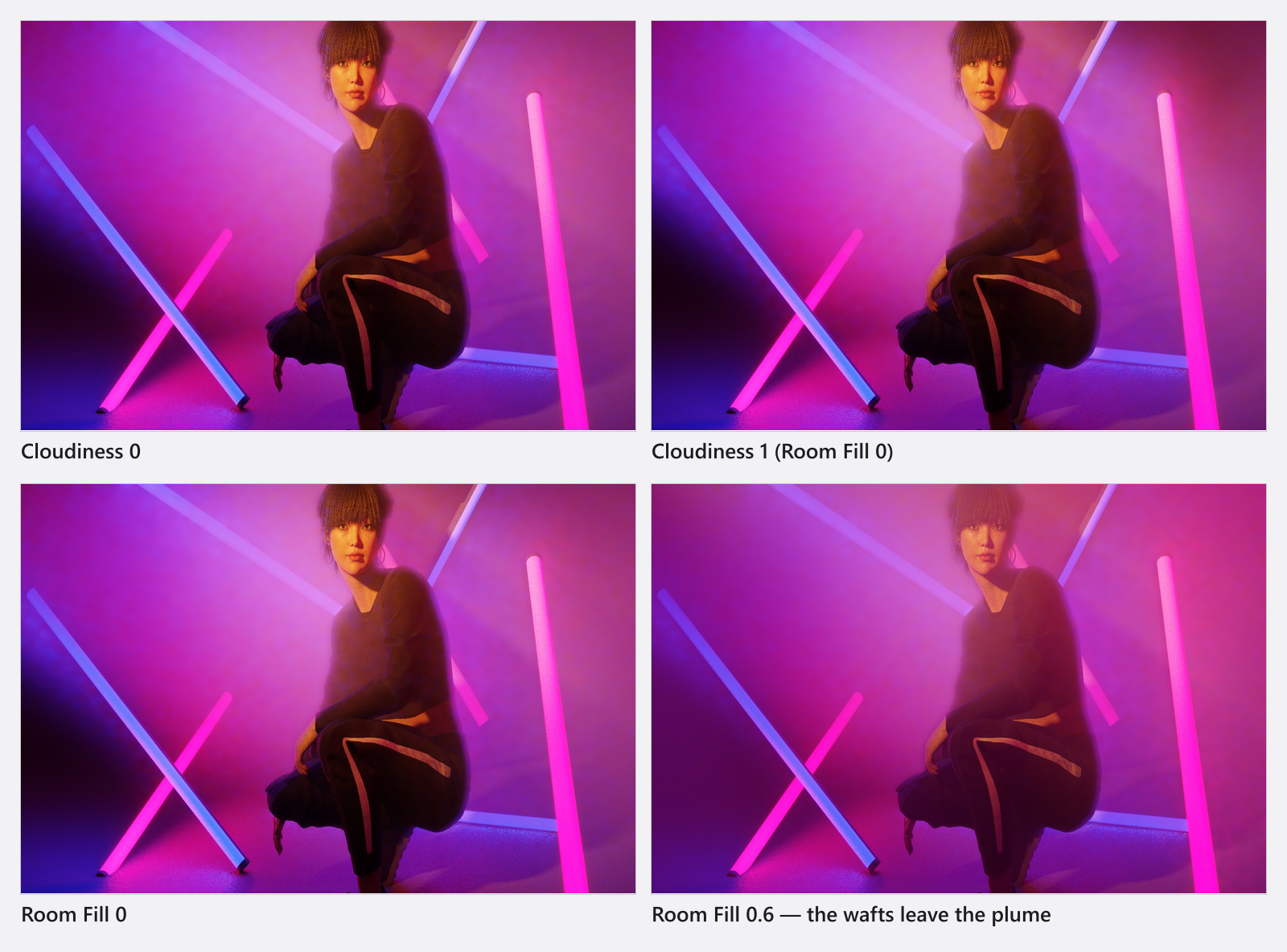
0the jet keeps its height, at1it sags and pools along the floor, the way heavy stage smoke does. - Cloudiness — how broken up the fog looks. Low values are a smooth, even jet; high values give distinct billows with gaps between them.
- Room Fill — lets slow wafts drift out of the plume into the room around it. At
0the fog stays in the jet; raise it and the machine’s fog reaches well beyond its own throw (GetPlumeHullVerticalgrows the plume’s ceiling by 2.5 m per unit of Room Fill). - Color — tints the fog. White is the default and is what a real machine gives you.
How to make the fog move
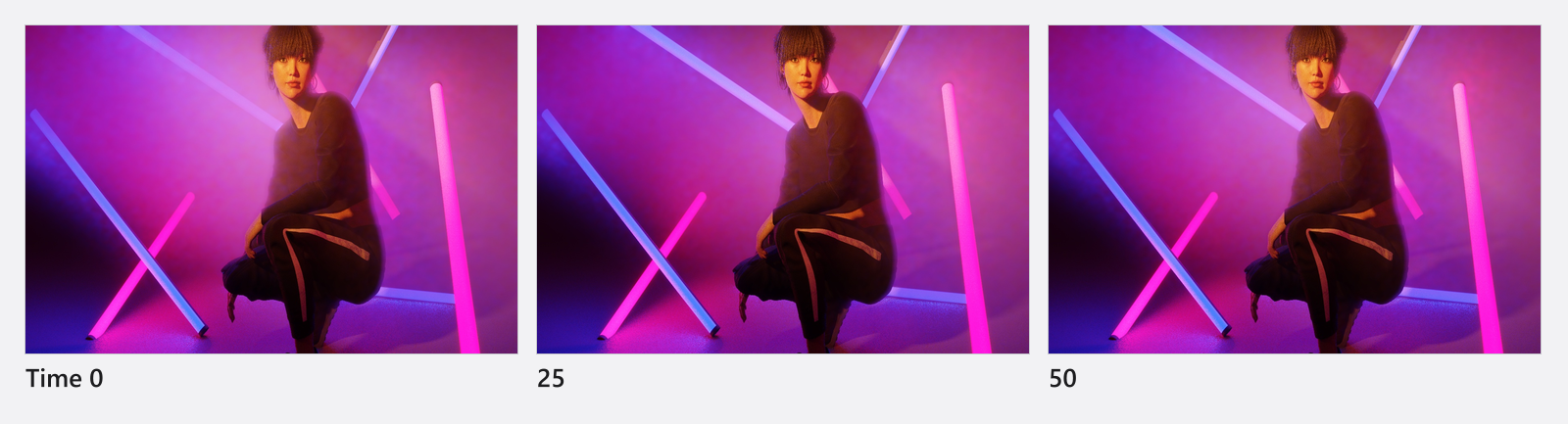
The plume does not drift by itself. Time, in the Animation group rather than with the sliders, is the position in the fog’s own movement, not a number of seconds: leave it at one value and you get a repeatable still that renders the same way every time; give it two keyframes and the fog travels between them for the length of the animation. Keyframes need the Animation Tool add-on — see Set and edit keyframes.
Environment fog or a fog machine?
- One place, aimed, with a visible source: a machine.
- The whole set in air, haze behind the subject, depth outdoors: the Environment’s fog.
- Both at once is fine. They add up, and they are set independently.
- The two density sliders do not share a scale: the machine’s Fog Density runs
0…5, the Environment’s0…0.5. A machine at3is not “six times” an Environment value of0.5.
Settings
Fog machine
| Setting | Range | Default | Unit | Animatable |
|---|---|---|---|---|
| Cloudiness | 0 – 1 | 0.3 | yes | |
| Color | white | yes | ||
| Fog Density | 0 – 5 | 3 | yes | |
| Gravity | 0 – 1 | 0.5 | yes | |
| Horizontal Spread | 0 – 1 | 0.9 | yes | |
| Room Fill | 0 – 1 | 0 | yes | |
| Time | 0 – 100 | 0 | yes | |
| Vertical Spread | 0 – 1 | 0.9 | yes |
Tips & limits
- At most eight machines are calculated in one image. A ninth is dropped without a message, and which eight survive does not depend on how close they are to the camera.
- A machine only contributes within roughly
25 mof the camera. Further away than that, its plume renders nothing. - Scaling the machine changes the model, not the plume: the throw is in metres and the plume keeps its own width.
- One visible machine in the set switches the atmospheric calculation on by itself, even with the Environment’s Fog Density at
0. Expect the render to cost more than a clear set; hide the machine and that cost goes away with the fog. - The plume is shown at full strength in the studio view as well, so it does not get weaker while you aim the way the set-wide fog does. The working view still computes it more coarsely, so judge the plume’s detail in the camera preview.
- Every slider, Color and Time can be given keyframes.
Troubleshooting
- My ninth machine does nothing. Eight is the limit per image. Remove one, or replace two machines with one wider plume.
- Room Fill filled my whole room. That is what it does: it releases wafts out of the plume into the room, and at
0.6a small room fogs up completely. Lower it, or leave it at0and raise the Environment’s Fog Density instead when you want an even, set-wide haze. - The fog does not move during my animation. One value of Time is a still. Set a keyframe at the start and one at the end.
- I want the plume out of one shot without losing the machine. Close the eye on its row in the set list: a hidden machine produces no fog, in the studio view and in the render. Hiding a group the machine sits in does the same.
Ctrl+Z(Cmd+Z) brings it back.
More symptoms: Lighting problems.