
 English
 Deutsch
 日本語
日本語 简体中文
简体中文 Français
The camera can grade a shot before you leave the set: contrast, saturation, a vignette, film grain and a colour-grading LUT. All of it belongs to the camera, so what the preview shows is what the rendered file contains — useful for pitching a look to a client, and for testing whether a lighting set survives a strong grade. Readers searching for colour grading, looks or *.cube files are in the right place.
Applies to BASIC, STUDIO, CINEMA · You need: a project open on the SETUP tab and a camera in the set. Imported LUTs do not count against the seven own images a BASIC licence allows.
Where to find it
The sliders button in the control strip beside the camera preview opens the Effects popup, and stays lit while effects are switched on. The popup always shows the active camera, so a second camera in the same set keeps its own grade.
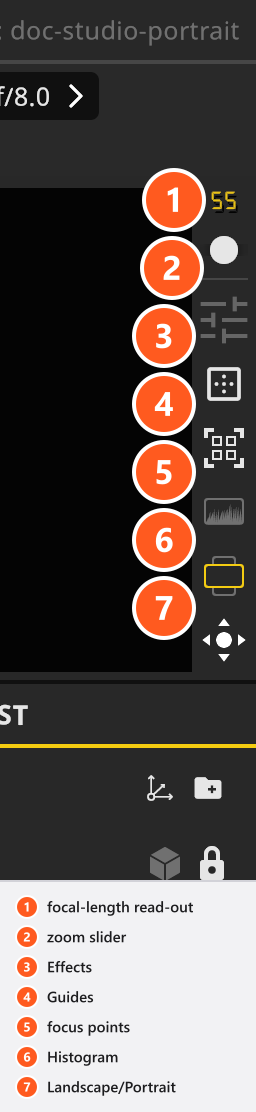
Grade a shot
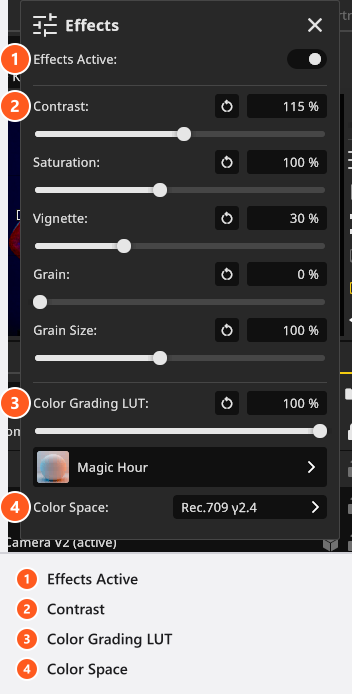
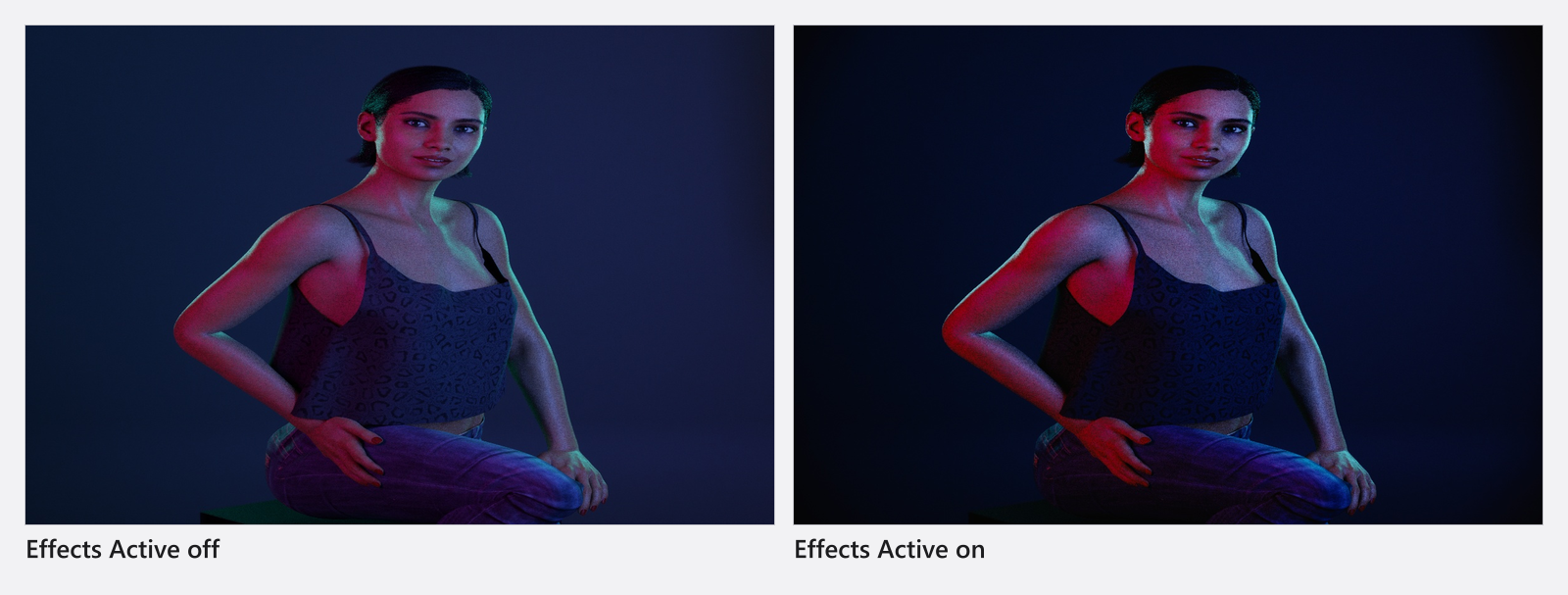
Open the Effects popup and move any of the six sliders: Effects Active switches itself on as soon as you change a value, so you do not have to arm it first. Typing into a field or clicking the reset arrow inside one arms it in the same way. Use that same switch to compare graded against ungraded — switching it off keeps every value and only bypasses them.
Six of the controls are numeric: each has a percentage field, a slider and a reset button inside the field.
| Setting | Slider range | Default | What it does |
|---|---|---|---|
| Contrast | 25–200 % |
100 % |
Flattens or steepens the tone curve |
| Saturation | 25–200 % |
100 % |
25 % is nearly monochrome, 200 % heavily saturated |
| Vignette | 0–100 % |
0 % |
Darkens the corners; the one slider drives radius, width and strength together |
| Grain | 0–100 % |
0 % |
Strength of the film grain |
| Grain Size | 25–200 % |
100 % |
Size of the grain, adjusted for the sensor width |
| Color Grading LUT | 0–100 % |
100 % |
How strongly the chosen LUT is mixed in |
The column says slider range on purpose: a value you type is not held inside it. The two remaining controls are not numeric — Effects Active is a switch, off on a new camera, and Color Space is a list of four entries (sRGB, Rec.709 γ2.2, Rec.709 γ2.4 and Adobe RGB) that decides which space the LUT is applied in. For a straight black-and-white conversion use Black&White in the camera’s Settings group instead — see Set the exposure.
Apply a LUT
Click the button below Color Grading LUT and pick a look from the Camera Effect LUTs list. Choosing one also sets its Color Space and switches Effects Active on. Then pull Color Grading LUT down if the look is too strong: it mixes the LUT with the ungraded image, and at 0 % nothing of it is left.
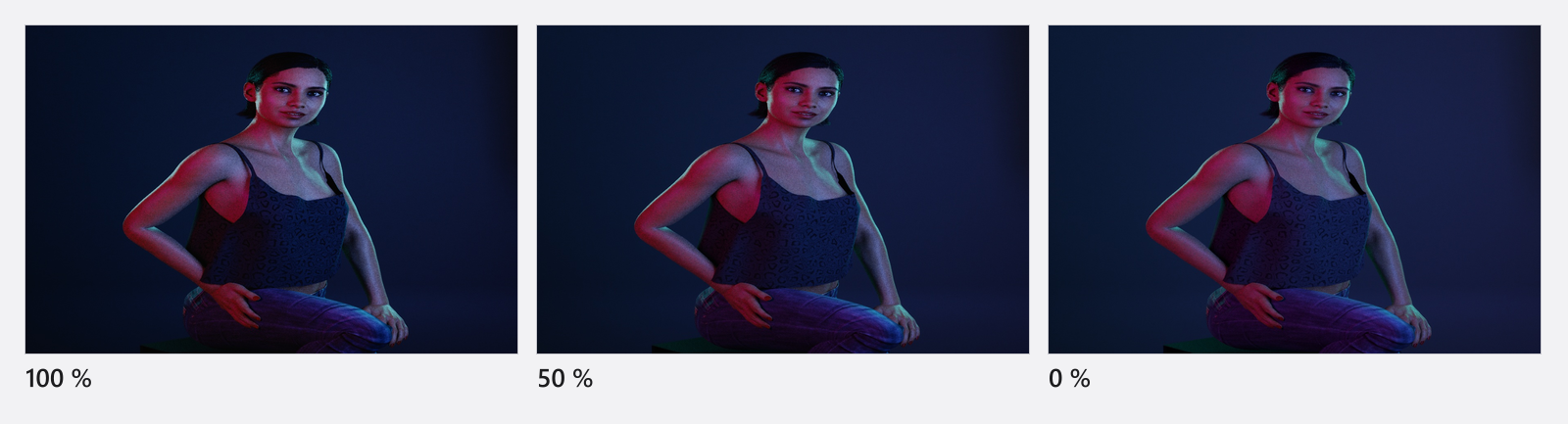
There is no “no LUT” entry: Neutral is the pass-through look and what a new camera starts with, so pick it to get back to a clean image. 25 looks ship, all of them authored in sRGB. Eight are film-stock emulations and their names read the way a lab writes them — the negative stock first, then the print stock it is printed to, as in Kodak 5218 Kodak 2383. The rest are mood looks such as Blue Hour, Magic Hour or Night from Day.
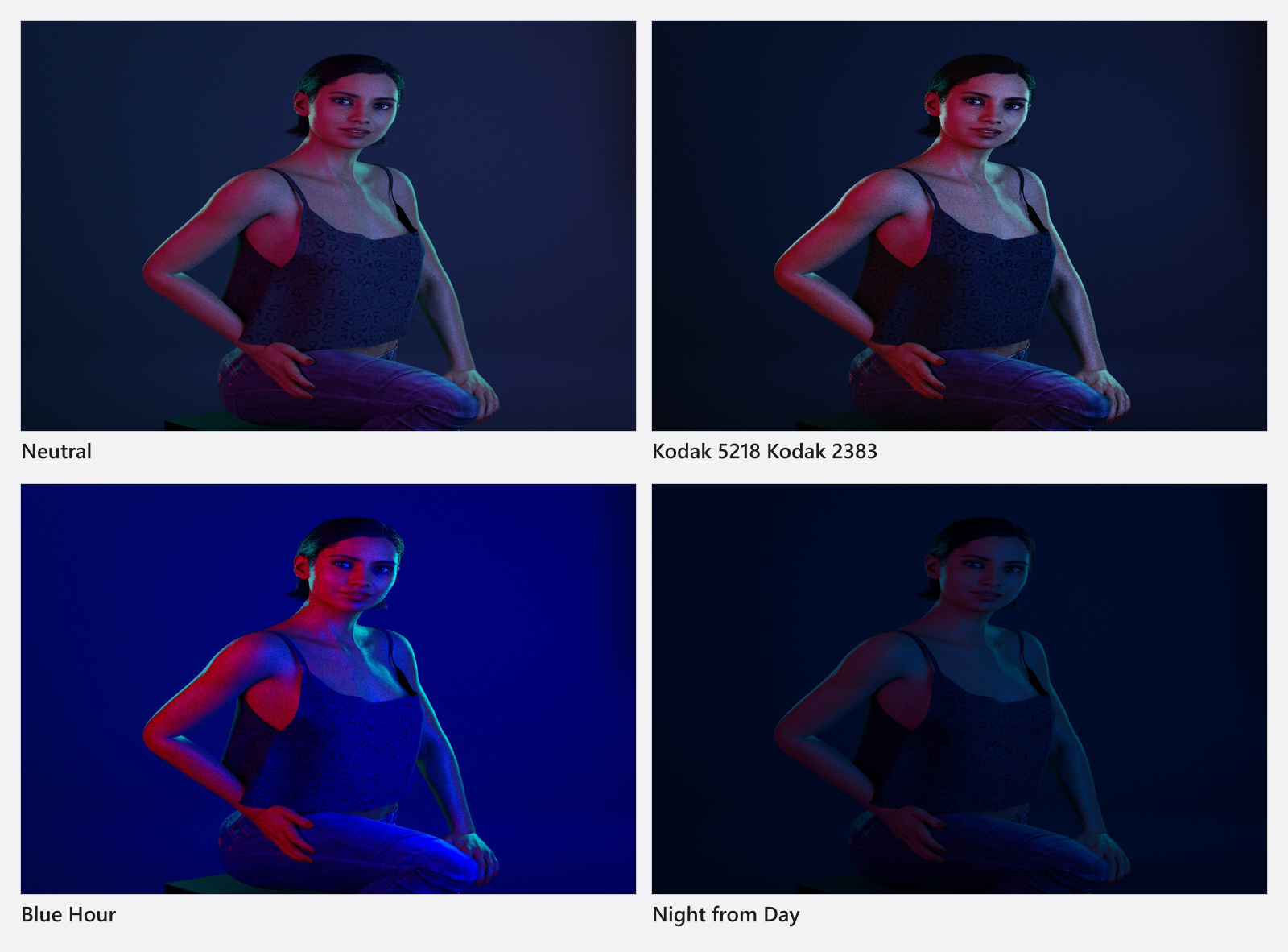
Camera effect LUTs
| Name | Key facts |
|---|---|
| Blue Architecture | sRGB |
| Blue Hour | sRGB |
| Candlelight | sRGB |
| Cold Chrome | sRGB |
| Crisp Autumn | sRGB |
| Dark and Somber | sRGB |
| Foggy Night | sRGB |
| Fuji 250D Fuji 3510 | sRGB |
| Fuji 250D Kodak 2395 | sRGB |
| Fuji 500D Kodak 2393 | sRGB |
| Fuji F125 Kodak 2393 | sRGB |
| Fuji F125 Kodak 2395 | sRGB |
| Hard Boost | sRGB |
| Kodak 5205 Fuji 3510 | sRGB |
| Kodak 5218 Kodak 2383 | sRGB |
| Kodak 5218 Kodak 2395 | sRGB |
| Long Beach Morning | sRGB |
| Lush Green | sRGB |
| Magic Hour | sRGB |
| Natural Boost | sRGB |
| Neutral | sRGB |
| Night from Day | sRGB |
| Orange and Blue | sRGB |
| Soft Black and White | sRGB |
| Waves | sRGB |
Import your own LUT
The App Manager holds the looks, and from 08:20 the clip shows that page — the built-in looks and the button that adds your own:
- Open App Manager → Resources → Camera Effect LUTs and click New LUT. The edit button in the Camera Effect LUTs list opens the same dialog on a look you already have; it is titled Edit LUT there and its button reads Apply.
- Click Browse and choose a
.cubefile. → A preview thumbnail appears, and Name is filled in from the file name if you left it empty. - Set Color Space to the space the LUT was authored in and confirm with Add.
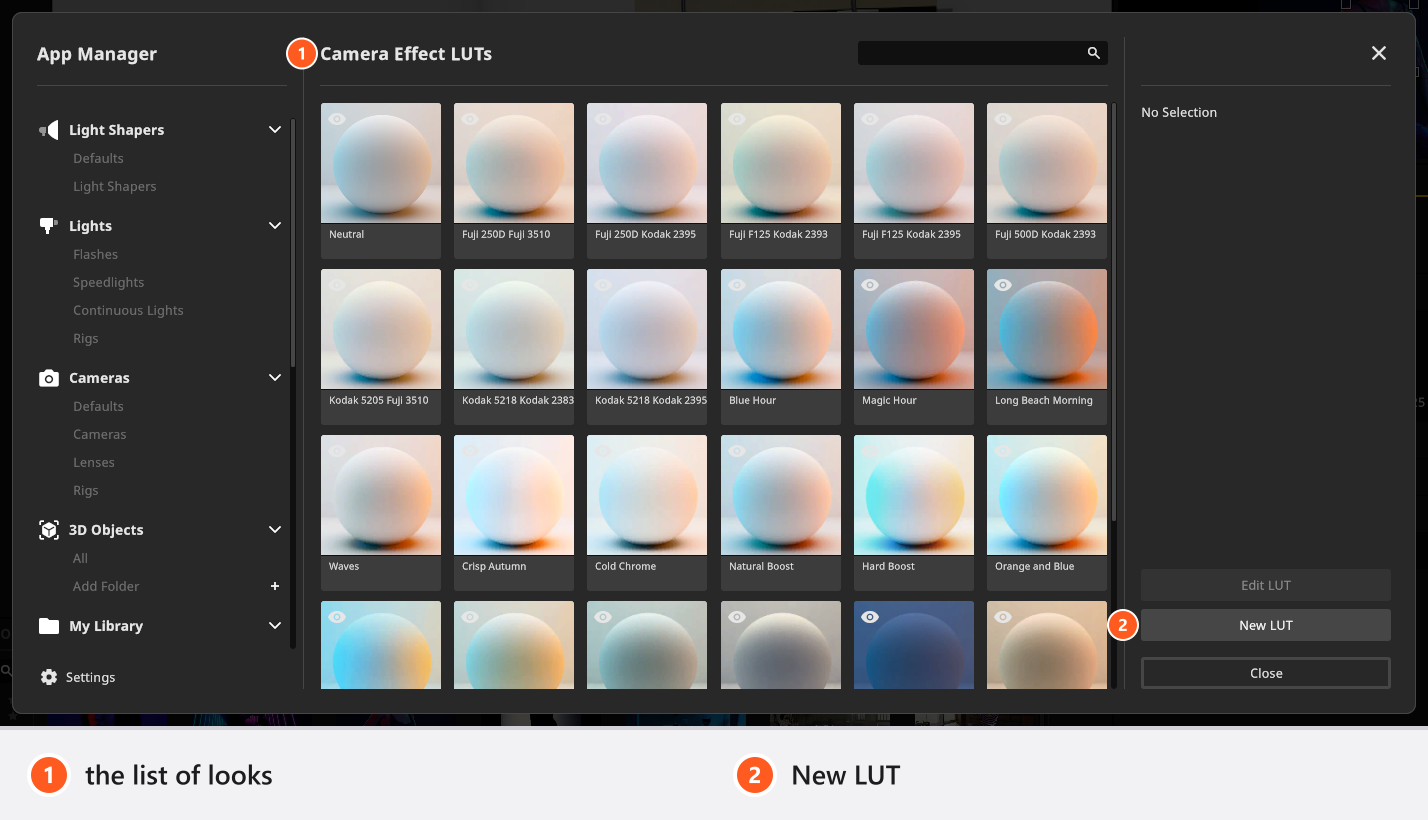
Only .cube files are read, and a LUT may have at most 90 grid points per axis; a larger one is refused with LUT is too large! Maximum supported size: 90. Re-export it at 33 or 65 points and it loads. A file that cannot be read at all reports LUT Loading Error — check that every value line holds exactly three numbers separated by single spaces, and that the file does not rely on its own domain declaration: a non-default domain is ignored, which shifts the look with no warning.
Getting the colour space right is what makes a LUT match the tool it came from. The dialog’s own note puts it like this: image editors usually work in sRGB, sometimes Adobe RGB; video tools often default to Rec.709 γ2.4 for viewing in a dim room and γ2.2 for a bright one.
A name is required and may be at most 50 characters: Add stays unavailable until a file is loaded and the field is not empty. Your own looks then sit in the same list as the 25 built-in ones — see Set up your own camera kit for hiding and deleting them.
What the grade reaches
The grade is carried by the photo camera. It is therefore in the camera preview, in the rendered file and in every frame of an exported video. It is not in the studio view, the top view or the camera and diagram views of a set plan — those stay ungraded, which makes the studio view a reliable reference for the raw lighting. A rendered shot placed on a set-plan page is a photo-camera render and does carry the grade.
Tips & limits
- Changing Color Space on its own does not arm the effects. Use the Effects Active switch.
- Effect values cannot be keyframed: contrast, saturation, vignette, grain, the LUT and its strength are static per camera, so a grade ramp inside one animation is not possible.
- Grain is the only noise the camera produces — see Set the exposure.
- Grade last. A vignette and a steep contrast curve hide an underexposed background: judge the lighting with Effects Active off, then put the look back on.
Troubleshooting
- My LUT was refused. It is larger than 90 grid points, or the parser choked on a line. Re-export at 33 or 65 points with single spaces between the values.
- The imported look is not the look I authored. Check Color Space first. If the file carries its own domain declaration, that part is ignored.
- I changed the colour space and nothing happened. Effects are still off; switch Effects Active on.
- More symptoms: Camera problems.