
 English
 Deutsch
 日本語
日本語 简体中文
简体中文 Français
Sharing a shot publishes more than a picture: the community gets your rendered image, two views of your studio, the lighting diagram and the set file itself, so that other photographers can download it and study every light. The program walks you through four steps before the upload can start.
Applies to BASIC, STUDIO, CINEMA · Needs a registered licence — a trial is turned away with a message · You need: a project open and one shot you want to publish. The project does not have to be saved to disk.
Where to find it
An upload starts on the community page — as a new post, as part of a question, or attached to a comment or an answer. The program then switches from the website to the share view: the Timeline of your project on the left, the four steps along the bottom, the shot and the Upload button on the right. Cancel in the left panel takes you back to the website and keeps everything you have prepared.
How to share a shot
- On the website: start the upload where you want the setup to appear. That choice — a new post, a question, a comment or an answer — is handed to the program together with the post’s name, so it is already made when the share view opens.
- In the program: pick the shot in the Timeline and click Upload on its tile. → The right panel shows Upload Your Setup with the name of the shot and the hint Complete the following steps to share your setup with the community.
- CAMERA SHOT — the step asks you to Please render the image. Click Render Shot and wait for the render; the gear button next to it opens Settings with Resolution, Quality, Denoiser and Frame Lines. → The step is ticked. Until a full render exists the step shows the low-resolution preview and marks it
Low-Res Preview(English in every language). A render you already made on the RENDER tab is picked up, and the step is ticked straight away. - STUDIO VIEW A — Adjust the view, perspective and brightness. This is the overview that shows where everything stood. Orbit, pan and zoom with the buttons in the viewport or the mouse;
Fframes the selection andVswitches the navigation betweenOrbitandFly(by default). Two sliders shape the picture: Brightness (0–1,0.65by default) lights the studio itself and does not touch your lighting, and Field of View (20–80°,50°by default) sets the perspective — small values flatten the image and make positions easier to read. - STUDIO VIEW B — the same controls for a second angle. The two views start from different angles on purpose, so use them for two genuinely different perspectives: one from the camera side, one from above and behind the key light.
- DIAGRAM — Adjust the view, position the info fields and mark the main light. You get the top-down diagram with one info field per light, camera, reflector and diffuser, plus one for the environment. Drag the fields where they cover nothing; the layout button arranges them for you (tooltip Calculate Info Field Layout). Then tick Main Light on the light that carries the look. → As long as the shot contains lights, this step stays open until at least one light is marked.
- In the program: when all four steps are ticked the panel reads Yeaaah, ready for upload and Upload becomes clickable. Click it. → The program renders the images, packs the set file and transfers everything, naming each stage as it goes.
- On the website: finish the post and publish it.
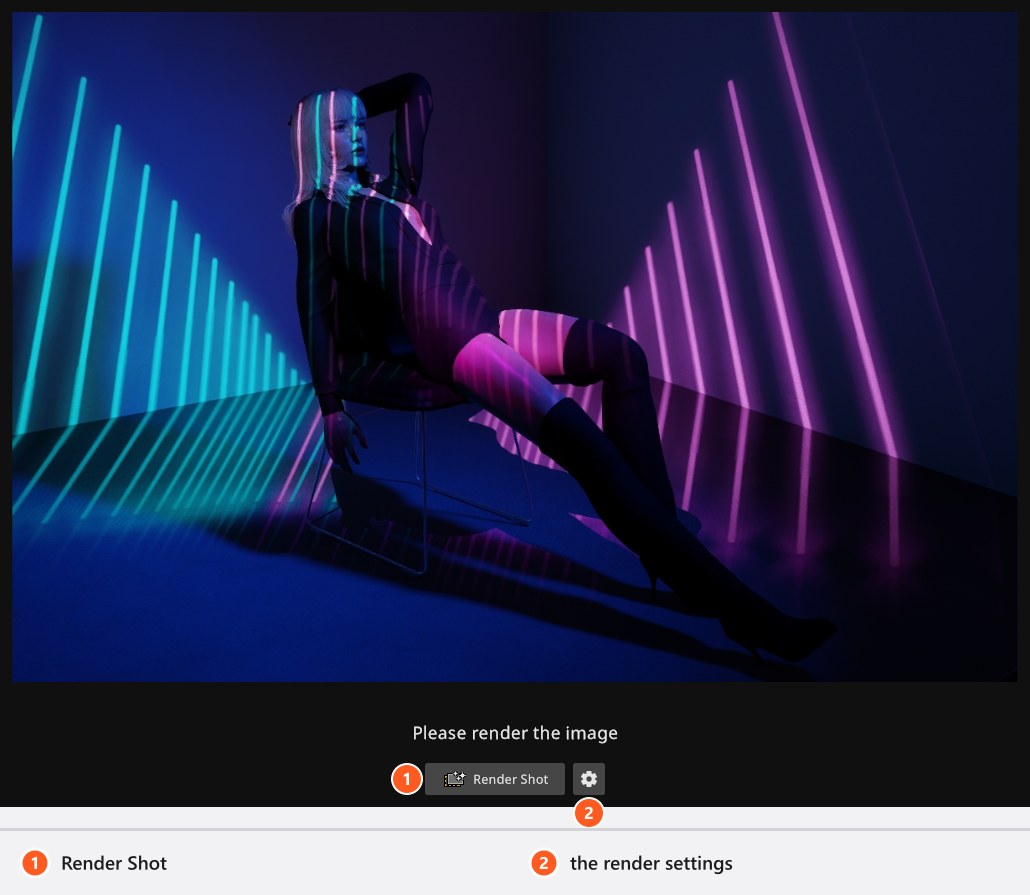
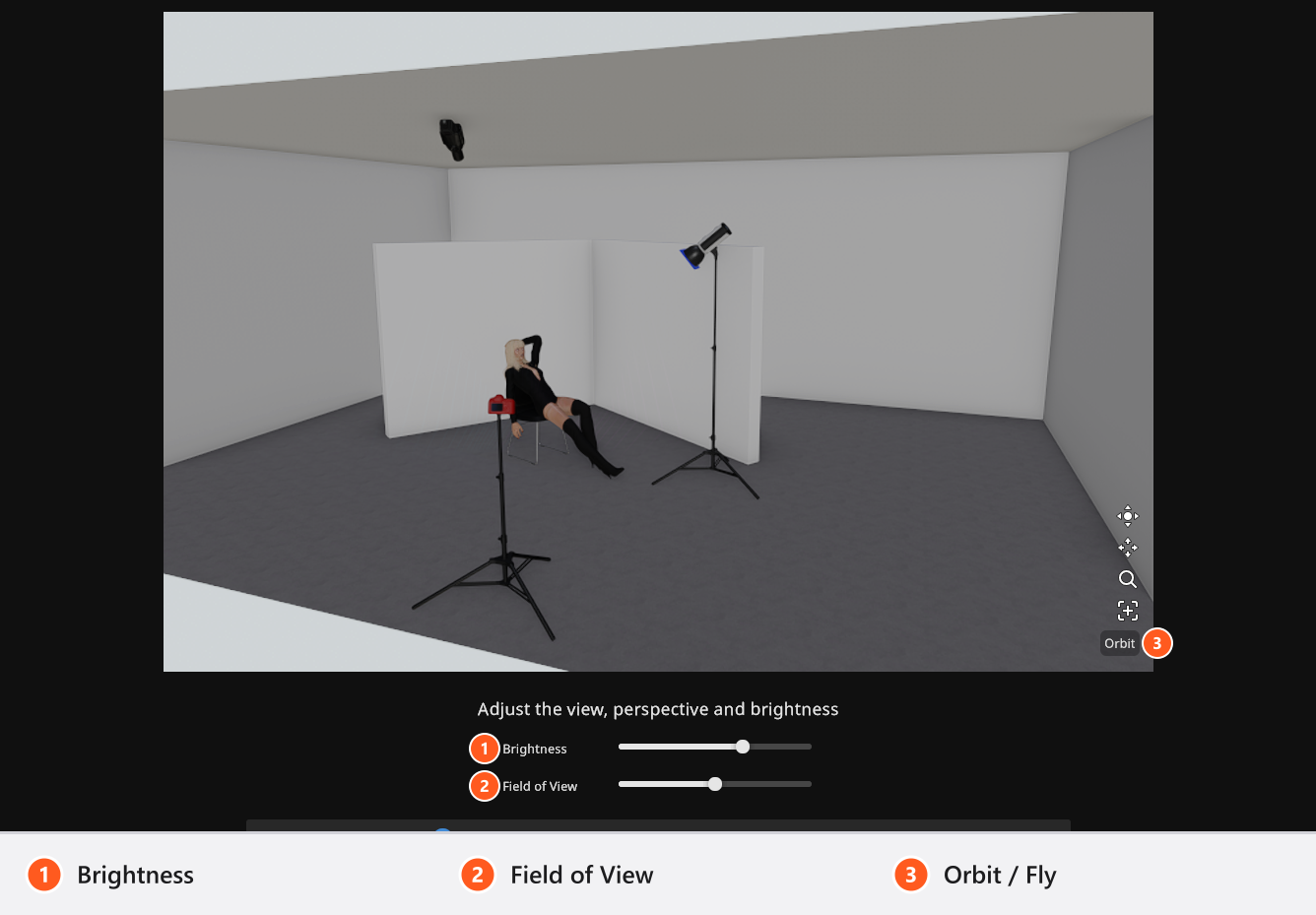
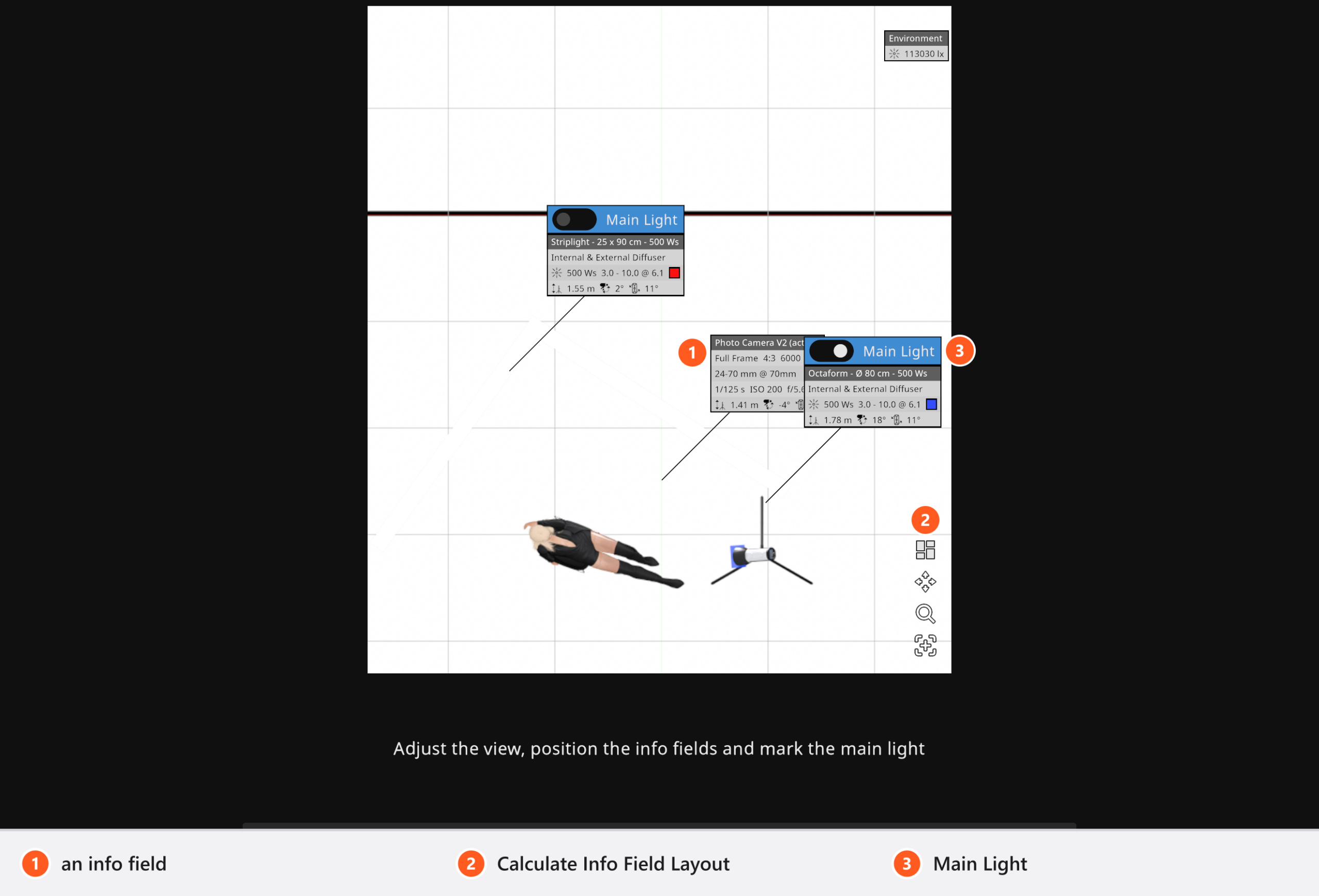
The steps have to be done in order: a step becomes clickable when the one before it is finished, a Next button appears on the step that is up next, and a step counts as finished as soon as you have changed something in it.
What gets shared
One upload publishes one shot, never the whole project. The package is:
- The set file of that shot, so that others can download and open it.
- Five images: the rendered photo, both studio views, the lighting diagram and a histogram of the photo.
- The data sheet: program version, the size of the set, the camera with sensor, lens, focal length, ISO, aperture and shutter, every light with its light source, light shaper, size, gel and on/off state, the models and props used, and whether the shot contains an animation.
Material you built yourself travels inside the set file: your own picture-wall, gobo and projector images, camera LUTs, model materials, any light source, light shaper, camera or lens you created, and the lamps you made for practicals. Two things do not, by design: 3D objects you imported and environment maps you added yourself — an HDRI is a large image file and is kept out of the set file on purpose. A setup that relies on them arrives incomplete (the downloader gets a warning marker for the object, Overcast instead of your sky), so mention them in your post.
The shot’s Internal Note stays with you. It is not published, and it is not inside the set file other people download either — the text of the post is written on the website.
After you publish
Once the page has created the post, the tile in your TIMELINE is marked as published and keeps its community ID. Select the shot on the RENDER tab and Open in Community takes you back to its page any time.
Changing the text of a post and taking it down are done on the website, not in the program. The website can also start an upload for a post that exists already; the program answers that with the same share view and the same four steps.
If the upload fails
The program reports a failed upload as Failed to upload set file with one of three reasons: “Connection was lost”, “Internal Server error” or “Unknown Error”. These four texts are English in every language. Nothing is published in that case; the shot and everything you prepared stay in your project, so you can click Upload again.
Tips & limits
- Render the shot before you share it: that image is what people see in the feed.
- A licence can have the community switched off — for volume and school licences, for example. Sharing is then unavailable as well.
- The upload identifies you by your licence serial, so it needs a registered licence. On a trial, Upload Your Setup answers instead: “Uploading setups to the community requires an activated license. The Trial Version cannot upload setups.”
Troubleshooting
- Upload stays greyed out. One of the four steps is unfinished. The usual candidate is DIAGRAM: a shot with lights needs at least one Main Light.
- Upload answers that it needs an activated license. You are running a trial. Register your licence and try again.
- I want a description on the post. Write it on the website. The program sends no text of its own, and the shot’s Internal Note is not part of the upload.