
 English
 Deutsch
 日本語
日本語 简体中文
简体中文 Français
A full light library is a slow library. The App Manager is where you decide what appears in the SETUP tab at all: hide the heads and shapers you will never own, sort your own objects into folders, build the gear the catalogue does not have, and set what a shaper or a camera arrives with when you drag it in. Everything here is per computer, and none of it changes an existing project.
Applies to BASIC, STUDIO, CINEMA · Several pages are restricted by edition or need an add-on (see the last section) · You need: nothing open in particular.
Where to find it
Click App Manager in the menu bar, or take Settings → Settings… — both open the same window on the Program Settings page. From there, pick any entry of the category list on the left. The Settings button at the bottom of that list always takes you back to the settings pages.
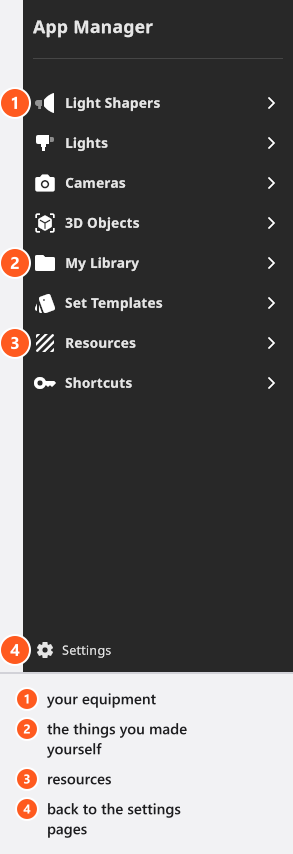
The list reads in three bands:
- Your equipment — Light Shapers, Lights (Flashes, Speedlights, Continuous Lights, Rigs), Cameras (Cameras, Lenses, Rigs).
- Things you made yourself — 3D Objects, My Library, Set Templates.
- Resources — Gobo Masks, Projector Images, Picturewall Images, Camera Effect LUTs, HDRIs, Logos, Lamps.
The App Manager tutorial walks the same list. This part runs about 40 seconds and shows the Flashes page: selecting several heads and switching them off with the eye icon.
Hide what you do not use
Each page is a list of entries with an eye icon. The icon decides whether an entry appears in the library panels of the SETUP tab — it does not delete anything, and an entry you hide can be brought back at any time.
- Open the page with the clutter on it, for example Lights → Flashes.
- Click the first entry, hold
Shiftand click the last one you want to include. - Click the eye icon on one of them. → Every selected entry is marked hidden, and the tiles disappear from the LIGHTS tab of the library.
The search field at the top of the page finds an entry by name on the page you are on, which is faster than scrolling a long list. Hiding is the one change here that a photographer feels immediately: a library reduced to the three heads and six shapers you really own makes building a set much quicker.
Sort your own objects into folders
Two pages support folders: 3D Objects and My Library. Add Folder creates one, and you drag entries into it. The folders are the folders you then see in the ASSETS tab of the library, so this is how you get from one long list to “studios”, “products”, “models”.
From 05:31 about half a minute of the tutorial shows this on the 3D Objects page — adding a folder, dragging entries in, and the same folder appearing in the ASSETS tab:
The clip does not mention that the whole 3D Objects category needs the 3D Import add-on.
The other resource pages have no folders. They have their own controls instead — an import button, a size or colour field, a preview.
Build and edit your own gear
New creates an entry of your own; Edit changes one. Both buttons sit in the panel on the right, and Edit only works on something you made: the entries that ship with set.a.light 3D cannot be edited, and they show no delete button either. That is deliberate — your own 6000 Ws head, your 53-inch umbrella and your own camera body live beside the catalogue, not instead of it.
What you build depends on the page: a flash head gets a base model, a control range and a power rating; a light shaper gets a base shape and its measurements; a camera gets a sensor and an aspect ratio. The details are in Add your own lights and light shapers and Set up your own camera kit.
Delete Resource removes an entry you made, after a confirmation that names it. Select several first and the confirmation counts them instead.
Set what arrives with a new object
Two pages carry a Defaults entry, and they answer the question “why does this shaper come in on that stand”:
| Page | What the Defaults page sets |
|---|---|
| Light Shapers → Defaults | The light head and the rig a shaper arrives with when you drag it into the studio |
| Cameras → Defaults | The lens and the rig a new camera arrives with |
Set your own head as the default and every shaper you drag in carries it — the single biggest time-saver in this window if your studio runs on one brand of head.
Which pages need which edition
| Page | Restriction |
|---|---|
| Continuous Lights | The page appears from STUDIO up; creating or editing a model needs CINEMA (CINEMA) |
| HDRIs | Creating or editing one of your own needs CINEMA (CINEMA) |
| 3D Objects | The whole category needs the 3D Import add-on |
| Set Templates | Not in BASIC — and the two template entries of the Edit menu are missing there too |
| Gobo Masks | Not in BASIC |
| Cameras, Rigs | Film bodies and the film rigs are hidden in BASIC |
A missing page and a disabled button are two different restrictions: if the category is not in the list, the edition does not have it at all; if the page is there but New is greyed out, you can use what ships and not make your own. The whole matrix is in BASIC, STUDIO and CINEMA compared.
Tips & limits
- Hiding an entry changes the library, not your sets. A light you hide stays in every project that already uses it.
- The counts in the library are large on purpose: 107 light sources, 90 light shapers, 28 lamps. See Light catalogue and Light shaper catalogue to decide what to keep.
- Your own entries and the hidden flags are part of your configuration, so they travel with File → Export User Data — see Settings.
Troubleshooting
- A category I expect is not in the list. It is an edition or add-on restriction, not a fault — see the table above and License and activation problems.
- An entry is missing from the library although I own the edition. Its eye icon is off. Open the page and switch it back on.