
 English
 Deutsch
 日本語
日本語 简体中文
简体中文 Français
Lights, cameras, models and props move with the same tools: drag them, switch on a gizmo for axis-exact moves, or type the numbers. Every key here is the default binding; Settings → Shortcuts… changes them.
Applies to BASIC, STUDIO, CINEMA · You need: a project open on the SETUP tab.
Where to find it
The toolbar sits above the studio view, the numbers in the inspector’s Transform group. Six of the nine buttons only change the view; Measurement Mode, Show / Hide Measurement and Zero point change the set or your figures.
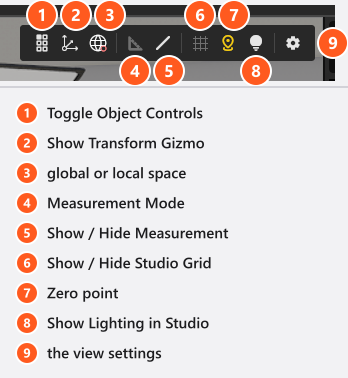
How to select objects
- Click an object to select it;
Ctrl+ click (Cmdon macOS) adds one. - Hold
Shiftbefore you press, then drag, for a selection box;CtrlorCmdkeeps the current selection. Locked objects stay out, and withoutShiftthe drag does nothing. Ctrl+Aselects everything,Fframes the selection — both only with the pointer over the studio view.0shows and hides the object controls beside the selection. Which ones depends on the object: a prop has six — rotate freely, turn on the spot, lift, drop to the floor, attach, detach — a camera its own orientation, tripod, target-lock and focus buttons, and no attach button.
How to move and rotate with the mouse
Drag an object and it slides over the floor. Hold a key to change the drag:
| Hold | While dragging |
|---|---|
| — | Move on the floor plane |
H |
Move up and down |
Ctrl |
Rotate around the view axis |
Shift |
Rotate freely, like a trackball |
C |
Keep the transforms of attached children |
Alt |
Leave a copy behind |
Neither rotation snaps: the 15° snap belongs to the rotation handles — hold Ctrl on the turn-on-the-spot control, a gizmo rotation ring or a stand’s tilt handle and the angle steps in 15°.
Order decides: press first, then Shift, to rotate freely; Shift first draws a selection box.
On macOS only selecting uses Cmd: rotating and snapping stay Ctrl there, and Backspace deletes.
Alt needs a handle — the object’s own, a stand’s floor handle, a window’s in a wall, the gizmo or a group’s; a locked object is not copied from its own.
While you drag, the studio view writes the numbers over the object: the object itself, or a stand by its floor handle, gives the two floor coordinates, headed by the active zero point’s name unless that is the plain set origin. One of a stand’s own handles gives a single value instead: Height, Length, Offset, Pitch, Yaw or Roll.
Arrow keys nudge the selection over the floor, Page Up / Page Down up and down: 5 mm per press, 1 mm with Shift, 10 cm with Ctrl, which wins if you hold both. A nudge follows the world axes whatever the rotation.
How to type an exact position
Open Transform for position and rotation on all three axes. What they are measured from depends on the zero point, which also renames the two floor fields — see Set the zero point for measured positions. The third field is always height, never re-based.
Number fields drag too: press on one and pull sideways; Ctrl snaps a rotation field to 15° steps.
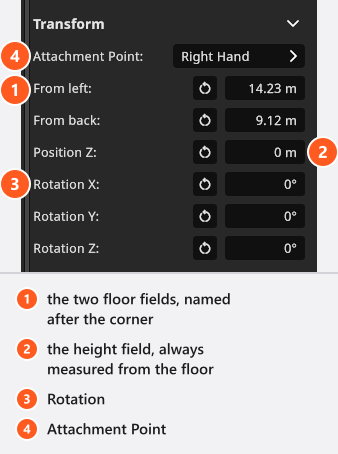
How to use the transform gizmo
Show Transform Gizmo gives the selection three-axis move and rotate handles. 1 hides it, 2 shows it in global space, 3 in local space; the next toolbar button switches between Transform in Global Space and Transform in Local Space, dead while the gizmo is off.
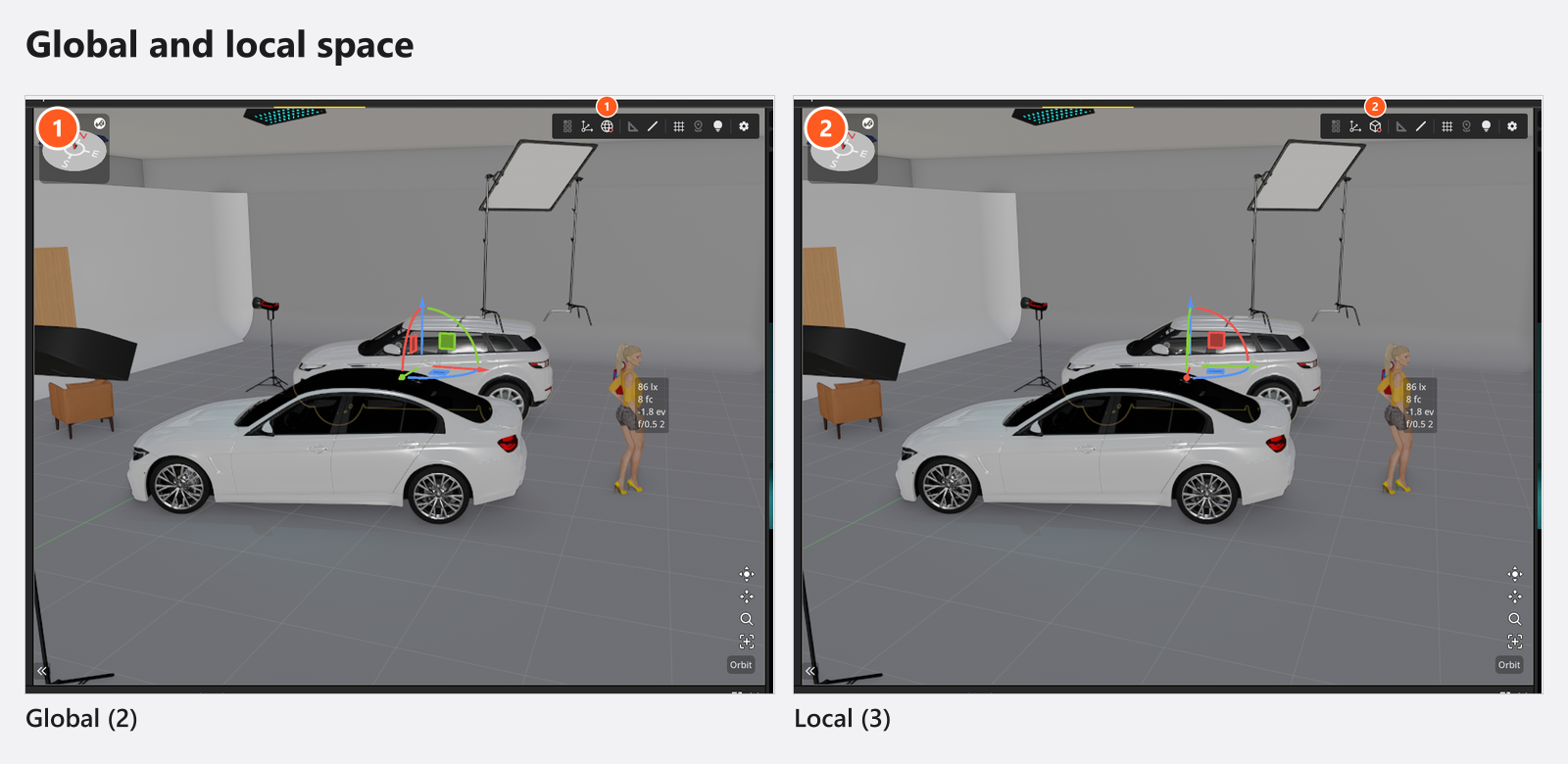
Nothing scales with the gizmo. Resize in the inspector: Size on props and the picture wall, Shape on basic shapes, wall elements and floors, Settings on mirrors and openings.
How to duplicate
Three routes, each bringing the animation along (add-on: Animation Tool), with the Position keys shifted to where the copy lands:
| Route | What is copied | Where it lands |
|---|---|---|
| Duplicate in the inspector | the object alone, nothing attached | next to the original: sideways in 0.2 m steps until the spot is free, a door or window 1 m along its wall; selected, in the same group |
Ctrl+C / Ctrl+V |
the selection with everything attached below it | at the stored position, or the next free spot if taken; a wall-mounted copy joins the selected wall |
Alt + drag a handle |
the dragged selection with its children | where you drag the copy |
Other tracks are copied unchanged.
How to group objects and move them as one
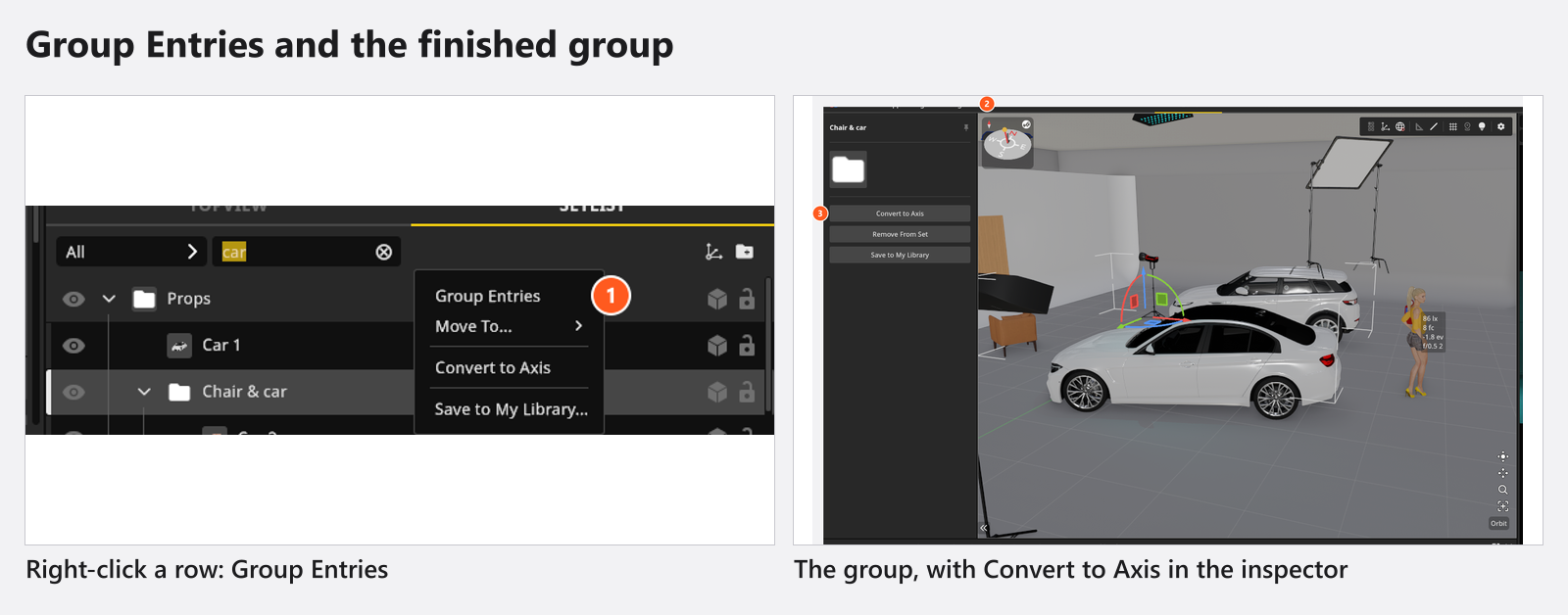
Select several set-list rows, right-click and choose Group Entries (Ctrl+G). The new row is called New Group; rename it in place. Move To in the same menu moves a selection into another group or back to Root — a window in a wall only moves inside its wall.
Selecting the group puts a bounding box with move and rotate handles in the studio view; they carry its contents, locked children stay put. A group has no numeric fields. Convert to Axis turns it into an object with a real Transform — what you need for exact values and keyframes.
In this clip props are grouped and renamed:
How to lock and hide
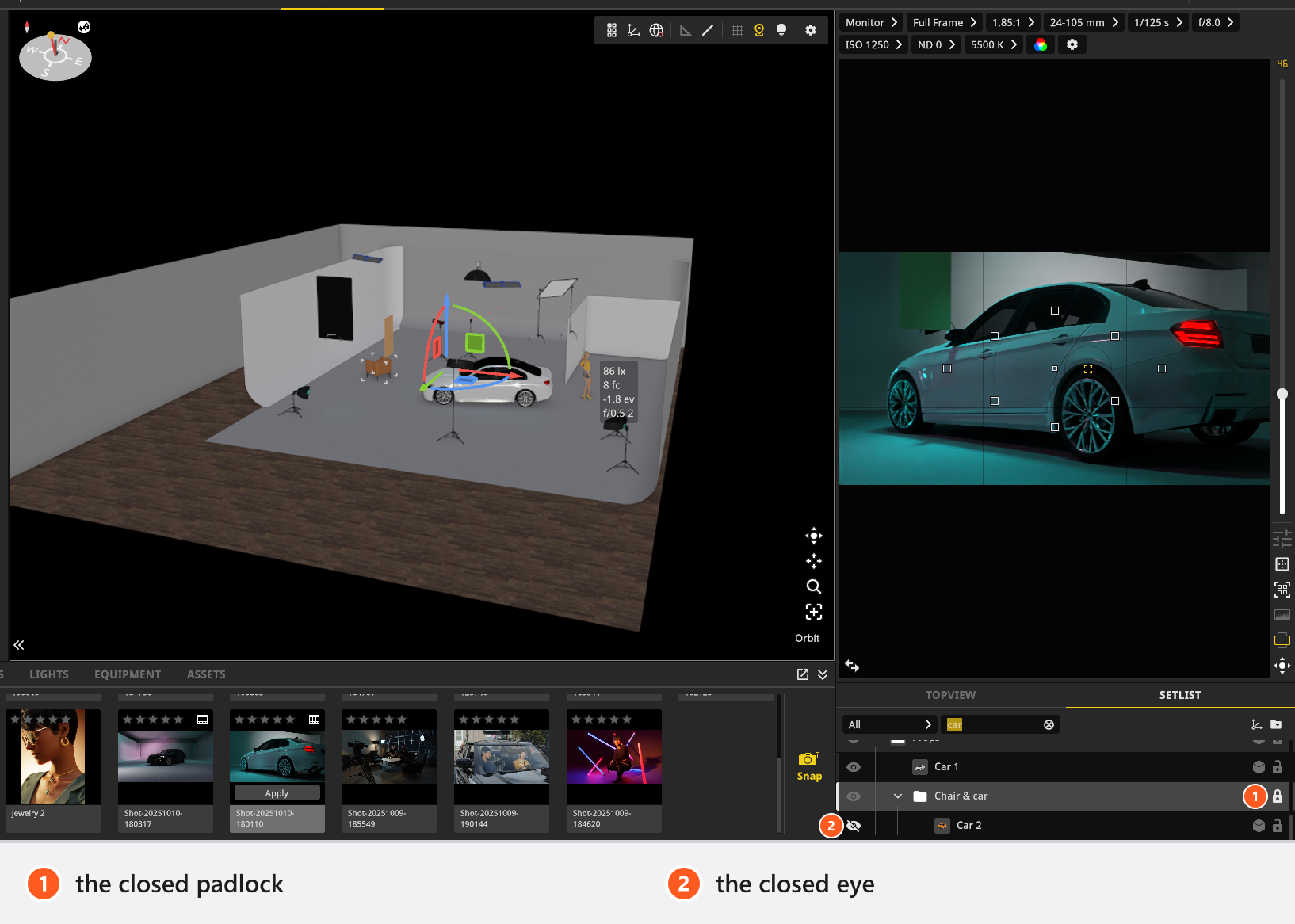
L locks the selection: a locked object cannot be dragged, nudged or deleted — Del and Remove From Set both refuse it with Objects are locked — and the set-list padlock shows and clears it. Locking a group does not lock its contents, so select what you want protected. The eye button does the opposite: it hides everything under a row.
How to measure distances
- Click the measurement button or press
M. → The Measure banner appears. - Press the mouse button on one of the seven measurable types — camera, light, reflector, diffuser, model, prop, imported object — and drag to the second; the line attaches to each object’s measurement point.
- For a point in space, end the drag on a surface; over nothing, nothing is created.
- Press
Magain to return to editing.
Dimension lines are saved with the project and printed on the set plan — see Create a set plan; Show / Hide Measurement hides them, select one to delete it.
The grid and the view settings
Show / Hide Studio Grid (G) draws one line per metre — per foot in imperial units, per yard with Grid in Yard on.
The gear button opens the view settings: Studio Light, which only brightens the studio view, and a Quality step (Low, Medium, High, Ultra, default Medium). Both are program preferences, not part of the project; the step is unrelated to the render Quality — see Quality and denoiser settings.
Troubleshooting
- A drag does nothing. The object is locked. Clear the padlock in the set list.
- There is no scale field. By design — use Size or Shape.
- The space button does nothing. The gizmo is off. Switch it on.
- A group row has no Transform. Use its handles, or Convert to Axis.
- A window in a wall will not rotate. It follows the wall. Detach it first.
- A measurement drag created nothing. The drag must end on a surface.
- A shortcut stopped working. Contexts follow the pointer; none fire in a text field.
More symptoms: Objects, rooms and measurement problems