
 English
 Deutsch
 日本語
日本語 简体中文
简体中文 Français
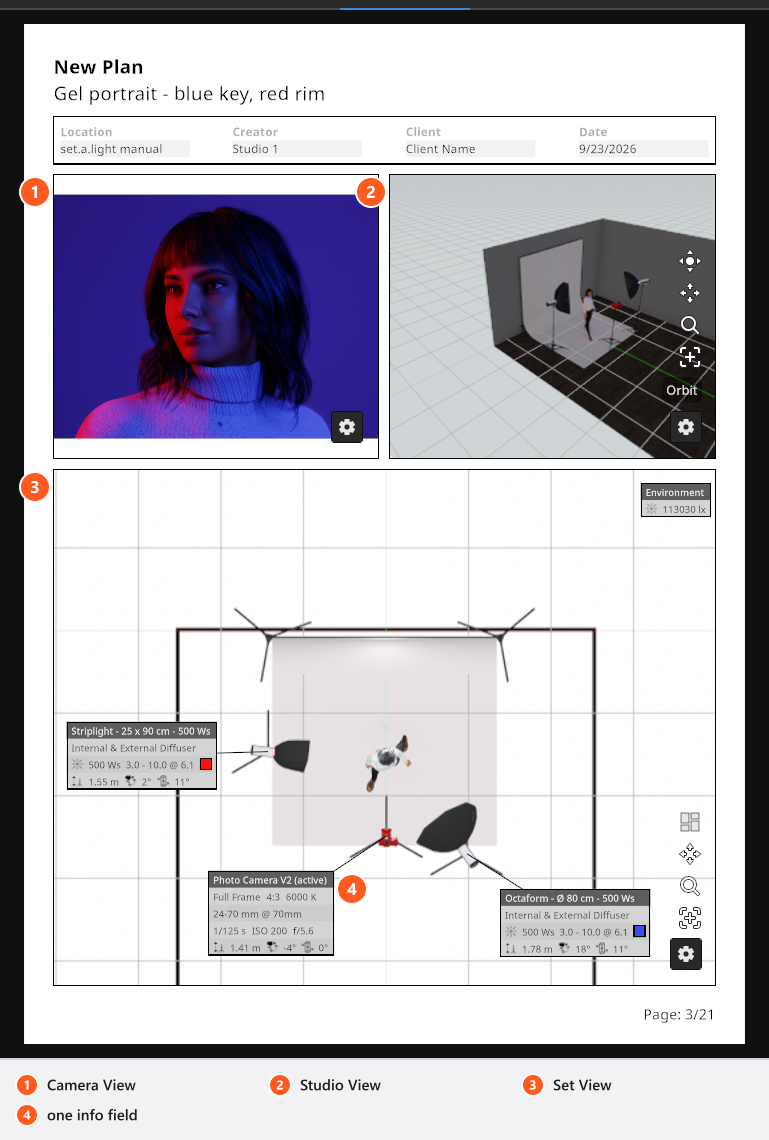
A shot page is what the crew reads: the picture you are after, a 3D view of the set and a top-down diagram with distances, heights and power settings. Every shot in a plan starts with one, and you can add more with other layouts and contents.
Applies to BASIC, STUDIO, CINEMA · You need: a plan with at least one shot, open in the PLANS tab. Movement paths are drawn in every edition; building the animation needs the Animation Tool add-on.
Where to find it
Select a shot in the page overview beside the page area. Its first page already carries three views — the Camera View with the rendered image, the Studio View and the Set View, the top-down diagram. In a PDF plan that page is portrait A4 under the plan title, the shot title and the header values, with fixed splits and no bin icon. In a JPG plan it is a landscape three-split like any other page: no titles above the views, dividers you can drag, and a bin icon.
How to add a page and fill it
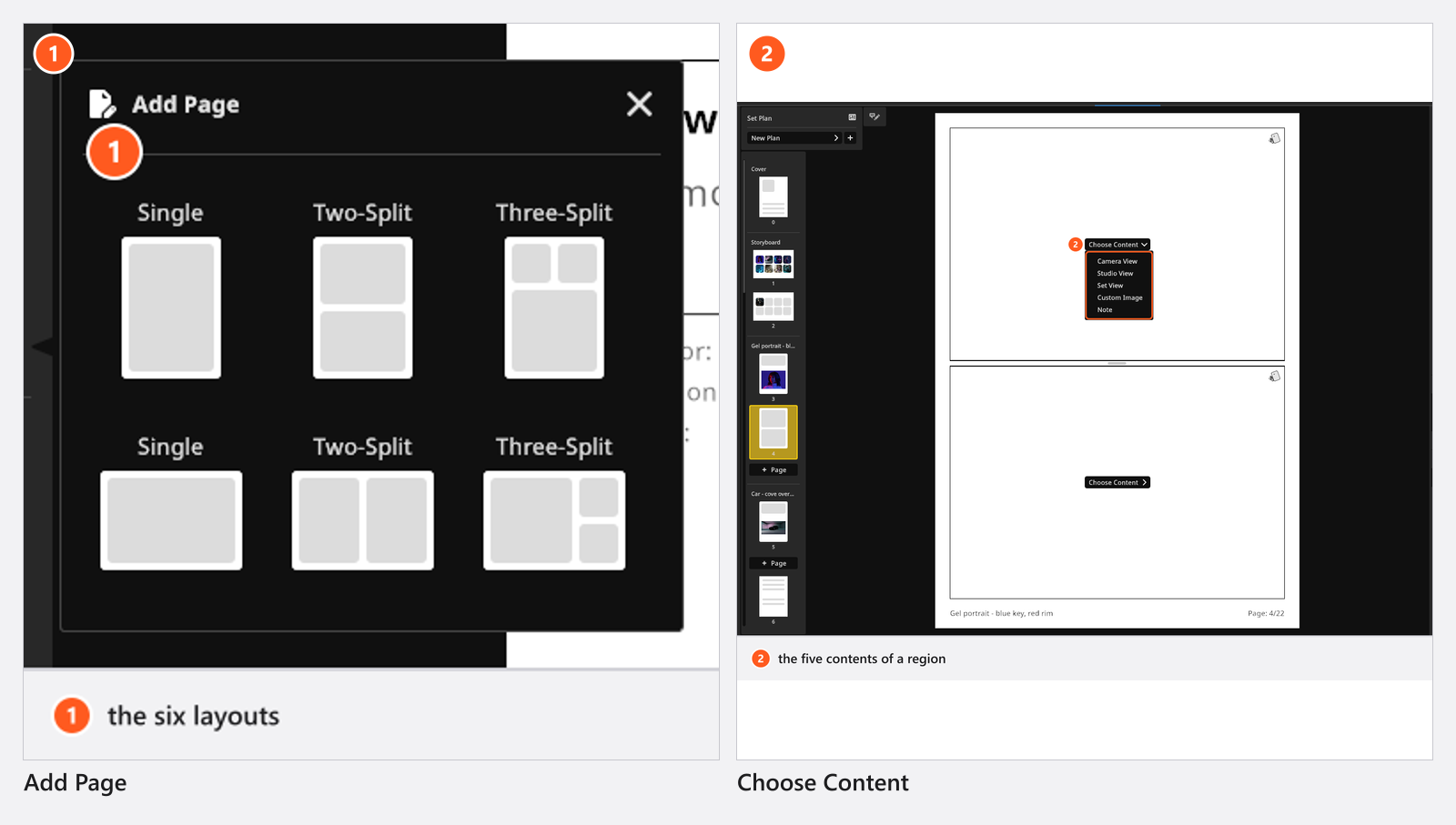
- Click the Page button after the last page of the shot. → Add Page offers six layouts: Single, Two-Split and Three-Split, each in portrait and in landscape.
- Click a layout. → The page is added and becomes the current one. Added pages carry a bin icon; in a PDF plan the first page of a shot has none.
- Click Choose Content in an empty region and pick what goes in it: Camera View, Studio View, Set View, Custom Image (an image file from disk, such as the reference photo) or Note for text.
- Drag the divider between two regions to change their proportions. → A region never shrinks below a tenth of the area its divider splits.
In a Camera View, hover the image and click Render Shot to render from here; the gear icon holds the render settings. Until a render exists the region shows the preview and says Low-Res Preview, English in every language.
How to make the diagram readable on paper
The Studio View is navigated like the studio itself. Its gear icon opens Studio View with Show Grid, Brightness (0 to 1, 0.65 by default) and Field of View (20° to 80°, 50° by default). From 01:31 the clip opens both gear popups — it is from an earlier build and still shows two wall and floor switches that 3.1.14 does not have.
Treat the three as one job: lift Brightness until the diagram reads on paper, pull Field of View down towards 20° — that narrow, near-isometric look shows positions best — and turn the grid off if it fights with the objects. Walls and floor have no switch; turn the view instead.
How to arrange the info fields
The Set View is the top-down plan. Pan and zoom it to frame the set; its gear icon opens Top View with Show Measurement, Show Grid, Show Animation Paths, Show Information Fields and Lines.
Each object gets an info field with the numbers an assistant needs — a light its shaper, power and gel, a camera its lens, exposure and ISO, the set its sun illuminance. What a set plan contains lists every field.
The fields are placed for you the first time the page is built, so dragging one is a correction. Drag a field where you want it, or press the layout button (Calculate Info Field Layout) to lay them out again.
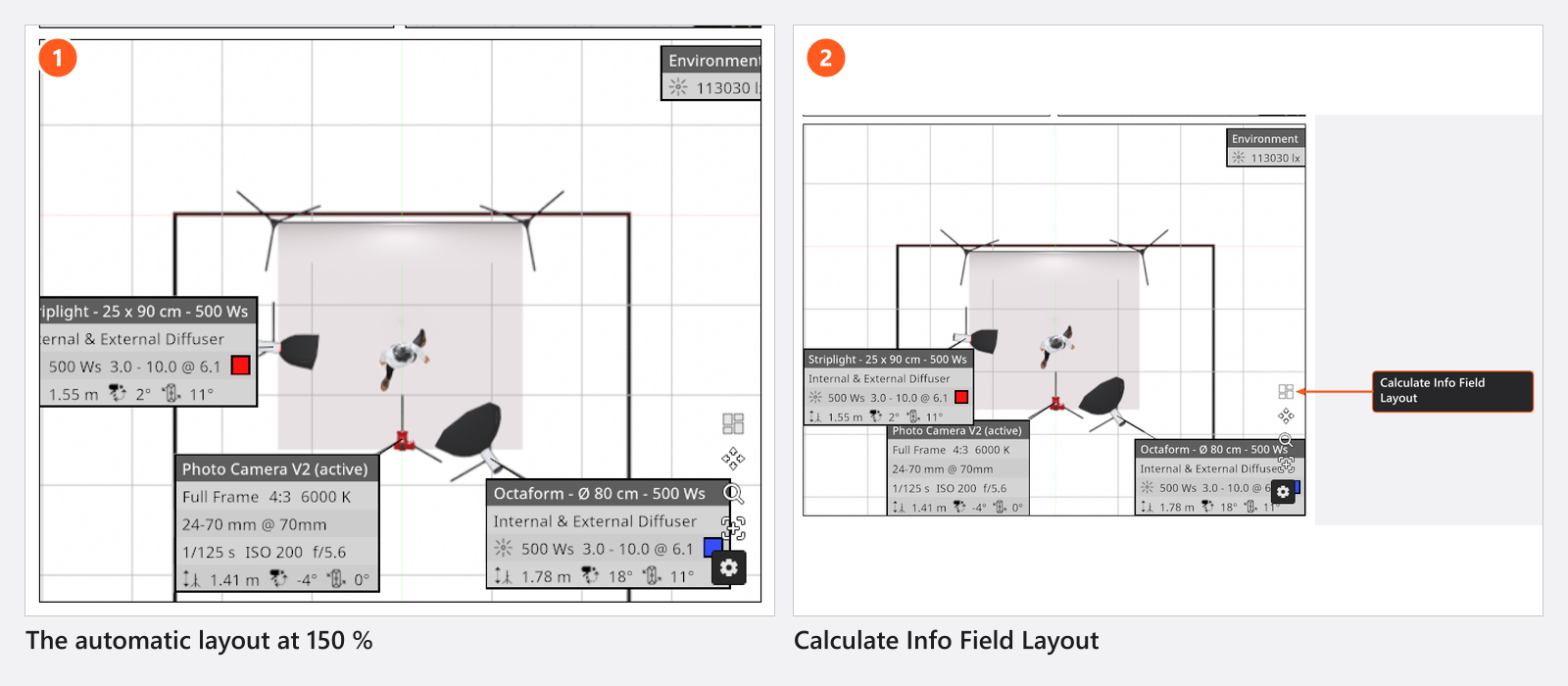
Which objects get a field is decided in the list of objects in the right panel, with its category filter, Search field, include icon and wireframe icon. Both icons act on every selected row and belong to the plan — wireframe here changes nothing in your set.
How to draw a dimension line
Dimension lines only work while Show Measurement is on in the Top View popup.
- Press the left mouse button on an object in the Set View and drag to a second object. → The line snaps to both; no modifier key is needed.
- Or drag onto an empty spot to end the line at a free point.
- Click a line and press
Del(by default) to remove it; Keyboard shortcuts lists the macOS keys.
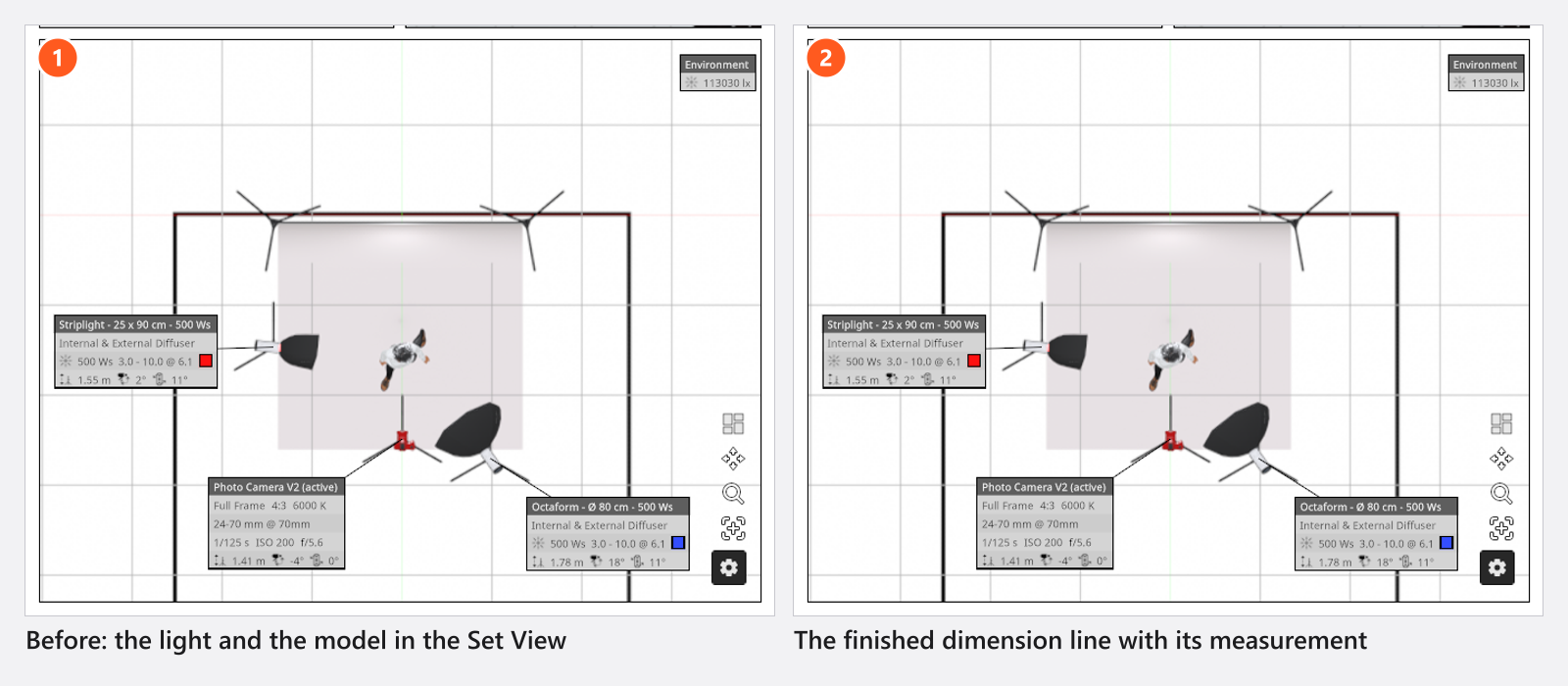
Dimension lines drawn in the studio view appear here too.
Show the movement paths of an animated shot
If the shot contains an animation, the Set View draws the path of every moving object: the camera in blue, models in orange, other objects in their own colour, each with a ring where it starts and an arrow where it ends. Two cameras are told apart by brightness, and Show Animation Paths switches the paths off.
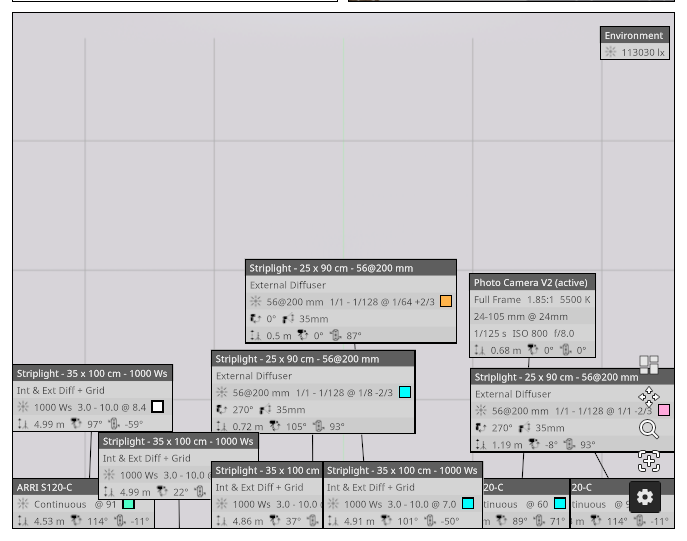
A path is sampled at up to 240 points, so a long move reads as a smooth line. An object has to travel at least two centimetres across the floor to get one, and an object that only rides along with its parent gets none. Height changes do not show in a top-down projection, and paths belong to the plan page — never to a rendered image.
Page settings and per-shot extras
The Page section of the right panel belongs to the selected page:
| Setting | Where | Range |
|---|---|---|
| Width / Height | JPG shot page | 100 to 4096 px per edge, portrait 1000 × 1600, landscape 1600 × 1000 by default |
| Text Scale | JPG shot page | 100 to 800 %, 200 % by default |
| Info Field Size | PDF shot page | 50 to 200 %, 100 % by default |
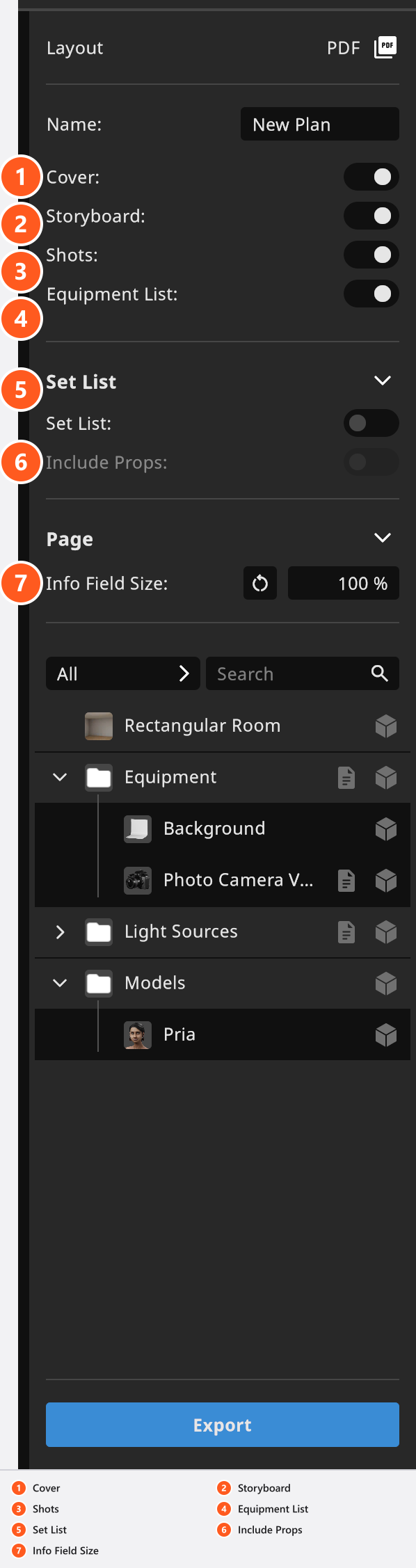
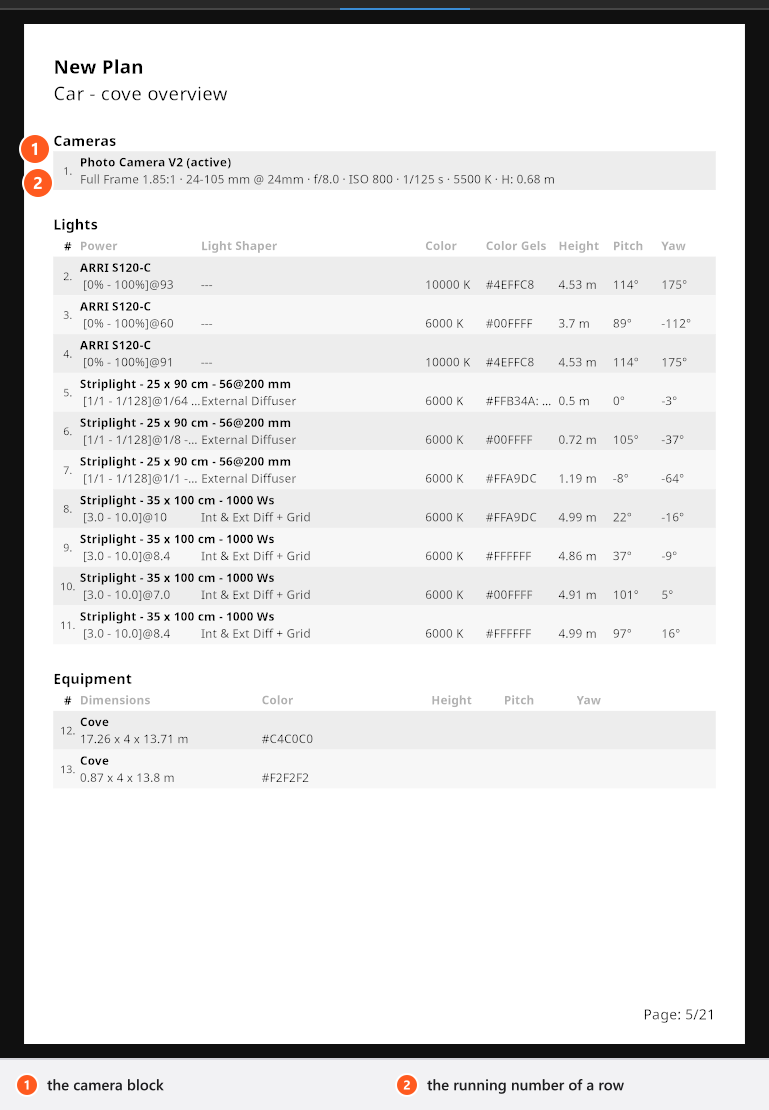
Info Field Size is the fix when the numbers on a printed plan are too small. On the first page of a PDF plan the header values — the shot title, Creator, Location, Client and Date — can be overwritten per shot without touching the cover; a JPG plan has no header block. Set List and Include Props decide whether this shot also gets its list page.
Three things are called a note
- A sticky note: the note button above the page (tooltip Add New Note) drops a free text box on the page. Drag it to move, drag a corner to resize between
40and800px, bin icon to delete. - A Note region: a whole region of a page filled with text instead of a view.
- The Internal Note of a shot: your own note in the RENDER tab, never printed.
Tips & limits
- A page holds at most three regions; for more views of one shot, add another page.
- Taking a shot out of the plan takes its pages with it.
- The top-down view ignores the atmospheric fog of the environment, so a hazy set still gives a readable diagram.
Troubleshooting
- I cannot draw a dimension line. Show Measurement is off for that view — switch it on in the Top View popup.
- My info fields overlap. Press Calculate Info Field Layout, or drag them apart.
- A region prints a soft image. That shot has no render — see Where your images are saved and Something looks wrong: start here.