
 English
 Deutsch
 日本語
日本語 简体中文
简体中文 Français
Props carry the story of a set: a chair that is pushed into frame, a car door that swings open, a wall that changes colour behind the model. Anything you can place you can key, and eighteen library props bring ready-made movement of their own — doors, windows, steering wheels, adjustable stands.
Applies to BASIC, STUDIO, CINEMA · Needs the Animation Tool add-on (included in the CINEMA trial) · You need: a saved shot with at least one prop, open on the SETUP tab with the ANIMATION tab active in the library panel.
Where to find it
Select the prop and it appears as a row in the object list of the animation editor. Keying works as in Set and edit keyframes; the props themselves come from the ASSETS tab, see Props, basic shapes and mirrors.
How to move a prop through the set
- Put the playhead on the frame where the prop should arrive and place it there.
- Click the key button on the prop’s Position row. → Position gets a track and the place is marked in the studio view.
- Move the playhead to the start of the move and place the prop where it comes from.
- Key the Position row again. → The prop travels between the two places, and the red path appears as soon as the second key is set.
- Press
Ctrl/Cmd+Spaceto play it back.
Drag the orange handles on the path to bend the route; the control points are the keyframes. A second route to the same result: set the first key, switch Automatic Keyframe Recording on and drag the prop at each frame — every drag writes a key.
The quick tip below does both on a basic shape: a keyframe on the Position row first, then recording switched on and the shape dragged from frame to frame.
Props that bring their own movement
Eighteen library props have moving parts, and their sliders sit in the Animations group of the inspector — one slider per part, each of them keyable:
- Vehicles: Steering (
-1to1), Windows, and the doors. Most vehicles have Door L and Door R plus Door Back where there is a rear door; Car 2 has four — Door front L, Door front R, Door back L and Door back R. The trailer adds Swing. - Stands: Height on the light, photo and camera tripods, the C-Stand M and the Music Stand (
1.05–1.6m, default1.45). - Seating: the posing stool’s Seat Height and Footrest Height.
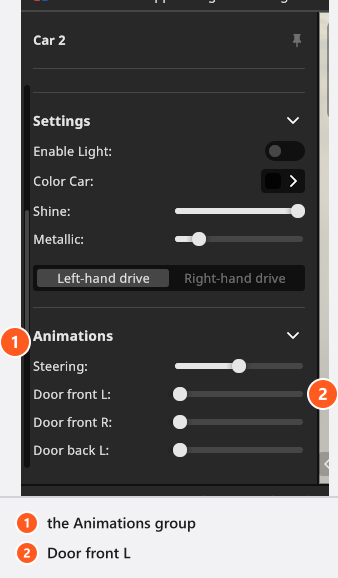
Each slider runs from 0 (closed) to 1, except the stands and the stool, which are in metres, and Steering and Swing, which turn both ways from 0. Key one exactly like a light’s power: set the value, press the key button on that row, move the playhead, set the other value, key again.
How to animate a door or a window opening
A window or a door from the room library is a different object from the vehicles above, and its controls sit in its Settings group.
- Select the window or door. If it has moving wings, Open appears in Settings.
- Leave Open at
0, put the playhead on the first frame and key the Open row by hand. - Move the playhead to the frame where it should stand open and set Open to
1. - Key the row again and play it back.
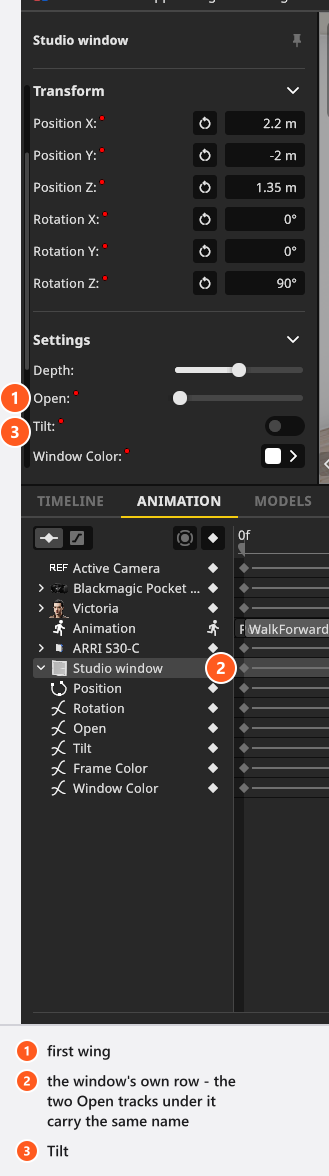
Two things surprise people here. A two-wing model has two sliders called Open, one per wing, and they appear as two identically named tracks — in the inspector the upper slider is the first wing. And Tilt is a switch, not a movement: it tips the window into its ventilation position and is keyed as a step that holds and then jumps. The colour row is called Window Color on a window and Door Color on a door.
How to move several objects together
A group in the set list keeps objects tidy but has no position of its own, so it cannot be keyed. An Axis can: it is a pivot with children, and one pair of keys on its Rotation swings everything inside it while each child keeps its own animation on top.
- Select the objects in the set list and choose Group Entries from the right-click menu.
- Right-click the new group and choose Convert to Axis. → The group becomes an Axis at the centre of its contents, on the floor.
- Place the axis where the movement should turn around, with the gizmo or by typing a position.
- Key its Rotation row, move the playhead, turn the axis and key it again.
- Play it back. → Everything in the axis turns around that point.
The button at the top of the set list adds an empty axis to drag objects into instead.
From 07:24 the intro tutorial does the whole move: three lights into one folder, Convert to Axis, then one pair of keyframes that turns the axis through 360°.
Prop and room settings you can key
Prop
| Setting | Range | Default | Unit | Animatable | Notes |
|---|---|---|---|---|---|
| Light Active | off | yes | |||
| Scale | depends on the prop | depends on the prop | m | yes | Three fields in metres — Width, Length and Height — which start at the size of the library model |
Prop material
| Setting | Range | Default | Unit | Animatable |
|---|---|---|---|---|
| Color | depends on the prop | yes | ||
| Metallic | 0 – 1 | depends on the prop | no |
Basic shape
| Setting | Range | Default | Unit | Animatable |
|---|---|---|---|---|
| Arch Height | depends on the prop | m | sometimes | |
| Arch Width | depends on the prop | m | sometimes | |
| Color | white | yes | ||
| Cutoff Angle | 0 – 360 | depends on the prop | ° | sometimes |
| Metallic | 0 – 1 | 0 | yes | |
| Resolution X | depends on the prop | depends on the prop | no | |
| Resolution Y | depends on the prop | depends on the prop | no | |
| Shine | 0 – 1 | 0.5 | yes | |
| Size | depends on the prop | m | sometimes | |
| Thickness | depends on the prop | depends on the prop | m | sometimes |
sometimes in the last column means the setting is only there when the loaded shape or model has it — an arch has Arch Width, a cylinder has a Cutoff Angle, a flat panel has neither.
Window / door
| Setting | Range | Default | Unit | Animatable |
|---|---|---|---|---|
| Bottom | m | no | ||
| Depth | -1 – 1 | 0 | no | |
| Door Color | white | sometimes | ||
| Frame Color | white | sometimes | ||
| Left | m | no | ||
| Open | 0 – 1 | 0 | sometimes | |
| Right | m | no | ||
| Tilt | off | sometimes | ||
| Top | m | no | ||
| Width / Height | depends on the window or door | m | no |
Rooms, backgrounds, picture walls, mirrors and the separate floor object are keyable too — see Build a room, a background and a window.
Room
| Setting | Range | Default | Unit | Animatable |
|---|---|---|---|---|
| Ceiling Color | depends on the room | yes | ||
| Floor Color | depends on the room | yes | ||
| Shine | 0 – 1 | 0.24 | yes | |
| Size | 0.01 – 1000 | depends on the room | m | yes |
| Wall Color | depends on the room | yes |
Floor
| Setting | Range | Default | Unit | Animatable |
|---|---|---|---|---|
| Color | white | yes | ||
| Scale | 0.4 – 2.5 | 1 | no | |
| Shine | 0 – 1 | 0.24 | yes | |
| Thickness | 0 – 0.2 | 0 | m | no |
| Width / Height | 0.1 – 1000 | depends on the room | m | no |
The background and the picture wall have their own tables in What can be animated.
Tips & limits
- Copying or duplicating an animated object brings its tracks along. The copy’s Position keys are shifted by the offset it gets, so it runs its path beside the original’s; every other track is copied unchanged.
- A prop with a built-in lamp carries Light Active as a keyable switch.
- Scale is keyable on a prop; on a wall element and the floor, size and thickness are not.
- The parts of a prop move on rails the model was built with. There is no way to add a new moving part to a library prop.
Troubleshooting
- The duplicate runs beside the original, not on its path. By design: its Position keys carry the offset the copy got. Paste it into another shot for the identical path — there the keys stay as they are, as long as the place is free.
- A row in the object list reads
<missing>. The object it animated was deleted; the word is English in every language. Select the row and pressDel(Backspaceon macOS, by default) to clear the orphaned tracks. - More symptoms: Animation problems.