
 English
 Deutsch
 日本語
日本語 简体中文
简体中文 Français
A generic room is fine for a lighting idea and useless for a plan your assistant builds. Spend half an hour once: measure your studio, build it to those figures, put your own heads and bodies into the pickers, and keep the result. From then on every position you type is a distance somebody can step out on the real floor.
Applies to BASIC, STUDIO, CINEMA · Keeping the result as a set template needs STUDIO or CINEMA · You need: a tape measure in the real studio, and a project open on the SETUP tab.
What you will have at the end
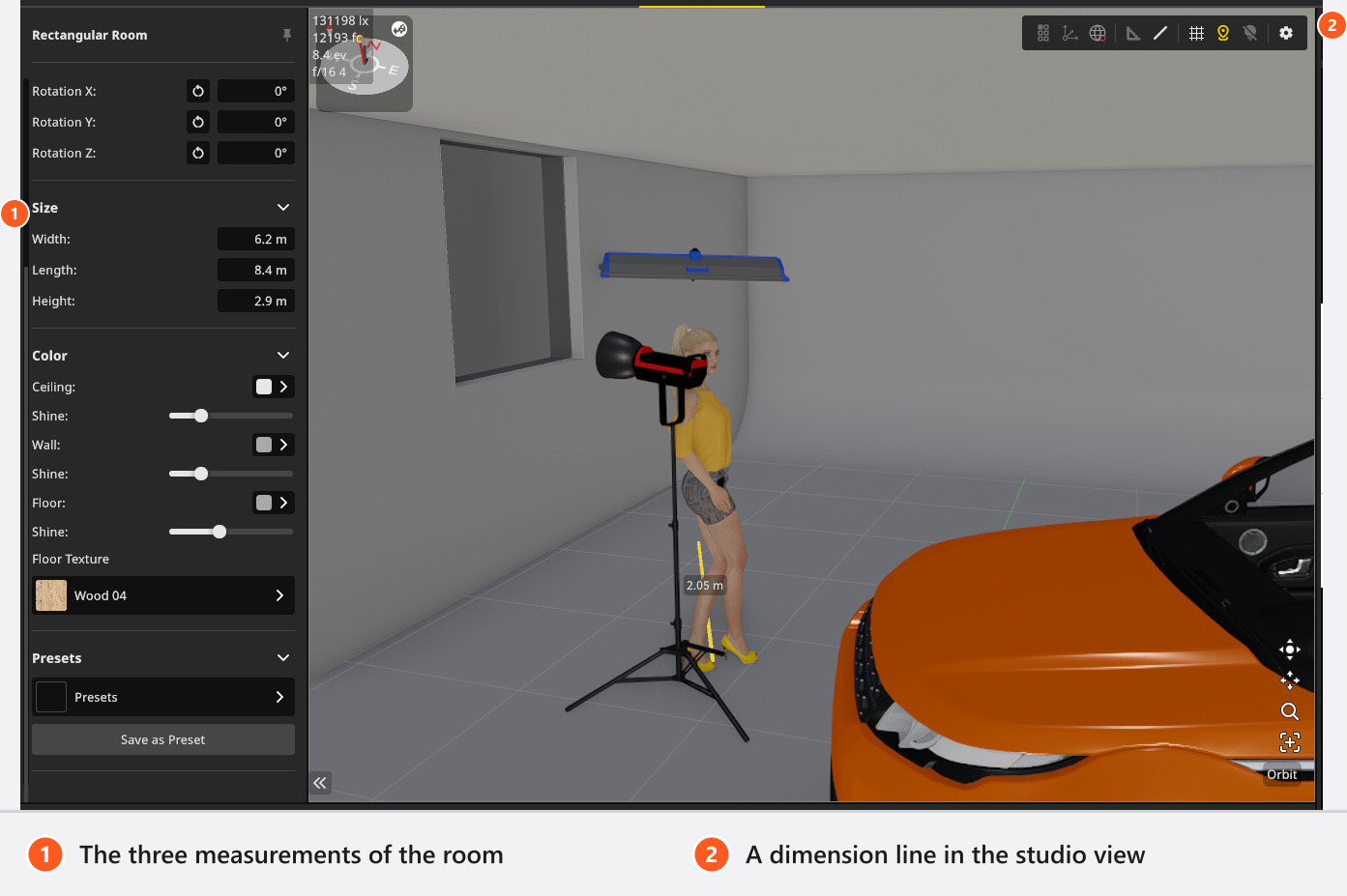
Your own room at its real measurements, coordinates measured from the corner you measure from in reality, your gear in the library, and the whole thing stored so a new job starts in it.
The route
- Measure the real room. Width, length and ceiling height, and write down which corner you took the two floor distances from — that corner is the one decision this whole page hangs on. Measure the distance from that corner to the background as well.
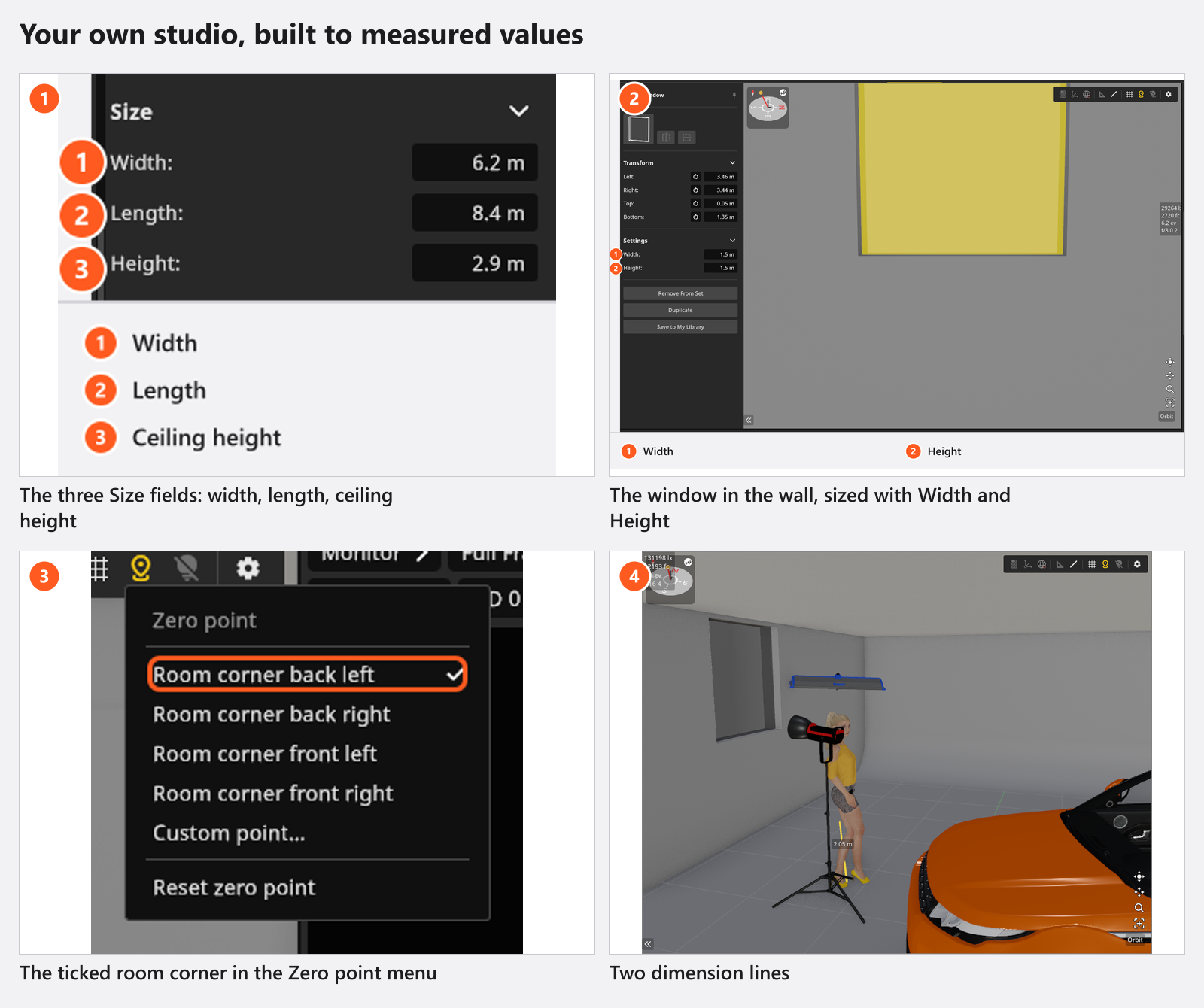
- Build the room to those figures. Select the room, open Size and type the three values; then set Ceiling, Wall and Floor colours and their Shine, because a bright wall fills shadows and a dark one does not. See Build a room, a background and a window.
- Keep the room as a preset. Save as Preset stores the measurements, the colours and the floor texture under a name of your own, in every project on this computer.
- Cut the openings that really exist. A window or a door is a hole daylight comes through, so put it where yours is and size it with the Empty Window if the frame is not in shot.
- Set the zero point to the corner you measured from. Open the Zero point menu and pick that corner; the entry with a tick is the one in force, so check it rather than assuming one. → The two floor fields of every object rename themselves after the corner. See Set the zero point for measured positions.
- Type the positions you measured. Select the background, then each stand, and type your figures into Transform. The third field is height and is always measured from the floor, whatever the zero point is. See Select, move and measure objects.
- Draw the distances you will re-measure on set. Press
M(by default), drag from a light to the model, and the dimension line stays with the project — and prints on the set plan. - Put your own gear in the pickers. Build the heads, shapers and lamps you own in the App Manager, and your bodies, lenses and mounts beside them; then hide everything you do not own so the lists match your kit. See Add your own lights and light shapers and Set up your own camera kit.
- Lock what never moves. Select the room, the background and the fixed stands and press
L(by default), so a careless drag cannot undo your measuring. - Keep the result. Two routes, and they are not the same thing: Edit → Save Current Set as Template stores the whole studio as the starting point of a new project (STUDIO+), while Save to My Library keeps a part of it — a three-light rig, a dressed corner — to drop into a project that already exists. See Create, open and save a project and Save your own rigs to My Library.
The first twenty seconds of this quick tip are that second route: a finished rig saved as one entry and dragged back into an empty set.
The decisions a pro makes
- How much room to build. Everything that bounces light: walls, ceiling, floor, the wall you push the background against. A pillar in the far corner changes nothing and costs render time.
- Colour before texture. Choosing a Floor Texture writes that material’s own colour and shine, so pick the material first and match the colour afterwards.
- Which gear to build. Only what changes the picture — the heads whose power scale you dial on set, the shapers in sizes you own, the bodies whose sensor crops your framing. A stand is cosmetic.
- Template or entry. A template is the studio and starts a new project. A library entry is a piece of it and joins a project. A plain
.setfile is the job. Keep the template and a project file of the same studio.
Pitfalls
- Dropping a room into a set that already has one gives you a second room, not a replacement. Delete the one you do not want.
- Applying a room preset rewrites the wall colours too. Apply it first, colour second.
- Switching the zero point moves nothing at all — it only rewrites the numbers you read. Do it before you type a long list of positions, not halfway through.
- A set template relies on the resources of this computer, so it is not a way to hand your studio to someone else. For that, see Hand over a shoot.
- Gear you built lives on this machine. A project that uses it carries a copy inside the file, but the library itself does not follow you to a second computer.
What you have now
- A room at your studio’s measurements, with a preset of its own.
- Coordinates measured from the corner you measure from in reality, and dimension lines for the distances that matter.
- Your own heads, shapers, bodies and lenses in the pickers, with the rest hidden.
- A set template (STUDIO+) or a library entry, so the next job starts in your studio: Plan a studio shoot from brief to set plan.
Troubleshooting
- Numbers that do not match the floor, greyed-out corner entries, a room that went dark: Objects, rooms and measurement problems.