
 English
 Deutsch
 日本語
日本語 简体中文
简体中文 Français
A camera move shows a client how a set will feel: a slow push-in, a run along a dolly track, a focus pull, a cut to the second camera. You build each the same way — give the camera two keyframes, and everything in between is calculated for you.
Applies to BASIC, STUDIO, CINEMA · Needs the Animation Tool add-on (included in the CINEMA trial) · You need: a saved shot with at least one camera, open on the SETUP tab with the ANIMATION tab active in the library panel.
Where to find it
Select the camera in the studio view or in the set list and it appears as a row in the object list of the animation editor. The layout is described in How animation works in a shot, the keying itself in Set and edit keyframes.
How to build a push-in
The surest order is backwards: frame the last picture first, then take the camera away from it.
- Drag the playhead to the frame where the move should end and set the camera up as the final frame should look.
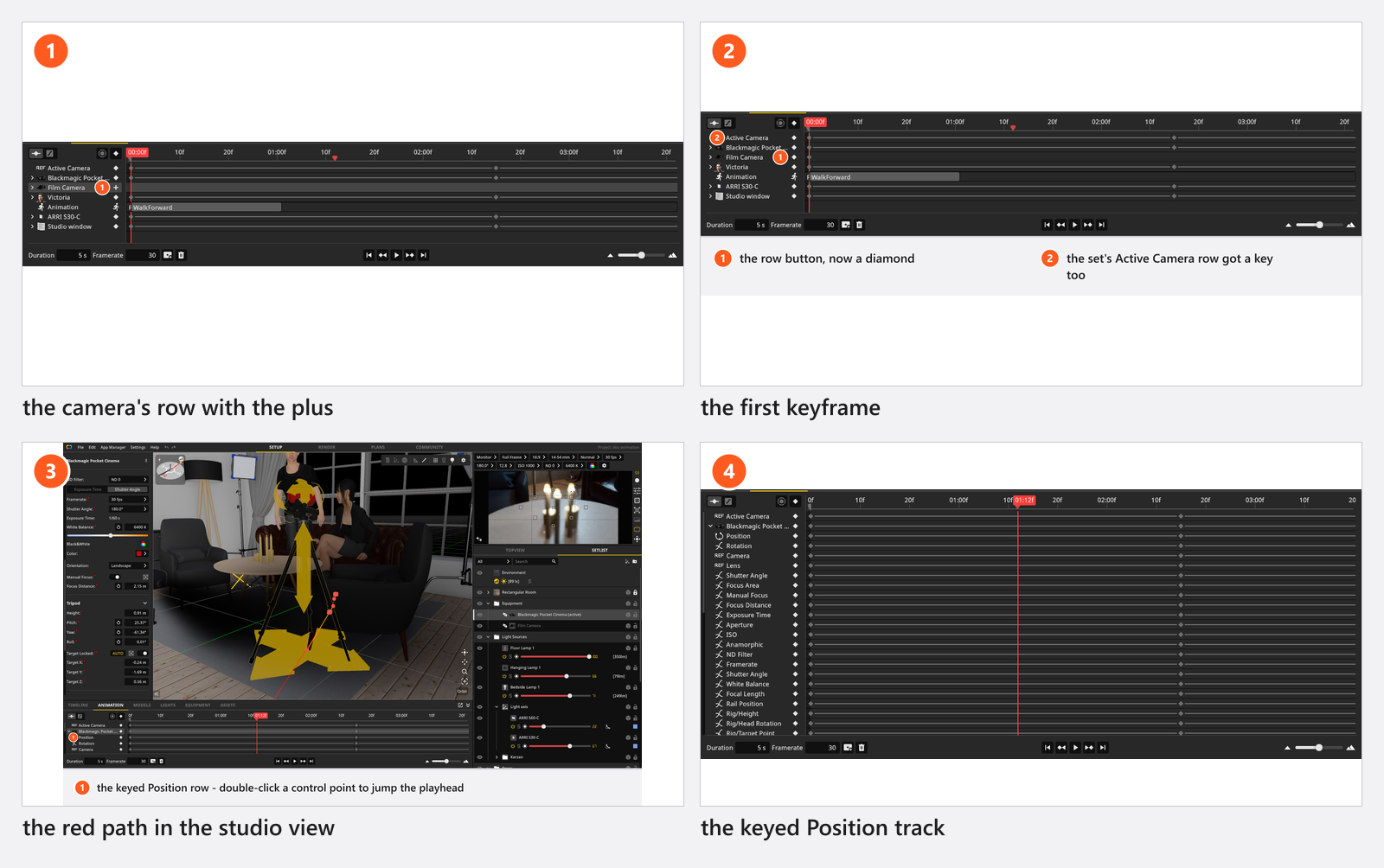
- With the camera selected, click Insert Keyframe and choose For Selected Objects (
Iopens the same menu, by default). → Every keyable camera setting gets a track, and the camera’s row shows a keyframe diamond. - Drag the playhead back to the first frame of the move.
- Pull the camera back, raise it on its stand and set a wider Focal Length.
- Click Insert Keyframe → For Selected Objects again. → A red path appears in the studio view: the route the camera now travels.
- Press
Ctrl/Cmd+Spaceto play it back. → The studio view flies the move. What you see is the working preview, not the render.
Widening Focal Length in step 4 makes it a push-in rather than a plain dolly move: the shot travels in and tightens.
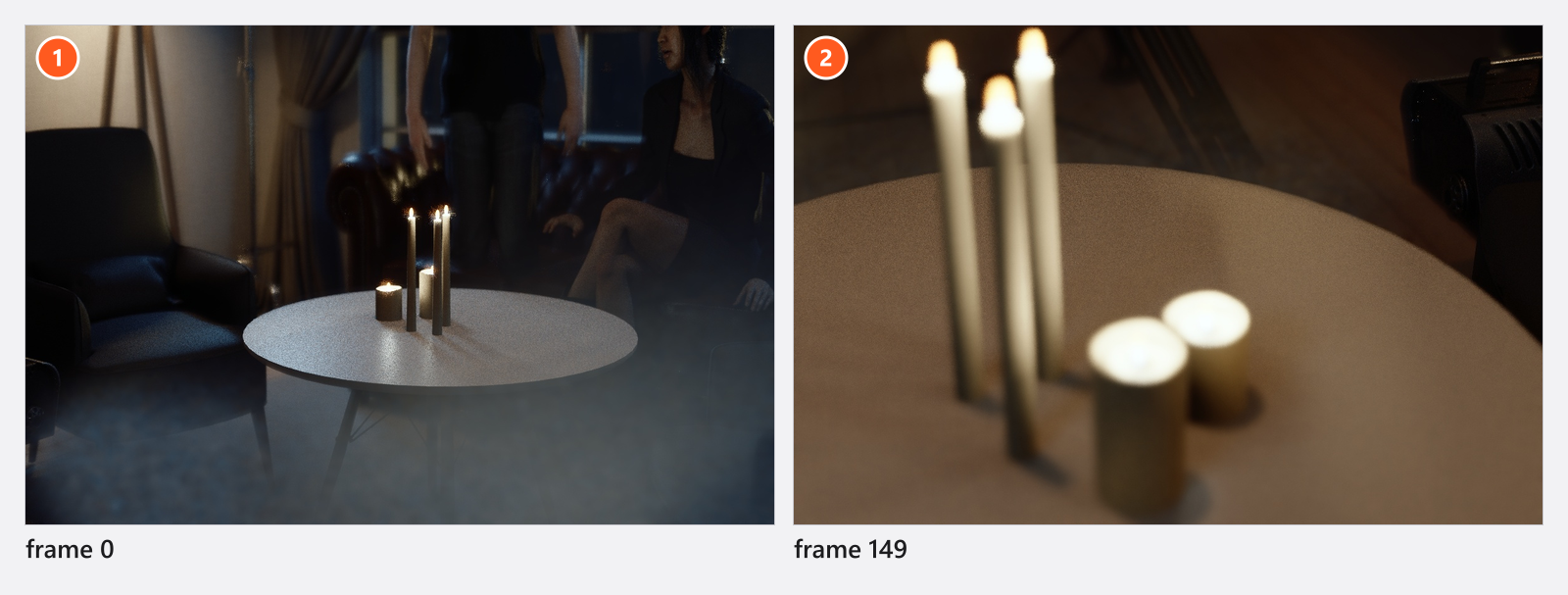
The clip below builds this move in a minute.
A Position track is drawn as a path while the camera is selected: a red line, one control point per keyframe and orange tangent handles you can drag to bend the route into an arc. Double-click a control point to jump the playhead to that keyframe. Bending the line changes where the camera goes, not when — timing lives in Shape the motion (curves and easing).
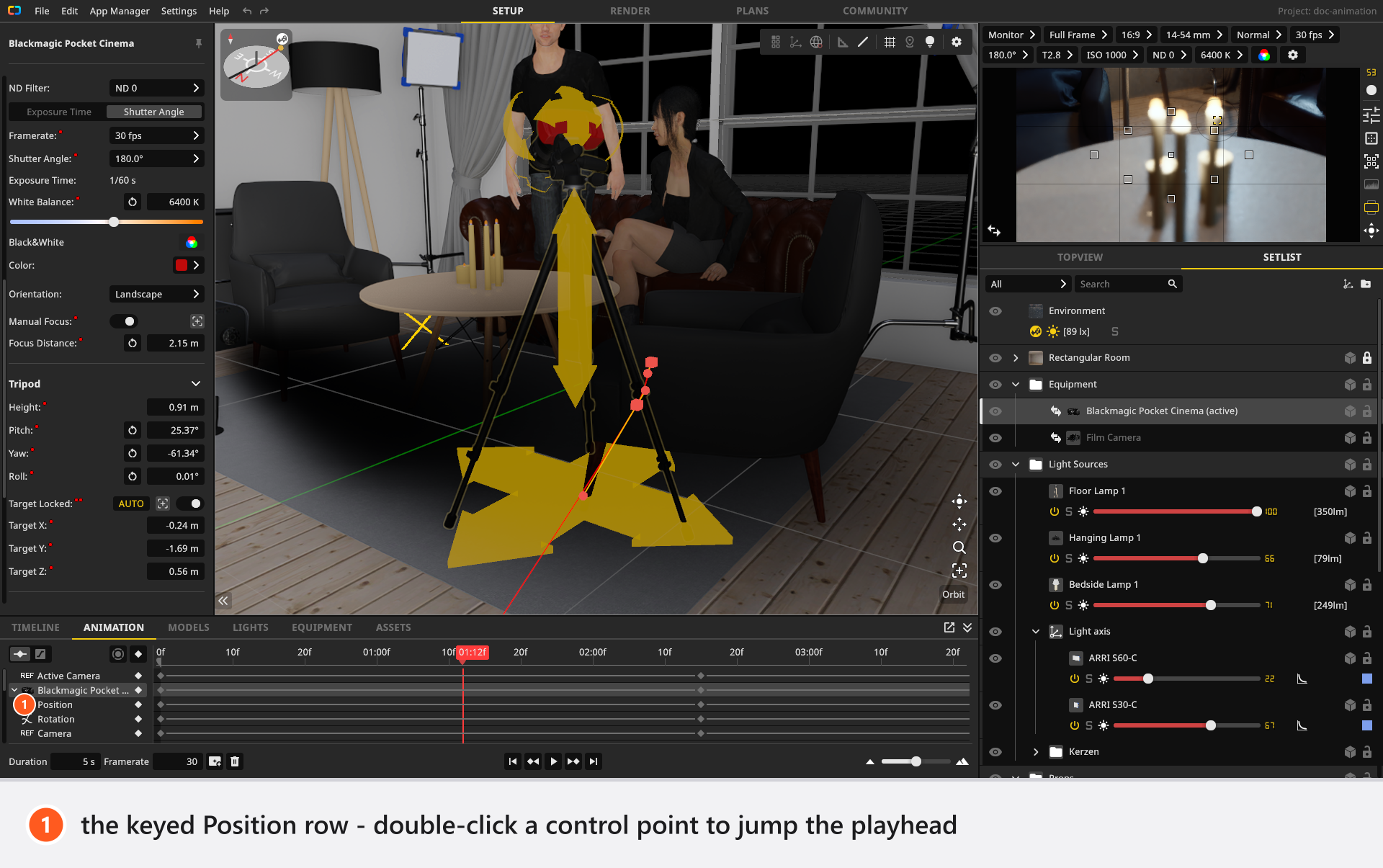
A second route to the same move: set the first keyframe by hand, switch Automatic Keyframe Recording on, then move the playhead and fly the camera. Recording only writes to rows that already have a track.
How to pull focus
- Select the camera and switch Manual Focus on in its Settings group. → Focus Distance becomes editable. With autofocus on, keys on Focus Distance change nothing.
- Put the playhead on the first frame of the pull and set Focus Distance to the foreground distance.
- Click the key button on the Focus Distance row. → That one setting gets a track, nothing else.
- Move the playhead to the end of the pull, set the distance of the model’s eyes and key the row again.
- Play it back. → The foreground goes soft as the model comes sharp.
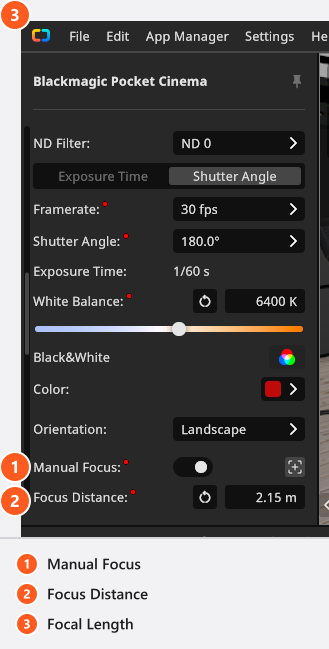
Focus Distance runs from 0.001 m to 10000 m; the aperture decides how visible the pull is (Focus and depth of field).
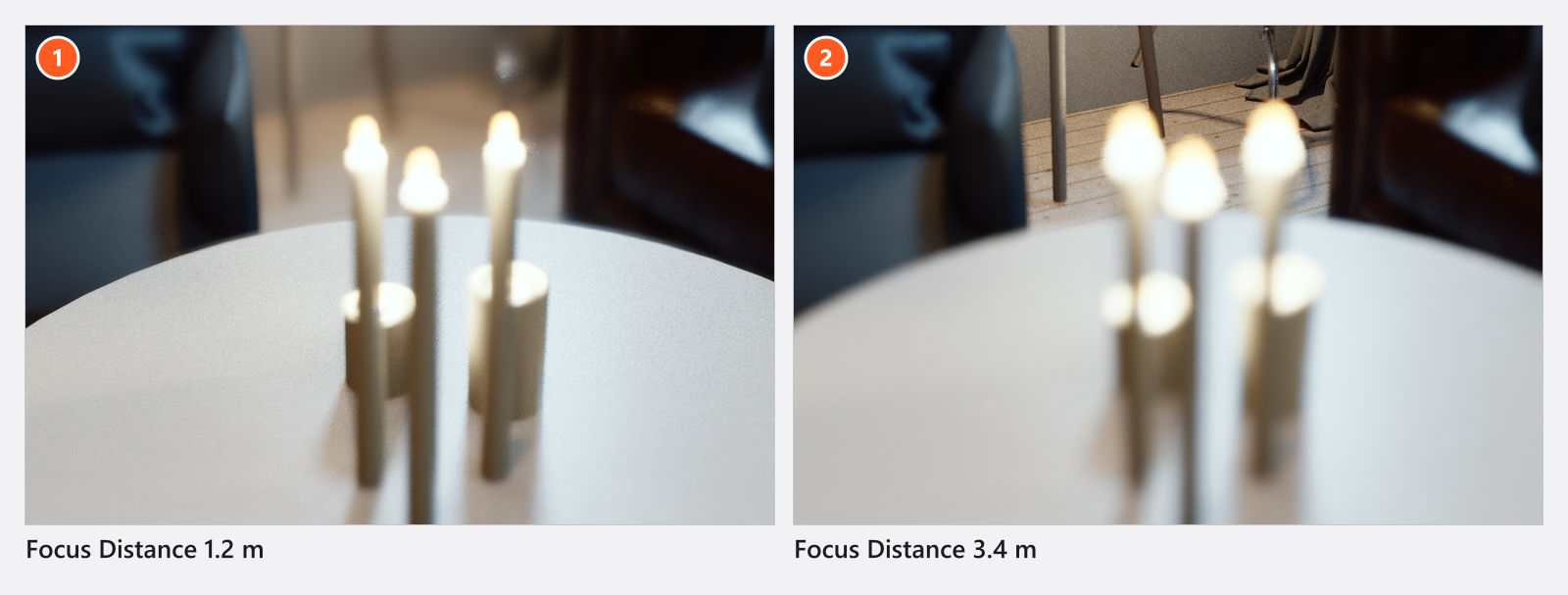
How to run the camera along a dolly track
- Build the track and attach the camera to it — see Build a dolly track.
- Put the playhead at the start, set Rail Position to
0and key that row. - Move the playhead to the end, set Rail Position to the far end of the track and key it again.
- Play it back. → The camera runs the track and keeps its height and head rotation.
Rail Position runs from 0 to the length of the track. While a track is attached it decides where the camera stands: keys on Position do nothing until you detach it.
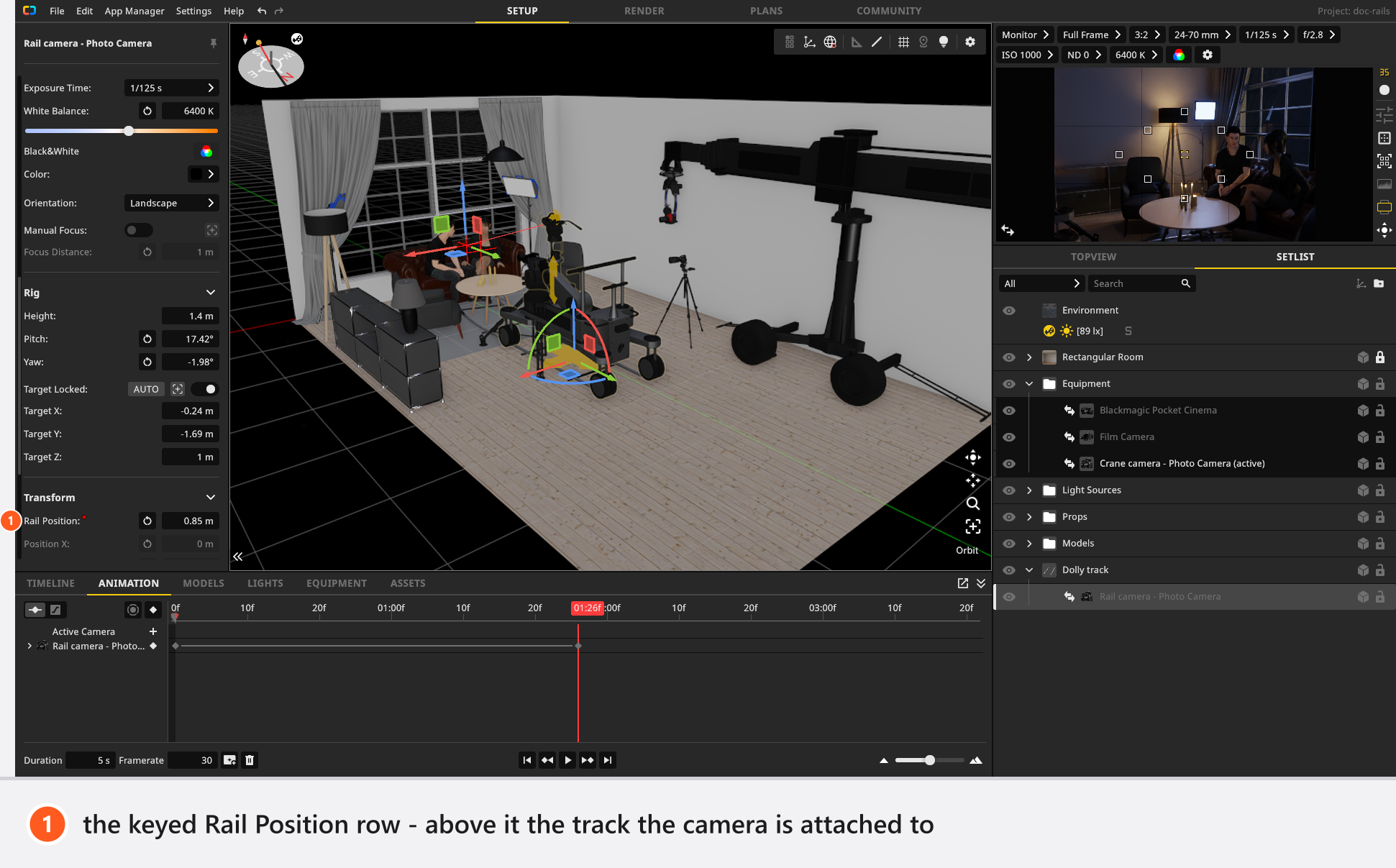
How to cut between two cameras
Active Camera belongs to the set, not to a camera, so one shot can cut from one camera to the next.
- Put the playhead on the first frame and make camera 1 the active camera.
- Select it and insert a keyframe with For Selected Objects. → A key is written on the set’s Active Camera row as well, holding camera 1.
- Move the playhead to the cut frame and make camera 2 active. The key records whichever camera is active, not the one selected in the list.
- Insert a keyframe again. → The Active Camera row carries two keys.
- Play it back. → The picture cuts on that frame; there is no blend.
The frame size of a video is decided once, before the first frame, from the camera active then. Do not cut between a landscape and a portrait camera in one shot.
Camera settings you can key
Camera
| Setting | Range | Default | Unit | Animatable | Notes |
|---|---|---|---|---|---|
| Anamorphic | None | yes | |||
| Aperture | yes | ||||
| Color | no | ||||
| Color Space | sRGB | no | |||
| Effects Active | off | no | |||
| Exposure Time | yes | ||||
| Focal Length | depends on the camera | 50 | mm | yes | |
| Focus Area | 0.5 | yes | |||
| Focus Distance | 0.001 – 10000 | 1 | m | yes | The field refuses anything below 0.01 m; the top figure is a declared limit, not one the camera enforces |
| Format | depends on the camera | no | |||
| Framerate | yes | ||||
| ISO | yes | ||||
| Manual Focus | off | yes | |||
| ND Filter | None | yes | |||
| Rail Position | from 0 | 0.5 | m | yes | |
| Sensor | depends on the camera | no | |||
| Shutter Angle | yes | Film camera only: the angle itself, shown once the exposure is set to Shutter Angle | |||
| Shutter Angle | on | yes | Film camera only: the pair of buttons that switches the exposure between Exposure Time and Shutter Angle | ||
| White Balance | 1700 – 20000 | 5600 | yes |
Two rows read Shutter Angle. The one whose default reads on is the switch between angle and exposure-time mode; the other is the angle itself. Focus Area is the point the automatic focus measures, not the metering-field number in the viewfinder. Framerate here is the camera’s exposure framerate (16 to 2000 fps on a Film camera), not the animation’s — that one sits at the bottom of the ANIMATION tab. Height and the two stand rotations are keyed on the stand, not in Position: Camera rigs: axes and limits.
Dolly rail segment
| Setting | Range | Default | Unit | Animatable |
|---|---|---|---|---|
| Angle | 1 – 360 | 45 | ° | no |
| Arc Length | m | no |
Tips & limits
- Aperture, ISO, Exposure Time and ND Filter are lists of fixed steps. Their keys hold and then jump and cannot be eased — another interpolation leaves them Constant — so set one key per stop. Dragging such a key out of its range in the Curve Editor is the one thing that still misfires: the value falls back to the first list entry,
ISO 3on the ISO row. Undo puts it back. - A stand with Target Locked on is aimed after the tracks are read, so it overrides keyed head rotation. Key Target Point instead, or switch the lock off.
- For Selected Objects keys everything the camera has, exposure and lens included. For a pure move, key only the rows you need with their own key buttons, or select a surplus row and press
Del(Backspaceon macOS, by default). - A still of an animated shot always renders its preview frame — see Work in the timeline editor.
- The video is evaluated frame by frame, so a move that swaps the body or the lens wants a short draft first.
Troubleshooting
- The camera ignores its Position keys. It is attached to a dolly track. Animate Rail Position, or detach the camera.
- The focus keys do nothing. Manual Focus is off, so the camera focuses by itself.
- The cut does not happen. The keys were written while the other camera was still active. Make the camera active first, then key.
- More symptoms: Animation problems.