
 English
 Deutsch
 日本語
日本語 简体中文
简体中文 Français
Your licence decides which edition you run and which add-ons are unlocked. It is activated on the computer, not on a file, and it can be moved. This page is the catalogue of what can go wrong: the messages, what they mean, and what actually removes an activation.
Applies to BASIC, STUDIO, CINEMA · Windows and macOS · You need: Help → License Management, and an internet connection for anything that changes an activation. Without a licence the trial dialog appears instead, and its Activate button opens that window.
What removes your activation — and what does not
Only two answers from the server take the stored licence off this computer: this serial is unknown, and this activation no longer exists here. Both ask you to enter your key again. Everything else leaves it where it is — an unreachable server, a report of no activations left, a version the licence does not cover. The session may then run without a licence until the next start. That is not a lost licence: restart once you are online, or press Try Again in the trial dialog.
What the messages mean
| Message | What happened | What to do |
|---|---|---|
| Invalid License Key | Incomplete or mistyped; nothing sent yet, and it appears only once you have typed | The key is 35 characters. Check for confused characters, or paste it from your account |
| No Internet Connection! — Unable to connect to the licensing service. | Server not reachable | Check connection, firewall and proxy. Only this screen offers Offline Activation |
| Activation Failed! — Exceeded activation limit | Active on too many computers | Deactivate one of them, then activate here |
| Activation Failed! — Version not supported | Not in your free updates; the screen offers Renew Updates | Renew, or install the version your licence covers |
| License no longer active | The activation was removed on the server | Enter your key again |
| Password protected | The licence needs a password the program has no field for | Contact support |
| Activation Failed! — general | The server refused it | Re-check key and account, then contact support |
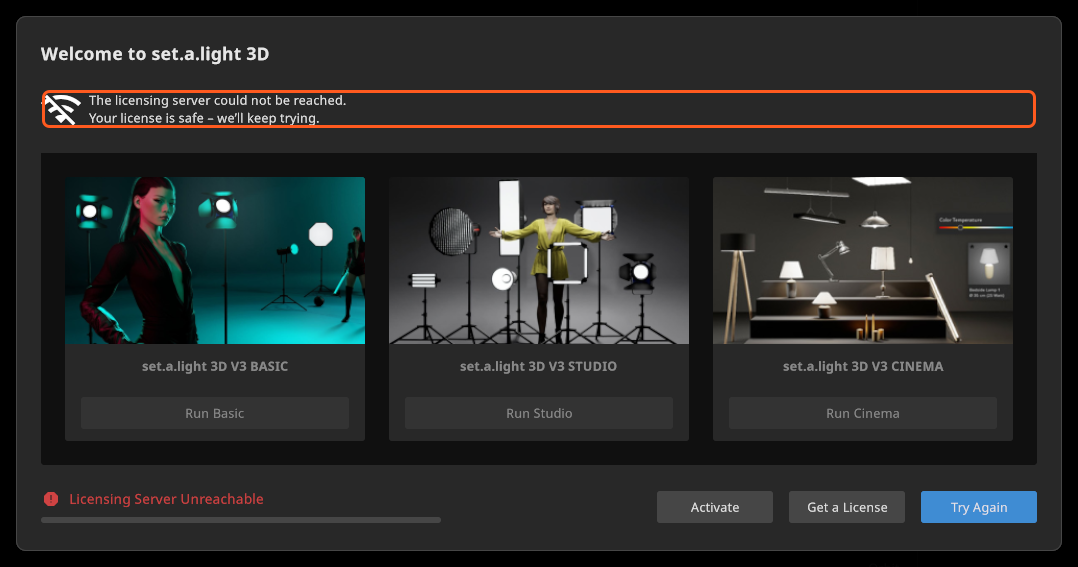
| …Your license is safe – we’ll keep trying. | No usable answer | Nothing. Carry on and let it retry |
Activate on a computer without internet
The Offline Activation button appears only on the No Internet Connection! screen, so try the normal activation first. From there it is a two-step exchange with your online account and one device that has internet — see Activate your license.
The two steps run in opposite directions, and each screen says which: step 1 hands you a code for the website, step 2 takes the one the website gives back.
Move a licence to another computer
Deactivation needs an internet connection and has no offline route, so deactivate on the old computer before you wipe or dispose of it.
- On the old computer: Help → License Management, then Remove License.
- Wait for Deactivation Successful! — Your activation has been removed and can be used on another computer.
- Activate on the new computer as usual.
If it fails you get Deactivation Failed! — Could not contact the licensing server to deactivate the license. Try again when you are online; if the old computer is gone, ask support to release the activation. The program does not show how many computers a licence allows — your customer account lists your activations.
The licence overview, and what happens after you buy something
Help → License Management shows your edition under Your Product with a shortened key — only the last six characters are visible — and Your Add-Ons with 3D Importer and Animation Tool: a checkmark when your licence carries it, a button to buy it when it does not. Those two names stay English in every language; this manual calls the first one 3D Import.
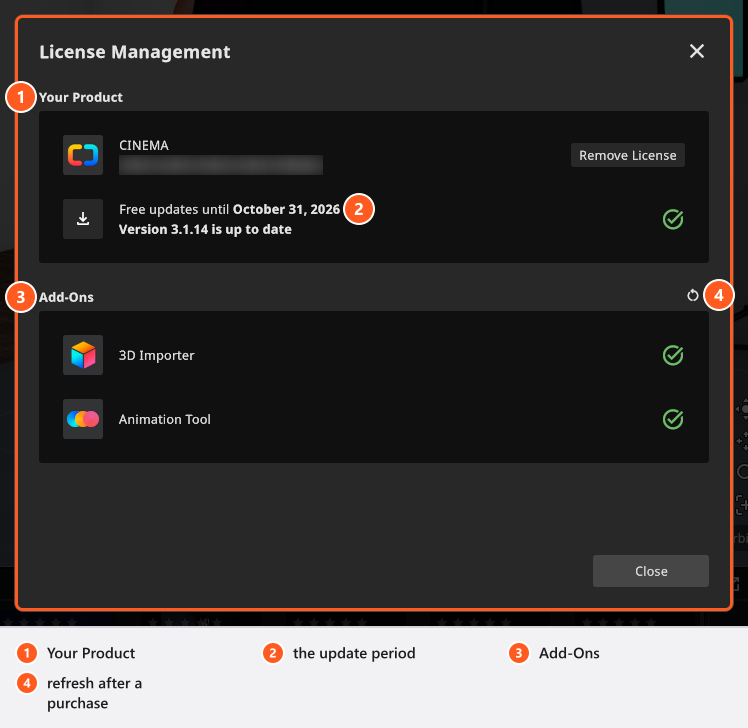
Below them sits the update-status row, which is about your free updates and not about your edition (see Update set.a.light 3D). Its upper line is the period:
| What it says | What it means |
|---|---|
| Free updates until {Date} | They run to that date |
| Updates included | No end date on this licence |
| Free updates ended on {Date} | Over; your installed version keeps working |
| Your period of free updates has ended. | The same, with no date from the server |
| Checking for updates | The answer is still on its way |
| Update status unknown | No answer. It is not “up to date” |
The lower line is the version: Version {NewVersion} available · installed {OldVersion} when a newer one exists, Version {OldVersion} is up to date when there is none, Version {OldVersion} installed while the status is unknown. An extended-trial licence gets no such row.
After buying an upgrade or an add-on, the next licence check notices it:
License Updated · Good news: your upgrade or new add-on is now active.
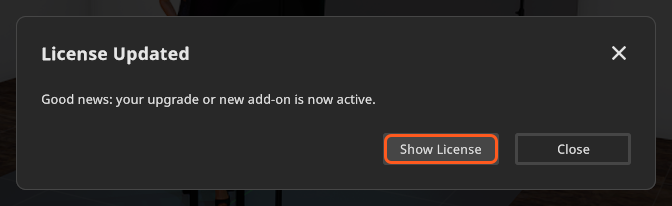
Show License takes you to the overview. The refresh button next to Your Add-Ons (Update License) fetches it on the spot; reactivating is never necessary.
Trial problems
Without a licence the trial dialog Welcome to set.a.light 3D appears at every start and cannot be closed without a decision. While it asks the server, the cards Run Basic, Run Studio and Run Cinema stay inactive and the message reads Checking for available trial. with Connecting… under it; the footer line says Connecting to licensing server… and afterwards prints Remaining Trial Time: N days.
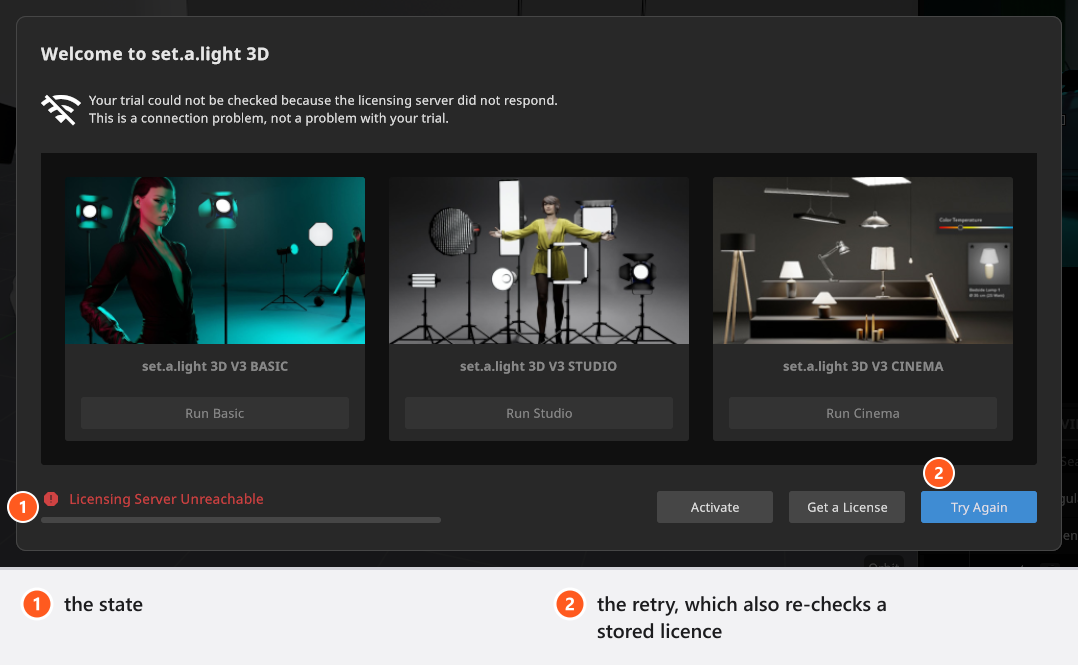
- The footer line turns red and reads Licensing Server Unreachable, with Your trial could not be checked because the licensing server did not respond. This is a connection problem, not a problem with your trial. above it. Press Try Again. The window waits about forty seconds before deciding, so the state can appear and resolve itself.
- After the time is up the cards give way to The Trial Version has expired. with Get a License. Activate stays in the footer, so a licence you just bought can be entered here.
- Try Again re-checks a stored, unconfirmed licence before it asks about a trial. This dialog is therefore no proof that no licence is stored here — if you own one, press Try Again instead of starting a trial.
In a trial every rendered image and video carries a watermark, and the CINEMA trial includes both add-ons.
Updating and activation
Updating without an activated licence asks first, and Activate License is the better answer: the program then offers what your licence really includes. The first start after an update can also ask for your key again, because an activation can be bound to the version. Your licence data is kept.
Tips & limits
- Help → About set.a.light 3D names your edition and exact version — the first thing to quote in a support message. (Windows) The window title carries the edition too, and reads DEMO in a trial.
- A licence can carry settings no dialog shows: some volume and education licences switch the COMMUNITY tab off, and some keep every model dressed. If a feature is missing although your edition has it, ask support about the licence first.
- Add-ons are features on the licence, not editions: a CINEMA licence without the Animation Tool has no ANIMATION tab. What each edition hides or merely disables is in BASIC, STUDIO and CINEMA compared.