
 English
 Deutsch
 日本語
日本語 简体中文
简体中文 Français
A quality level decides how much work goes into one picture: how many light samples are averaged, and how much texture detail is loaded. No level switches to a different kind of renderer — every level of the camera preview and of the render is ray-traced. There are three of these sliders, one per picture, plus a denoiser setting for the camera preview and one for the render.
Where the three settings sit
| Setting | Where | Affects | Change it when … |
|---|---|---|---|
| Quality (studio view) | the gear in the tool strip at the top right of the studio view | the 3D working view only | dragging lights or models through the room stutters |
| Quality, Denoiser (camera preview) | the gear at the right end of the camera bar | the live camera preview, and the texture detail of the whole application | the preview stays noisy too long, or textures look soft everywhere |
| Quality, Denoiser (render) | the gear in the bottom toolbar of the RENDER tab, and the same block in the Render Image dialog | the finished JPG | the delivered image must be clean, or a batch takes too long |
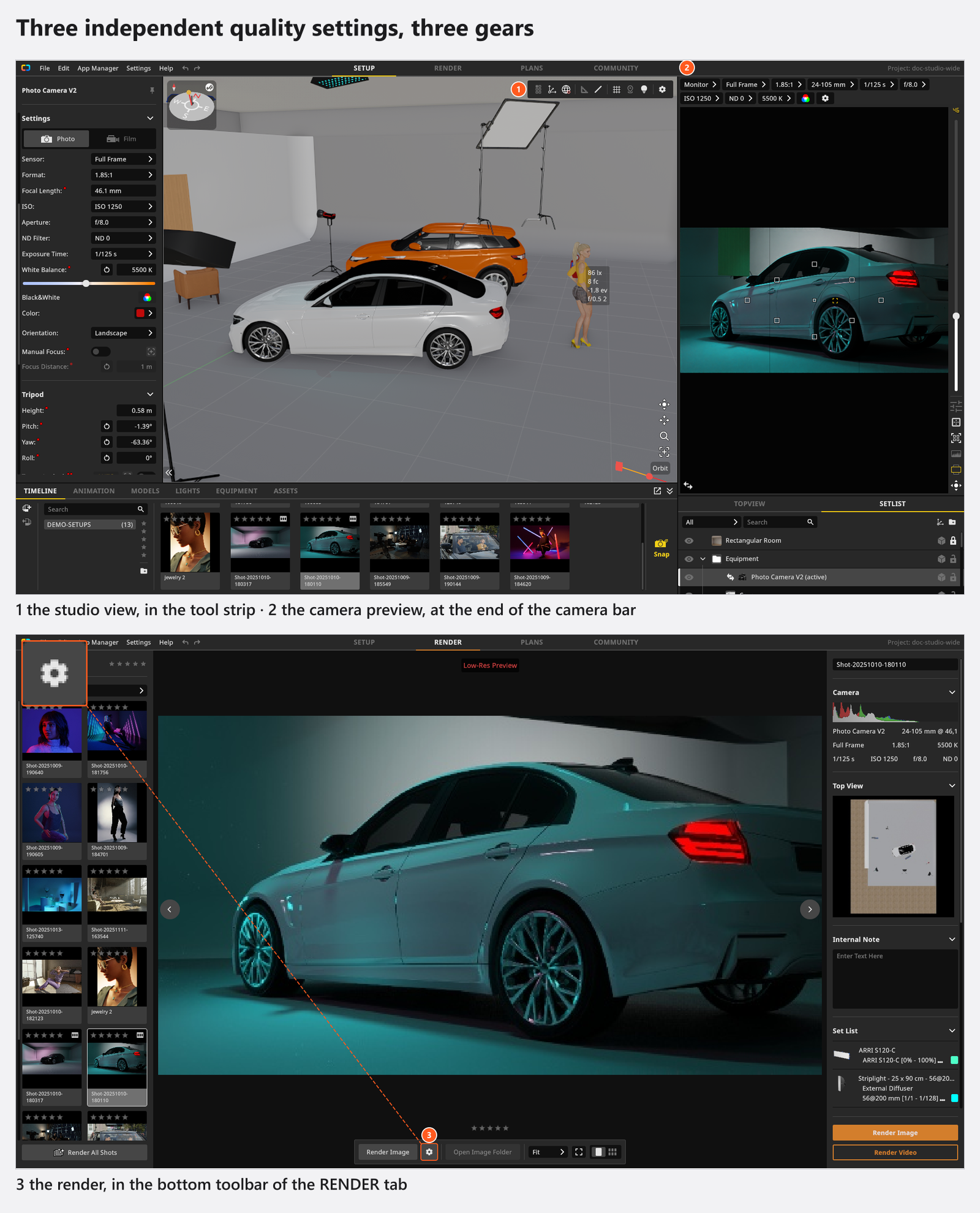
All three are the same four-step slider — Low, Medium, High, Ultra — with Fast (Preview) printed on the left and Best Quality on the right. All three default to Medium. Changing one never changes the others. The four step names stay English in every interface language.
What a level changes in the camera preview and the render
A level sets the number of samples and the texture detail. Samples are counted separately for a finished render and for the live camera preview, so the same level means two different budgets:
Quality levels
| Level | Samples in a final render | Samples in the live preview | Texture detail |
|---|---|---|---|
| Low | 60 | 40 | Two steps lower |
| Medium | 90 | 60 | One step lower |
| High | 120 | 80 | Full |
| Ultra | 210 | 200 | Full |
A video render adds a third budget on top of these two: it offers a Mode, and in Mode Preview it renders far fewer samples per frame than any still. That mode does not exist for still images — see The video file you get and Export an animation as a video.
Low, Medium and High are rendered with the same light settings and differ only in samples and texture detail. Ultra is the one level with its own light profile on top of its sample count: it doubles the sampling of indirect light, which is where it earns its time in interiors and in sets lit by bounce.
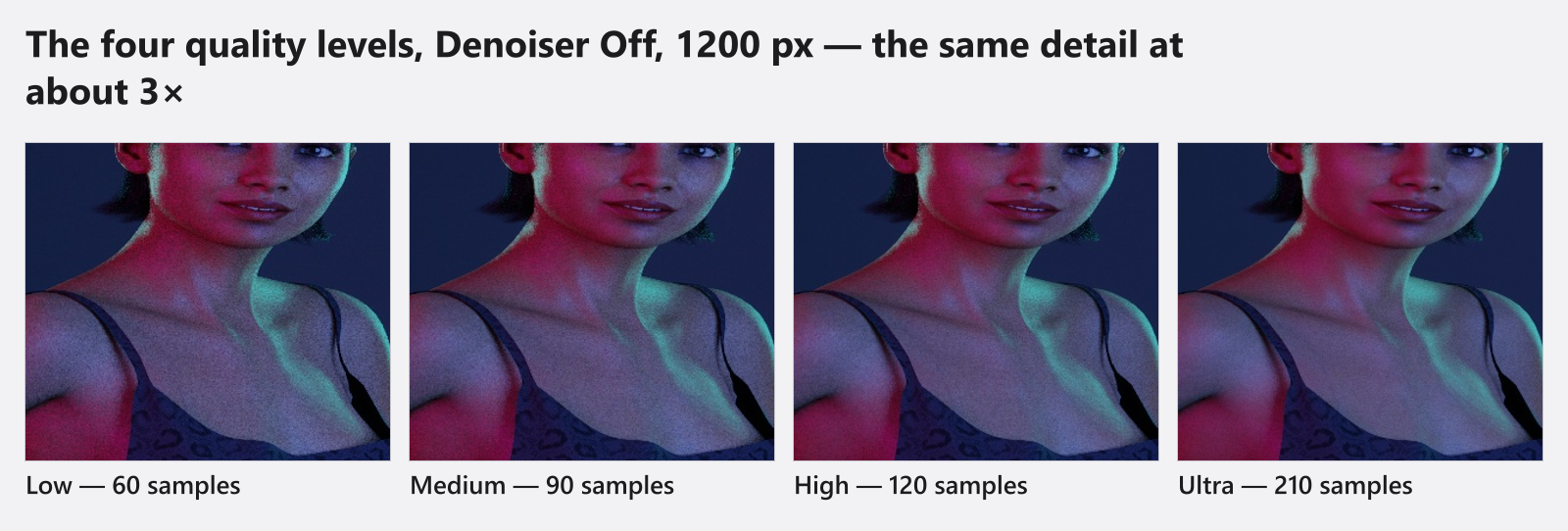
Low, Medium, High and Ultra, Denoiser Off, 1200 pxWhat a level changes in the studio view
The working view is the one place where a level really rewires the lighting calculation:
| Studio quality | Bounces of indirect light | Samples per bounce | Contact shadows in corners and folds | Internal resolution |
|---|---|---|---|---|
Low |
3 | 10 | off | 67 % |
Medium |
4 | 20 | on | 75 % |
High |
5 | 30 | on | 100 % |
Ultra |
5 | 60 | on | 100 % |
Shadow detail follows the same ladder, from 256 pixels per shadow at Low through 512 at Medium to 1024 at High and Ultra. None of this reaches your render — the studio view is a working view, and a level you set there is invisible in the finished image.
The denoiser
The denoiser smooths what is left of the noise once the samples are in. It is a separate stage, not a sample saving: the sample counter reaching its target is not the end of a render, because the final denoise pass follows it.
The three settings are a blend, not three different algorithms:
| Setting | What you get |
|---|---|
Off |
the raw average of the samples — the honest way to compare quality levels |
Medium |
three quarters denoised, one quarter original: fine grain and the finest surface detail survive, and so does a little noise |
High |
the fully denoised result: the clean default |
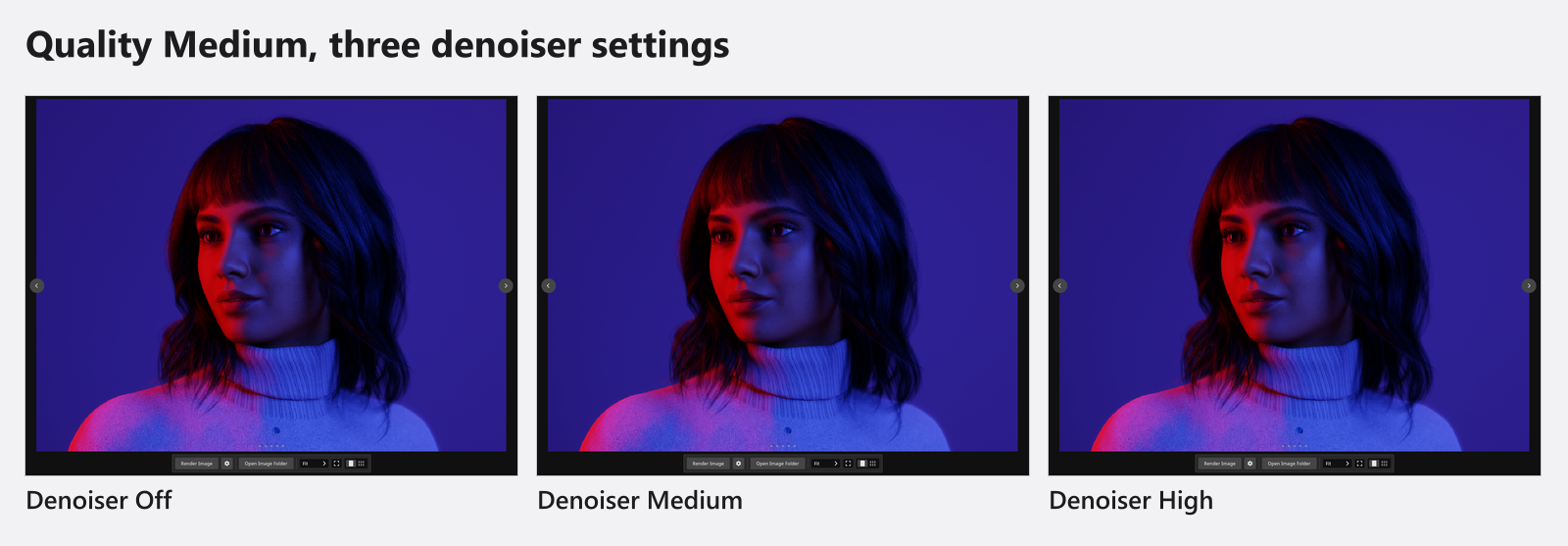
Medium with Denoiser Off, Medium and HighLeave it on High unless you want grain. Pick Medium when a smooth skin or fabric looks plastic to you and you would rather keep the texture than the cleanliness.
In the camera preview the denoiser also works live, but it only starts at sample 30 and then runs every ten samples — which is why the first seconds of a refinement look noisy even at High.
The denoiser picks its device by itself. It runs on the graphics card only where it finds a denoising device it can use: on an Apple-silicon Mac the Metal device, and on Windows only part of the graphics cards on the market offer one. Everywhere else the processor does the work, so a fast card is no guarantee, and there is no setting for it. If the graphics device fails during a session, denoising falls back to the processor for the rest of the session — so if renders suddenly take longer than they did an hour ago, restart the application.
Who owns the texture detail
Texture detail is the one thing the three pictures share. While you work, the quality of the camera preview sets it for the whole application. A render applies its own level for as long as it runs — a render at Low therefore loads textures at reduced detail even when the preview was at High — and the preview’s level comes back afterwards. That is why skin or fabric can visibly change sharpness without anyone touching a slider, and it is a reason to keep a delivery render at High or Ultra.
Tips & limits
- The three quality settings and both denoiser settings are program settings. They stay where you put them and do not travel inside the
.setfile, so a shot you share renders at the recipient’s settings. - Changing a level can trigger Applying quality settings. This might take a while… while textures are reloaded. That is not a render.
- Resolution and quality are separate levers, and resolution is the stronger one: it multiplies the pixel count, a quality step raises the cost per pixel. Look at Resolution first.
Ultrais not a requirement for a large image.Highalready loads every texture at full size; see Large and print-ready renders (4K).- Judge quality on a render, never in the studio view.
Notes for upgraders
If you are coming from a version older than 3.1.8, the render denoiser is set to High once on the first start, whatever you had before. Sample counts changed in 3.1.14: every step up now costs more time than the one below it — before 3.1.14, High and Ultra collected the same number of samples.
Troubleshooting
- Everything looks soft, or detail changes by itself. → Graphics problems
- A render is too slow, or too noisy. → Make it faster