
 English
 Deutsch
 日本語
日本語 简体中文
简体中文 Français
Shoot the same subject twice and you want her back exactly as she was. Three different things can be stored for that, and they are stored in three different places: a pose, a facial expression, and the whole model with its styling and wardrobe. All three live in your user data, not in the project, so they are available in every project on that computer.
Applies to BASIC, STUDIO, CINEMA · You need: a project open on the SETUP tab and a model selected.
Where to find it
Your own pose groups sit under the built-in ones in the Pose mode of the model inspector, your own expression groups under the built-in ones in the Facial Expression mode. Both work the same way. Whole models go to My Library in the ASSETS tab, and the button for that is at the bottom of the inspector.
What each one stores
The three things you can store do not overlap, which is why a stored pose never brings the wardrobe along. The shot keeps all of it:
| Pose group | Expression group | My Library entry | The shot | |
|---|---|---|---|---|
| The pose (bones) | yes | no | yes | yes |
| The facial expression | no | yes | yes | yes |
| Where the head and the eyes look | no | no | yes | yes |
| Skin, hair, makeup | no | no | yes | yes |
| Wardrobe | no | no | yes | yes |
| An attached prop | no | no | yes | yes |
Save a pose or an expression
- Put the model into the pose, or build the expression.
- Find the Create Group button: in Pose mode it sits below the pose groups and above Hands and Feet, in Facial Expression mode at the very bottom. Click it, type a name and confirm with Create. → An empty group appears with a single plus tile.
- Click the plus tile. → The current pose or expression is stored, with a thumbnail.
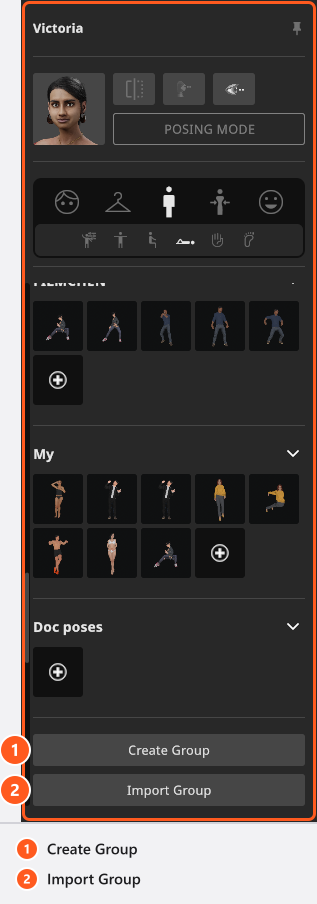
Each stored tile carries two buttons of its own: a pencil that overwrites it with the current state and a bin that deletes it. Drag a tile to re-order it or to move it into another group, and right-click a group header for Delete and Export.
The bundled groups are read-only. They have no context menu at all, so you can neither export nor delete them — build your own group and copy what you need into it.
A group belongs to a model type, not to a model name. A group created on Victoria is offered on Mike as well, because both are adults, but never on a child or an animal. And a pose thumbnail never shows the gaze you set: the eyes are neutralised while the picture is taken.
Hand a group to somebody else
Export writes a pose group as a .poselib file and an expression group as an .expressionlib file. Import Group, at the bottom of the same mode, reads one back.
Two things surprise people:
- The name that appears after an import comes from inside the file, not from the file name. Rename the file all you like — the group keeps the name it was created with.
- Every import creates a new group. Import the same file twice and you have the group twice, because the copies are given new identities on purpose.
An import only succeeds when the file matches what the inspector is asking for: an adult pose group will not go into the list of a child, and a pose group will not go into the expression list. If the type does not match, the application reports the import as failed and nothing is added.
Save the whole model
Save to My Library at the bottom of the inspector stores the model exactly as it stands — styling, wardrobe, body shape and pose. Name the entry, pick the folder it goes into and save. The same dialog opens if you drag the model out of the set list into My Library.
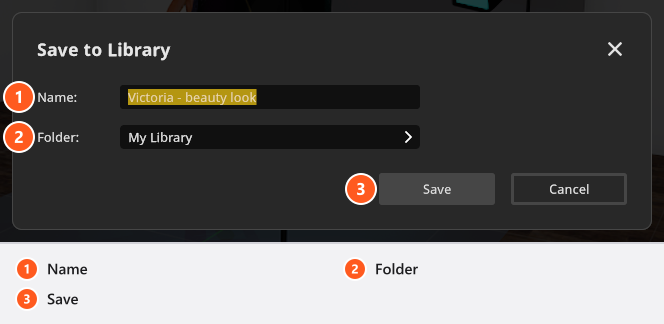
Store the same model twice in different poses and you get two entries, which is the cheapest way to keep a small cast of your regular subjects. Because the entry collects the whole group, a prop attached to a hand travels with it. Folders are managed in the App Manager under My Library — see Save your own rigs to My Library.
From 06:50 the App Manager clip saves a styled model in My Library, pose included, and then stores a second pose of the same model as a second entry.
Take a pose out of a community setup
Downloaded setups are a source of poses that are more varied than the bundled ones. The path crosses three tabs, and the clip walks it end to end from 08:50.
Open the COMMUNITY tab, find a submission whose pose you want, and download the setup. Back on the SETUP tab, double-click the downloaded shot in the TIMELINE to load it, select its model, open the Pose mode, click Create Group and then the plus tile. The pose is now yours and can be applied to a model in any other shot or project — see Download a setup.
Move everything to another computer
Groups and library entries live in your user data, so they are not in the .set file. To carry them across, use Export User Data and Import User Data — one .xdat file holds your settings, your own resources and every preset group. Importing overwrites the user data on the target computer, so do it on a fresh installation or make a copy first. Details are in Saving your work.
Tips & limits
- Everything on this page works in every edition, with no add-on.
- A pose group stores poses of one model type. There is no way to convert an adult pose into a child pose.
- Styling, wardrobe and the gaze are not stored in a pose: for a complete look use Save to My Library.
- Expression groups you create yourself are user data, so they follow you into every project — unlike the expression on a model, which belongs to that model in that shot.
Troubleshooting
- The import failed. The file is a group for another model type, or for another kind of group.
- I have the same group twice. Every import makes a new group; delete the copy you do not want.
- The pose tile does not show the eyes I set. Thumbnails are taken with neutral eyes.