
 English
 Deutsch
 日本語
日本語 简体中文
简体中文 Français
Light that changes over time is the second half of a previsualised shot: a key that comes up while the camera pushes in, a background light that dies away, a gel that appears on a kicker. Every frame of a video goes through the same render path as a still, so a flash head lights every single frame — there is no reason to swap flash heads for continuous lights before you animate.
Applies to BASIC, STUDIO, CINEMA · Needs the Animation Tool add-on (included in the CINEMA trial) · You need: a saved shot with at least one light, open on the SETUP tab with the ANIMATION tab active in the library panel.
Where to find it
Select the light in the studio view or in the set list: it appears as a row in the object list of the animation editor, and expanding the row shows one track per keyed setting.

How to fade a key light up
- Put the playhead on the frame where the light should be at full power.
- Set the power slider at the top of the light inspector to that value.
- Click the key button on the light’s row in the object list. → Every keyable setting of the light gets a track, and the row shows a keyframe diamond.
- Move the playhead to the frame where the fade should start.
- Pull the power slider down.
- Click Insert Keyframe → For Selected Objects. → The light now fades between the two frames.
- Press
Ctrl/Cmd+Spaceto play it back.
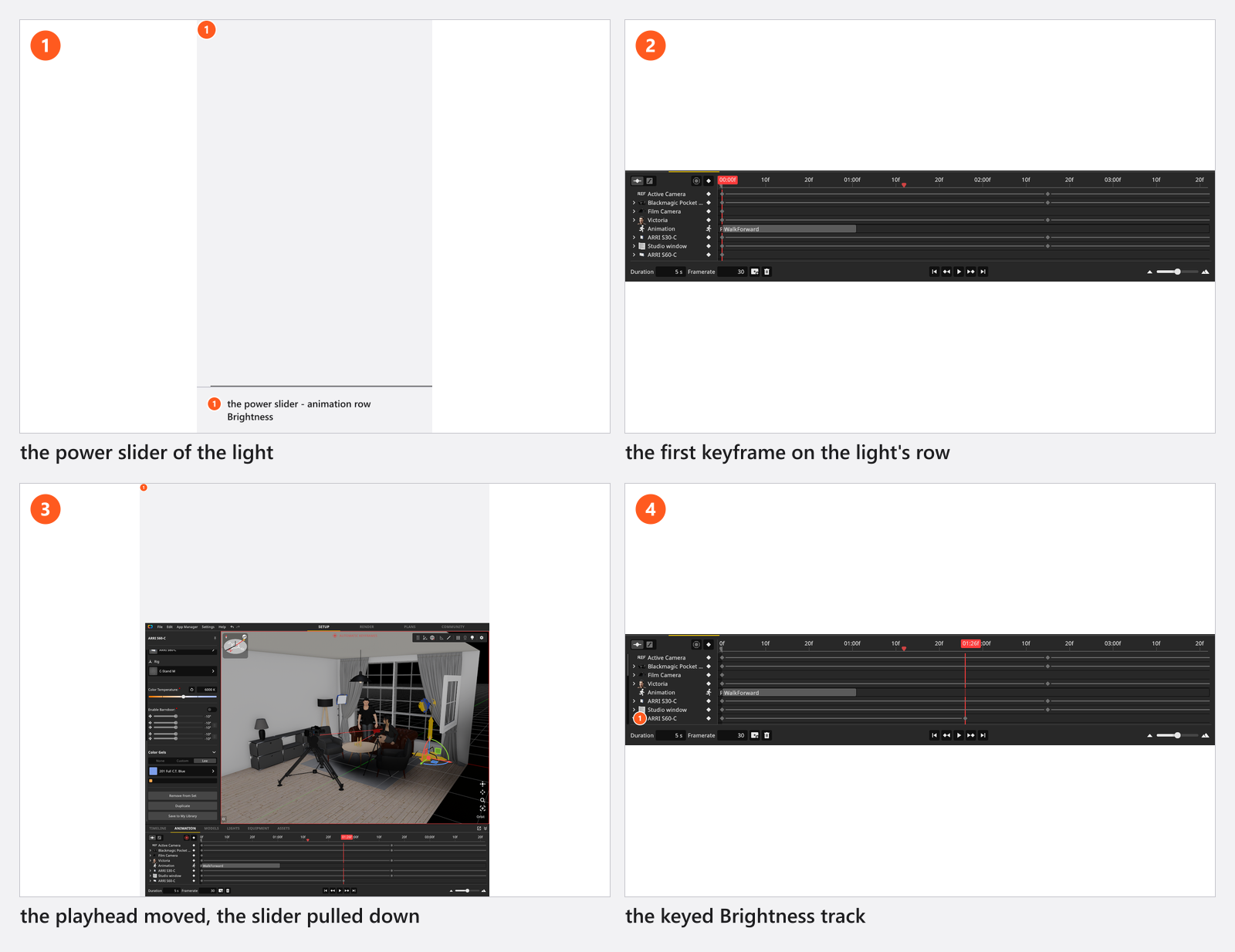
The power slider has no caption; its animation row is called Brightness and runs 0 to 100. On a head that is dimmed in stops, ten points on the slider are one stop, and the read-out beside the slider shows the power the way the real head does.
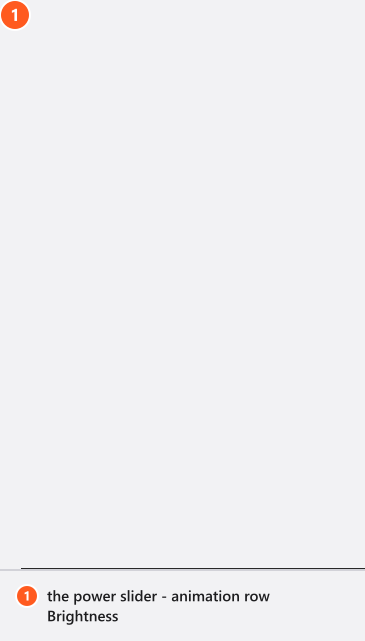
From 03:28 the clip moves and dims a key light and then a background light, one keyframe each.
Record instead of keying
Once the first key is in, switch Automatic Keyframe Recording on and drag the slider: the key is written at the playhead. Recording never creates a track, so a setting without one records nothing.
How to change the light without changing the exposure
Light power drives exposure. If the key doubles during the shot, the whole frame gets brighter — the camera does not compensate.
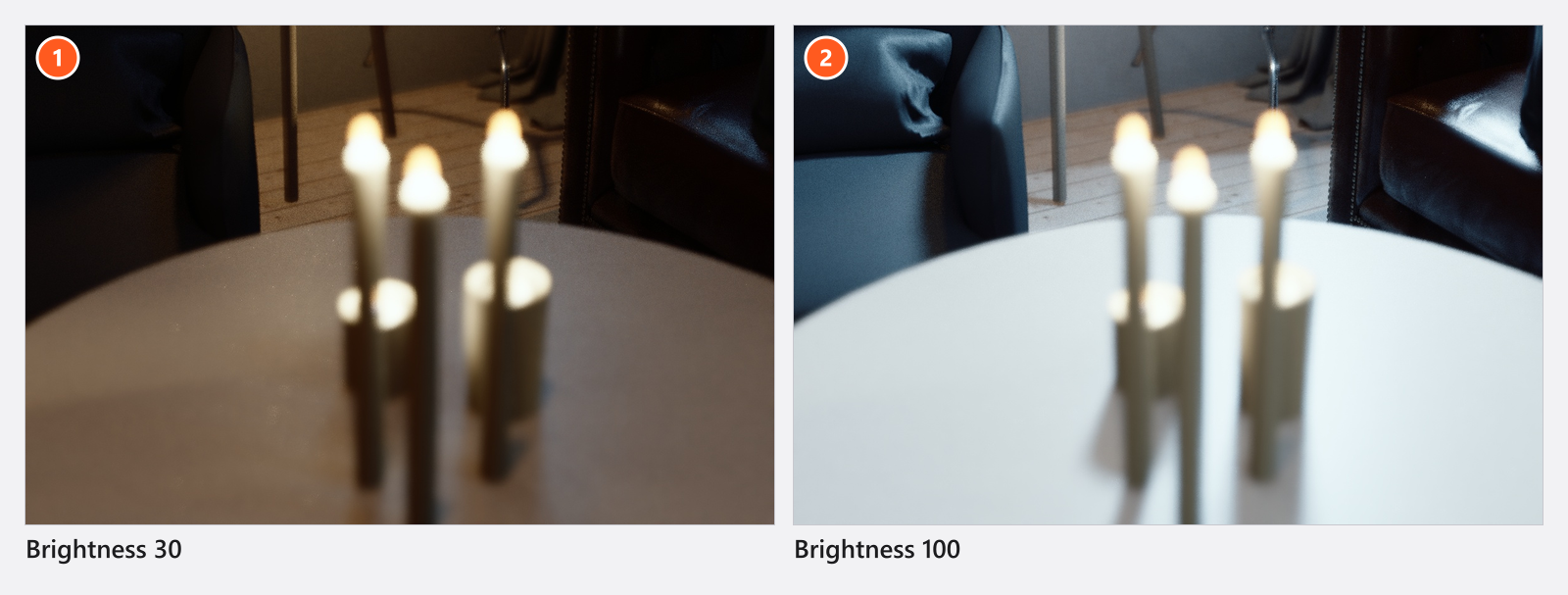
To brighten the key look without moving the exposure of the subject, trade the stop back on the camera:
- Key Brightness and the camera’s Aperture at the start of the ramp.
- Move the playhead to the end of the ramp.
- Raise Brightness by ten points — one stop on a head dimmed in stops.
- Close Aperture by one stop,
f/5.6tof/8, and key both rows again. - Play it back. → The model stays where it was; everything the key does not reach — background, practicals, the sun through a window — goes a stop darker.
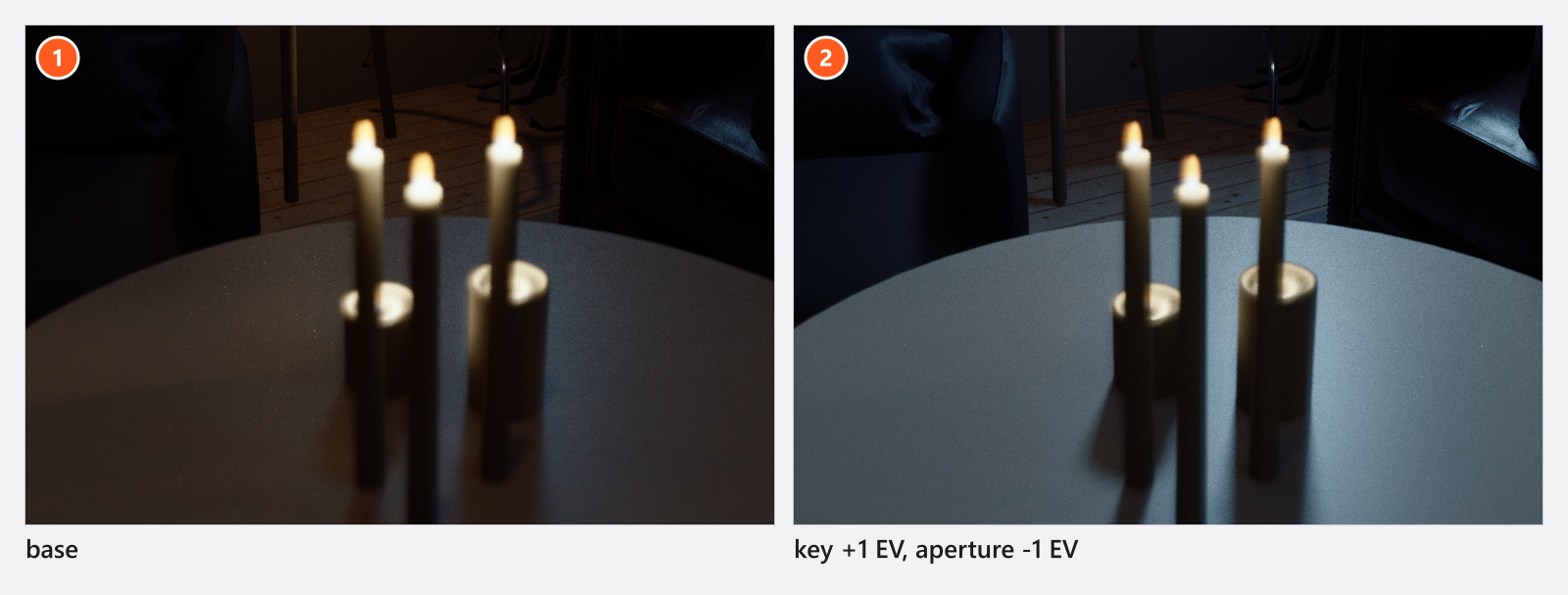
Set one key per stop on Aperture: do not smooth an exposure ramp, see Animate the camera.
What each kind of light can do
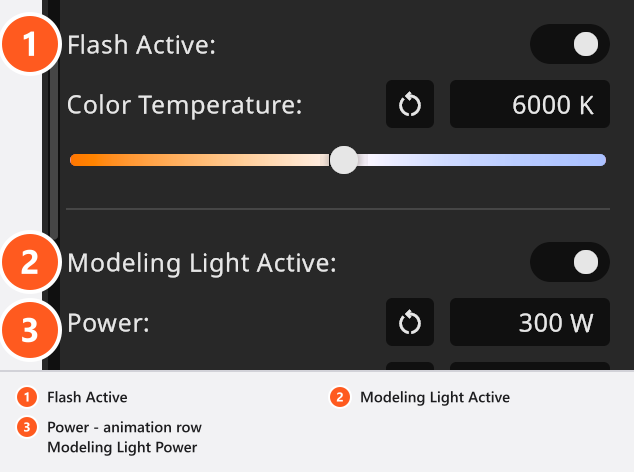
- Flash heads and ring flashes additionally offer Flash Active, Modeling Light Active, its Power (
1–2000W) and its colour temperature, so a head can switch from flash to modelling light in the middle of a shot. - Continuous lights and ring lights (STUDIO+) have neither flash nor modelling light, so those four rows do not exist for them. Power, colour, gels and position work the same way.
- Speedlights are neither: the four rows above are missing here too, and instead they carry Speedlight Pitch (
0–90°) for a head tilted into a bounce. - Practical lamps (STUDIO+) keep their own scale: Brightness starts at
1, not0, so a practical is switched off with Powered On, not by pulling its power to zero.
A gel change is two rows on every kind of light. Filter decides whether the light runs unfiltered, on a custom colour or on a gel preset; it is a list value, so it holds and then jumps — the gel appears on one frame rather than fading in. Color Gels is the custom colour itself, and a colour is keyed as a smooth curve, so a kicker can drift from white into its gel across a few frames.
Two rows are named differently in the animation editor than in the inspector:
| Track row | Inspector |
|---|---|
| Barndoor Active | Enable Barndoor |
| Modeling Light Power | Power |
Light settings you can key
Light
| Setting | Range | Default | Unit | Animatable | Notes |
|---|---|---|---|---|---|
| Barndoor Active | off | sometimes | |||
| Barndoor Angle | -90 – 90 | 25 | sometimes | ||
| Brightness | 1 – 10000000 | 4000 | no | Area Light only: how much light the head gives, in lux | |
| Brightness | 0.1 – 100 | 3 | no | Area Light only: the distance that lux figure is measured at | |
| Brightness | 0 – 100 | 100 | yes | The power slider of the light itself | |
| Color Gels | white | yes | |||
| Color Temperature | 1700 – 20000 | depends on the light | yes | ||
| Filter | None, Custom, Lee | None | yes | ||
| Flash Active | on | sometimes | |||
| Gobo Blur | 0 – 0.04 | 0 | sometimes | ||
| Gobo Field of View | 10 – 170 | 90 | sometimes | ||
| Lens Luminosity | no | ||||
| Manual Focus | off | no | |||
| Modeling Light Active | depends on your edition | sometimes | |||
| Modeling Light Color Temperature | 1700 – 20000 | 3200 | sometimes | ||
| Modeling Light Power | 1 – 2000 | 300 | W | sometimes | |
| Powered On | on | yes | |||
| Projector Focal Length | 12 – 130 | 50 | sometimes | ||
| Projector Focus Distance | 0 – 20 | 3 | sometimes | ||
| Speedlight Pitch | 0 – 90 | 0 | sometimes | ||
| Width / Height | depends on the light | 1 | m | no | Area Light only: the size of the light surface |
| Zoom | depends on the light | 35 | sometimes |
sometimes means the setting only exists on a light that has the part — barndoors, a gobo, a projector, a zoom head. Three rows read Brightness; the keyable one is the power slider, 0 to 100, and the other two are the fixed values of the light source itself. Numbers such as Brightness or Color Temperature are keyed as smooth curves; switches such as Powered On and list values such as the Light Shaper are keyed as steps that hold and then jump, which is what an on/off switch needs.
Architectural light
| Setting | Range | Default | Unit | Animatable |
|---|---|---|---|---|
| Brightness | 1 – 100 | 100 | yes | |
| Color Temperature | 1700 – 20000 | depends on the light | yes | |
| Frame Color | depends on the light | yes | ||
| Lightshade Color | depends on the light | yes | ||
| Powered On | on | yes | ||
| Show Cables | on | no |
Reflector
| Setting | Range | Default | Unit | Animatable |
|---|---|---|---|---|
| Diameter | 0.05 – 1.05 | depends on the light | m | sometimes |
| Fold V-Flat | -180 – 180 | 90 | sometimes | |
| Scattering | 0 – 0.4 | 0.1 | sometimes | |
| Size | 0.1 – 10 | depends on the light | m | sometimes |
A diffuser can be moved and rotated, nothing else: Soften, bounce and subtract light.
Tips & limits
- One For Selected Objects action writes a separate key on each of the light’s tracks, so you can delete or retime them one at a time afterwards. Keep the ones you need and select the rest in the object list, then press
Del(Backspaceon macOS, by default). - For Existing Tracks keys the tracks that are there, on every object already in the animation, and creates none. A setting you changed but never keyed stays unkeyed — use For Selected Objects or that row’s own key button for it.
- Solo is a working aid and has no track. The on/off button of a light is Powered On, so with recording on and a Powered On track present, clicking it writes a key.
- Render time depends on the set and the render settings, not on what moves; see Render a video.
- Sun, sky, haze and a fog machine are keyed on their own objects: Animate sun, sky and atmosphere.
Troubleshooting
- The dimming I recorded is not in the timeline. The power had no track yet. Insert the first key by hand, then record.
- The modelling-light rows are missing. The light is a continuous light, a ring light or a speedlight. Only flash heads and ring flashes have them.
- More symptoms: Animation problems.