
 English
 Deutsch
 日本語
日本語 简体中文
简体中文 Français
The Animation Tool turns a lighting setup into a moving shot: a camera that pushes in, a key light that ramps up over three seconds, a model that shifts her weight, a video clip you can send to a client before anyone books a studio. You key the settings you already know from the inspector — power, position, focal length, a pose — and set.a.light calculates every frame in between. This page is the map of the chapter: where the editor is, how it is laid out, and what an animation stores inside a shot.
Applies to BASIC, STUDIO, CINEMA · Needs the Animation Tool add-on (included in the CINEMA trial) · You need: a project open on the SETUP tab and a shot in the TIMELINE.
Where to find it
SETUP tab → the library panel in the lower left corner → ANIMATION, the second tab, right next to TIMELINE. By default N shows and hides that panel, and the pop-out button on the tab header opens the editor in a window of its own. Drag the top edge of the panel up before you start — the editor needs the height as soon as one object has several tracks.
If the ANIMATION tab is not there at all, your licence does not carry the add-on. The tab depends on the add-on, not on the edition: BASIC, STUDIO and CINEMA all show it once the add-on is on the licence, and the CINEMA trial includes it.
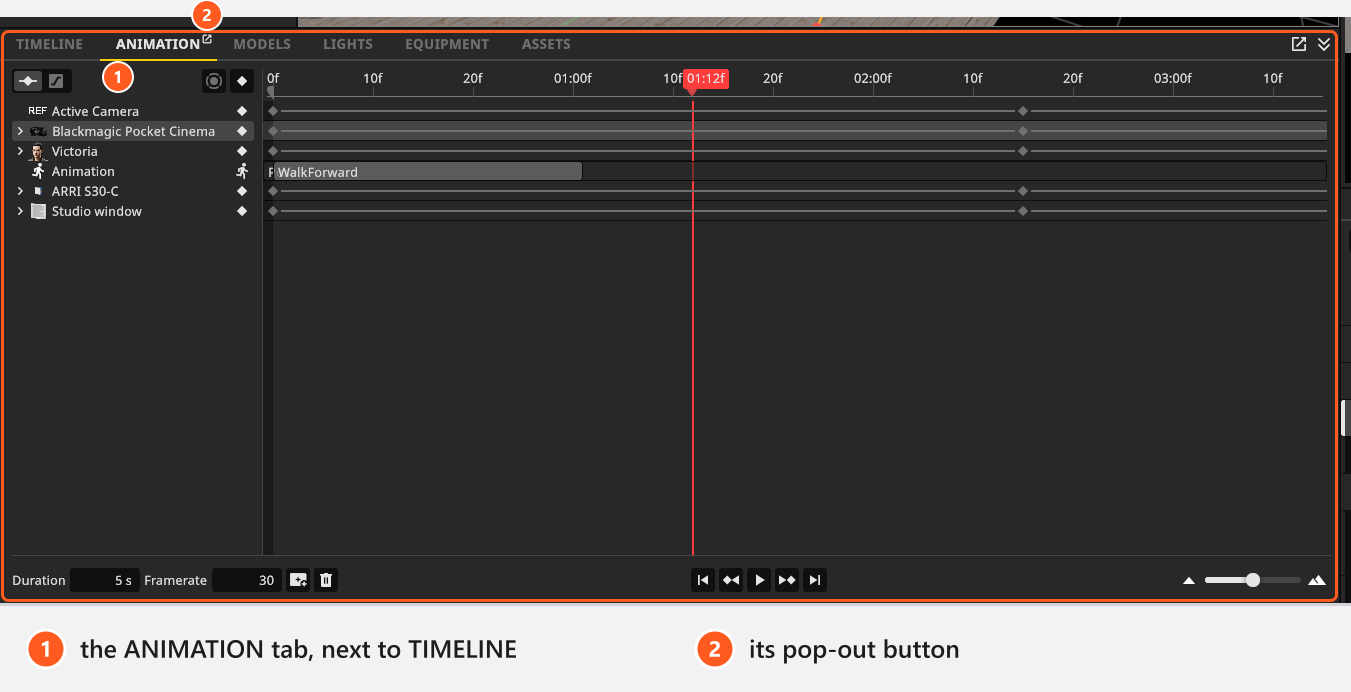
One animation belongs to one shot
An animation is part of a shot, exactly like its lights, its model and its camera. Switching shots switches animations, and a project can hold as many animated shots side by side as you like. Opening an animated shot puts the playhead on that shot’s preview frame — not on frame 0 — and resets the playback range to the full length.
Until you say so, though, the keys live in the studio and not in the stored shot. Keying anything counts as a change to the set, so the tile you loaded grows an Apply button; pressing it writes the animation into that shot. A new snapshot does the same for a new tile, and leaving a changed shot asks what should happen to it. Nothing is lost while you work — the project file carries the changed set — but the film icon, the thumbnail and the video button all read the stored shot, so they stay as they were until the shot is applied. Take and manage shots covers that dialog.
That preview frame is also the frame a still image comes from: rendering an animated shot as an image always renders its preview frame, never the frame you happen to be looking at. If a render surprises you, that is usually why — see Animation problems.
How the editor is laid out
The intro tutorial walks along the same controls in the order they sit on screen, which is the fastest way to recognise them.
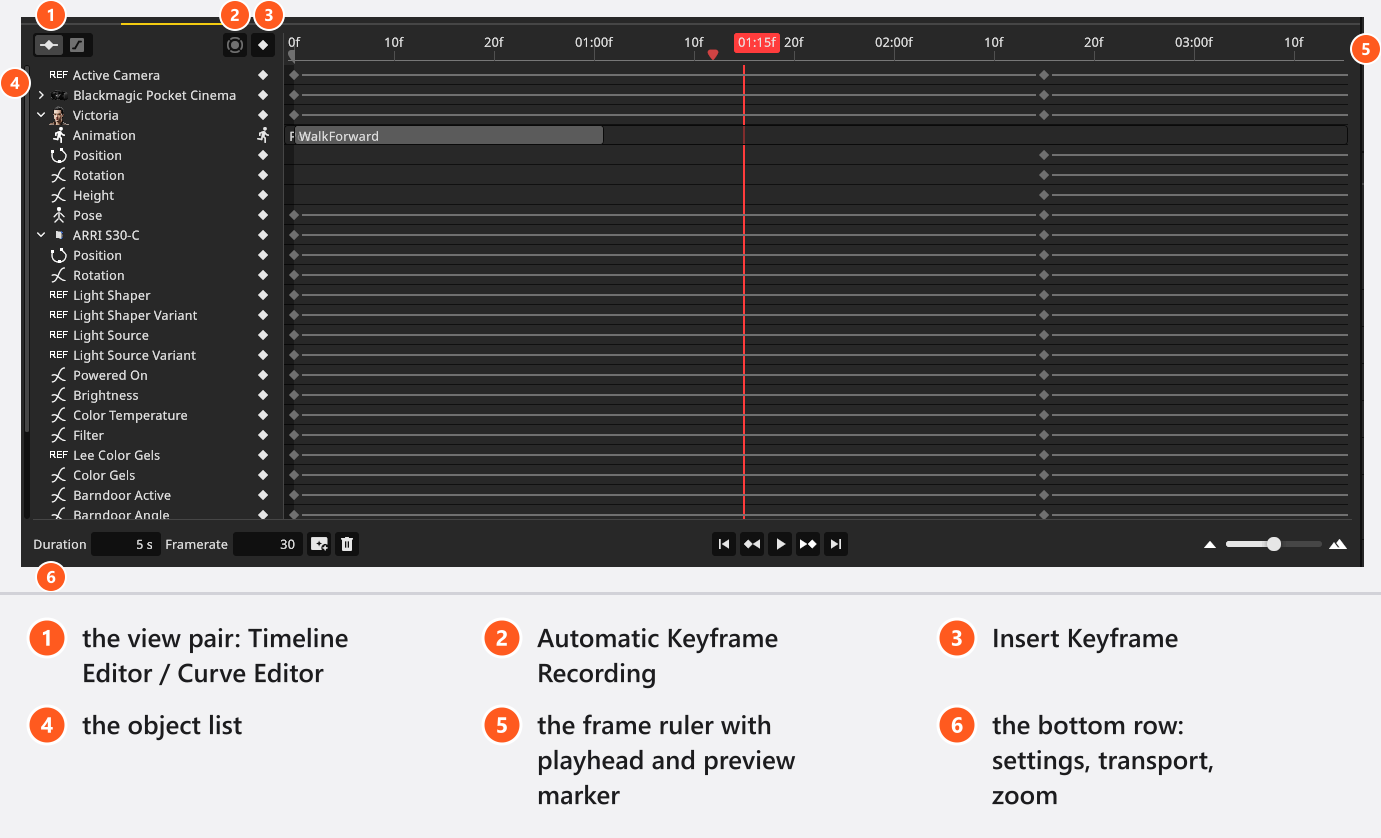
- Object list (left) — every object that carries animation, plus whatever you have selected in the studio view right now. Settings that belong to the whole set, such as Active Camera, come first, then the cameras, then everything else. Fold a row open to see its individual tracks.
- Two button groups above the list — on the left the view pair, Timeline Editor for timing and Curve Editor for the shape of a movement. After a gap follow Automatic Keyframe Recording and Insert Keyframe. They are not one row of four buttons: the gap separates looking from writing.
- Frame ruler (top right) — time in seconds and frames, with the playhead, the preview-frame marker and the two playback-range brackets.
- Bottom row — Duration and Framerate, the render button, Delete Animation, the transport buttons and the zoom slider.
Duration, Framerate and the frame count
| Setting | You can set | Default | Stored |
|---|---|---|---|
| Duration | 0 to 999 seconds, in steps of 0.1 |
5 s |
with the shot |
| Framerate | 2 to 120 whole frames per second |
30 |
with the shot, and remembered as the starting value for the next animation you create |
The two decide how long the exported video is and how many frames it holds: 5 seconds at 30 fps is 150 frames, numbered 0 to 149. A shot at 24 fps over the same 5 seconds holds 120 frames, so the same keyframe numbers land at different moments.
Keyframes themselves are not limited to that interval. A key can sit beyond the last frame — it still shapes the curve inside the shot, but it is never rendered. Shortening Duration therefore deletes nothing; it only stops the video earlier.
What is saved with the shot
| Saved with the shot | |
|---|---|
| Keyframes, tracks and clips | yes |
| The preview frame | yes |
| Duration and Framerate | yes |
| The two playback-range brackets | no — a working aid for one session |
| Playhead position | no — it starts on the preview frame |
| Zoom, pan and which rows are folded open | no |
| Automatic Keyframe Recording | no — it is switched off every time a project or a shot is loaded |
The second half of that table is deliberate: recording never comes back on by itself, so a file you open cannot record over your work by accident.
How you recognise an animated shot later
Every tile in the TIMELINE whose stored shot carries at least one track shows a small film icon. That is the only difference you can see from the outside, and it is also what decides whether the video button in the RENDER tab will work on that shot. Both read what is stored, so a shot you have just keyed shows neither until you press Apply on its tile.

What you can animate
There is no separate list of animatable things in the program. Nearly every numeric setting, colour, switch and library reference you can reach in the inspector can be keyed, and the object list of the animation editor shows you which ones those are for the object you selected: the camera’s position, lens and exposure, a light’s power and colour, a model’s pose, the colour of a wall, the set’s Active Camera. Two hints in the inspector tell you where you stand — an animated field carries a small indicator, and right-clicking a field keys or clears that one setting without leaving the inspector.
For the complete matrix, including the settings that only some objects offer and the prerequisites that decide whether a keyed value has any effect at all, see What can be animated.
Start here
- Animate your first shot — ten minutes from a lit set to a rendered clip.
- Set and edit keyframes — inserting, recording, moving and deleting keys.
- Work in the Timeline Editor — playhead, playback range, preview frame, taking a shot at a frame.
- Shape the motion (curves and easing) — ease in, ease out, speed ramps, motion paths.
- Render a video — the two routes to an MP4 file.